IMAP Proxy Server
EmailEngine provides a built-in IMAP proxy interface that allows you to connect to OAuth2-protected accounts using standard IMAP clients that don't support OAuth2. This is particularly useful for scripts, legacy applications, and standard email clients.
Overview
The Problem
Major email providers (Gmail, Outlook) have disabled password-based authentication:
- Gmail: Account password authentication completely disabled for all accounts (app-specific passwords required, 2FA must be enabled)
- Outlook/Microsoft 365: OAuth2-only authentication (IMAP passwords completely disabled)
- iCloud: Requires app-specific passwords when 2FA is enabled
However:
- Many IMAP client libraries don't support OAuth2
- Scripts and automation tools expect username/password authentication
- OAuth2 token management is complex for simple scripts
- You don't want to store long-lived credentials on every server
The Solution
EmailEngine's IMAP proxy provides a bridge:
Your client:
- Connects to EmailEngine's proxy as if it were an IMAP server
- Authenticates with account ID + short-lived access token
- Uses standard IMAP commands
EmailEngine:
- Looks up OAuth2 credentials for the account
- Establishes real IMAP session with provider (OAuth2)
- Relays IMAP session between client and provider
- Handles token refresh automatically
Key Features
OAuth2 Without Native Support
Access OAuth2-protected accounts using any IMAP client:
- No OAuth2 library required
- Works with standard IMAP clients
- Transparent OAuth2 handling
Short-Lived Access Tokens
Instead of long-lived passwords:
- Generate temporary access tokens via API
- Tokens can be scoped (e.g., imap-proxy only)
- Tokens can be revoked instantly
- Tokens can be IP-restricted
Standard IMAP Protocol
The proxy relays the session to the provider's IMAP server, so the client sees the provider's own capabilities and command set:
- Works with any IMAP client
- Use with Thunderbird, Outlook, scripts, etc.
- No special client configuration needed (except server/port)
Centralized Management
Manage all accounts in EmailEngine:
- Single place for OAuth2 configuration
- Automatic token refresh
- Connection monitoring
- Unified access control
Important Limitation
The IMAP proxy works for any account that EmailEngine itself reaches over IMAP: password accounts as well as OAuth2 accounts whose app uses the IMAP/SMTP base scope.
Accounts registered through a Gmail API or Microsoft Graph API app cannot be proxied because there is no IMAP session to relay. A login for such an account is refused with NO [ACCOUNTDISABLED] IMAP is not supported for API-based accounts.
If you need to proxy such an account, register it again through an OAuth2 app with the IMAP/SMTP base scope.
Setup Guide
Step 1: Enable IMAP Proxy in EmailEngine
Navigate to Configuration > IMAP Proxy in the EmailEngine dashboard.
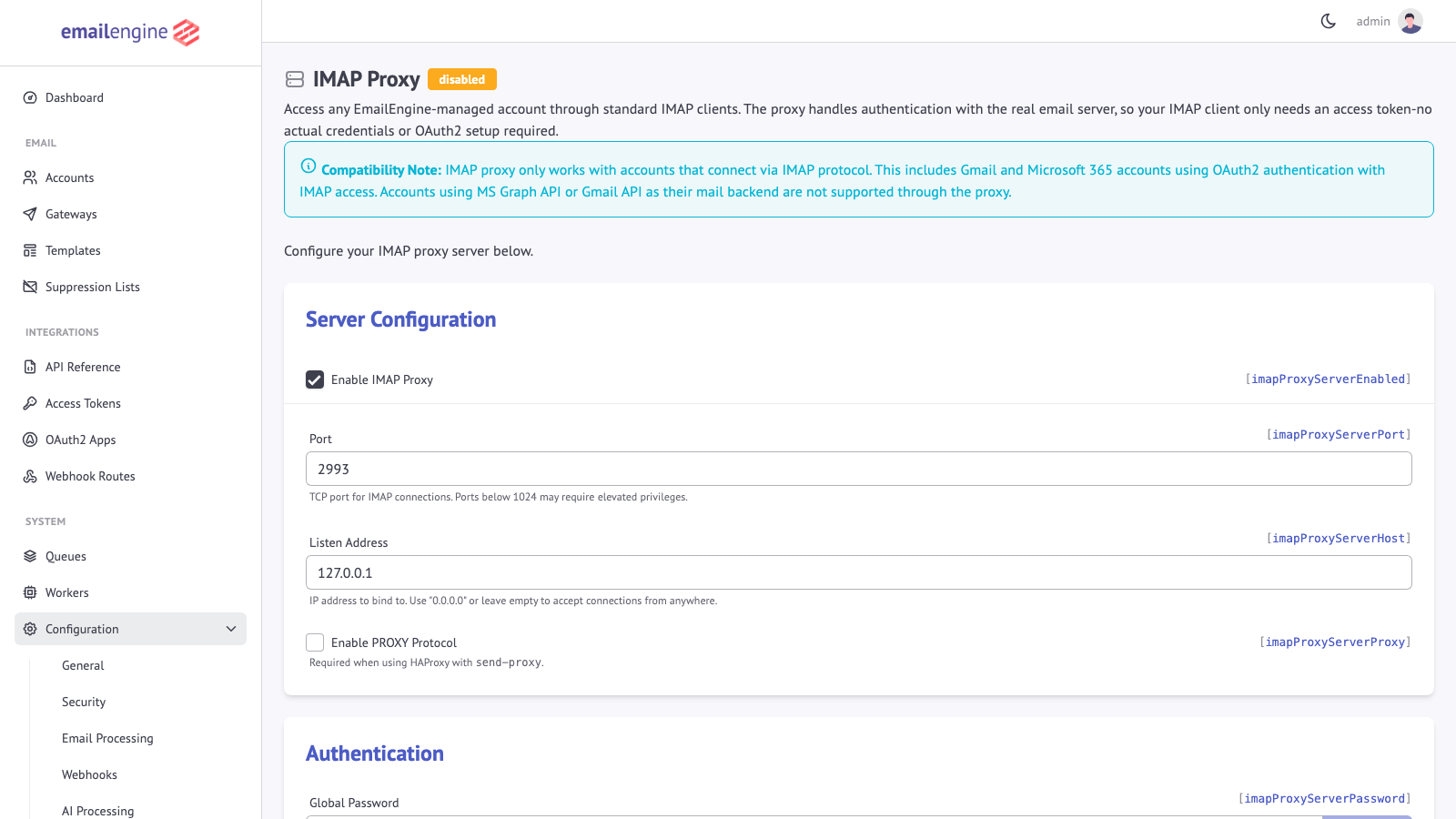 Enable the proxy and set the listen address, port and TLS options
Configuration Options:
| Field | Setting | Purpose |
|---|---|---|
| Enable IMAP Proxy | imapProxyServerEnabled | Starts the proxy server |
| Port | imapProxyServerPort | The listening port, for example 2993 |
| Listen Address | imapProxyServerHost | 0.0.0.0 or empty to accept external connections, 127.0.0.1 for localhost only |
| Enable PROXY Protocol | imapProxyServerProxy | Expect the HAProxy PROXY protocol header on incoming connections. Needed behind HAProxy with send-proxy, so the proxy sees the client's address rather than the load balancer's |
| Global Password | imapProxyServerPassword | An optional shared password accepted for every account instead of an access token |
| Enable TLS Encryption | imapProxyServerTLSEnabled | Serve implicit TLS rather than plaintext |
After saving, EmailEngine starts the proxy on the given host and port. The plaintext listener does not offer STARTTLS; TLS is either on for the whole listener or off.
This page configures the listener your clients connect to. Routing EmailEngine's own outbound connections through a SOCKS or HTTP proxy is a different setting, proxyUrl, described under Proxy Configuration.
The checkbox only decides whether the listener speaks TLS. Which certificate it presents is decided on the TLS Certificates page (/admin/config/tls), which is also where a certificate is uploaded or ordered from Let's Encrypt. The listener always has something to serve - a self-signed certificate if nothing better exists - so enabling TLS never leaves it unable to start.
Add the name your mail clients connect to under Additional hostnames there if it differs from the Service URL hostname. Each name gets its own certificate, selected by SNI.
EENGINE_IMAPPROXY_TLS_KEY and EENGINE_IMAPPROXY_TLS_CERT supply a certificate of your own, and since v2.80.0 they take precedence over anything EmailEngine manages. See TLS Certificates.
Step 2: Verify Proxy is Running
With TLS (Recommended for Production)
openssl s_client -crlf -connect localhost:2993
Expected Response: the certificate details, then the greeting, which ends with the connection ID:
* OK EmailEngine IMAP Proxy ready for requests from 127.0.0.1 hkdq2ls1a8y9zk3x
Without TLS (Development Only)
nc -C localhost 2143
Or:
telnet localhost 2143
Expected Response:
* OK EmailEngine IMAP Proxy ready for requests from 127.0.0.1 hkdq2ls1a8y9zk3x
- 2993: Common choice for TLS-enabled IMAP proxy (993 + 2000)
- 2143: Common choice for non-TLS proxy (143 + 2000)
- Choose any available port that doesn't conflict with existing services
Step 3: Add OAuth2 Account to EmailEngine
First, ensure you have an OAuth2 account configured in EmailEngine.
For Gmail: Follow Gmail OAuth2 setup guide
For Outlook: Follow Outlook OAuth2 setup guide
The account must be configured to use IMAP/SMTP, not Gmail API or MS Graph API. The proxy only works with IMAP-based accounts.
Step 4: Generate Access Token for Proxy
Create an access token scoped specifically for IMAP proxy access using the Generate Token API endpoint:
curl -X POST https://emailengine.example.com/v1/tokens \
  -H "Authorization: Bearer YOUR_EMAILENGINE_TOKEN" \
  -H "Content-Type: application/json" \
  -d '{
    "account": "user123",
    "scopes": ["imap-proxy"],
    "description": "IMAP proxy token for backup script",
    "restrictions": {
      "addresses": ["127.0.0.0/8"]
    }
  }'
Parameters:
account: EmailEngine account IDscopes: Must include"imap-proxy"for proxy accessdescription: Required token description for identificationrestrictions.addresses: Optional IP restrictions (CIDR notation)
Response:
{
  "token": "6cad01dae08f0d5e51fe0a4e0eda06e1be5b8d6cc2c66b95dc0fbe458576a026",
  "id": "1bc12baf7f0d5e51fe0a4e0eda06e1be5b8d6cc2c66b95dc0fbe4d2e9f5d5e1a"
}
Save the token value - you'll use it as the IMAP password, and it is never shown again. The id is what the token listing reports for it.
If you also want to use the same token for SMTP proxy, include both scopes:
{
  "scopes": ["imap-proxy", "smtp"]
}
Step 5: Connect via IMAP Client
Using Command-Line IMAP Client
With TLS:
openssl s_client -crlf -connect localhost:2993
Authenticate:
A LOGIN user123 6cad01dae08f0d5e51fe0a4e0eda06e1be5b8d6cc2c66b95dc0fbe458576a026
- Username: EmailEngine account ID
- Password: The generated access token
Response: the provider's own CAPABILITY line, relayed from the upstream session, followed by the login confirmation:
* CAPABILITY IMAP4rev1 UNSELECT IDLE NAMESPACE QUOTA ID XLIST CHILDREN X-GM-EXT-1 UIDPLUS COMPRESS=DEFLATE ENABLE MOVE CONDSTORE ESEARCH UTF8=ACCEPT LIST-EXTENDED LIST-STATUS LITERAL- SPECIAL-USE APPENDLIMIT=35651584
A OK user123 authenticated
List folders:
B LIST "" "*"
Using Standard Email Client
Configure your email client with these settings:
IMAP Settings:
- Server:
localhost(or the EmailEngine server's hostname) - Port:
2993(your configured proxy port) - Security: SSL/TLS (if you enabled TLS)
- Username: EmailEngine account ID (e.g.,
user123) - Password: Generated access token
Example: Thunderbird
- Add new account
- Configure manually
- Use EmailEngine proxy settings
- Skip email discovery
- Use account ID as username, token as password
Using Python Script
import imaplib

# Connect to EmailEngine IMAP proxy
mail = imaplib.IMAP4_SSL('localhost', 2993)

# Authenticate with account ID and token
mail.login('user123', '6cad01dae08f0d5e51fe0a4e0eda06e1be5b8d6cc2c66b95dc0fbe458576a026')

# List mailboxes
status, mailboxes = mail.list()
print(mailboxes)

# Select inbox
mail.select('INBOX')

# Search for all messages
status, messages = mail.search(None, 'ALL')
print(f'Found {len(messages[0].split())} messages')

# Logout
mail.logout()
Using Node.js
Any IMAP client library works. This uses ImapFlow, the same library EmailEngine uses internally:
const { ImapFlow } = require('imapflow');

const client = new ImapFlow({
  host: 'localhost',
  port: 2993,
  secure: true,
  auth: {
    user: 'user123',              // The EmailEngine account ID
    pass: process.env.EE_TOKEN    // An EmailEngine access token
  },
  tls: { rejectUnauthorized: false } // Only for a self-signed proxy certificate
});

await client.connect();

const lock = await client.getMailboxLock('INBOX');
try {
  console.log(`INBOX has ${client.mailbox.exists} messages`);
} finally {
  lock.release();
  await client.logout();
}
Access Token Management
Creating Tokens
Generate tokens for specific purposes:
Backup Script Token:
curl -X POST https://emailengine.example.com/v1/tokens \
  -H "Authorization: Bearer YOUR_TOKEN" \
  -H "Content-Type: application/json" \
  -d '{
    "account": "user123",
    "scopes": ["imap-proxy"],
    "description": "Daily backup script"
  }'
Admin Access Token (Multiple Scopes):
curl -X POST https://emailengine.example.com/v1/tokens \
  -H "Authorization: Bearer YOUR_TOKEN" \
  -H "Content-Type: application/json" \
  -d '{
    "account": "user123",
    "scopes": ["imap-proxy", "smtp", "api"],
    "description": "Admin full access"
  }'
Listing Tokens
See all tokens for an account:
curl "https://emailengine.example.com/v1/tokens?account=user123" \
  -H "Authorization: Bearer YOUR_TOKEN"
Response:
{
  "account": "user123",
  "total": 1,
  "page": 0,
  "pages": 1,
  "tokens": [
    {
      "account": "user123",
      "id": "1bc12baf7f0d5e51fe0a4e0eda06e1be5b8d6cc2c66b95dc0fbe4d2e9f5d5e1a",
      "description": "IMAP proxy token for backup script",
      "scopes": ["imap-proxy"],
      "created": "2024-01-15T10:00:00.000Z",
      "restrictions": {
        "addresses": ["127.0.0.0/8"]
      }
    }
  ]
}
The id value is the SHA-256 hash that identifies the token; the raw token value is shown only once at creation and cannot be retrieved later. The DELETE /v1/tokens/{token} endpoint accepts either the raw token or this id.
Revoking Tokens
Immediately invalidate a token:
curl -X DELETE https://emailengine.example.com/v1/tokens/1bc12baf7f0d5e51fe0a4e0eda06e1be5b8d6cc2c66b95dc0fbe4d2e9f5d5e1a \
  -H "Authorization: Bearer YOUR_TOKEN"
Response:
{
  "deleted": true
}
After revocation:
- Token can no longer authenticate
- Active connections using that token remain open until they disconnect
- Client will be unable to reconnect with that token
Token Rotation
Best practice: Rotate tokens periodically:
# Generate new token
NEW_TOKEN=$(curl -X POST https://emailengine.example.com/v1/tokens \
  -H "Authorization: Bearer YOUR_TOKEN" \
  -H "Content-Type: application/json" \
  -d '{
    "account": "user123",
    "scopes": ["imap-proxy"],
    "description": "Backup script 2024-Q1"
  }' | jq -r '.token')

# Deploy the new token to the script, confirm it logs in, then delete the old one
curl -X DELETE https://emailengine.example.com/v1/tokens/OLD_TOKEN \
  -H "Authorization: Bearer YOUR_TOKEN"
IP Restrictions
Restrict tokens to specific IP addresses or networks:
Single IP Address
curl -X POST https://emailengine.example.com/v1/tokens \
  -H "Authorization: Bearer YOUR_TOKEN" \
  -H "Content-Type: application/json" \
  -d '{
    "account": "user123",
    "scopes": ["imap-proxy"],
    "description": "Office workstation",
    "restrictions": {
      "addresses": ["203.0.113.42"]
    }
  }'
IP Range (CIDR)
curl -X POST https://emailengine.example.com/v1/tokens \
  -H "Authorization: Bearer YOUR_TOKEN" \
  -H "Content-Type: application/json" \
  -d '{
    "account": "user123",
    "scopes": ["imap-proxy"],
    "description": "Internal networks",
    "restrictions": {
      "addresses": ["10.0.0.0/8", "192.168.1.0/24"]
    }
  }'
Common CIDR Ranges:
127.0.0.0/8- Localhost only10.0.0.0/8- Private network (10.x.x.x)172.16.0.0/12- Private network (172.16-31.x.x)192.168.0.0/16- Private network (192.168.x.x)
IP Restriction Errors
If you try to connect from an unauthorized IP:
A LOGIN user123 6cad01dae08f0d5e51fe0a4e0eda06e1be5b8d6cc2c66b95dc0fbe458576a026
A NO [AUTHENTICATIONFAILED] Access denied, traffic not accepted from this IP
Login Refusals
Every refusal is a tagged NO with a response code and one of these texts:
| Response | Cause |
|---|---|
NO [AUTHENTICATIONFAILED] Failed to authenticate user | The password matched neither the global password nor an access token. The same text is used whether the token is unknown or the account is, so a guess learns nothing from the difference |
NO [AUTHENTICATIONFAILED] Access denied, invalid username | The token is bound to a different account than the one given as the username |
NO [AUTHENTICATIONFAILED] Access denied, invalid scope | The token does not carry the imap-proxy scope |
NO [AUTHENTICATIONFAILED] Access denied, traffic not accepted from this IP | The token's address restriction does not include the client's address |
NO [AUTHENTICATIONFAILED] Access denied, token permissions do not allow this | The token carries a permissions record that withholds one of the grants an IMAP session needs: read, write and delete on messages, write and delete on mailboxes. The session is checked once at login, so a token narrowed below that is refused outright |
NO [AUTHENTICATIONFAILED] Too many failed authentication attempts, try again later | The login budget for this client address is spent |
NO [ACCOUNTDISABLED] IMAP is not supported for API-based accounts | The account syncs through the Gmail API or Microsoft Graph, so there is no IMAP session to relay |
NO [UNAVAILABLE] Invalid response: 503 Service Unavailable | The text names the failure. The account's credentials come from an authentication server that is unreachable or answering 408, 429 or 5xx. Since v2.80.0 this is answered as a temporary failure rather than as a wrong password, so a mail client retries instead of asking the user to retype the token |
Use Cases
Legacy Application Integration
Integrate email into applications that only support basic authentication:
# Cron job for email backup, using offlineimap with the configuration below
offlineimap -c ~/.offlineimaprc-via-proxy
~/.offlineimaprc-via-proxy:
[general]
accounts = EmailEngineProxy

[Account EmailEngineProxy]
localrepository = Local
remoterepository = Remote

[Repository Local]
type = Maildir
localfolders = ~/mail-backup

[Repository Remote]
type = IMAP
remotehost = emailengine.company.com
remoteport = 2993
ssl = yes
remoteuser = backup
remotepass = 6cad01dae08f0d5e51fe0a4e0eda06e1be5b8d6cc2c66b95dc0fbe458576a026
Email Client Access
Use standard email clients with OAuth2 accounts:
- Thunderbird: Configure as IMAP account
- Apple Mail: Add as IMAP account
- Outlook: Add as IMAP account
- Mobile clients: Configure IMAP settings
Benefits:
- Users don't need to know about OAuth2
- Centralized credential management
- Easy to revoke access
Development and Testing
Test email integration without complex OAuth2 setup:
A connection attempt is enough to confirm the proxy, the account ID, and the token all line up:
EE_TOKEN=6cad01dae08f0d5e51fe0a4e0eda06e1be5b8d6cc2c66b95dc0fbe458576a026 python3 -c "
import imaplib, os
m = imaplib.IMAP4('localhost', 2143)
m.login('test-account', os.environ['EE_TOKEN'])
print(m.select('INBOX'))
m.logout()
"
Plain IMAP4 against a plaintext listener on localhost is fine while you are developing; there is no STARTTLS to upgrade it. Anything reachable off the host should use a TLS listener, since the token travels as the IMAP password.
Monitoring and Alerting
Monitor email accounts for specific messages:
import imaplib
import os
import time

def check_for_alerts():
    mail = imaplib.IMAP4_SSL('emailengine.company.com', 2993)
    mail.login('monitoring', os.environ['EE_TOKEN'])
    mail.select('INBOX')

    # Search for unread messages with specific subject
    status, messages = mail.search(None, 'UNSEEN', 'SUBJECT', '"Alert"')

    for msg_id in messages[0].split():
        # Process alert
        print(f'Alert found: {msg_id}')

    mail.logout()

# Run every minute
while True:
    check_for_alerts()
    time.sleep(60)
Combining with SMTP Proxy
EmailEngine also provides an SMTP proxy. With both enabled, email clients get full functionality:
Enable SMTP Proxy
In EmailEngine: Configuration > SMTP Server
Settings:
- Listen Address:
0.0.0.0 - Port:
2587(or your choice) - Enable TLS Encryption: checked (recommended). Like the IMAP proxy, this is implicit TLS on the whole listener; the plaintext listener has STARTTLS disabled
Generate Token with Both Scopes
curl -X POST https://emailengine.example.com/v1/tokens \
  -H "Authorization: Bearer YOUR_TOKEN" \
  -H "Content-Type: application/json" \
  -d '{
    "account": "user123",
    "scopes": ["imap-proxy", "smtp"],
    "description": "Full email access"
  }'
Configure Email Client
Incoming (IMAP):
- Server:
emailengine.company.com - Port:
2993 - Security: SSL/TLS
- Username:
user123 - Password:
6cad01dae08f0d5e51fe0a4e0eda06e1be5b8d6cc2c66b95dc0fbe458576a026
Outgoing (SMTP):
- Server:
emailengine.company.com - Port:
2587 - Security: SSL/TLS
- Username:
user123 - Password:
6cad01dae08f0d5e51fe0a4e0eda06e1be5b8d6cc2c66b95dc0fbe458576a026(same token)
Now the email client can both send and receive through EmailEngine's proxies.
Performance Considerations
One Connection In, One Connection Out
The proxy does not pool. Each client session opens its own upstream IMAP connection to the provider and holds it for the life of the session, which is what makes the relay transparent: the client's IDLE, its selected mailbox, and its command pipeline are all real state on the provider's side.
The arithmetic follows from that:
- Every proxy session counts against the provider's per-account connection limit (15 simultaneous IMAP connections for Gmail)
- The account's own sync connection counts too, and so does each configured sub-connection
- A client that reconnects aggressively will hit the limit faster than one that keeps a session open
Connection and Login Limits
| Limit | Value | Past the limit |
|---|---|---|
| Concurrent client connections | 1000 per instance, set with EENGINE_IMAPPROXY_MAX_CLIENTS or [imap] maxClients | A new connection is answered * BYE Too many connections, try again later and closed |
| Failed logins | 20 per client address and username within 5 minutes, plus 100 per client address for passwords that are not 64-character hex tokens | The login is answered NO [AUTHENTICATIONFAILED] Too many failed authentication attempts, try again later for the rest of the window |
| Literals per command | 32 | The command is refused. A command the connection's state does not allow is refused before any literal it announces is accepted, so an unauthenticated client cannot make the proxy buffer APPEND data |
| PROXY protocol header | 10 seconds | With Enable PROXY Protocol on, a connection that has not sent the header by then is closed |
Connections are counted from the moment they are accepted, before any login. The login budget is what makes the global password safe to offer: it is operator-chosen with no entropy requirement, and before the budget existed it could be guessed at the speed of a Redis lookup. A 64-character access token is not guessable at any rate the budget allows, which is why only non-token passwords count against the per-address budget.
Version notes: the login budget arrived in v2.79.9; the connection cap, the literal cap and the PROXY header timeout in v2.82.0.
Large-Scale Deployments
For many concurrent users:
Load Balancing:
- Deploy multiple EmailEngine instances
- Use load balancer for proxy connections
- Distribute accounts across instances
Monitoring:
- Track connection count
- Monitor resource usage
- Alert on capacity issues
See Also
- Access tokens - Scopes, restrictions, and revocation for the tokens used as passwords here
- IMAP and SMTP accounts - The account configuration the proxy relays to
- Security - Exposing the proxy port safely
- TLS Certificates - Which certificate the proxy serves, and how to upload or order one