AI Processing
EmailEngine can send each new Inbox message to an OpenAI-compatible model and attach what the model returns to the messageNew webhook. This page documents the feature, the settings behind it, and the checks that run before and after the model's turn.
Overview
With AI processing on, every new Inbox message is summarized by the configured model:
- Email Summarization: Generate concise summaries of incoming emails
- Sentiment Analysis: Detect positive, neutral, or negative sentiment
- Event Extraction: Identify events and dates mentioned in emails
- Action Items: Extract tasks and due dates
- Fraud Detection: Assess risk of scam or phishing emails
- Reply Detection: Identify if sender expects a response
This page is about EmailEngine calling a model to process incoming mail. If you want the opposite - an AI assistant calling EmailEngine to search, read and send mail on demand - see MCP for AI Agents.
Requirements
An OpenAI API key, or a key for an OpenAI-compatible endpoint. The API Endpoint field (openAiAPIUrl) points EmailEngine at Azure OpenAI or a compatible gateway instead of https://api.openai.com. Both the key and the endpoint are among the settings refused to a narrowed access token, so only a full api credential or the admin interface can change where the key is sent.
Email Processing and Summarization
Enable AI Processing
- Navigate to Configuration > AI Processing in EmailEngine
- Enter your OpenAI API key in the API Key field
- Check Enable AI Email Processing
- Select a model from the AI Model dropdown
- Click Save Changes
The summaries are generated from the message text, and EmailEngine only fetches text for a new message when Include email text and HTML is enabled under Configuration > Webhooks. Turn that on as well, or every message is skipped for having no text.
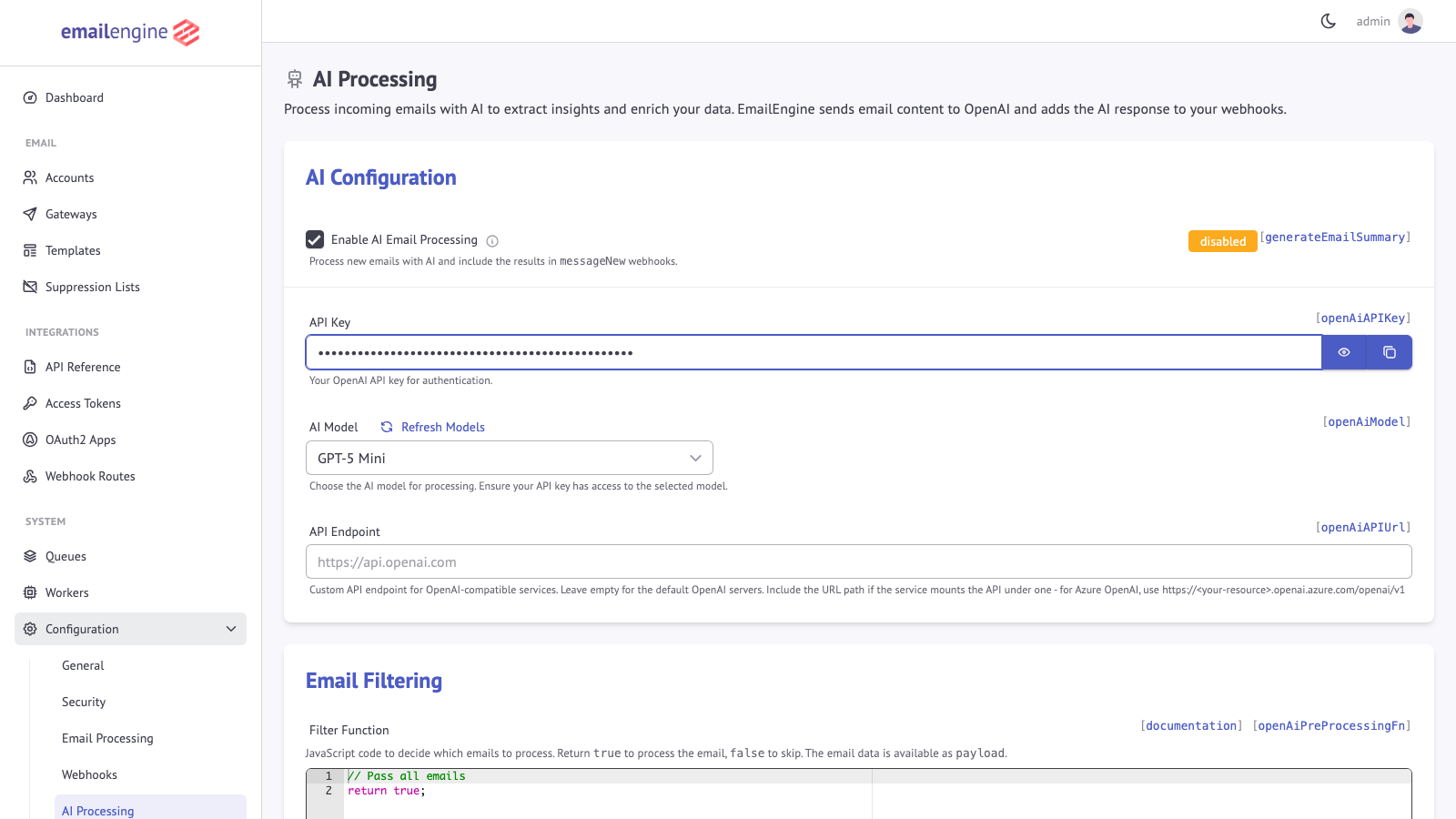 The AI Configuration section with the enable checkbox, API key field and model dropdown
Model Selection
The model field is a search box: type any part of a name or an id and pick from the list, which shows a one-line note on each model and lists the recommended ones, the models that suit reading mail at the price of running on every message, first. Refresh Models calls the model listing endpoint of the configured API, keeps the chat models of what came back, and stores them, so the choices are whatever that key can use. Until the first refresh, the list is a small built-in one; in EmailEngine 2.82.0 (October 2026) that list is GPT-6 Luna (gpt-6-luna), GPT-6 Sol, GPT-6 Astra, GPT-5.6 Luna, GPT-5.6 Terra, GPT-5.4 Mini, GPT-5.4 Nano and GPT-5 Mini. The form starts on Default, which follows the built-in default model across upgrades (gpt-6-luna in 2.82.0); pick a named entry to pin one.
A configuration that leaves openAiModel unset, through the Settings API or by keeping the form on Default, gets gpt-6-luna. Email processing is short-context classification and summarization rather than deep reasoning, so the smallest model in the list is the reasonable starting point; move up only if the summaries or the extracted fields are visibly worse than you need, and compare on your own mail.
Reasoning models, GPT-5 and later, take a Reasoning effort (openAiReasoningEffort). Left at its default, EmailEngine sends low to such a model, which keeps the hidden reasoning that is billed as output short, and sends nothing to any other model. A model that does not support the chosen value, or the temperature and top-p set for it, gets the request again without that parameter, so one configuration works across OpenAI's model families and OpenAI-compatible servers.
Because the list comes from the API, a model named here can be retired and a new one can appear without this page changing. Check what the dropdown offers rather than planning around a specific name.
How It Works
When AI processing is enabled, EmailEngine processes every new message whose folder is the account's Inbox (messageSpecialUse of \Inbox) and that is not older than the account's notifyFrom date, and nothing from other folders:
- Email arrives in monitored account
- EmailEngine runs the pre-processing filter, if one is configured
- The decoded subject, sender and date, the headers that identify the message and carry the receiving server's authentication results, the attachment list, and the text are sent to the API for analysis, with a two-minute timeout per message
- What the model returns is added to the
messageNewwebhook payload assummary
Webhook Enhancement
With AI processing enabled, messageNew webhooks carry the model's answer as summary. With the built-in instructions it looks like this:
{
  "account": "example",
  "event": "messageNew",
  "data": {
    "id": "AAAAGQAACeE",
    "from": {
      "name": "Jane Doe",
      "address": "jane@example.com"
    },
    "subject": "Project meeting tomorrow at 2pm",
    "summary": {
      "summary": "Jane asks to attend a project meeting tomorrow at 2pm in conference room A to discuss the Q4 roadmap.",
      "sentiment": "positive",
      "shouldReply": true,
      "riskAssessment": {
        "risk": 1
      },
      "events": [
        {
          "description": "Project meeting",
          "type": "meeting",
          "startTime": "2023-06-07T14:00:00",
          "location": "conference room A"
        }
      ],
      "actions": [
        {
          "description": "Attend the project meeting",
          "dueDate": "2023-06-07"
        }
      ]
    }
  }
}
The object is delivered as the model returned it: nothing is added to it and nothing is moved out of it. The properties the built-in instructions ask for are checked on the way (the sentiment is one of its three values, the risk is an integer from 1 to 5, the lists hold objects), and a value that does not fit is dropped rather than passed on.
Extracted Information
1. Content Summary
One sentence of at most 150 characters saying what the sender wants or informs about:
{
  "summary": "Request to contribute 2 to 5 euros for flower bouquets for choir teachers and concertmaster."
}
2. Sentiment Assessment
One-word sentiment evaluation:
- positive: Friendly, enthusiastic, grateful
- neutral: Informational, factual
- negative: Complaint, frustration, anger
{
  "sentiment": "positive"
}
3. Reply Expectation
Boolean flag indicating if sender expects a response:
{
  "shouldReply": true
}
4. Events List
Meetings, appointments, deadlines and other events with a date or time, each with a type of meeting, appointment, deadline or event, a startTime, and endTime and location when the email states them. Times are ISO 8601 without a timezone, as local time at the sender:
{
  "events": [
    {
      "description": "Flower bouquets for choir teachers",
      "type": "event",
      "startTime": "2023-05-22"
    },
    {
      "description": "End of year celebration",
      "type": "event",
      "startTime": "2023-06-15",
      "endTime": "2023-06-15T18:00:00"
    }
  ]
}
5. Actions List
Tasks recipient is expected to perform:
{
  "actions": [
    {
      "description": "Contribute 2 to 5 euros for flower bouquets",
      "dueDate": "2023-05-22"
    },
    {
      "description": "RSVP for end of year celebration",
      "dueDate": "2023-06-10"
    }
  ]
}
6. Fraud Risk Assessment
Risk score from 1 to 5 (5 being highest risk), with the factors that raised it when it is above 1. It sits inside summary:
{
  "summary": {
    "riskAssessment": {
      "risk": 4,
      "assessment": "Urgent request for a money transfer, and the sender address does not match the organisation the message claims to come from."
    }
  }
}
The score is not left to the model alone. See What the model sees, and what is checked first below: the risk cannot go below the floor set by EmailEngine's own checks, and riskAssessment.signals lists what they found, for example:
{
  "summary": {
    "riskAssessment": {
      "risk": 4,
      "assessment": "Checks run on the message found: executableAttachment: \"invoice.pdf.exe\".",
      "signals": ["executableAttachment", "replyToMismatch"]
    }
  }
}
Note: AI is good at detecting scams but less effective with spam.
What the Model Sees, and What Is Checked First
Incoming mail is untrusted input, and a sender can write text meant for the model rather than for the reader. Three things happen before and after the model's turn:
- Hidden text is removed. Elements a mail client does not render (
display:none,visibility:hidden, fonts below a pixel, near-zero opacity, thehiddenattribute, scripts, styles, comments) are dropped before the HTML is converted, and zero-width and bidirectional control characters are removed. The model reads what the recipient sees. Content clients do show, such as Outlook's conditional comments, stays. - Signals are collected in code, on the full message, and passed to the model as facts it must not argue with. They are also applied as a floor on the risk score after the answer, so a message that talks the model into "risk 1" still scores a 4 when it carries an executable:
| Signal | Floor | What it means |
|---|---|---|
executableAttachment | 4 | An attachment that runs when opened, by extension (including double extensions such as invoice.pdf.exe) or by content type |
lookalikeDomain | 4 | A link to a domain that mixes scripts to imitate another, such as a Cyrillic letter inside paypal.com, in unicode or punycode |
linkTargetMismatch | 3 | Link text that names one host while the link goes to another, image alt text included |
scriptableAttachment | 3 | An HTML or SVG attachment, which a browser runs code from |
displayNameAddressMismatch | 3 | A display name that reads as an address on another domain than the sender's |
authenticationFailed | 3 | A verified SPF, DKIM or DMARC failure |
replyToMismatch | 2 | A Reply-To address on another domain than the sender's |
- Authentication results are verified before they count. The topmost
Authentication-Resultsheader is parsed into anauthenticationblock the model reads instead of the header text, with averifiedflag. It is verified when the server that wrote it is known to be the one that received the message: Google's for Gmail mailboxes, and Microsoft's for Microsoft 365 mailboxes (whose header carries no name, so it counts only when the topmostReceivedline is Microsoft's). For a mailbox on any other server the header reaches the model as unverified, because a message does not say whether its topmost header was written by the receiving server or arrived with it, and the instructions say an unverified or missing verdict means unknown, not failed. EmailEngine fetches these headers for the summary whatever thenotifyHeaderssetting asks for.
Hidden content that was removed is not shown to the model and does not raise the score: marketing mail hides its preview text, and that is not a risk factor. It is reported as a hiddenContent signal in the log entry described below, so an operator can see when it happened.
Request Usage
What each request cost is not part of the webhook payload. EmailEngine logs it at the info level for every summary it generated, as the usage object of a Generated email summary entry: the request id, the model requested and the one the API reports it served, the total, prompt and completion token counts, the request time in milliseconds and how many characters were cut from the text to fit the token budget. The same entry carries signals, every check that fired on the message with its floor, including the ones that carry no floor and never reach the model. The counts feed two Prometheus counters on /metrics: ai_requests by model and status (success or failure), and ai_tokens by model and type (prompt or completion). Test runs from the AI Processing page are not counted.
Before v2.82.0 the request id, token count and model name were merged into the summary object itself as id, tokens and model. A handler that read them from there reads the log or the metrics instead.
Custom Instructions
Customize the AI analysis by editing the instructions, which EmailEngine sends as the system message ahead of the email:
- Go to Configuration > AI Processing
- Scroll to AI Instructions section
- Edit the AI Prompt
- Add custom instructions
- Save configuration
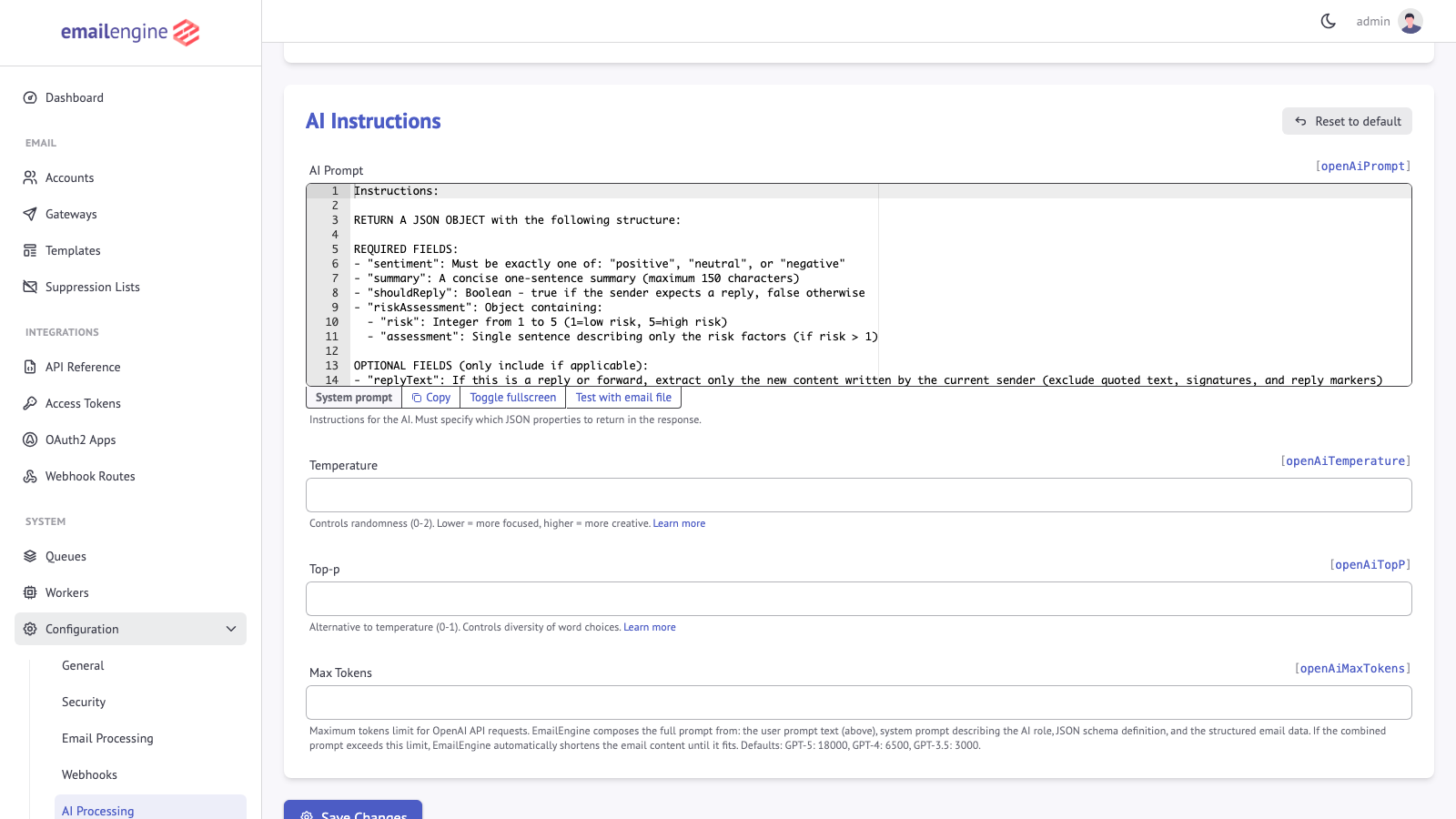 The AI Instructions section holds the editable instructions
Whatever the instructions ask for is what summary carries. The properties of the built-in instructions are still normalized when they appear, so an instruction set that keeps riskAssessment but scores it on another scale sees the score clamped to 1 to 5; give such a property a new name instead. The signal floor applies whatever the instructions say.
Example: Add Language Detection
Add this line to the prompt:
- Return the ISO language code of the primary language used in the email as the "language" property
Result in webhook:
{
  "summary": {
    "language": "en",
    "summary": "Meeting invitation for tomorrow at 2pm"
  }
}
Example: Custom Classification
Add business-specific classification:
- Classify the email type as "inquiry", "complaint", "order", or "other" in the "emailType" property
Result:
{
  "summary": {
    "emailType": "inquiry",
    "summary": "Customer asking about product availability"
  }
}
Settings Reference
Everything on the Configuration > AI Processing page is also settable through the Settings API:
| Setting | Purpose |
|---|---|
openAiAPIKey | API key. Required before any AI processing runs |
generateEmailSummary | Turn on summaries, sentiment, events, actions, and risk assessment |
openAiModel | Model name, for example gpt-6-luna, which is also the default |
openAiPrompt | The AI instructions, as edited above. Unset means the built-in instructions |
openAiAPIUrl | Base URL of the API. Point this at Azure OpenAI (https://<resource>.openai.azure.com/openai/v1) or an OpenAI-compatible gateway |
openAiTemperature | Sampling temperature, 0 to 2. Not sent to a reasoning model while it reasons |
openAiTopP | Nucleus sampling cutoff, 0 to 1. Not sent to a reasoning model while it reasons |
openAiReasoningEffort | Reasoning effort for reasoning models: none, minimal, low, medium, high, xhigh or max, of which each model family supports a subset. Unset sends low to a reasoning model and nothing to any other |
openAiMaxTokens | Token budget for the prompt, the instructions and the email together. The email text is cut to fit. Defaults to 30000 |
openAiPreProcessingFn | JavaScript filter deciding which messages are worth processing, see below. Unset means every Inbox message is processed |
openAiGenerateEmbeddings | Deprecated. Embeddings generation was removed in v2.82.0; the key is still accepted and dropped so an older client keeps working |
Lowering openAiMaxTokens truncates long messages before they reach the model, which is the most direct lever on cost. openAiPreProcessingFn is the more selective one, since a message it rejects costs nothing at all.
Handling Failures
EmailEngine skips AI processing if:
- The API request fails or is rate limited
- The request takes longer than two minutes
- The message has no text content
- The pre-processing filter returned a falsy value or threw, or does not compile
In these cases summary is omitted from the webhook payload, which is otherwise delivered as usual. A failed API call is logged as Failed to fetch summary from OpenAI with the error, and the most recent one is kept for the AI Processing page to display.
Webhook Content Configuration
Text is only fetched for a new message when Include email text and HTML (notifyText) is enabled under Configuration > Webhooks, and it is truncated to the Content Size Limit (notifyTextSize) set there. With text disabled there is nothing to summarize and every message is skipped.
Use Cases and Applications
Everything below is driven from the enriched messageNew payload. Once AI processing is on, your webhook handler branches on the fields rather than calling any additional endpoint:
app.post('/webhook', async (req, res) => {
  res.json({ success: true });

  const { event, data } = req.body;
  if (event !== 'messageNew' || !data.summary) return;

  const { summary } = data;

  // Fraud triage: risk runs 1 to 5
  if (summary.riskAssessment?.risk >= 4) {
    return quarantine(data.id, summary.riskAssessment.assessment);
  }

  // Tasks and calendar entries the model found in the body
  for (const action of summary.actions || []) {
    await createTask({ title: action.description, dueDate: action.dueDate });
  }

  for (const ev of summary.events || []) {
    await createCalendarEvent({ title: ev.description, start: ev.startTime, end: ev.endTime });
  }

  // Support triage: an unhappy sender who expects an answer goes to the front
  if (summary.sentiment === 'negative' && summary.shouldReply) {
    await escalate(data.id);
  }
});
riskAssessment moved inside summary in v2.82.0Earlier releases lifted the risk assessment out of the summary object into data.riskAssessment. Since v2.82.0 the summary is delivered as the model returned it, so read data.summary.riskAssessment.
Which field drives which workflow:
| Field | Typical use |
|---|---|
summary.sentiment | Support triage, escalating negative mail |
summary.shouldReply | Priority inbox, SLA timers, follow-up reminders |
summary.actions[] | Creating tasks with a description and dueDate |
summary.events[] | Creating calendar entries from startTime and endTime |
summary.riskAssessment.risk | Fraud and phishing quarantine, 1 to 5 |
The model does not always populate every field. Treat each one as optional and fall back to your existing routing when it is missing, since an OpenAI outage or a rate limit leaves the message delivered but unenriched. See Handling Failures.
Conversational search (removed)
The POST /v1/chat/{account} endpoint and the Document Store it drew its answers from were removed in EmailEngine v2.82.0; the last release that includes them is v2.81.2. For conversational access to a mailbox, connect an assistant through MCP for AI Agents, which searches and reads the live mailbox instead of an index.
Privacy and Compliance
Data Processing
Important: When AI processing is enabled, EmailEngine sends the headers, sender, subject, attachment list, and text of every processed message to the configured API endpoint, which is OpenAI unless openAiAPIUrl points elsewhere.
Provider Terms: What the provider does with that data is governed by its own API terms, not by EmailEngine. Read the current data-usage terms of the provider you configure before enabling the feature.
Your Responsibility: Verify this behavior complies with:
- User data processing agreements
- GDPR requirements
- Industry-specific regulations (HIPAA, etc.)
- Company privacy policies
User Consent
Recommendations:
- Transparent Disclosure: Inform users that AI processes their emails
- Opt-In: Allow users to enable/disable AI processing
- Data Retention: Clarify how long AI-processed data is stored
- Third-Party Processing: Disclose data sent to OpenAI
Per-Account Control
There is no per-account switch, but the pre-processing filter below receives the account ID, so a filter that returns true only for listed accounts limits processing to those:
const optedIn = ["user-1", "user-2"];
return optedIn.includes(payload.account);
AI Pre-Processing Filter (openAiPreProcessingFn)
With no filter stored, or with the filter at its default (return true;, which is what the admin form stores when the editor is left alone), AI processing is applied to every incoming email in the Inbox. The openAiPreProcessingFn setting holds a JavaScript function that decides which of those emails get processed, which is the most direct control over AI usage and costs.
How It Works
When configured, the pre-processing filter runs before any AI processing occurs:
- New email arrives in the account's Inbox
- Pre-processing filter function evaluates the email
- If the function returns a truthy value, the email is sent to the API for analysis
- If it returns a falsy value or throws, AI processing is skipped
Configuration
Configure the filter via the Settings API:
curl -X POST "https://emailengine.example.com/v1/settings" \
  -H "Authorization: Bearer YOUR_TOKEN" \
  -H "Content-Type: application/json" \
  -d '{
    "openAiPreProcessingFn": "// Only process emails from specific domains\nconst senderDomain = payload.from?.address?.split(\"@\")[1];\nif ([\"important-client.com\", \"vip-customer.org\"].includes(senderDomain)) {\n  return true;\n}\nreturn false;"
  }'
Filter Function Structure
The filter function receives the message itself as payload, not a webhook envelope: the message fields sit at the top level next to payload.account, so it is payload.from and payload.subject here, where a webhook filter would read payload.data.from. Return a truthy value to allow AI processing:
// payload is the new message, with the account ID added
// Return true to process with AI, false to skip

// Skip automated emails
if (payload.headers && payload.headers["auto-submitted"]) {
  return false;
}

// Skip emails from no-reply addresses
if (payload.from?.address?.includes("noreply")) {
  return false;
}

// Process all other emails
return true;
Example Filters
1. Process Only High-Priority Senders
// Only AI-process emails from VIP domains
const vipDomains = ["client.com", "partner.org", "executive.net"];
const senderDomain = payload.from?.address?.split("@")[1]?.toLowerCase();

if (vipDomains.includes(senderDomain)) {
  return true;
}
return false;
2. Skip Newsletters and Automated Messages
// Skip common newsletter and automated email patterns
const from = payload.from?.address?.toLowerCase() || "";
const subject = payload.subject?.toLowerCase() || "";

// Skip newsletters
if (from.includes("newsletter") || from.includes("digest")) {
  return false;
}

// Skip automated messages
if (payload.headers?.["auto-submitted"] || payload.headers?.["x-auto-response-suppress"]) {
  return false;
}

// Skip common notification subjects
if (subject.includes("notification") || subject.includes("alert")) {
  return false;
}

return true;
3. Process Based on Subject Keywords
// Only process emails with specific keywords
const subject = payload.subject?.toLowerCase() || "";
const keywords = ["urgent", "invoice", "contract", "proposal", "meeting"];

for (const keyword of keywords) {
  if (subject.includes(keyword)) {
    return true;
  }
}
return false;
4. Size-Based Filtering
// Skip very short or very long emails (likely spam or bulk)
const textSize = payload.text?.encodedSize?.plain || 0;

if (textSize < 50) {
  // Too short - likely spam
  return false;
}
if (textSize > 50000) {
  // Too long - will consume many tokens
  return false;
}
return true;
5. Time-Based Processing
// Only process recent emails (skip old backlog)
const emailDate = new Date(payload.date);
const now = new Date();
const hoursDiff = (now - emailDate) / (1000 * 60 * 60);

// Skip emails older than 24 hours
if (hoursDiff > 24) {
  return false;
}
return true;
Available Payload Data
payload is the message object EmailEngine built for the messageNew event (the same fields that end up under data in the webhook), with the account ID added at the top level:
payload.account;           // Account ID
payload.path;              // Mailbox path (e.g., "INBOX")
payload.messageSpecialUse; // Always "\\Inbox" here; other folders are never processed
payload.id;                // Message ID
payload.from;              // { name, address }
payload.to;                // [{ name, address }, ...]
payload.subject;           // Email subject
payload.date;              // Message date
payload.headers;           // Lowercased header name to array of values
payload.text;              // { plain, html, encodedSize: { plain, html } }
payload.attachments;       // Attachment metadata array
The Test Filter dialog on the AI Processing page runs the same function in the browser against a sample message of this shape.
Execution Environment
The filter function runs in the same execution context as other pre-processing functions:
Available:
- Standard JavaScript, with top-level
await fetch- HTTP requests through EmailEngine's own HTTP agent, andURLenv- Script environment variables (the parsedscriptEnvsetting)logger- Pino.js logger for debugging
Not injected as globals:
require()- modules are not provided- Filesystem or system helpers are not provided
Filter and pre-processing functions run on Node's vm module, which is an isolation convenience, not a hardened security boundary - code executed here can reach the host process and runs with full server privileges. Only enable and author functions you fully trust; never expose function authoring to untrusted users. See Execution Environment.
Debugging Filters
Errors in the filter function are logged and the email is skipped (treated as returning false). The Error Log tab next to the filter editor on the AI Processing page keeps the last 20 errors with the payload that triggered each. The same errors go to EmailEngine's log with the component llm-pre-process:
# View filter-related log entries
journalctl -u emailengine | grep "llm-pre-process"
You can also use the logger for debugging:
logger.info({ from: payload.from?.address, subject: payload.subject, msg: "Evaluating email" });

const result = payload.path === "INBOX";
logger.info({ result, msg: "Filter decision" });

return result;
Best Practices
- Start broad, then narrow - Begin with minimal filtering and add rules as needed
- Monitor costs - Track token usage to measure filter effectiveness
- Log decisions - Use
loggerto track why emails are filtered - Handle missing data - Use optional chaining (
?.) for potentially undefined values - Keep it fast - Complex logic adds processing overhead
Cost Management
Estimating Costs
The provider charges per token, at a rate that depends on the model and changes over time; check the provider's own pricing page. Every processed message costs the prompt (the instructions plus the subject, sender, headers and text, capped by openAiMaxTokens), the structured answer, and on a reasoning model the hidden reasoning, which is why the default reasoning effort is low. The usage EmailEngine logs for each summary and the ai_tokens metric report the exact counts, so a day of real traffic gives a better estimate than any figure this page could state.
Cost Optimization
- Pick the smallest model that gives usable output: the fallback list orders them from smallest to largest
- Filter Emails:
openAiPreProcessingFnrejects messages before they cost anything; Inbox-only processing is already built in - Cap the input: a lower
openAiMaxTokenstruncates long messages before they reach the model - Monitor Usage: Watch the
ai_tokenscounter on/metrics, or the usage logged per summary when you need it per account
Monitoring Token Usage
The ai_tokens Prometheus counter on /metrics reports what the calls cost, by model and split into prompt and completion tokens, and ai_requests counts the calls by model and outcome:
ai_tokens{model="gpt-6-luna",type="prompt"} 812345
ai_tokens{model="gpt-6-luna",type="completion"} 40211
ai_requests{model="gpt-6-luna",status="success"} 1532
ai_requests{model="gpt-6-luna",status="failure"} 3
Per account, the log entry Generated email summary carries the account, the message and a usage object with the same counts for that one request. Aggregating those by account shows which mailboxes drive the spend, which is usually a small number of high-volume ones. See Cost Optimization for narrowing what gets processed.
See Also
- MCP for AI agents - The opposite direction: an agent calling EmailEngine
- Pre-processing functions - Filtering which messages reach a model
- Webhooks overview - Where the enriched payload arrives
- Compliance and data handling - What leaves the instance when AI processing is on