Quick Start Guide
This guide installs EmailEngine, connects an email account to it, sends a message, and shows the webhooks that arrive. Every command runs against a local instance.
Step 1: Install EmailEngine
Option A: Download Binary (Quickest)
# Download latest release
wget https://go.emailengine.app/emailengine.tar.gz
tar xzf emailengine.tar.gz
chmod +x emailengine

# Start EmailEngine (default Redis database is 8)
./emailengine --dbs.redis="redis://127.0.0.1:6379/8"
Option B: Using Docker
# Pull the latest version
docker pull postalsys/emailengine:v2

# Run EmailEngine
docker run -p 3000:3000 \
  --env EENGINE_REDIS="redis://host.docker.internal:6379/8" \
  postalsys/emailengine:v2
EmailEngine will start on http://localhost:3000
For production deployments, you must configure EENGINE_SECRET to encrypt stored credentials. Without this setting, account passwords and OAuth tokens are stored unencrypted in Redis.
Generate the secret once, store it permanently, and pass the same value to EmailEngine on every start:
# Generate the secret once and persist it
echo "EENGINE_SECRET=$(openssl rand -hex 32)" >> .env

# Pass the persisted value to the container on every start
docker run -p 3000:3000 \
  --env-file .env \
  --env EENGINE_REDIS="redis://host.docker.internal:6379/8" \
  postalsys/emailengine:v2
See Credential Security for details on how EmailEngine protects your data.
Step 2: Access the Web Interface
- Open http://localhost:3000 in a browser. A fresh instance has no admin password, so the dashboard opens without a login and shows an "Authentication not enabled" card
- Click Enable authentication on that card and set a password. From then on the admin interface asks for it
Until a password is set, the admin interface refuses to issue access tokens, which is what the next step needs.
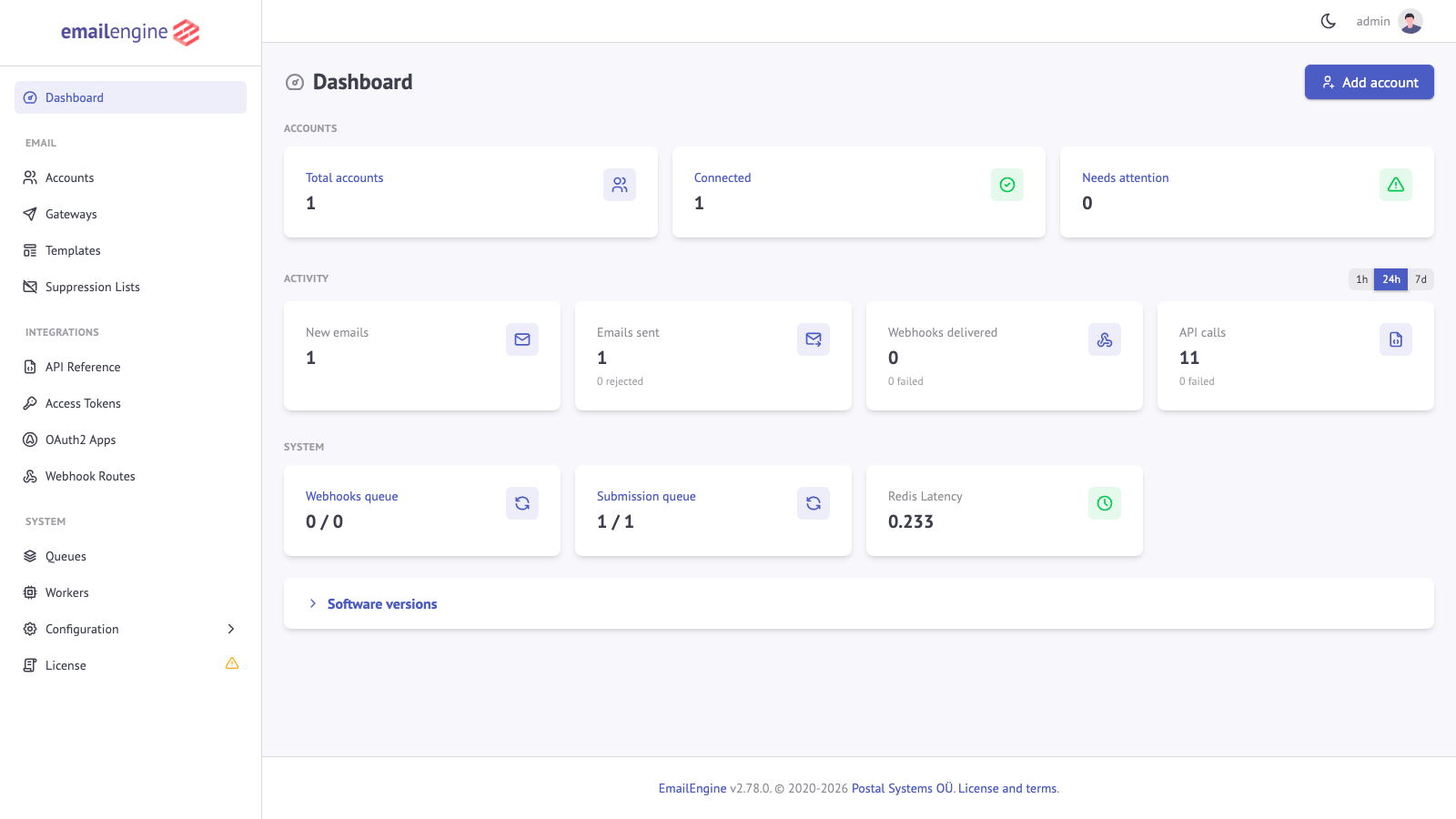 EmailEngine dashboard showing system statistics and account overview
Step 3: Generate an API Access Token
You need an access token to authenticate API requests.
Via CLI (Recommended):
Use the EmailEngine CLI to generate a full-access token:
emailengine tokens issue -d "Development" -s "*" --dbs.redis="redis://127.0.0.1:6379/8"
8bf639ec7c051c3963498c6757b6813bd331afeb677886d4473190fae66c9fab
Save your token as an environment variable:
export EMAILENGINE_TOKEN="8bf639ec7c051c3963498c6757b6813bd331afeb677886d4473190fae66c9fab"
The CLI writes the token straight into Redis, so --dbs.redis must name the same database EmailEngine runs on. A * token reaches every account and every endpoint, including settings, which is what the rest of this guide needs.
Via Web Interface:
- Open Integrations > Access Tokens in the sidebar
- Click Create access token
- Provide a description (for example, "Development")
- Tick All scopes
- Click Create access token
- Copy the token immediately: it is shown only once
The Create Access Token API needs either an account, which binds the token to that one mailbox, or a permissions record naming what the token may do. It will not mint an unrestricted token, so the CLI and the admin interface remain the way to get one. See Access Tokens.
Step 4: Add Your First Email Account
EmailEngine supports multiple account types. Choose the method that fits your needs:
Option A: Hosted Authentication Form (Recommended)
The easiest way to add accounts is using EmailEngine's built-in hosted authentication form. EmailEngine handles the entire OAuth2 flow for you.
Benefits:
- No need to obtain OAuth2 tokens manually
- EmailEngine manages token refresh automatically
- Works with Gmail, Outlook, and other OAuth2 providers
- User-friendly authentication experience
How to use:
-
Your application generates an authentication form URL via the API:
curl -XPOST "http://localhost:3000/v1/authentication/form" \
  -H "Authorization: Bearer ${EMAILENGINE_TOKEN}" \
  -H "Content-Type: application/json" \
  -d '{
    "account": "user123",
    "redirectUrl": "https://your-app.com/callback"
}' -
Redirect the user's browser to the generated form URL
-
User chooses authentication method:
 Account type selection page showing OAuth2 provider buttons and standard IMAP option
- OAuth2 Provider (Gmail/Outlook): Clicks provider button, follows OAuth2 flow
- IMAP/SMTP: Enters the address and password. EmailEngine discovers and verifies the server settings and, since v2.81.0, asks for them only when discovery fails (send
skipServerSettings: falsein the form request to always show that step)
-
After authentication, user is redirected back to your
redirectUrl -
EmailEngine handles token management and maintains the connection automatically
OAuth2 provider buttons (Gmail, Outlook) only appear if OAuth2 apps are configured in EmailEngine. Set these up via Integrations > OAuth2 Apps in the web interface, or use the OAuth2 Apps API. See Gmail OAuth2 Setup and Outlook OAuth2 Setup for detailed configuration guides.
For testing during development, admins can use the web interface: navigate to Accounts > Add an account. This is a convenience wrapper for the same authentication form.
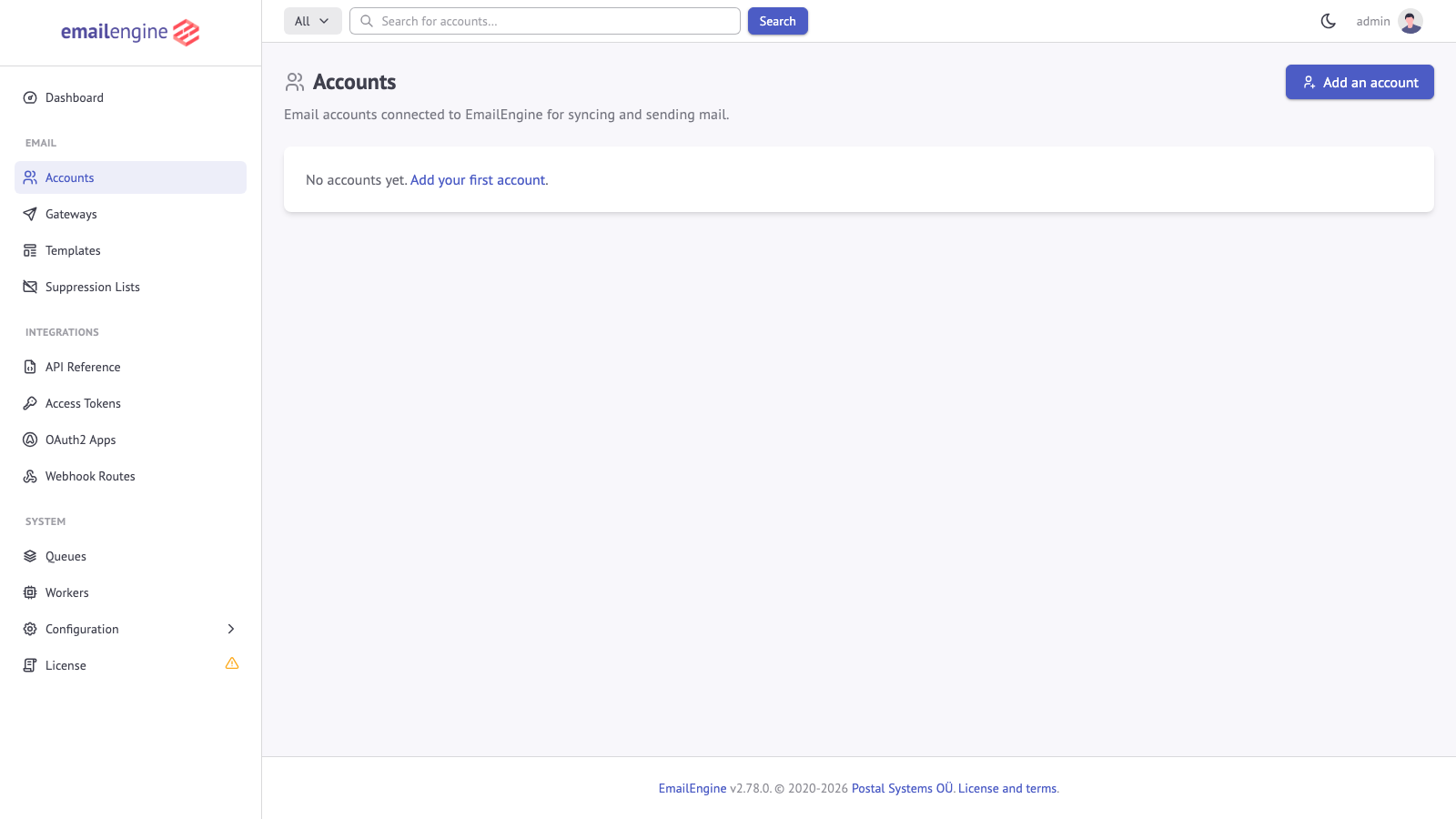 Accounts page showing empty account list with "Add an account" button
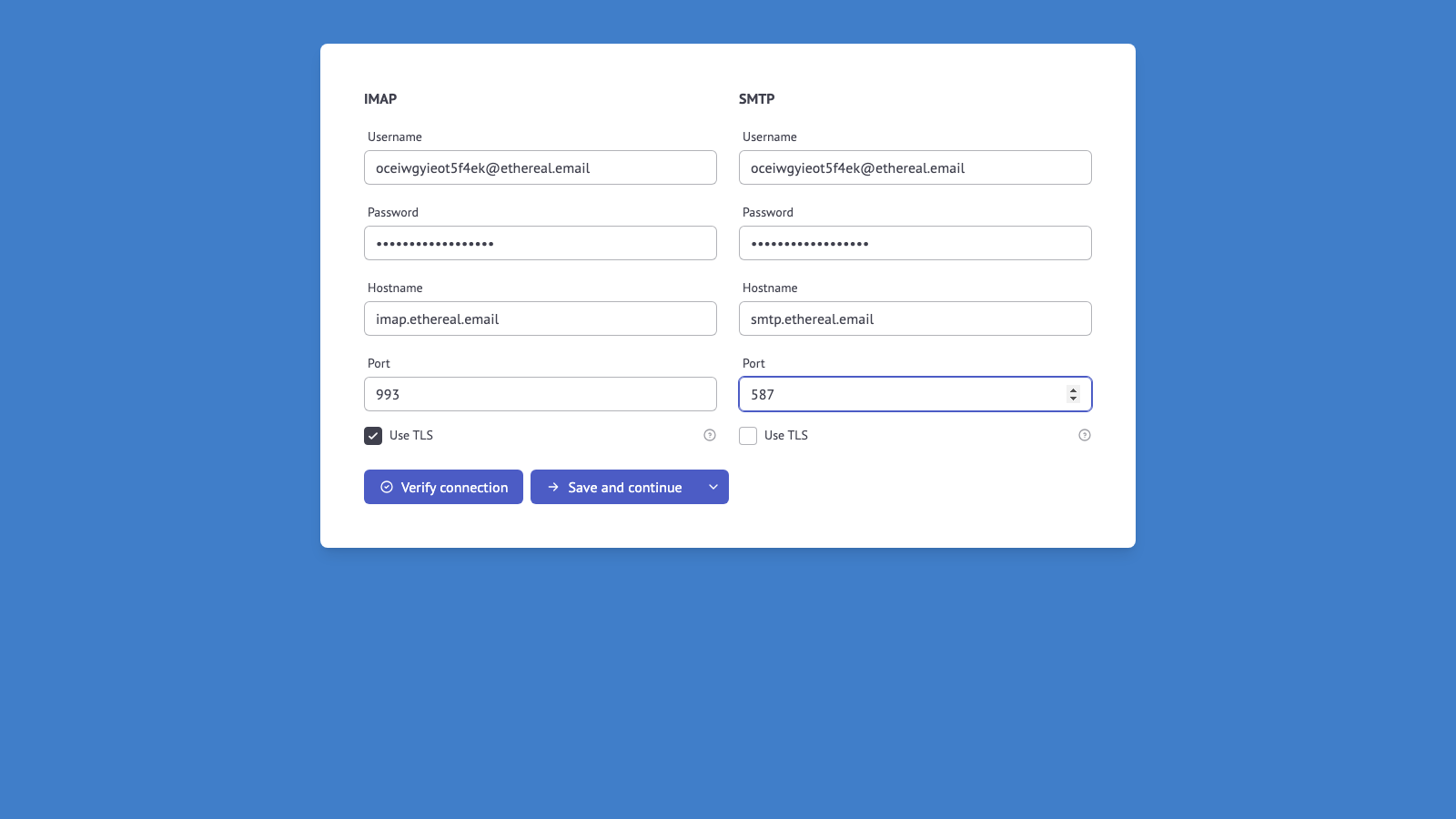 Auto-detected IMAP/SMTP configuration showing server settings, ports, and TLS options
When to use the hosted form:
- Quick account setup during development
- End-user account authentication in your application
- When you don't need programmatic control over OAuth2 tokens
You can redirect users to the hosted authentication form from your application. The form will redirect users to the OAuth2 provider's permission page (which must open in a main window, not an iframe due to security restrictions). After authentication, users are redirected back to your application. See the Authentication Form API for details.
Option B: API with OAuth2 Tokens (Advanced)
For programmatic control or special requirements, register accounts directly via API with OAuth2 tokens you've obtained.
When to use direct API:
- Automated account provisioning
- Service account authentication
- Custom OAuth2 flows
- When you need to manage tokens yourself
Gmail Example:
Prerequisites: You need to set up OAuth2 credentials in Google Cloud Console. See detailed guide →
curl -XPOST "http://localhost:3000/v1/account" \
  -H "Authorization: Bearer ${EMAILENGINE_TOKEN}" \
  -H "Content-Type: application/json" \
  -d '{
    "account": "my-gmail",
    "name": "Your Name",
    "email": "you@gmail.com",
    "oauth2": {
      "provider": "AAABlf_0iLgAAAAQ",
      "refreshToken": "1//0gExampleRefreshTokenFromGoogle",
      "auth": {
        "user": "you@gmail.com"
      }
    }
  }'
The provider value should be your OAuth2 application ID from EmailEngine, which is a base64url encoded string like AAABlf_0iLgAAAAQ. Find this in Integrations > OAuth2 Apps.
Outlook Example:
Prerequisites: You need to register an app in Azure AD. See detailed guide →
curl -XPOST "http://localhost:3000/v1/account" \
  -H "Authorization: Bearer ${EMAILENGINE_TOKEN}" \
  -H "Content-Type: application/json" \
  -d '{
    "account": "my-outlook",
    "name": "Your Name",
    "email": "you@outlook.com",
    "oauth2": {
      "provider": "AAABlf_0iLgAAAAQ",
      "refreshToken": "M.C546_ExampleRefreshTokenFromMicrosoft",
      "auth": {
        "user": "you@outlook.com"
      }
    }
  }'
Option C: Generic IMAP/SMTP (Any provider)
This works with any email provider that supports IMAP and SMTP:
curl -XPOST "http://localhost:3000/v1/account" \
  -H "Authorization: Bearer ${EMAILENGINE_TOKEN}" \
  -H "Content-Type: application/json" \
  -d '{
    "account": "my-account",
    "name": "Your Name",
    "email": "you@example.com",
    "imap": {
      "host": "imap.example.com",
      "port": 993,
      "secure": true,
      "auth": {
        "user": "you@example.com",
        "pass": "your-password"
      }
    },
    "smtp": {
      "host": "smtp.example.com",
      "port": 465,
      "secure": true,
      "auth": {
        "user": "you@example.com",
        "pass": "your-password"
      }
    }
  }'
Common Provider Settings
| Provider | IMAP Host | IMAP Port | SMTP Host | SMTP Port |
|---|---|---|---|---|
| Gmail | imap.gmail.com | 993 | smtp.gmail.com | 465 |
| Outlook.com | outlook.office365.com | 993 | smtp.office365.com | 587 |
| Yahoo | imap.mail.yahoo.com | 993 | smtp.mail.yahoo.com | 465 |
| Fastmail | imap.fastmail.com | 993 | smtp.fastmail.com | 465 |
Response:
{
  "account": "my-account",
  "state": "new"
}
Provider-Specific Notes
Gmail
- Account passwords do not work: Google no longer accepts the account password over IMAP. Either enable 2-step verification and generate an app password, or use OAuth2
- OAuth2 refreshes itself: EmailEngine renews the access token from the refresh token, so nothing expires on your side
- OAuth2 verification: A Google Cloud OAuth2 app used by accounts outside your own organization has to pass Google's verification
- Complete Gmail setup →
Outlook/Microsoft 365
- OAuth2: Microsoft has retired basic authentication for Exchange Online, so an app registration in Microsoft Entra is needed
- Permissions: The registration needs the IMAP and SMTP permissions, or the Graph API permissions when using the Graph backend
- Complete Outlook setup →
Yahoo Mail
- App password required: Generate one in the Yahoo account security settings, then use it with the IMAP/SMTP settings in the table above
ProtonMail
- Bridge required: Proton Mail exposes IMAP and SMTP only through the Proton Mail Bridge application, which listens on localhost with its own ports and credentials. EmailEngine connects to the Bridge, not to Proton's servers
Step 5: Wait for Initial Sync
EmailEngine performs an initial sync of your mailbox before it's ready to use.
Option A: Using Webhooks (Recommended)
Once the account completes its initial sync, EmailEngine automatically sends an accountInitialized webhook event:
{
  "serviceUrl": "https://emailengine.example.com",
  "event": "accountInitialized",
  "account": "my-account",
  "date": "2025-01-15T10:23:45.678Z",
  "data": {
    "initialized": true
  }
}
Benefits:
- No polling required
- Instant notification when account is ready
- Efficient for production applications
Option B: Polling Account Status
Alternatively, poll the get account API until state shows "connected":
# Check account status
curl "http://localhost:3000/v1/account/my-account" \
  -H "Authorization: Bearer ${EMAILENGINE_TOKEN}"
Response when ready:
{
  "account": "my-account",
  "name": "Your Name",
  "email": "you@example.com",
  "state": "connected",
  "lastError": null
}
Key fields to check:
state:"connected"is the healthy steady state."init","connecting"and"syncing"mean it is still on its way there;"authenticationError"and"connectError"mean it is not going to get there without your help. Account States describes all ninelastError:nullwhen the last connection attempt succeededauthFailureDisabledAt(since v2.79.4): normallynull. When it carries a timestamp, EmailEngine switched syncing off after repeated authentication failures, and the state reads"unset"until working credentials are supplied
Initial Sync Duration
Sync time depends on:
- Number of mailbox folders - More folders take longer to scan
- Number of messages - Each message needs to be indexed
- Indexer type -
imapIndexeron the account, or the global setting, chooses betweenfull(detects new, changed and deleted messages) andfast(detects new messages only)
Step 6: Send Your First Email
Once the account is connected, send a test email using the submit API:
curl -XPOST "http://localhost:3000/v1/account/my-account/submit" \
  -H "Authorization: Bearer ${EMAILENGINE_TOKEN}" \
  -H "Content-Type: application/json" \
  -d '{
    "to": [{
      "name": "Test Recipient",
      "address": "recipient@example.com"
    }],
    "subject": "Test email from EmailEngine",
    "text": "Hello! This is my first email sent through EmailEngine.",
    "html": "<p>Hello! This is my first email sent through <strong>EmailEngine</strong>.</p>"
  }'
Response:
{
  "response": "Queued for delivery",
  "messageId": "<unique-id@example.com>",
  "sendAt": "2025-01-15T10:25:30.123Z",
  "queueId": "abc123def456"
}
The email is now queued for delivery. EmailEngine will:
- Submit it to the SMTP server
- Retry automatically if delivery fails
- Send webhooks for delivery status
Step 7: Set Up Webhooks
Webhooks notify your application about email events in real-time.
Configure Webhook URL
Via Web Interface:
- Go to Configuration > Webhooks
- Enable webhooks and enter your webhook URL (for example,
https://your-app.com/webhooks) - Select the events you want to receive
- Save settings
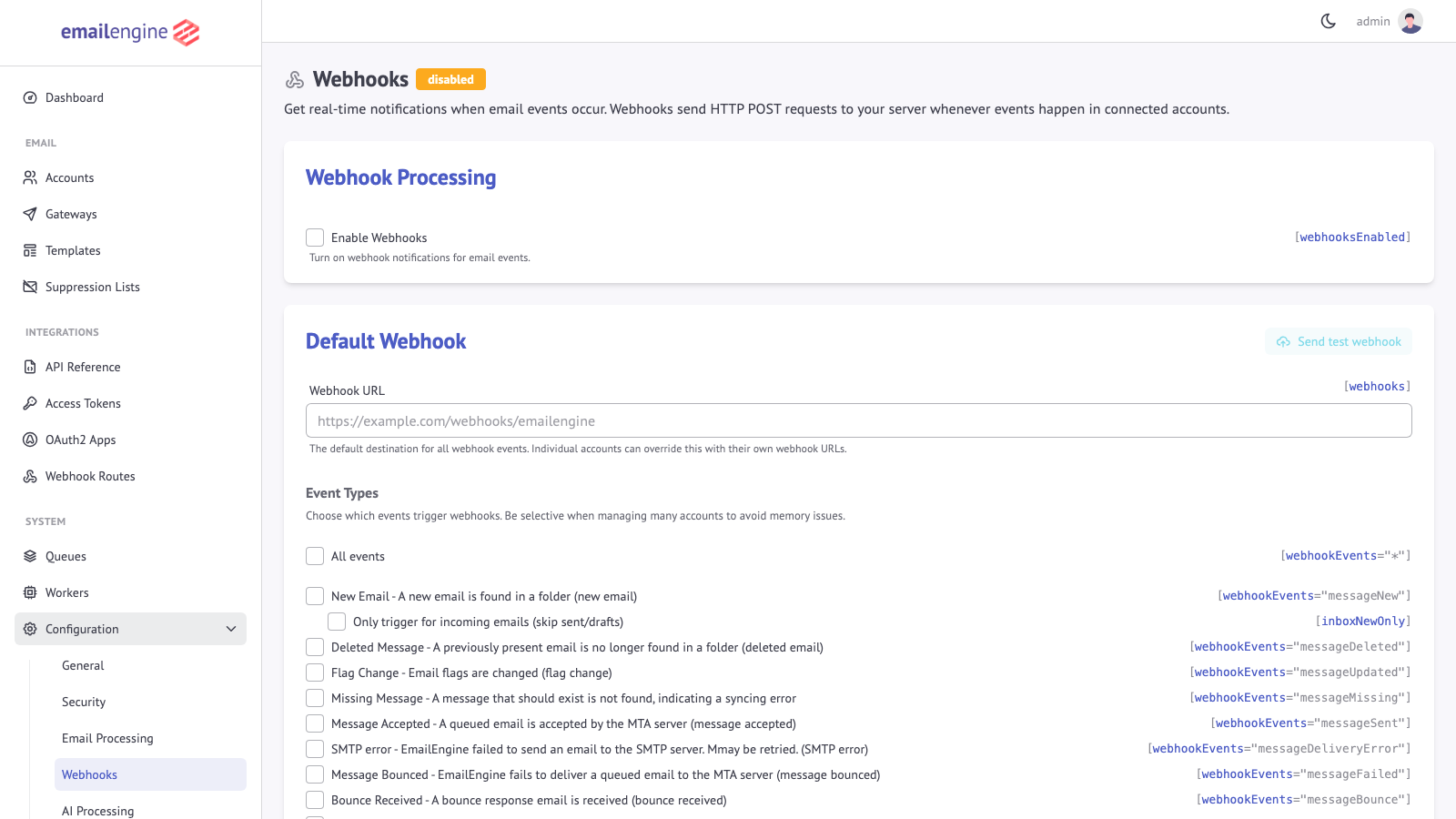 Webhooks configuration page in EmailEngine settings
Via API:
Use the update settings API. Three settings are involved: the URL, the enable switch, and webhookEvents, which is an allowlist with no default. Leaving it unset delivers nothing; ["*"] delivers every event:
curl -XPOST "http://localhost:3000/v1/settings" \
  -H "Authorization: Bearer ${EMAILENGINE_TOKEN}" \
  -H "Content-Type: application/json" \
  -d '{
    "webhooks": "https://your-app.com/webhooks",
    "webhooksEnabled": true,
    "webhookEvents": ["*"]
  }'
The response lists the keys that changed:
{
  "updated": ["webhooks", "webhooksEnabled", "webhookEvents"]
}
Test Webhooks with Webhook.site
For testing, use webhook.site to see webhook payloads:
- Go to https://webhook.site - you'll get a unique URL
- Copy the URL (e.g.,
https://webhook.site/abc-123-def) - Set it as your webhook URL in EmailEngine
- Send a test email (Step 6)
- Check webhook.site to see the delivery notifications
What Arrives
After the test email from Step 6, a messageSent event reaches the endpoint once the SMTP server accepts the message, and a messageNew arrives for each message that lands in a watched folder from then on. Every payload has the same envelope, with the event-specific fields under data:
{
  "serviceUrl": "https://emailengine.example.com",
  "account": "my-account",
  "date": "2025-01-15T10:25:31.000Z",
  "event": "messageSent",
  "data": {
    "messageId": "<unique-id@example.com>",
    "queueId": "abc123def456",
    "response": "250 2.0.0 OK: queued as A1B2C3",
    "envelope": {
      "from": "you@example.com",
      "to": ["recipient@example.com"]
    },
    "networkRouting": null
  }
}
A delivery that fails produces messageDeliveryError for each attempt, and messageFailed once the retries are exhausted. Webhook events lists every event with its payload.
Step 8: List Incoming Messages
Retrieve messages from the mailbox using the list messages API:
curl "http://localhost:3000/v1/account/my-account/messages?path=INBOX&pageSize=10" \
  -H "Authorization: Bearer ${EMAILENGINE_TOKEN}"
Response:
{
  "total": 1234,
  "page": 0,
  "pages": 124,
  "messages": [
    {
      "id": "AAAAAQAACnA",
      "uid": 1234,
      "subject": "Meeting tomorrow",
      "from": {
        "name": "John Doe",
        "address": "john@example.com"
      },
      "date": "2025-01-15T10:30:00.000Z",
      "flags": ["\\Seen"]
    }
  ]
}
Step 9: Read a Specific Message
Read a message with the get message API. Body content is left out unless textType asks for it, because fetching it costs a round trip to the mail server:
curl "http://localhost:3000/v1/account/my-account/message/AAAAAQAACnA?textType=*" \
  -H "Authorization: Bearer ${EMAILENGINE_TOKEN}"
Step 10: Search Messages
Search for messages matching specific criteria using the search messages API:
curl -XPOST "http://localhost:3000/v1/account/my-account/search?path=INBOX" \
  -H "Authorization: Bearer ${EMAILENGINE_TOKEN}" \
  -H "Content-Type: application/json" \
  -d '{
    "search": {
      "from": "john@example.com",
      "subject": "meeting"
    }
  }'
Next Steps
Set Up OAuth2
- Gmail OAuth2 Setup - Complete guide with screenshots
- Outlook OAuth2 Setup - Azure AD configuration
- OAuth2 Token Management - Use tokens for other APIs
Production Deployment
- Docker Installation - Production Docker setup
- Environment Variables - Configuration Reference
- Performance Tuning - Optimize for high volume
- Security Best Practices - Secure your deployment
Integration Examples
- CRM Integration - Complete architecture guide
- AI/ChatGPT Integration - Email summaries and analysis
- PHP Integration - Using the PHP library
See Also
- Managing accounts - The full account lifecycle beyond the first one
- Webhooks overview - Every event, and how delivery and retries work
- API Reference - Authentication, conventions, and error handling
- Troubleshooting - What to check when an account will not connect
- Support - Support channels and what a subscription covers