Webhooks
Webhooks are the primary mechanism for receiving real-time notifications from EmailEngine about mailbox events, message changes, and delivery status. Instead of repeatedly polling for updates, EmailEngine pushes notifications to your application as events occur.
What Webhooks Cover
EmailEngine posts a JSON document to your endpoint as each event happens, so an integration does not have to poll for changes. The events fall into five groups:
- Message lifecycle - a message arrived, its flags or labels changed, it is gone
- Delivery status - a queued message was accepted, an attempt failed, EmailEngine gave up, a bounce or a complaint came back
- Mailbox changes - a folder appeared, disappeared, or had its UIDVALIDITY reset
- Account status - registered, initialized, authenticated, failing to connect, deleted
- Recipient actions - opens, clicks, unsubscribes
Deliveries are queued rather than sent inline with the mail operation that produced them, so a slow endpoint delays webhooks but never syncing.
Setting Up Webhooks
1. Configure Webhook URL
Set your webhook endpoint URL in EmailEngine:
Via Web UI:
- Navigate to Configuration > Webhooks
- Check Enable Webhooks
- Enter your Webhook URL:
https://your-app.com/webhooks/emailengine - Under Event Types, select which events to receive. Selecting none means no webhooks are sent
- Click Save Changes
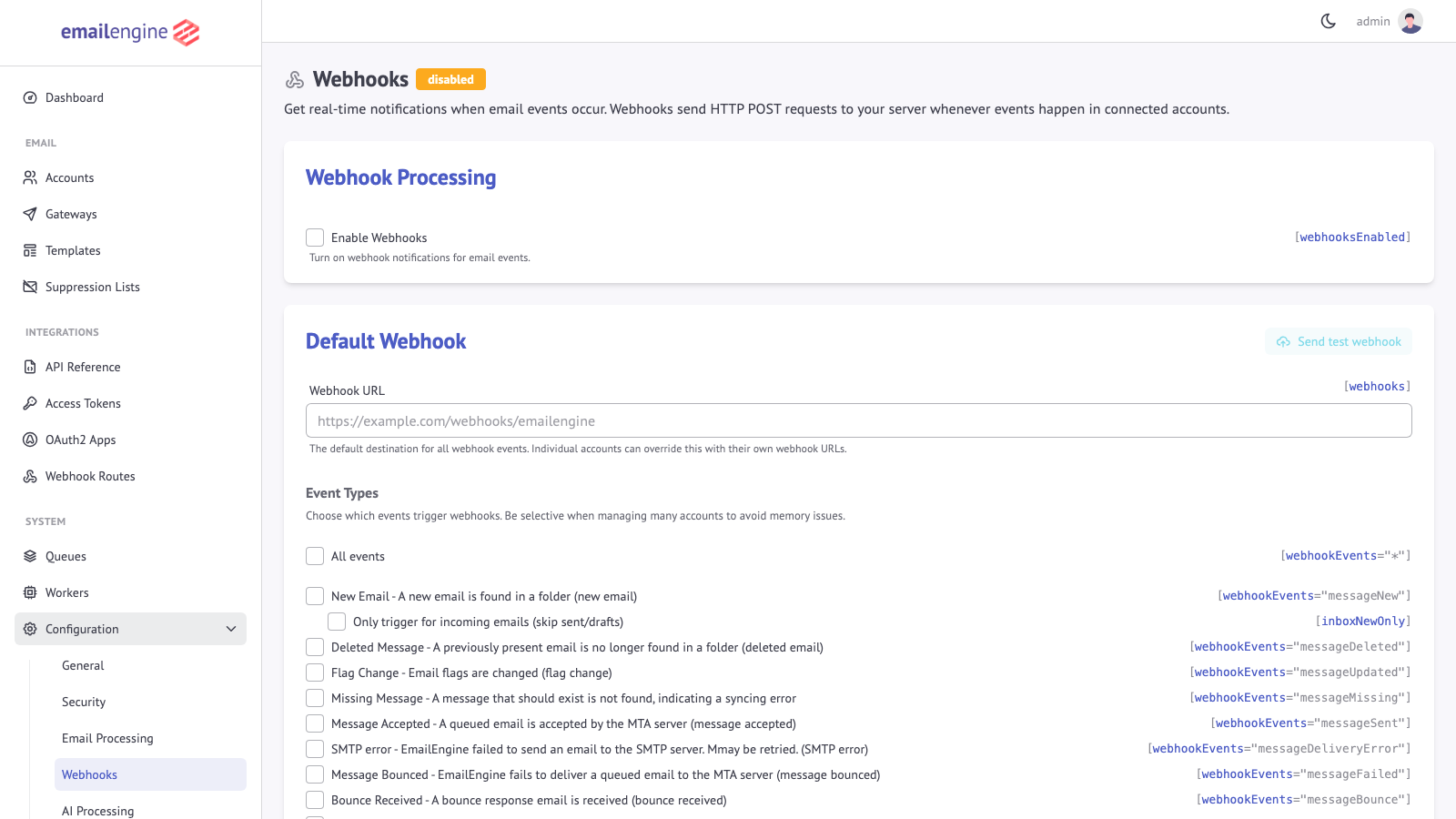 The Webhooks settings page with the target URL and event selection
Via API:
Use the settings API to configure webhooks:
curl -X POST "https://emailengine.example.com/v1/settings" \
  -H "Authorization: Bearer YOUR_ACCESS_TOKEN" \
  -H "Content-Type: application/json" \
  -d '{
    "webhooks": "https://your-app.com/webhooks/emailengine",
    "webhooksEnabled": true,
    "webhookEvents": ["*"],
    "notifyHeaders": ["list-id", "x-priority"],
    "notifyTextSize": 65536,
    "notifyWebSafeHtml": true,
    "notifyCalendarEvents": true
  }'
webhookEvents is an allowlist with no defaultNothing is delivered unless the event is named in webhookEvents, and an unset webhookEvents names nothing. ["*"] allows every event; a list of names allows exactly those. This is the first thing to check when a correctly configured URL receives nothing.
The allowlist applies to the default webhook target above. Webhook routes carry their own filters and are not affected by it.
For more advanced scenarios, you can configure multiple webhook routes to send different events to different endpoints based on account, event type, or custom filtering logic. Webhook routes also support pre-processing functions to filter or transform payloads before delivery.
Routes are created and edited in the admin interface under Webhooks; the API only lists them. See Webhook Routes for the filter and map functions a route can carry.
2. Create Webhook Handler
Your webhook endpoint must:
- Accept HTTP POST requests
- Return a 2xx status code before the delivery times out (30 seconds by default)
- Process events asynchronously, so that acknowledging never waits on your own work
- Node.js
- Python
- PHP
const express = require('express');
const app = express();

app.use(express.json());

app.post('/webhooks/emailengine', async (req, res) => {
  const event = req.body;

  // Acknowledge receipt immediately
  res.status(200).json({ success: true });

  // Process asynchronously
  processEvent(event).catch(err => {
    console.error('Webhook processing error:', err);
  });
});

async function processEvent(event) {
  console.log(`Received ${event.event} event for account ${event.account}`);

  switch (event.event) {
    case 'messageNew':
      await handleNewMessage(event);
      break;
    case 'messageSent':
      await handleMessageSent(event);
      break;
    case 'messageFailed':
      await handleMessageFailed(event);
      break;
    // Handle other events...
  }
}

app.listen(3000, () => {
  console.log('Webhook server running on port 3000');
});
from concurrent.futures import ThreadPoolExecutor

from flask import Flask, jsonify, request

app = Flask(__name__)
executor = ThreadPoolExecutor(max_workers=4)


@app.route('/webhooks/emailengine', methods=['POST'])
def webhook_handler():
    event = request.get_json()

    # Hand the work off to a worker thread and acknowledge right away
    executor.submit(process_event, event)
    return jsonify({'success': True}), 200


def process_event(event):
    event_type = event.get('event')
    account = event.get('account')

    print(f"Processing {event_type} for {account}")

    if event_type == 'messageNew':
        handle_new_message(event)
    elif event_type == 'messageSent':
        handle_message_sent(event)
    # Handle other events...


if __name__ == '__main__':
    app.run(port=3000)
<?php
// webhook.php

// Read the webhook payload
$payload = file_get_contents('php://input');
$event = json_decode($payload, true);

// Respond immediately
http_response_code(200);
header('Content-Type: application/json');
echo json_encode(['success' => true]);

// Close connection and process asynchronously
fastcgi_finish_request();

// Process the event
processEvent($event);

function processEvent($event) {
    $eventType = $event['event'] ?? '';
    $account = $event['account'] ?? '';

    error_log("Processing $eventType for $account");

    switch ($eventType) {
        case 'messageNew':
            handleNewMessage($event);
            break;
        case 'messageSent':
            handleMessageSent($event);
            break;
        // Handle other events...
    }
}
?>
Delivery and Retries
Each event becomes a job in the notify queue, and the queue worker posts it.
| Behavior | Value |
|---|---|
| Success | Any 2xx response |
| Retried | Every other outcome: a 4xx or 5xx response, a refused or dropped connection, a TLS failure, a timeout. A 4xx is retried on purpose, so that an endpoint whose path or credentials are being fixed still receives the event once it is |
| Attempts | 10, counting the first |
| Backoff | Exponential, starting at 5 seconds, with 20% jitter |
| Per-attempt timeout | 30 seconds, configurable with EENGINE_WEBHOOK_TIMEOUT |
| After the last attempt | The event is dropped. The job moves to the Failed tab of the Webhooks Queue, where the last 500 failures are kept for 7 days |
Two failures are treated as final and consume the whole retry budget at once, because retrying could not change the outcome: a destination refused by the egress policy (EEGRESSBLOCKED) and an endpoint that answers with a redirect (EREDIRECTNOTFOLLOWED).
Because a timed-out or failed attempt is retried, your endpoint will sometimes receive the same event more than once. Respond 2xx as soon as you have durably accepted the payload and do the real work afterwards, and deduplicate on the X-EE-Wh-Event-Id header. This matters most for handlers with side effects, such as creating a ticket or charging for a message.
Webhook Events
Every event name EmailEngine can send is listed, with its payload, on the Webhook Events Reference. The events fall into six groups, and each has its own page:
| Group | Events | Sent when |
|---|---|---|
| Message | messageNew, messageDeleted, messageUpdated, messageMissing | A message in a synced folder arrives, is removed, changes flags or labels, or cannot be fetched |
| Delivery | messageSent, messageDeliveryError, messageFailed, messageBounce, messageComplaint | A queued message is accepted, an SMTP attempt fails, EmailEngine gives up on a message, or a bounce or feedback-loop report arrives |
| Mailbox | mailboxNew, mailboxDeleted, mailboxReset | A folder appears, disappears, or has to be re-indexed |
| Account | accountAdded, accountInitialized, accountDeleted, authenticationSuccess, authenticationError, connectError | An account is registered, finishes its first sync, is removed, or its login or connection succeeds or fails |
| Tracking | trackOpen, trackClick, listUnsubscribe, listSubscribe | A recipient opens a tracked message, clicks a tracked link, or unsubscribes from or re-subscribes to a list |
| Export | exportCompleted, exportFailed | A bulk export finishes or fails |
Testing Webhooks
Using webhook.site
The easiest way to test webhooks is using a temporary webhook inspector:
- Visit https://webhook.site/
- Copy your unique webhook URL
- Set it as the webhook URL in EmailEngine
- Trigger an event (send a test email, add an account, etc.)
- View the webhook payload in real-time
Tailing Webhooks to a Log File
For ongoing webhook monitoring, you can log all webhooks to a file and tail them:
Step 1: Create log file
sudo touch /var/log/emailengine-webhooks.log
sudo chown www-data /var/log/emailengine-webhooks.log  # Adjust user as needed
Step 2: Create PHP webhook logger
<?php
// webhook-logger.php

$logFile = '/var/log/emailengine-webhooks.log';

// Read webhook payload
$payload = file_get_contents('php://input');
$headers = getallheaders();

// Create log entry
$logEntry = [
    'timestamp' => date('c'),
    'method' => $_SERVER['REQUEST_METHOD'],
    'headers' => $headers,
    'request' => json_decode($payload, true)
];

// Append to log file
file_put_contents($logFile, json_encode($logEntry) . "\n", FILE_APPEND);

// Respond
http_response_code(200);
header('Content-Type: application/json');
echo json_encode(['success' => true]);
?>
Step 3: Tail the log with jq
# Install jq if needed
sudo apt update && sudo apt install -y jq

# Tail and pretty-print webhooks
tail -f /var/log/emailengine-webhooks.log | jq
This gives you a real-time, pretty-printed view of all incoming webhooks.
Send Test Webhook
EmailEngine allows you to send a test webhook from the UI:
- Go to Configuration > Webhooks
- Click Send test webhook
- Check your webhook endpoint receives the test
Debugging Webhooks
If webhooks aren't working as expected, follow this diagnostic process:
1. Verify External Connectivity
Test with webhook.site:
- Set webhook URL to https://webhook.site/your-unique-id
- Trigger an event in EmailEngine
- Check if webhook.site receives the request
If no request appears:
- Check firewall rules
- Verify DNS resolution
- Ensure EmailEngine can make outbound HTTPS requests
- Check for typos in webhook URL
- Check whether EmailEngine refused the destination itself, see below
Blocked destinations and redirects
EmailEngine will not deliver to every address. Two refusals come from EmailEngine rather than from the network, and both report themselves in the webhook error flag on the account or configuration page:
| Error code | Meaning | Fix |
|---|---|---|
EEGRESSBLOCKED | The destination resolves to an address the egress policy blocks. By default that is the link-local range where cloud instance metadata services live | Point the webhook at a routable address, or widen EENGINE_WEBHOOK_EGRESS_POLICY |
EREDIRECTNOTFOLLOWED | The endpoint answered with a redirect (301, 302, 307, ...). Since v2.75.0 redirects are refused rather than followed, because a permitted host could redirect to a blocked one | Configure the webhook with the endpoint's final URL |
Both fail immediately without consuming the retry budget, since the same address would be refused, and the same endpoint would redirect, on every attempt.
Both checks apply to the Send test webhook button as well, so the button reports the same refusal you would see on a real delivery. Set EENGINE_WEBHOOK_EGRESS_POLICY=off to restore the previous behavior, including following redirects.
See Webhook Delivery settings for the available policies.
2. Monitor Webhook Queue
EmailEngine uses BullMQ to manage webhook delivery. To inspect webhook jobs:
- Go to System > Queues
- Open Webhooks
- Check these tabs:
- Active: Currently being posted
- Delayed: An attempt failed and the next one is waiting out the backoff
- Failed: Every attempt is spent, or the failure was final
- Completed: The endpoint answered
2xx, or the event was dropped before delivery because no target was set, or becausewebhooksEnabled,webhookEventsorinboxNewOnlychanged after it was queued. Since v2.85.0, an event those settings already rule out is not queued at all, so it does not appear here
Failed webhooks are retained with full error details by default, so there is nothing to enable before inspecting them. To also keep successful deliveries, go to Configuration > General and set Completed job history limit to, for example, 100. See Queue Management.
3. Inspect Failed Jobs
Open a failed delivery in the queue browser to see:
- What failed, in plain terms (the endpoint answered 500, the endpoint did not answer in time, the destination is blocked by the egress policy) with the error text under it
- Which webhook route or default target it was for, and which account and event
- How many attempts were made and when
- The payload that was being delivered, the failure reason and the stack trace of each attempt, under Raw queue record
A failed delivery can be retried from the same page, with a fresh set of attempts. The webhook route page links straight to the route's failed and waiting deliveries.
The response body from your endpoint is read and discarded rather than stored, so a failure is described by its status code and error code alone.
Common failures:
ETIMEDOUT: The attempt ran past the 30 second cap, either connecting or reading the response- Socket errors: The host is unreachable, refuses the connection, or does not resolve
- TLS errors: The endpoint's certificate did not validate
- A
4xxstatus: Your endpoint rejected the request. Check the path and any authentication headers - A
5xxstatus: Your endpoint failed while handling it EEGRESSBLOCKEDorEREDIRECTNOTFOLLOWED: EmailEngine refused the destination, see Blocked destinations and redirects
4. Verify Event Generation
Test if events are being generated at all:
Add a new account:
- Should trigger
accountAddedandaccountInitializedevents
Send test email to an account:
- Should trigger
messageNewwithin 10-60 seconds - If not, verify message arrived (check via webmail)
- Check message is visible via API:
curl "https://emailengine.example.com/v1/account/user123/messages?path=INBOX" \
  -H "Authorization: Bearer YOUR_ACCESS_TOKEN"
If message is missing:
- Wrong account credentials
- OAuth token lacks required scopes
- Message filtered to different folder
5. Special Requirements for API Backends
Gmail API + Cloud Pub/Sub
If using Gmail API (not IMAP):
- Go to Integrations > OAuth2 Apps
- Select your Gmail OAuth app
- Scroll to Cloud Pub/Sub configuration
- Verify all show Created (in green):
- Topic
- Subscription
- Gmail publishing bindings
If not created:
- Google Cloud service account missing IAM roles
- Pub/Sub API not enabled
- Invalid credentials
Microsoft Graph API
If using MS Graph (not IMAP):
- Go to Accounts
- Select the account
- Scroll to Change subscription
- Verify status is Created and expiration is in future
If not created:
- EmailEngine not reachable from Microsoft servers
- TLS certificate invalid
- Service URL not configured correctly
- OAuth app missing required scopes
Microsoft Graph requires these endpoints to be publicly accessible:
https://emailengine.example.com/oauth/msg/lifecycle
https://emailengine.example.com/oauth/msg/notification
Webhook Security
Use HTTPS
A webhook payload carries subjects, addresses, and, with notifyText on, message bodies. Use an https: target so that content is not readable in transit, and so that credentials embedded in the URL or carried in a custom header are not exposed.
Verify Webhook Authenticity
Every webhook is signed with HMAC-SHA256 over the raw request body, sent as X-EE-Wh-Signature. The key is the serviceSecret setting, which EmailEngine generates automatically the first time it needs one, so the header is present whether or not you configured anything. Set your own value so that you know the secret your handler should verify against.
1. Set a service secret using the settings API:
curl -X POST "https://emailengine.example.com/v1/settings" \
  -H "Authorization: Bearer YOUR_ACCESS_TOKEN" \
  -H "Content-Type: application/json" \
  -d '{"serviceSecret": "your-secret-key-here"}'
2. Verify signature in your handler:
The signature is computed on the raw request body using HMAC-SHA256 and encoded as base64url.
const crypto = require('crypto');

function verifyWebhookSignature(rawBody, signature, secret) {
  const expected = crypto
    .createHmac('sha256', secret)
    .update(rawBody)
    .digest('base64url');

  // Compare in constant time so the comparison cannot be used as an oracle
  const a = Buffer.from(expected);
  const b = Buffer.from(signature || '', 'utf8');

  return a.length === b.length && crypto.timingSafeEqual(a, b);
}

// Important: Use raw body parser to get the exact bytes for signature verification
app.post('/webhooks/emailengine', express.raw({ type: 'application/json' }), (req, res) => {
  const signature = req.headers['x-ee-wh-signature'];
  const secret = process.env.SERVICE_SECRET;

  if (!verifyWebhookSignature(req.body, signature, secret)) {
    return res.status(401).json({ error: 'Invalid signature' });
  }

  // Parse body after verification
  const event = JSON.parse(req.body.toString());

  // Process webhook...
  res.json({ success: true });
});
Advanced Webhook Settings
Inbox-Only Webhooks (inboxNewOnly)
By default, EmailEngine triggers messageNew webhooks for new messages in all monitored folders. If you only care about incoming mail, enable the inboxNewOnly setting to limit messageNew webhooks to messages arriving in the Inbox folder only.
curl -X POST "https://emailengine.example.com/v1/settings" \
  -H "Authorization: Bearer YOUR_ACCESS_TOKEN" \
  -H "Content-Type: application/json" \
  -d '{"inboxNewOnly": true}'
When enabled:
messageNewwebhooks are only triggered for messages in the Inbox- Messages arriving in Sent, Drafts, Junk, Trash, and other folders are silently ignored
- Other webhook events (
messageDeleted,messageUpdated, etc.) are not affected
This is useful for reducing webhook volume when you only need to process incoming emails.
Custom Request Headers (webhooksCustomHeaders)
webhooksCustomHeaders adds headers to every request sent to the default webhook target. It is an array of {key, value} objects:
curl -X POST "https://emailengine.example.com/v1/settings" \
  -H "Authorization: Bearer YOUR_ACCESS_TOKEN" \
  -H "Content-Type: application/json" \
  -d '{
    "webhooksCustomHeaders": [
      { "key": "Authorization", "value": "Bearer my-endpoint-token" },
      { "key": "X-Tenant", "value": "acme" }
    ]
  }'
In the admin interface the same list is Custom Headers on Configuration > Webhooks, written one Key: Value pair per line.
For the default target, headers come from two lists, applied in this order, so the second overwrites a header of the same name from the first:
webhooksCustomHeaders- The account's own
webhooksCustomHeaders, set through the Update Account API
A delivery that belongs to a webhook route carries the route's own header list and nothing else. Since v2.82.0 neither the global nor the account list is added to it, so an account's credentials never reach a route's endpoint and an account header cannot override the route's Authorization. Earlier releases applied the account's headers on top of the route's.
Webhook Error Tracking (webhookErrorFlag)
EmailEngine automatically tracks webhook delivery errors. When a webhook delivery fails, the error details are stored and displayed in the admin panel: on Configuration > Webhooks for the default target, on the account details page for an account-specific target, and on the route's page for a webhook route. When a subsequent delivery to the same target succeeds, the error flag is automatically cleared.
The error flag includes:
- Event type that failed
- Error message
- Webhook URL
- Error code and HTTP status code
- Timestamp
This is an internal tracking mechanism - there is no configuration needed. Check the admin panel or account details API response for the current webhook error status.
Webhook HTTP Headers
EmailEngine includes the following HTTP headers with each webhook request:
| Header | Description |
|---|---|
X-EE-Wh-Event-Id | Unique identifier for the event. Use for deduplication. Present whenever the payload carries an event ID, and moved out of the JSON body into this header. |
X-EE-Wh-Signature | HMAC-SHA256 signature of the request body, base64url encoded. Always sent, see Verify Webhook Authenticity. |
X-EE-Wh-Id | Queue job ID for this delivery. Identifies the job in System > Queues. |
X-EE-Wh-Attempts-Made | How many attempts have already been made for this delivery. 0 on the first attempt. |
X-EE-Wh-Queued-Time | How long the event waited in the queue before this attempt, in seconds (for example 3s). |
X-EE-Wh-Custom-Route | ID of the custom route that produced this delivery. Only sent for route deliveries. |
User-Agent | emailengine-app/<version> (+https://emailengine.app/), for example emailengine-app/2.82.0 (+https://emailengine.app/) |
Content-Type | Always application/json |
Content-Length | Size of the request body in bytes |
Authorization | Basic credentials, only when the webhook URL itself embeds a user name or password. They are taken out of the URL and moved into this header. Percent-encoded characters in the user name or password are decoded first (v2.79.8; earlier releases sent them encoded) |
Custom headers are added on top of this set, see Custom Request Headers.
Using the Event ID for Deduplication:
const processedEvents = new Set();

app.post('/webhooks/emailengine', (req, res) => {
  const eventId = req.headers['x-ee-wh-event-id'];

  // Skip if already processed (idempotency)
  if (processedEvents.has(eventId)) {
    return res.json({ success: true, skipped: true });
  }

  processedEvents.add(eventId);

  // Process the event...
  res.json({ success: true });
});
See Also
- Webhook events reference - The list of events, each linking to its payload reference
- Webhook routing - Sending different events to different endpoints
- Pre-processing functions - Filtering or reshaping a payload before delivery
- Queue management - Watching and draining the notify queue
- Webhooks API - The settings and listing endpoints behind the admin pages