Setting Up Gmail with OAuth2 (IMAP/SMTP)
This guide shows you how to set up a Gmail OAuth2 application for IMAP and SMTP access with EmailEngine. EmailEngine will use these credentials to access Gmail accounts and allow REST queries against these accounts.
This post covers setting up Gmail OAuth2 for IMAP and SMTP. If you would like to use Gmail API instead, see the Gmail API setup guide.
There are many screenshots in this guide. While the general process has remained stable for years, Google may update their interface, so some screenshots might not exactly match what you see.
Overview
When you enable OAuth2 for Gmail with IMAP/SMTP:
- EmailEngine uses IMAP for reading emails and SMTP for sending, authenticating both with
XOAUTH2 - The OAuth2 tokens are only used to authenticate the IMAP/SMTP sessions; EmailEngine makes no Gmail REST API calls for this kind of account
- Users authenticate once via OAuth2, and EmailEngine refreshes the access token from the stored refresh token whenever a connection needs one
- No passwords are stored, and accounts with two-factor authentication work without an app password
IMAP vs Gmail API: OAuth2 Scope Requirements
Both IMAP and Gmail API provide the same functionality (both can access labels, messages, etc.). The key difference is in OAuth2 scope requirements:
IMAP/SMTP Requirements:
- Requires the widest scope:
https://mail.google.com/ - Full access to all Gmail operations
- Simpler to set up (one scope for everything)
Gmail API Requirements:
- Can use more granular scopes based on your use case
- Google prefers applications to request only the scopes they need
- Example scopes:
gmail.readonly- Read-only access to messagesgmail.modify- Read, send, and modify emails (can move to trash but not permanently delete)gmail.send- Send emails only
The https://mail.google.com/ scope is classified as restricted by Google. This affects when you can use it:
| App Type | mail.google.com Scope | Notes |
|---|---|---|
| Internal apps (Workspace) | Allowed | No restrictions for your organization's users |
| Development/Testing | Allowed | Up to 100 test users, tokens expire after 7 days |
| Public production apps | Usually rejected | Google requires justification for full access |
For public production apps, Google enforces a principle of least privilege. During verification, they will ask why you need full access. Unless your use case explicitly requires permanent email deletion (not just moving to trash), Google will likely reject the mail.google.com scope and ask you to use gmail.modify instead.
If Google rejects your scope request, you must use the Gmail API backend instead of IMAP/SMTP, as the limited scopes don't work with IMAP.
Decision:
- Use IMAP OAuth2 if: You have an internal app, are in development, or can justify the
https://mail.google.com/scope to Google - Use Gmail API if: Google requires you to use more limited scopes during the verification process
See the Gmail API setup guide for native API integration.
Authentication Options for Gmail
Before we dive into OAuth2 setup, it's worth understanding all Gmail authentication options:
Account Password
Gmail has completely disabled account password authentication for all accounts. This authentication method can no longer be used. You must use app passwords or OAuth2 instead.
App Passwords
App passwords provide IMAP/SMTP access without OAuth2:
- App passwords are only available with 2FA enabled
- Generate an application-specific password
- Use this password instead of your main password
When to use:
- Quick access for testing and development
- Fallback when Google rejects your OAuth2 application - If Google denies access to Gmail API scopes entirely (e.g., your use case is not supported), app passwords allow users to still connect their accounts to EmailEngine
- Internal tools where OAuth2 setup is not justified
Downsides:
- If main password changes, all app passwords are invalidated
- Users must manually generate and provide passwords
- Less convenient user experience than OAuth2
- Not ideal for SaaS applications with many users
OAuth2 (This Guide)
OAuth2 is the method for production applications:
Benefits:
- No password storage
- Works with 2FA accounts
- Automatic token refresh
- Users authenticate once and are not asked again
Types of OAuth2 Apps:
-
Internal Apps - For Google Workspace organizations only
- No security audit required
- Only works for accounts in your organization
- Best for enterprise deployments
-
Public Development Apps
- Up to 100 manually whitelisted accounts
- OAuth2 grants expire after 7 days
- Not suitable for production
-
Public Production Apps
- Works with any Gmail account
- Requires thorough security audit (expensive and time-consuming)
- Strict scope requirements
- Google may reject email-access use cases
Recommendation: Use Internal apps for organizations, app passwords for testing, and OAuth2 for production if you can pass Google's audit.
Step 1: Create a Google Cloud Project
Go to Google Cloud Console and open the project menu in the top navbar.

Click the "New project" button to start.
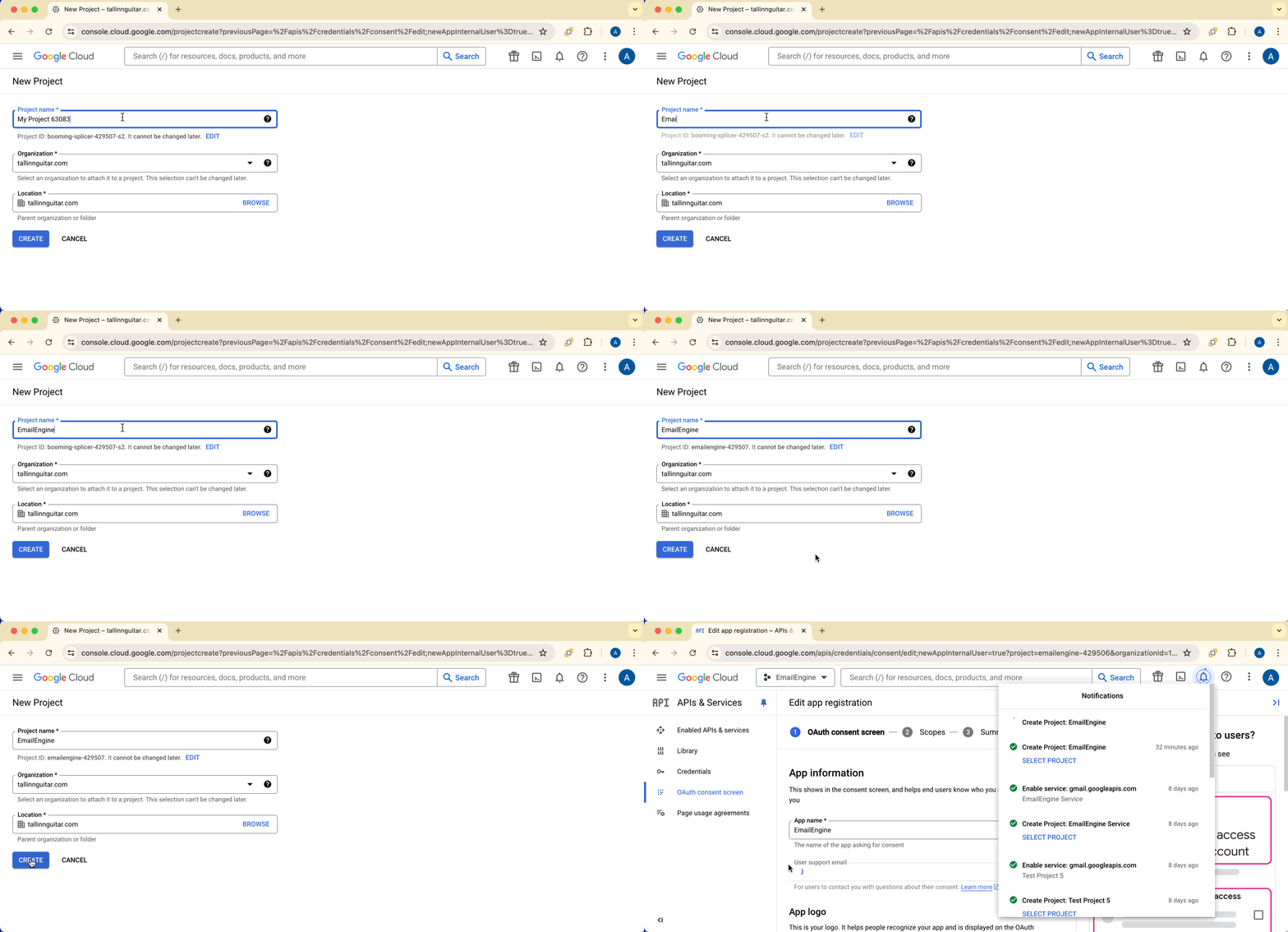
On the project settings screen, name your project (e.g., "EmailEngine"). All other fields are pre-filled and cannot be changed.

Wait for the project to be created, then select it from the project menu.
Step 2: Enable Required APIs
Your new project is empty and needs API access configured.
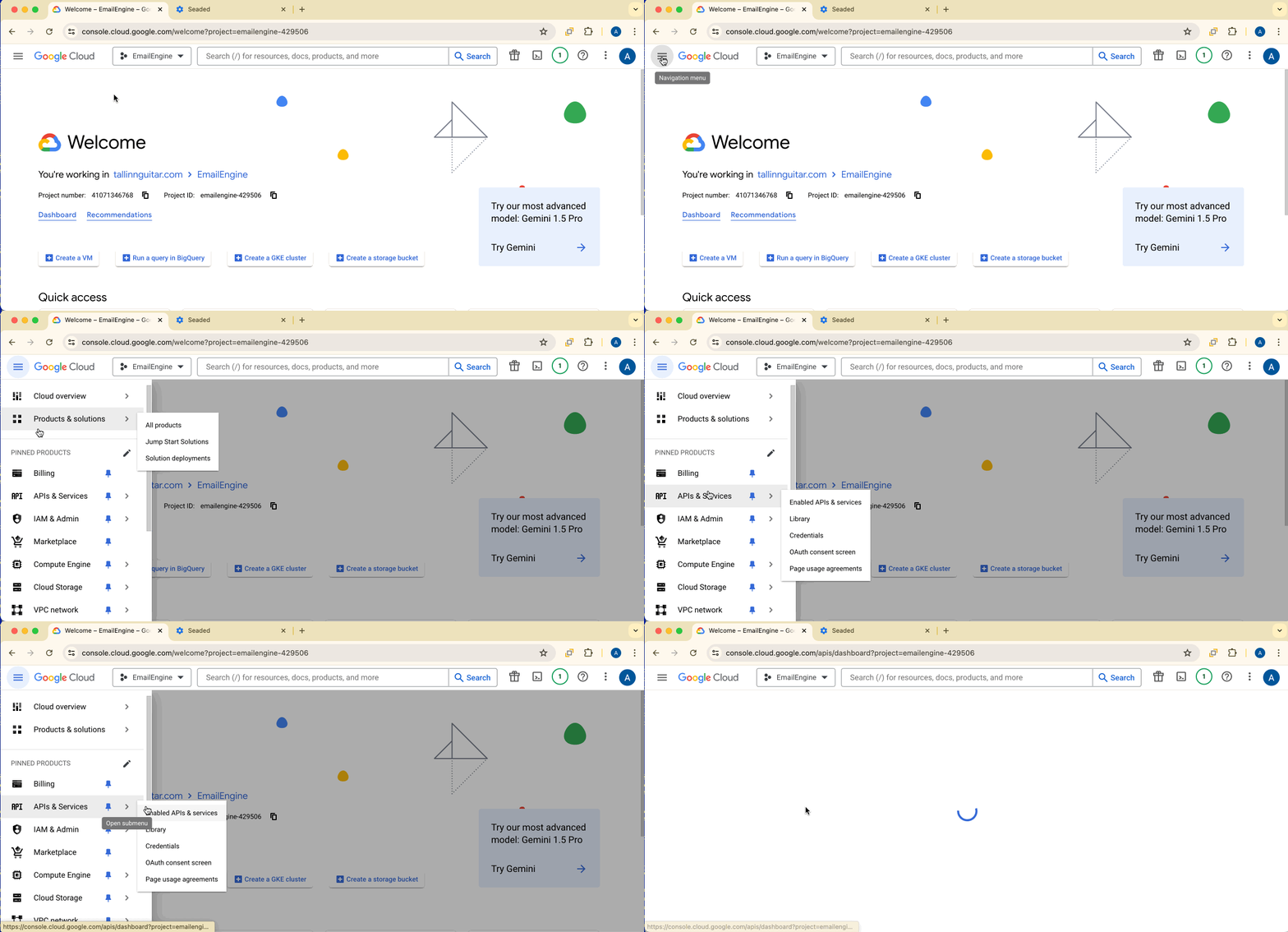
Click the hamburger menu (top-left) > APIs & Services > Enabled APIs & Services.
Find and enable Gmail API for your project.
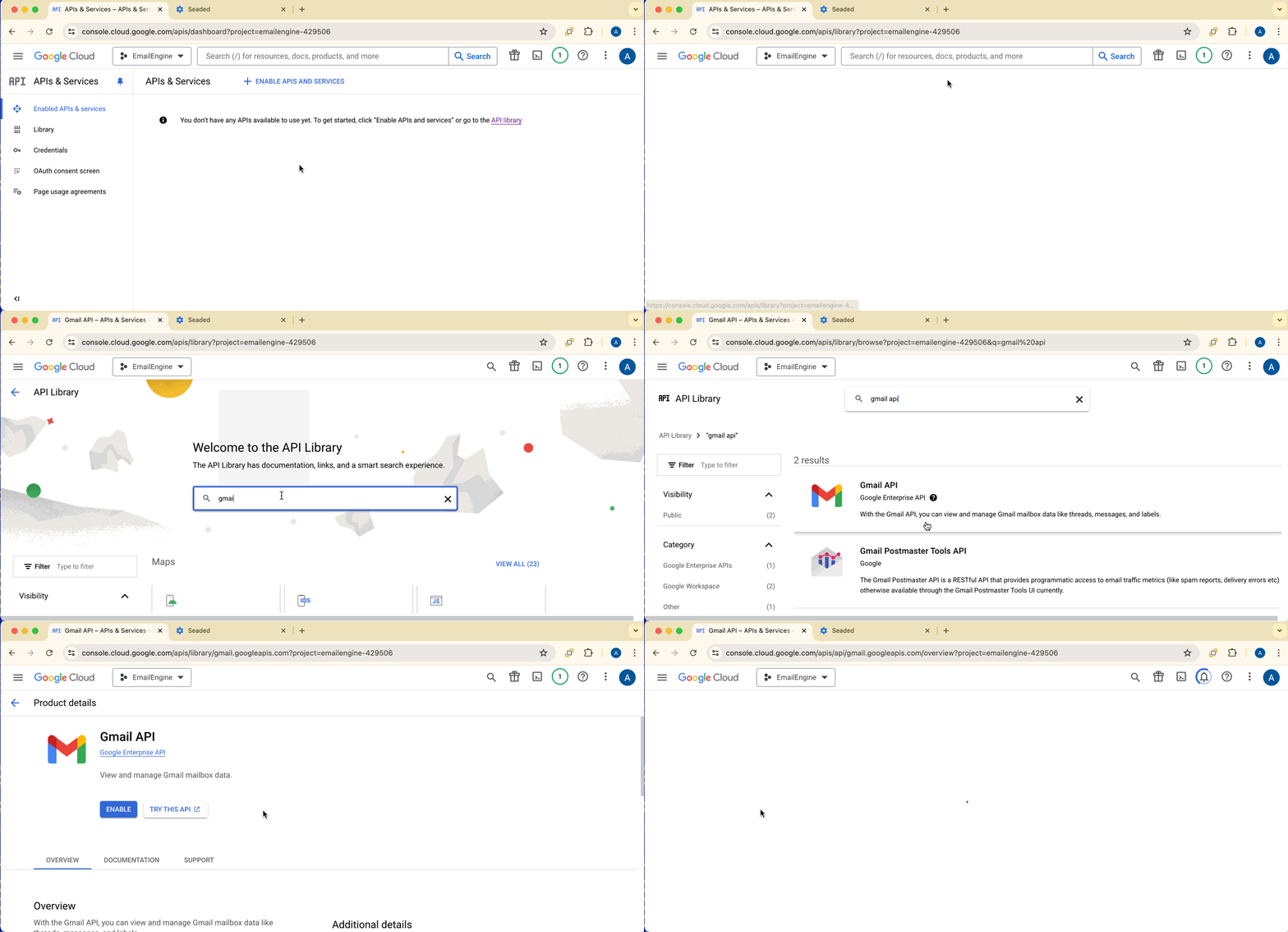
Enabling the Gmail API in the project is what makes the Gmail scopes, including https://mail.google.com/, selectable on the consent screen. EmailEngine uses IMAP and SMTP for the email operations of this kind of account; it reads the signed-in user's address from the OpenID Connect ID token it receives with the OAuth2 tokens, and only calls the Gmail profile endpoint when that ID token carries no address.
If you want to use Gmail REST API instead of IMAP/SMTP, see the Gmail API setup guide.
- IMAP/SMTP (this guide): Standard email protocols, easier setup, works like any other email account
- Gmail API (alternate): Narrower scopes, Gmail category handling, no IMAP connection limits; Cloud Pub/Sub setup for push notifications
For most use cases, IMAP/SMTP with OAuth2 is sufficient. Use the Gmail API when Google's verification requires narrower scopes or you need its category handling.
Step 3: Configure OAuth Consent Screen
The consent screen is shown to users when they authorize EmailEngine to access their Gmail account.
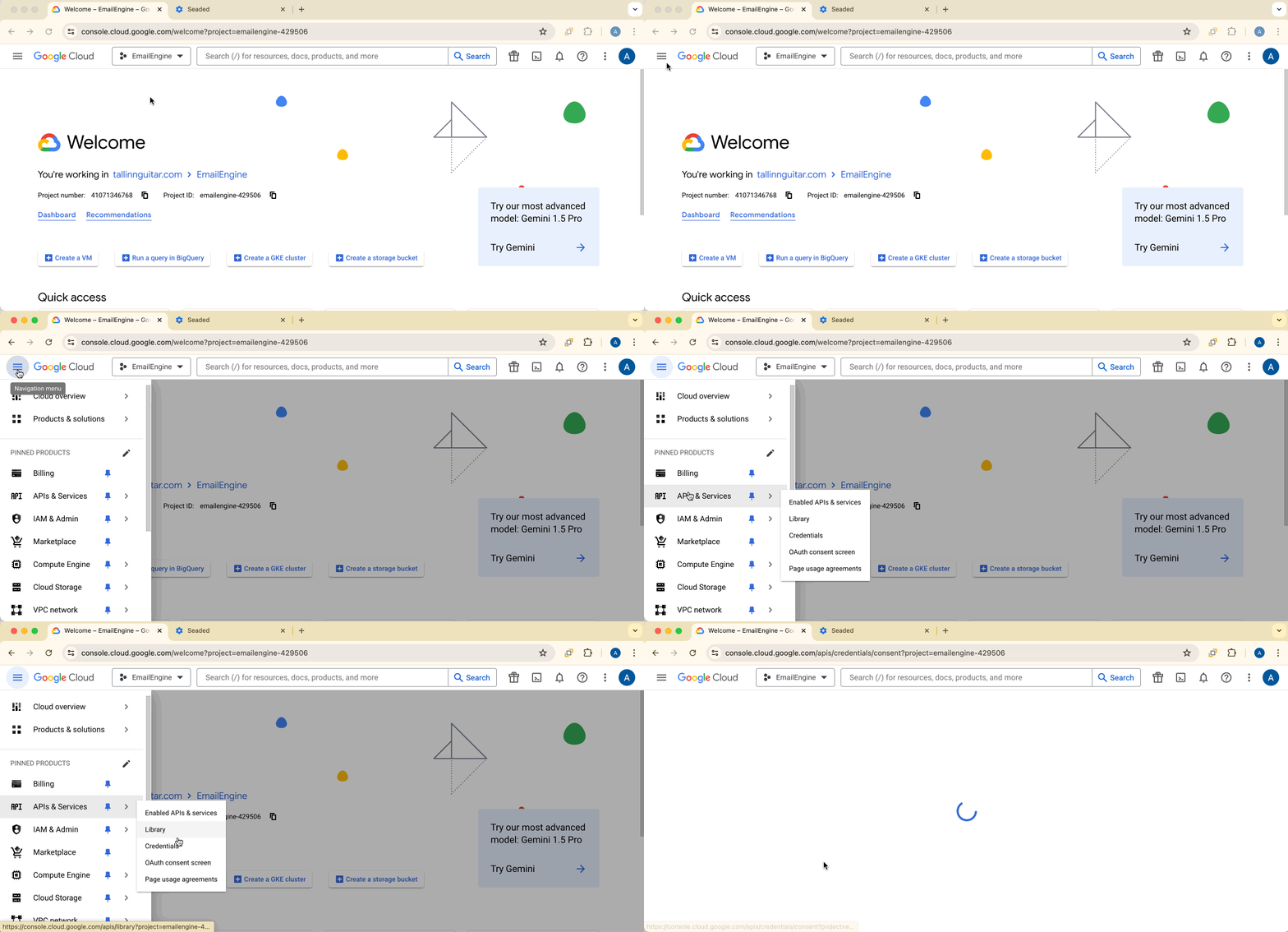
Click hamburger menu > APIs & Services > OAuth consent screen.
Choose User Type
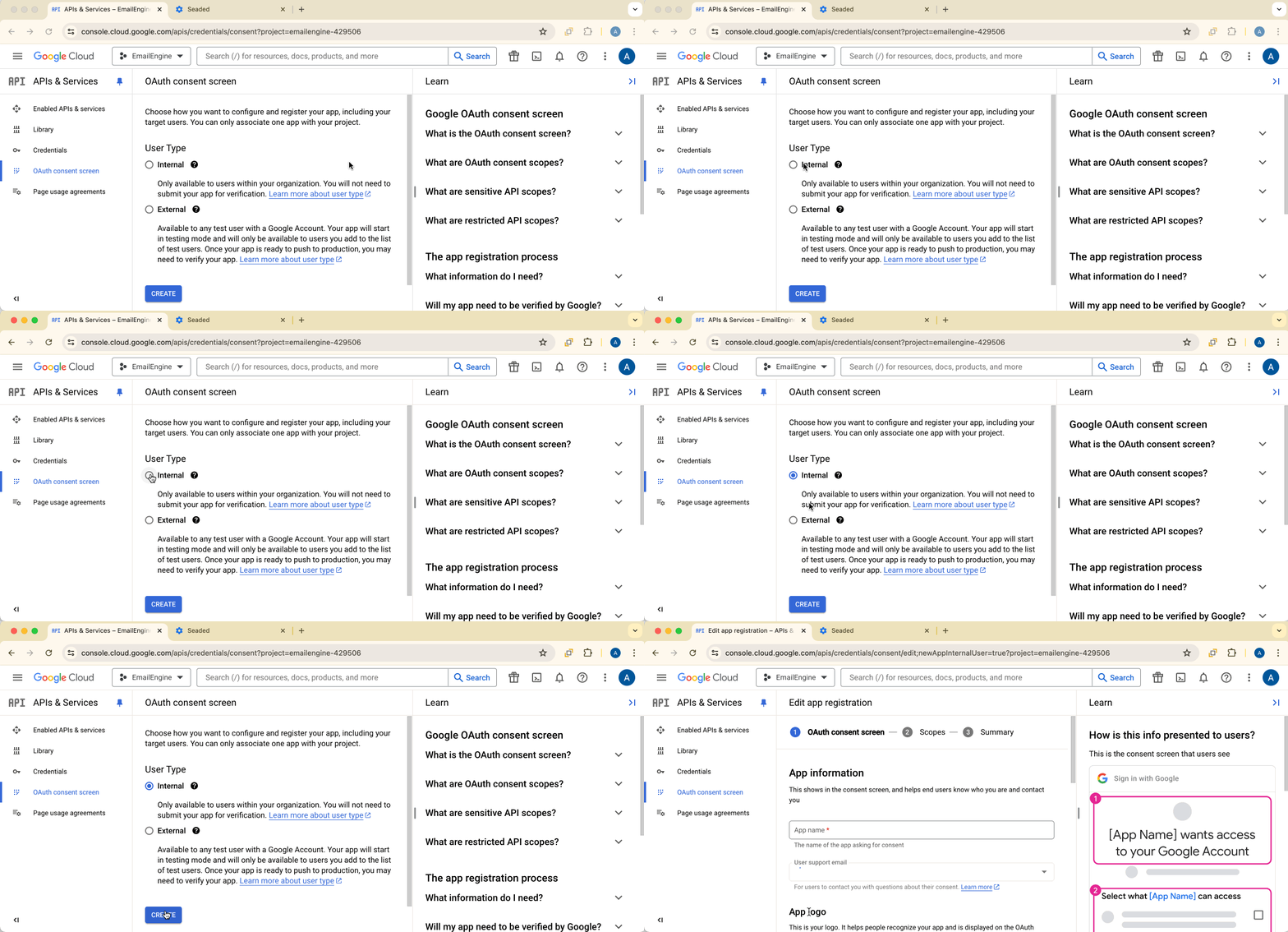
Internal:
- Only accounts from your Google Workspace organization
- No verification process required
- Cannot add @gmail.com accounts or other organizations
- Best for testing and enterprise apps
External:
- Any Gmail user can authenticate
- Requires verification for production
- Best for public applications
- More complex approval process
For this tutorial, we'll use Internal. For production public apps, select External and follow Google's verification process.
Fill in App Information
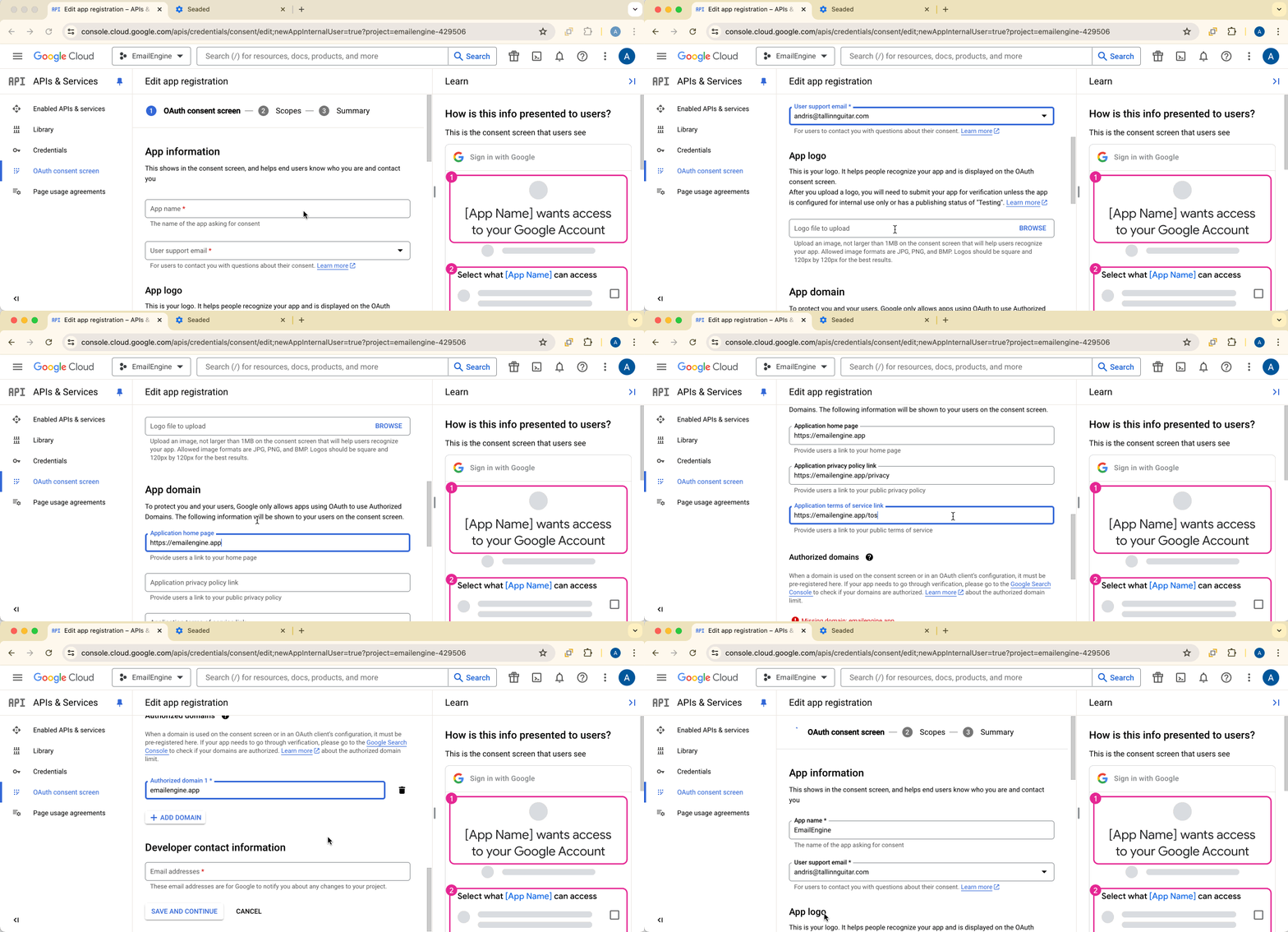
Provide:
- App name: "EmailEngine" (or your application name)
- User support email: Your email address
- Developer contact information: Your email address
- Application home page: Your EmailEngine instance URL (e.g.,
http://127.0.0.1:3000)
Click Save and continue.
Configure Scopes
Click Add or remove scopes and find https://mail.google.com/ from the list.
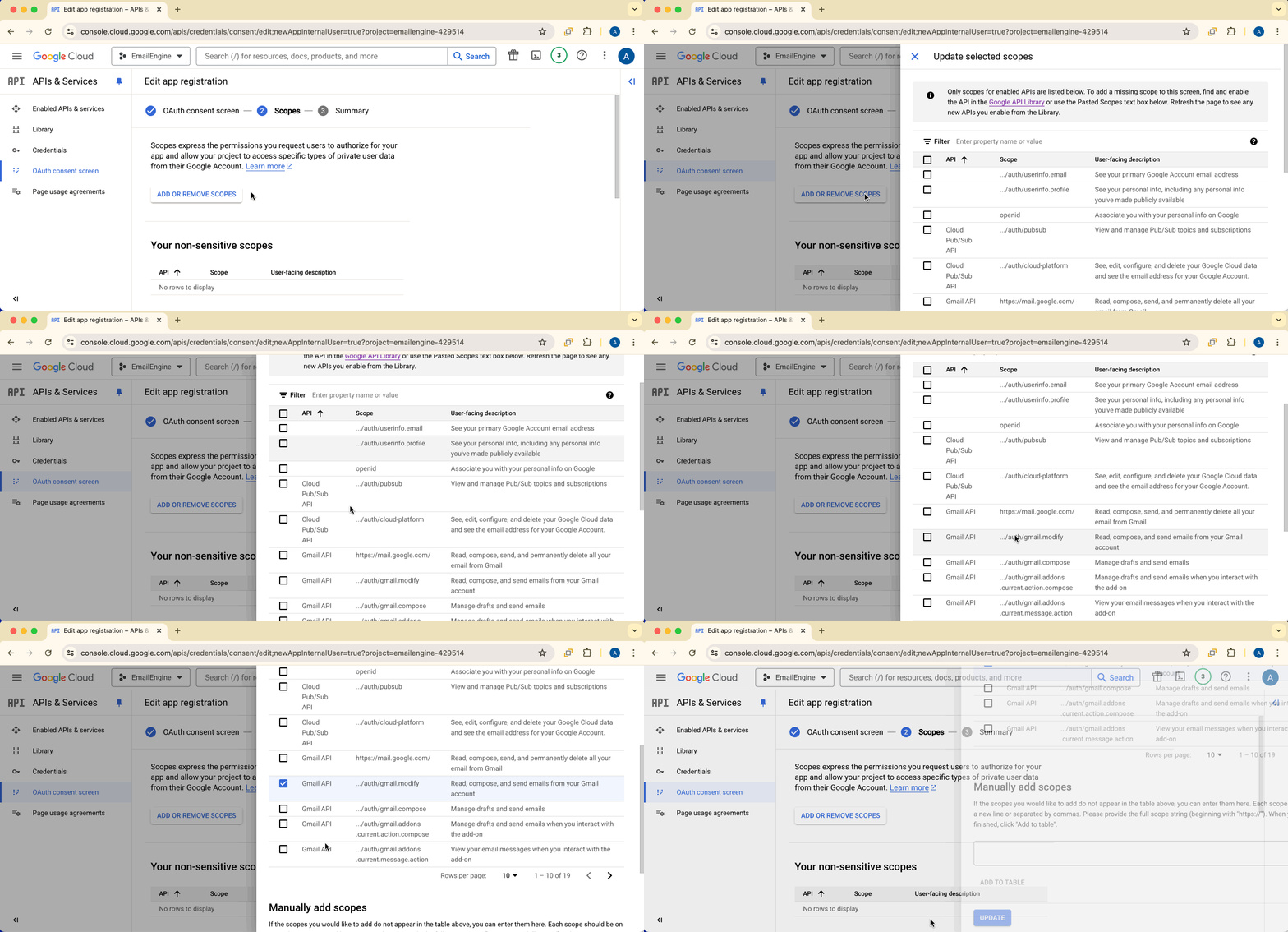
The https://mail.google.com/ scope is required for IMAP and SMTP access.
If you were using Gmail REST API instead, the scope would be https://www.googleapis.com/auth/gmail.modify.
Check the scope and click Update to apply changes.
Scroll down and click Save and continue to finish consent screen setup.
Step 4: Create OAuth Credentials
Navigate to APIs & Services > Credentials, then click Create Credentials > OAuth client ID.

Configure OAuth Client
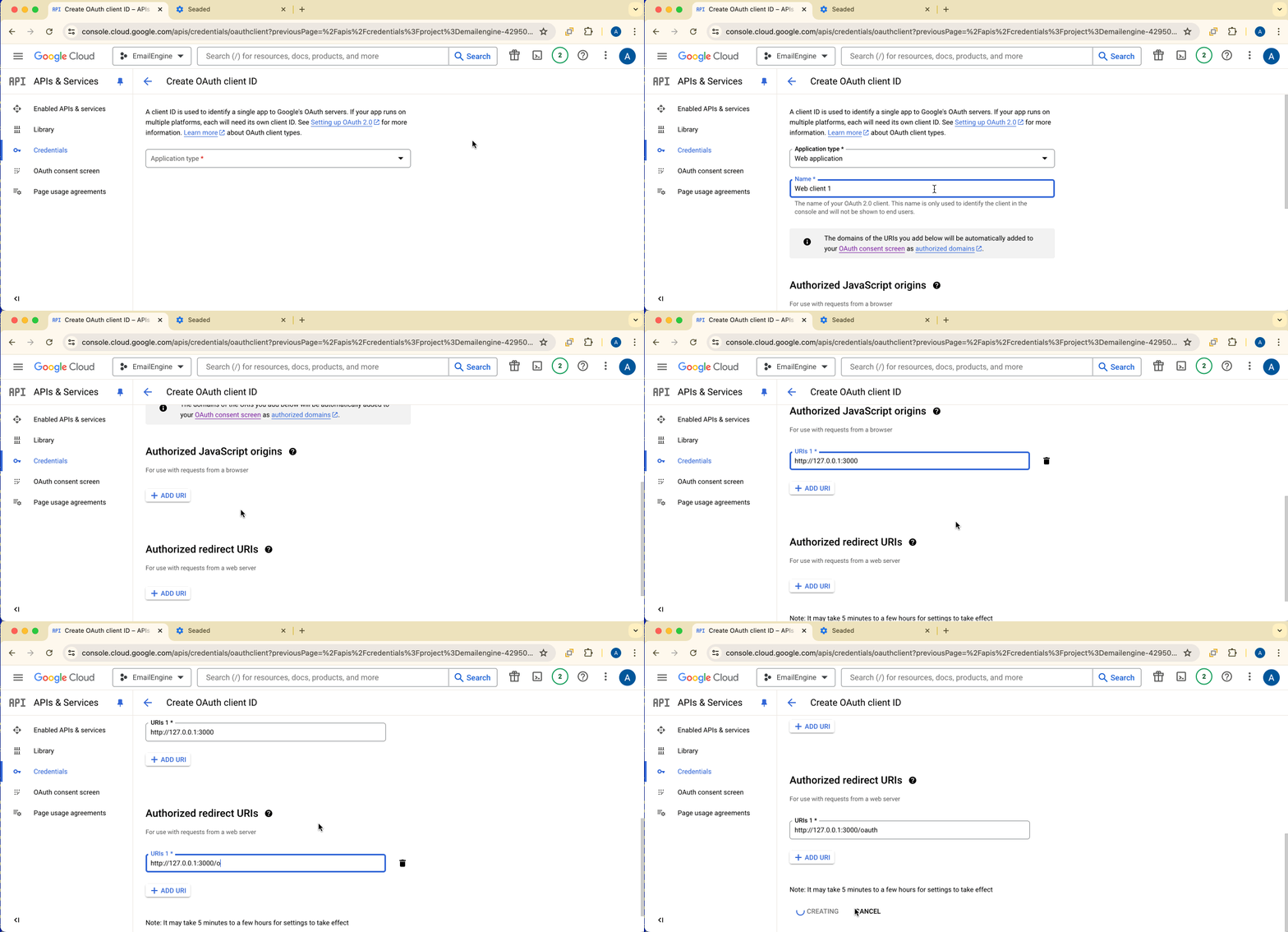
Application type: Web application
Authorized JavaScript origins: Add your EmailEngine URL without any path:
http://127.0.0.1:3000(for local testing)https://emailengine.example.com(for production)
Authorized redirect URIs:
Add your EmailEngine URL with the /oauth path:
http://127.0.0.1:3000/oauth(for local testing)https://emailengine.example.com/oauth(for production)
You can add multiple redirect URIs if you want to use the same OAuth2 app with multiple EmailEngine instances (e.g., development, staging, and production environments).
The redirect URL configured in EmailEngine must exactly match one of the URLs listed here. Mismatches will cause OAuth flow failures.
Click Create.
Download Credentials
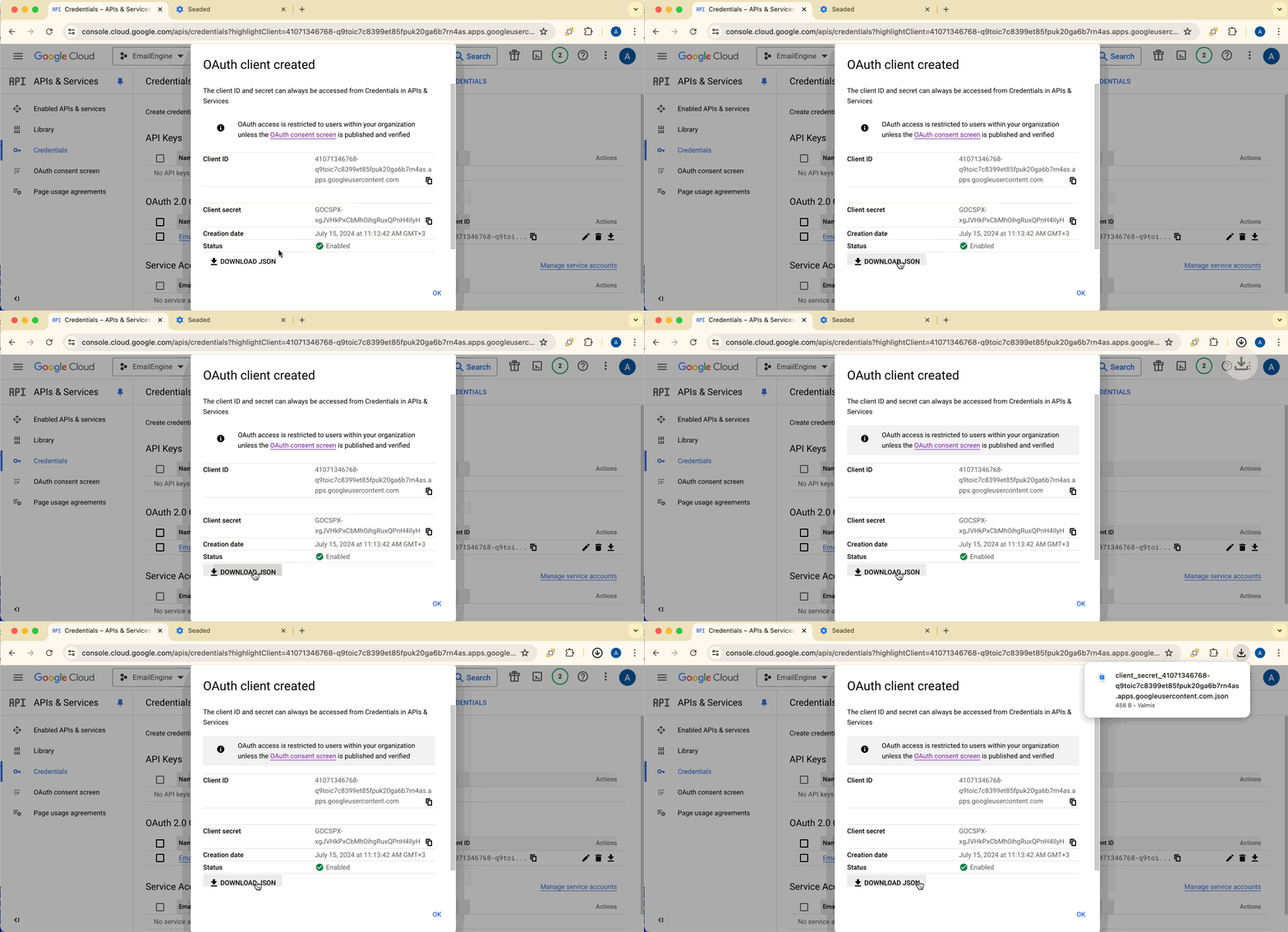
Click the Download button to save the credentials JSON file. You'll need this file to configure EmailEngine.
Step 5: Configure EmailEngine
Now that you have your Google Cloud project configured, let's set up EmailEngine to use these credentials.
Add OAuth2 Application in EmailEngine
- Open your EmailEngine dashboard
- Navigate to Integrations > OAuth2 Apps
- Click the Create OAuth2 app dropdown and select Gmail

Configure OAuth2 Settings
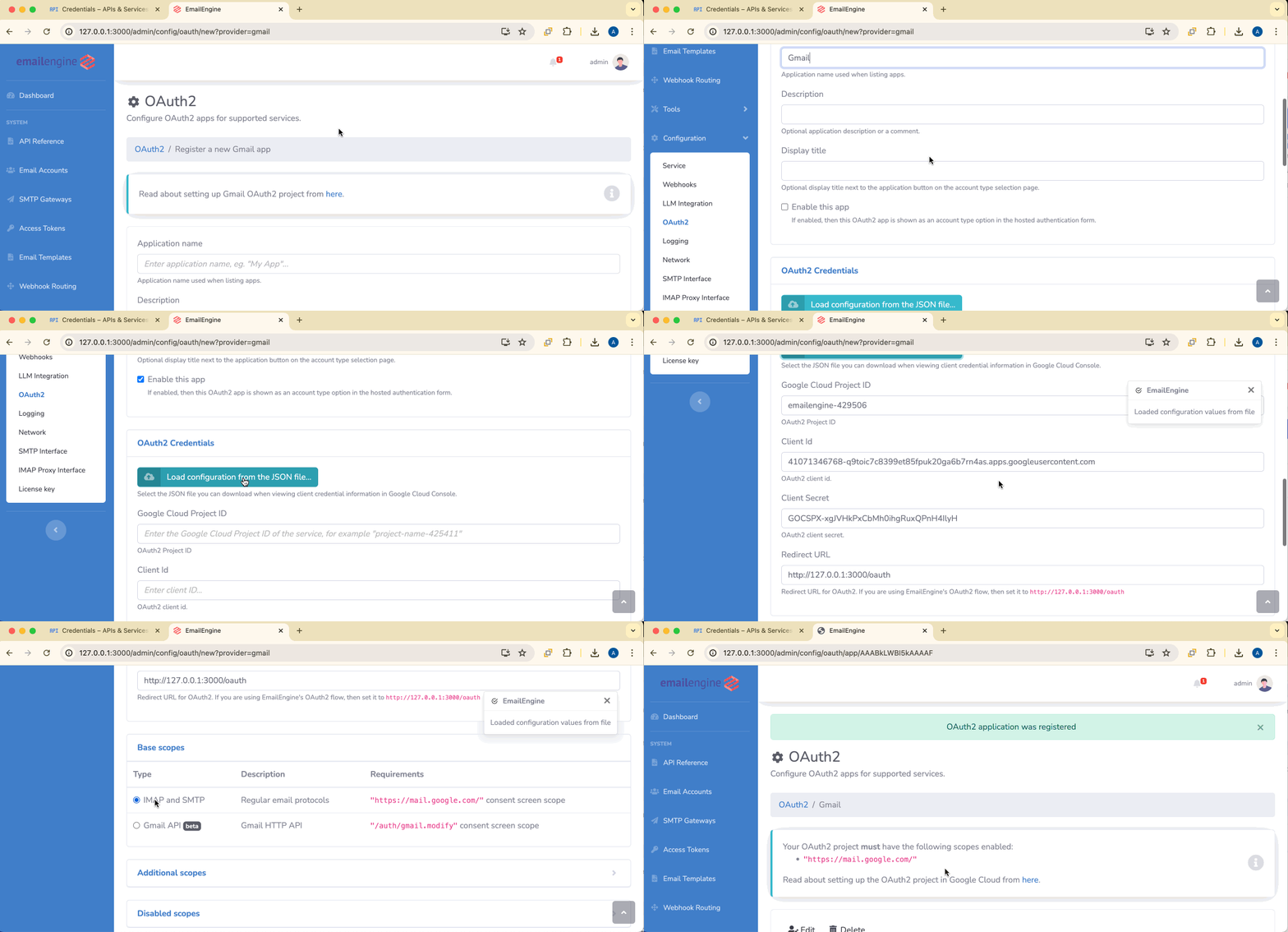
Application name: Give it a descriptive name (e.g., "Gmail OAuth2")
Display title: Optional (API field title). Shown above the app's button on the hosted authentication form, so that several apps of the same provider can be told apart.
Enable this app: Leave this box checked (it is checked by default for a new app). An app that is not enabled is not offered in the hosted authentication form
Accept only Google Workspace accounts: Optional (API field googleWorkspaceAccounts, since v2.48.2). When checked, EmailEngine adds hd=* to Google's authorization URL, so Google's account chooser lists only Google Workspace accounts. Since v2.82.1, EmailEngine also checks the hosted domain (hd) claim of the ID token Google returns, and refuses an account that has none, which is every personal Gmail account. The refused grant is revoked, and the user sees a page saying a work account is required, with a retry that opens the account chooser again. Before v2.82.1 the option only filtered the chooser, so a user who picked a different account, or a link built without it, could connect a personal account.
Base scope: Select the IMAP and SMTP tab
Credentials: Click Load from the client JSON file... and select the JSON file you downloaded from Google Cloud Console. This fills in:
- Client ID
- Client secret
- Google Cloud project ID
Redirect URL: Verify this matches exactly what you entered in Google Cloud Console
- Example:
http://127.0.0.1:3000/oauth
Click Register app to save.
- IMAP and SMTP: EmailEngine uses IMAP for reading and SMTP for sending (this guide)
- Gmail API: EmailEngine uses the Gmail REST API for all operations. Push notifications need Cloud Pub/Sub; without it the account is polled about every 10 minutes
Choose IMAP and SMTP unless you need the Gmail API backend.
Step 6: Test the Setup
Now you can add a Gmail account to test the OAuth2 flow.
Option 1: Via Hosted Authentication Form
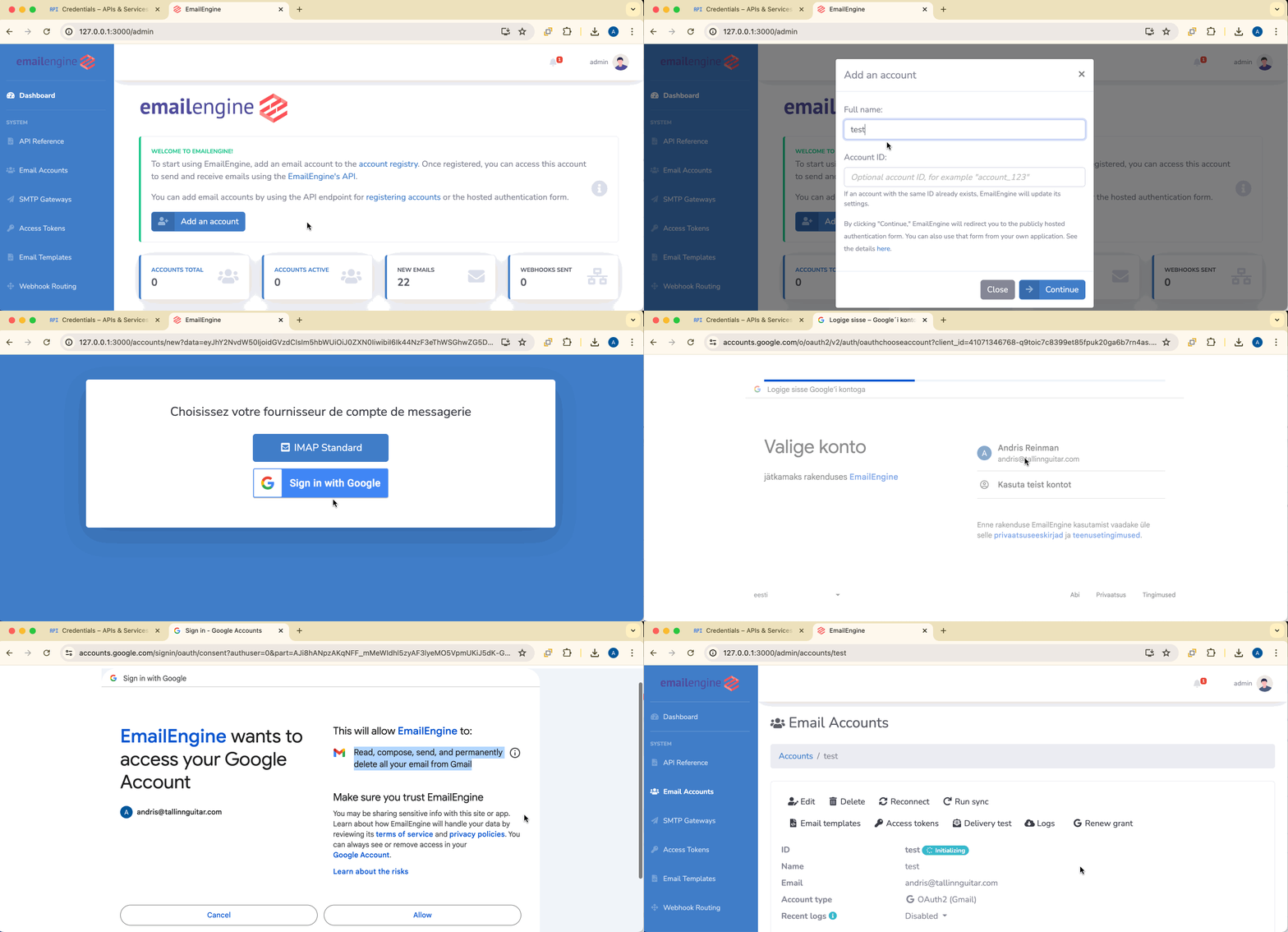
- In EmailEngine, click Add account
- Click Sign in with Google
- Complete the OAuth2 consent flow
- You'll be redirected back to EmailEngine
Option 2: Via API
Generate an authentication form URL:
curl -X POST https://emailengine.example.com/v1/authentication/form \
  -H "Authorization: Bearer YOUR_ACCESS_TOKEN" \
  -H "Content-Type: application/json" \
  -d '{
    "account": "user123",
    "email": "user@gmail.com",
    "type": "AAABhaBPHscAAAAH",
    "redirectUrl": "https://myapp.com/settings"
  }'
| Field | Description |
|---|---|
account | Unique account identifier in EmailEngine |
email | Pre-fill email field (optional) |
type | OAuth2 application ID from EmailEngine (optional) - skips the account type selection screen |
redirectUrl | Where to redirect after authentication |
The type parameter is the ID of your OAuth2 application in EmailEngine (shown under Integrations > OAuth2 Apps), not the Google client ID. When specified, users are sent directly to the Google authorization page without seeing the account type selection screen. The returned URL is single-use and valid for 24 hours.
Response:
{
  "url": "https://emailengine.example.com/accounts/new?data=eyJhY2NvdW50..."
}
Direct the user to this URL to complete authentication.
Learn more about hosted authentication >
Option 3: Direct API Account Registration
If you already have OAuth2 tokens from elsewhere:
curl -X POST https://emailengine.example.com/v1/account \
  -H "Authorization: Bearer YOUR_ACCESS_TOKEN" \
  -H "Content-Type: application/json" \
  -d '{
    "account": "user123",
    "name": "John Doe",
    "email": "user@gmail.com",
    "oauth2": {
      "provider": "AAABlf_0iLgAAAAQ",
      "accessToken": "ya29.a0AWY7CklEXAMPLEACCESSTOKEN",
      "refreshToken": "1//0gDj5EXAMPLEREFRESHTOKEN",
      "auth": {
        "user": "user@gmail.com"
      }
    }
  }'
The provider field should be the OAuth2 application ID from EmailEngine, which is a base64url encoded string like AAABlf_0iLgAAAAQ. You can find this ID in Integrations > OAuth2 Apps in the EmailEngine interface. This is NOT the Client ID from Google Cloud Console.
Gmail-Specific Considerations
Label vs Folder Mapping
Gmail uses labels, but IMAP presents them as folders:
- Multiple labels = message appears in multiple folders
- Moving messages between folders in IMAP = changing labels in Gmail
- Some Gmail labels map to special IMAP folders (e.g.,
[Gmail]/All Mail)
All Mail Folder
The [Gmail]/All Mail folder is a virtual folder that contains all messages regardless of labels, except messages in Trash and Spam folders.
Gmail Throttling
Gmail may throttle accounts with unusual activity:
- Sudden large volume of operations
- Many failed authentication attempts
- Rapid folder syncing
Prevention:
- Implement gradual rollout for new accounts
- Use exponential backoff on errors
- Monitor account states for throttling indicators
Production Considerations
Publishing the App
An app that any Gmail user can authorize has to pass Google's app verification, and https://mail.google.com/, the scope IMAP and SMTP need, is a restricted scope, so the verification includes a security assessment. An internal app (Google Workspace only) and an app in testing mode need no verification, with the limits described under Gmail account types. The scope tiers and what each requires are on the Gmail API Scopes Reference; an application that cannot justify the full scope can use the Gmail API with a narrower one instead.
Managing Multiple OAuth2 Apps
You can configure multiple Gmail OAuth2 applications in EmailEngine:
- Different apps for different user segments
- Separate testing and production apps
- Organization-specific apps
Each app gets its own settings and can use different scopes or configurations.
Consent, Tokens and Recovery
What happens when a user unticks a permission on Google's consent screen is under Granular consent. Token refresh, the conditions under which Google invalidates a refresh token, what a failed refresh does to the account and how a switched-off account comes back are on OAuth2 Token Management.
See Also
- Gmail API - The other Gmail backend, and when it is the better choice
- Gmail API scopes - What each scope combination supports
- Google service accounts - Workspace access without per-user consent
- OAuth2 token management - Token lifetimes and using them elsewhere
- Account troubleshooting - When the connection or the consent fails