Monitoring and Observability
EmailEngine exposes a health check endpoint, a stats endpoint, a Prometheus metrics endpoint, and a queue dashboard. This page documents each of them, lists every Prometheus metric the current release registers, and shows how to wire them into Grafana and Alertmanager.
Overview
| Signal | Where | Authentication |
|---|---|---|
| Health check | GET /health | None |
| Instance stats | GET /v1/stats | Access token |
| Prometheus metrics | GET /metrics | Access token with the metrics scope |
| Queue browser | /admin/queues | Admin login |
| Structured logs | stdout | See Logging |
Health Check Endpoints
Basic Health Check
GET /health needs no authentication and is the endpoint to give an uptime monitor or a container orchestrator:
curl https://emailengine.example.com/health
{
  "success": true
}
The check passes when every configured account worker thread has started and Redis answers a write-read-delete round trip. Either failing returns HTTP 500 with a Boom error body (Not all IMAP workers available or Database check failed). During startup the endpoint returns 500 until the last worker is up, so give a readiness probe a few seconds of slack.
Instance Stats
GET /v1/stats returns version information, connection state counts, queue depths and event counters for the instance:
curl "https://emailengine.example.com/v1/stats" \
  -H "Authorization: Bearer YOUR_ACCESS_TOKEN"
{
  "version": "2.82.0",
  "license": "LICENSE_EMAILENGINE",
  "accounts": 15,
  "node": "24.5.0",
  "redis": "7.2.4",
  "redisSoftware": "redis",
  "redisCluster": false,
  "redisWarnings": [],
  "redisPing": 0.4,
  "imapflow": "2.2.1",
  "bullmq": "6.3.11",
  "arch": "x64",
  "connections": {
    "init": 0,
    "connected": 14,
    "connecting": 1,
    "syncing": 0,
    "authenticationError": 0,
    "connectError": 0,
    "unset": 0,
    "disconnected": 0,
    "paused": 0,
    "unassigned": 0
  },
  "queues": {
    "notify": {
      "active": 2,
      "delayed": 0,
      "waiting": 0,
      "paused": 0,
      "isPaused": false,
      "total": 2
    },
    "submit": {
      "active": 1,
      "delayed": 0,
      "waiting": 5,
      "paused": 0,
      "isPaused": false,
      "total": 6
    }
  },
  "counters": {
    "events:messageNew": 1523,
    "webhooks:success": 1450,
    "webhooks:fail": 3,
    "apiCall:success": 234,
    "notify:success": 1450,
    "submit:success": 12
  }
}
counters covers the last hour by default; the seconds query parameter widens or narrows the window. The keys are events:<event>, webhooks:success|fail, apiCall:success|fail and <queue>:success|fail. queues reports the notify and submit queues; releases before v2.82.0 also listed documents, the indexing queue of the removed Document Store. See the stats endpoint reference for every field.
Prometheus Metrics
Setting Up Prometheus
EmailEngine exposes Prometheus metrics at /metrics. The endpoint requires an access token with the metrics scope; a token with that scope alone can read the metrics and nothing else.
Step 1: Create a Metrics Token
- Open Integrations > Access Tokens in the admin UI
- Click Create access token
- Untick All scopes
- Tick Metrics
- Create the token and copy it; it is shown once
Or from the command line on the server:
emailengine tokens issue -d "Prometheus" -s "metrics"
Step 2: Configure Prometheus
Add EmailEngine as a scrape target in prometheus.yml:
scrape_configs:
  - job_name: 'emailengine'
    scrape_interval: 10s
    metrics_path: '/metrics'
    scheme: 'https'
    authorization:
      type: Bearer
      credentials: YOUR_METRICS_TOKEN
    static_configs:
      - targets: ['emailengine.example.com']
For several instances, list them all under one job and label them:
scrape_configs:
  - job_name: 'emailengine'
    scrape_interval: 10s
    metrics_path: '/metrics'
    scheme: 'https'
    authorization:
      type: Bearer
      credentials: YOUR_METRICS_TOKEN
    static_configs:
      - targets:
        - 'ee-prod-01.example.com'
        - 'ee-prod-02.example.com'
        labels:
          environment: 'production'
Keep the job name emailengine: the shipped Grafana dashboard selects instances with label_values({job="emailengine"}, instance).
Step 3: Restart Prometheus and Verify
sudo systemctl restart prometheus
Open the Prometheus targets page (/targets) and confirm the EmailEngine job shows UP.
Metric Reference
The tables below list every metric EmailEngine registers, from server.js. The Prometheus client's default Node.js process metrics (process_cpu_seconds_total, process_resident_memory_bytes, nodejs_heap_size_used_bytes, nodejs_eventloop_lag_seconds and the rest of the process_* and nodejs_* family) are exposed alongside them; the Grafana dashboard's memory and CPU panels read those.
Worker and Thread Metrics
| Metric | Type | Labels | Description |
|---|---|---|---|
thread_starts | Counter | none | Worker threads started since the process began |
thread_stops | Counter | none | Worker threads that stopped |
threads | Gauge | type, recent | Running worker threads by type. recent is yes for threads started within the last 10 minutes, no otherwise |
unresponsive_workers | Gauge | none | Worker threads that did not answer the last resource-usage poll |
type is one of main, api, imap, webhooks, submit, export, smtp and imapProxy; a type only appears once such a worker has run. Releases before v2.82.0 also had a documents type, the Document Store indexing worker.
Connection Metrics
| Metric | Type | Labels | Description |
|---|---|---|---|
imap_connections | Gauge | status | Accounts by connection state. Despite the name it counts every account type. status takes the account states init, connected, connecting, syncing, authenticationError, connectError, unset, disconnected and paused, plus unassigned for an account a worker holds but has not created a connection for yet; accounts not yet handed to any worker are added to disconnected |
imap_responses | Counter | response, code | IMAP server responses by status (OK, NO, BAD) and response code (CAPABILITY, PERMANENTFLAGS, ...) |
imap_bytes_sent | Counter | none | Bytes written to IMAP servers |
imap_bytes_received | Counter | none | Bytes read from IMAP servers |
OAuth2 Metrics
| Metric | Type | Labels | Description |
|---|---|---|---|
oauth2_token_refresh | Counter | status, provider, statusCode | Access token refresh attempts. status is success or failure; provider is gmail, the OAuth2 app's provider for Microsoft accounts (outlook), or unknown for a failed refresh requested through GET /v1/account/{account}/oauth-token; statusCode is the HTTP status of the token endpoint |
oauth2_api_request | Counter | status, provider, statusCode | Gmail API and MS Graph requests, with the same labels |
outlook_subscriptions | Gauge | status | MS Graph change-notification subscriptions by state: valid, expired, unset, failed, pending |
The OAuth2 and subscription metrics, along with the Grafana dashboard, were added in EmailEngine v2.59.0.
Webhook Metrics
| Metric | Type | Labels | Description |
|---|---|---|---|
webhooks | Counter | status, event | Webhook delivery attempts by outcome and event type. status is success or fail; a delivery that will be retried counts as fail on each attempt |
events | Counter | event | Events raised, whether or not a webhook was sent for them |
webhook_req | Histogram | none | Duration of the HTTP request to the webhook endpoint, in milliseconds. Buckets: 100, 250, 500, 750, 1000, 2500, 5000, 7500, 10000, 60000 |
AI Processing Metrics
| Metric | Type | Labels | Description |
|---|---|---|---|
ai_requests | Counter | model, status | Requests made to the model for AI summaries. status is success or failure |
ai_tokens | Counter | model, type | Tokens billed for those requests, as reported by the model's usage figures. type is prompt or completion |
Both were added in EmailEngine v2.82.0 and stay at zero until AI processing is enabled.
Queue Metrics
| Metric | Type | Labels | Description |
|---|---|---|---|
queue_size | Gauge | queue, state | Jobs in the notify and submit queues by state: waiting, active, delayed, paused |
queues_processed | Counter | queue, status | Jobs finished in the notify and submit queues; status is completed or failed |
Since v2.79.1 the gauges are read from BullMQ's own counters. A paused queue holds its jobs in waiting, so the paused series stays at 0 and is kept only so existing dashboards do not break. Releases before v2.82.0 also reported a documents series for the indexing queue of the Document Store, which was removed with that feature.
API Metrics
| Metric | Type | Labels | Description |
|---|---|---|---|
api_call | Counter | method, statusCode, route | REST API calls by lowercase HTTP method, response status and route pattern, for example route="/v1/account/{account}/submit". Admin UI requests are not counted |
License and Configuration Metrics
| Metric | Type | Labels | Description |
|---|---|---|---|
license_days_remaining | Gauge | none | Days until the license expires. -1 for a license without an expiry, 0 when no license is registered |
emailengine_config | Gauge | version, config | Always 1 for the version series (version="v2.82.0"). The config series carry the values of uvThreadpoolSize, workersImap, workersWebhooks and workersSubmission |
Redis Metrics
Read from INFO on each scrape, so they describe the Redis server EmailEngine is connected to:
| Metric | Type | Labels | Description |
|---|---|---|---|
redis_version | Gauge | version | Always 1; the version is in the label |
redis_uptime_in_seconds | Gauge | none | Redis server uptime |
redis_latency | Gauge | none | PING round trip in nanoseconds |
redis_rejected_connections_total | Gauge | none | Connections Redis rejected because of maxclients |
redis_config_maxclients | Gauge | none | The maxclients setting |
redis_connected_clients | Gauge | none | Current client connections |
redis_slowlog_length | Gauge | none | Entries in the slow log |
redis_commands_duration_seconds_total | Gauge | none | Total time spent executing commands |
redis_commands_processed_total | Gauge | none | Commands processed |
redis_keyspace_hits_total | Gauge | none | Successful key lookups |
redis_keyspace_misses_total | Gauge | none | Failed key lookups |
redis_evicted_keys_total | Gauge | none | Keys evicted because of maxmemory. Anything above 0 means EmailEngine data has been lost |
redis_memory_used_bytes | Gauge | none | used_memory |
redis_memory_max_bytes | Gauge | none | maxmemory, or total system memory when maxmemory is 0 |
redis_mem_fragmentation_ratio | Gauge | none | used_memory_rss divided by used_memory |
redis_key_count | Gauge | db | Keys per logical database (db="db8") |
redis_last_save_time | Gauge | none | Unix timestamp of the last RDB snapshot |
redis_instantaneous_ops_per_sec | Gauge | none | Commands per second |
redis_command_runs | Gauge | command | Calls per command from INFO commandstats |
redis_command_runs_fail | Gauge | command, status | Failed (failed) and rejected (rejected) calls per command |
Grafana Dashboard
EmailEngine ships a Grafana dashboard covering the metrics above. It lives in the EmailEngine repository as examples/grafana-dashboard.json, and https://go.emailengine.app/grafana-dashboard.json redirects to the current copy.
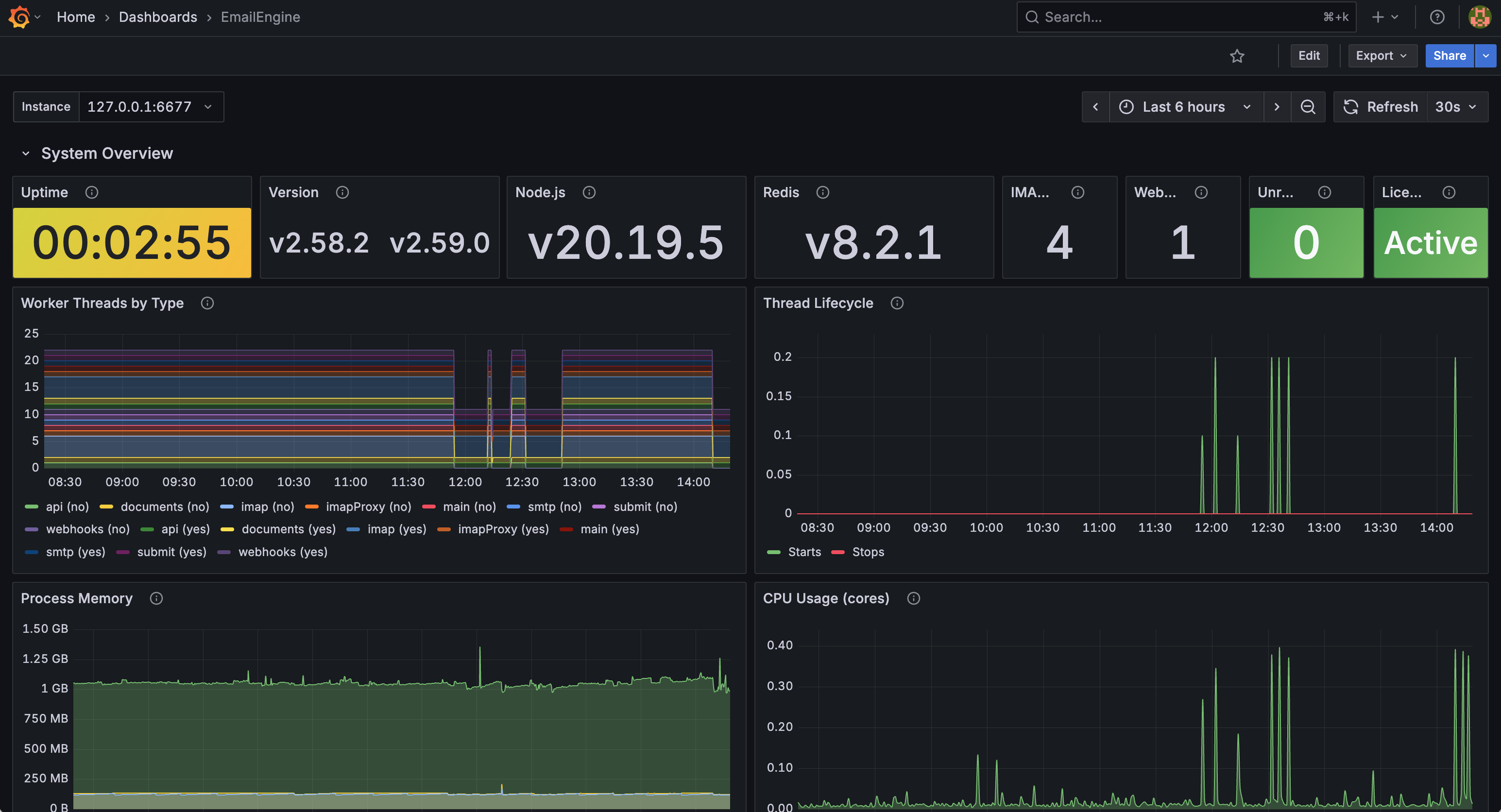 EmailEngine monitoring dashboard showing system overview, worker threads, memory, and CPU usage
Dashboard Rows
- System Overview - Uptime, version, Node.js and Redis versions, IMAP and webhook worker counts, unresponsive workers, license status, worker threads by type, thread lifecycle, process memory, CPU usage
- API Traffic - Requests by method, responses by status code
- Webhooks - Delivery status, events by type, request latency
- Queues - Webhook queue and processing rates, email sending queue and processing rates
- Account Connections - Account states, IMAP response codes, network bandwidth, event rates
- OAuth2 API (MS Graph, Gmail) - Token refreshes, API requests, failures by status code, MS Graph subscriptions
- Redis - Memory used and limit, clients, throughput, latency, slowlog, uptime, last save, memory usage percentage, connection pool usage, cache hit ratio, average command time, key count, key evictions
Installing the Dashboard
Step 1: Add a Prometheus Data Source
- In Grafana go to Connections > Data sources and click Add data source
- Select Prometheus and enter the server URL, for example
http://localhost:9090 - Click Save & test
Step 2: Download the Dashboard
curl -L -O https://go.emailengine.app/grafana-dashboard.json
Step 3: Import It
- Go to Dashboards > New > Import
- Upload
grafana-dashboard.json, or paste its contents into the import text area - Pick a folder and select your Prometheus data source
- Click Import
Step 4: Pick an Instance
The dashboard has one variable, host, populated by label_values({job="emailengine"}, instance). It appears as a dropdown at the top of the dashboard and filters every panel. If your scrape job is not called emailengine, edit the variable under Dashboard settings > Variables.
Custom Panels
Queries that work well as extra panels:
Webhooks per minute
sum(rate(webhooks[5m])) * 60
Webhook success and failure rates
sum(rate(webhooks{status="success"}[5m])) * 60
sum(rate(webhooks{status="fail"}[5m])) * 60
Accounts by state
sum by (status) (imap_connections)
Webhook request time, 99th percentile (milliseconds)
histogram_quantile(0.99, sum by (le) (rate(webhook_req_bucket[5m])))
Queue depth
queue_size{queue="notify",state="waiting"}
queue_size{queue="submit",state="waiting"}
Key Metrics to Monitor
Account Health
imap_connections{status="connected"}
imap_connections{status=~"authenticationError|connectError|disconnected"}
A rising authenticationError count is usually expired credentials; see Account troubleshooting.
Webhook Queue Depth
queue_size{queue="notify",state="waiting"} > 100
A growing waiting count means the webhook endpoint is slower than the event rate. Either speed up the handler or add webhook workers.
Webhook Failure Rate
sum(rate(webhooks{status="fail"}[5m])) / sum(rate(webhooks[5m])) > 0.05
Webhook Request Time
histogram_quantile(0.99, sum by (le) (rate(webhook_req_bucket[5m]))) > 5000
The buckets are in milliseconds, so this fires when the slowest one percent of requests take more than five seconds.
Redis
redis_evicted_keys_total > 0
redis_memory_used_bytes / redis_memory_max_bytes > 0.8
Evictions mean EmailEngine data is being discarded; see Redis for the eviction policy to use.
Alerting Setup
Prometheus Alertmanager
Rules in prometheus_rules.yml:
groups:
  - name: emailengine
    interval: 30s
    rules:
      - alert: EmailEngineDown
        expr: up{job="emailengine"} == 0
        for: 1m
        labels:
          severity: critical
        annotations:
          summary: "EmailEngine is down"
          description: "EmailEngine on {{ $labels.instance }} is not answering scrapes"

      - alert: EmailEngineConnectionErrors
        expr: |
          imap_connections{status=~"authenticationError|connectError"} > 5
        for: 5m
        labels:
          severity: warning
        annotations:
          summary: "Accounts in an error state"
          description: "{{ $value }} accounts with {{ $labels.status }}"

      - alert: EmailEngineWebhookQueueHigh
        expr: queue_size{queue="notify",state="waiting"} > 100
        for: 5m
        labels:
          severity: warning
        annotations:
          summary: "Webhook queue is backing up"
          description: "{{ $value }} webhooks waiting"

      - alert: EmailEngineWebhookFailureRate
        expr: |
          sum(rate(webhooks{status="fail"}[5m])) / sum(rate(webhooks[5m])) > 0.1
        for: 5m
        labels:
          severity: critical
        annotations:
          summary: "High webhook failure rate"
          description: "{{ $value | humanizePercentage }} of webhook deliveries are failing"

      - alert: EmailEngineSlowWebhooks
        expr: |
          histogram_quantile(0.99, sum by (le) (rate(webhook_req_bucket[5m]))) > 10000
        for: 5m
        labels:
          severity: warning
        annotations:
          summary: "Webhooks are slow"
          description: "99th percentile webhook request time: {{ $value }}ms"

      - alert: EmailEngineQueueStalled
        expr: |
          sum by (queue) (rate(queues_processed[5m])) == 0
          and on (queue) queue_size{state="waiting"} > 0
        for: 10m
        labels:
          severity: critical
        annotations:
          summary: "Queue processing stalled"
          description: "Queue {{ $labels.queue }} has waiting jobs but nothing is completing"

      - alert: EmailEngineRedisEvictions
        expr: increase(redis_evicted_keys_total[10m]) > 0
        labels:
          severity: critical
        annotations:
          summary: "Redis is evicting keys"
          description: "EmailEngine data is being discarded by the Redis eviction policy"
Alertmanager Configuration
Notification routing in alertmanager.yml:
global:
  resolve_timeout: 5m

route:
  group_by: ['alertname', 'instance']
  group_wait: 30s
  group_interval: 5m
  repeat_interval: 12h
  receiver: 'email-notifications'
  routes:
    - match:
        severity: critical
      receiver: 'pagerduty'

receivers:
  - name: 'email-notifications'
    email_configs:
      - to: 'ops@example.com'
        from: 'alertmanager@example.com'
        smarthost: 'smtp.example.com:587'
        auth_username: 'alerts'
        auth_password: 'secret'

  - name: 'pagerduty'
    pagerduty_configs:
      - service_key: 'YOUR_PAGERDUTY_KEY'
Add a runbook annotation to each rule pointing at your own procedure for it; Alertmanager passes annotations through to every receiver.
Integration with Observability Platforms
EmailEngine ships as a self-contained service, so you observe it from the outside rather than by instrumenting it. Two signals cover almost everything:
- The Prometheus metrics endpoint for counters and gauges
- The structured JSON logs on stdout for events and errors
Any platform that can scrape Prometheus or read NDJSON works without EmailEngine-specific support.
Datadog
Use the Datadog Agent's OpenMetrics check to scrape the metrics endpoint:
# conf.d/openmetrics.d/conf.yaml
instances:
  - openmetrics_endpoint: https://emailengine.example.com/metrics
    namespace: emailengine
    metrics: ['.*']
    headers:
      Authorization: Bearer YOUR_METRICS_TOKEN
Ship the logs with the Agent's container or file tailing, as described in Logging.
Grafana
Scrape the same endpoint with Prometheus and pair it with Loki for logs. This is the combination the alerting rules above are written against.
Other Platforms
New Relic, Elastic, Honeycomb, and similar tools all accept Prometheus metrics through their own collectors or an OpenTelemetry Collector configured with a prometheus receiver. Point the receiver at /metrics with the bearer token and the same dashboards and alerts apply.
Language-level APM agents instrument an application you build and run yourself. EmailEngine is a packaged service, so there is no place to load one, and the metrics endpoint already reports what an agent would have collected.
Queue Browser
The webhook, submission and export queues are BullMQ queues, and the admin interface has a browser for them at /admin/queues, reachable from the admin menu under System > Queues. It requires an admin login like the rest of /admin. Releases before v2.84.0 bundled the third-party Bull Board page at /admin/bull-board; that address now redirects to the queue browser.
The overview shows every queue with the number of entries in each state, refreshed every few seconds. A queue's own page lists its entries one state at a time - as webhook deliveries, outgoing messages or exports rather than raw jobs - and an entry's page explains a failure in the worker's own terms, with the raw job record underneath for support cases. From there a failed delivery can be retried, a scheduled message sent now, an entry removed, and a queue paused or cleaned. Queue management explains what each queue holds, and Debugging webhooks walks through a failed delivery.
Workers Page
The admin interface lists every thread the process runs under System > Workers (/admin/internals): the main thread, the API, IMAP, webhook, submit, export, SMTP server and IMAP proxy workers, grouped by kind with a sentence on what each kind does. Each row shows the thread ID, its uptime, its memory use and, for IMAP workers, the accounts assigned to it; opening a row lists those accounts.
A worker that came online more than three minutes after the main thread is marked Recently restarted for thirty minutes, since a normal boot brings every worker up within seconds and a late start means the main thread respawned it after a crash. A worker that keeps the marker is crash-looping; its exit reason is in the log stream.
Two actions are available per row:
- Restart worker terminates the thread. The main thread respawns it, with a growing delay for a slot that keeps exiting, so a stuck worker can be replaced without restarting the process. Operations in flight on that thread are interrupted.
- Download memory snapshot produces a V8 heap snapshot of that thread (
.heapsnapshot, opened in the Chrome DevTools Memory tab) for diagnosing memory growth. Taking one pauses the thread while the heap is walked.
The page also explains why only one API worker is running when EENGINE_WORKERS_API asked for more; see Performance Tuning.
Log-Based Monitoring
The log stream carries what the metrics cannot: which account failed, which webhook URL refused the request, what the error said. Shipping it to Elasticsearch, Loki or Datadog and the queries to alert on are covered on the Logging page; the two are meant to be read side by side.
Health Check Scripts
Simple Uptime Check
#!/bin/bash
# check-emailengine-health.sh

RESPONSE=$(curl -s -o /dev/null -w "%{http_code}" https://emailengine.example.com/health)

if [ "$RESPONSE" != "200" ]; then
  echo "EmailEngine health check failed: HTTP $RESPONSE"
  exit 1
fi

echo "EmailEngine is healthy"
exit 0
Full Check
#!/bin/bash
# full-health-check.sh <token> [base-url]

TOKEN="$1"
BASE_URL="${2:-https://emailengine.example.com}"

# Health endpoint, no authentication
SUCCESS=$(curl -s "$BASE_URL/health" | jq -r '.success')

if [ "$SUCCESS" != "true" ]; then
  echo "CRITICAL: EmailEngine health check failed"
  exit 2
fi

# Stats, needs a token
STATS=$(curl -s -H "Authorization: Bearer $TOKEN" "$BASE_URL/v1/stats")

CONNECTED=$(echo "$STATS" | jq -r '.connections.connected // 0')
TOTAL=$(echo "$STATS" | jq -r '.accounts')

if [ "$TOTAL" -gt 0 ]; then
  PERCENT=$(echo "scale=2; $CONNECTED * 100 / $TOTAL" | bc)
  if (( $(echo "$PERCENT < 95" | bc -l) )); then
    echo "WARNING: Only $PERCENT% of accounts connected ($CONNECTED/$TOTAL)"
    exit 1
  fi
fi

echo "OK: EmailEngine healthy, $CONNECTED/$TOTAL accounts connected"
exit 0
Nagios/Icinga Plugin
#!/bin/bash
# check_emailengine <token> [base-url]

TOKEN="$1"
BASE_URL="${2:-https://emailengine.example.com}"

STATS=$(curl -s -H "Authorization: Bearer $TOKEN" "$BASE_URL/v1/stats")

# The notify queue carries webhooks
QUEUE_WAITING=$(echo "$STATS" | jq -r '.queues.notify.waiting // 0')
QUEUE_TOTAL=$(echo "$STATS" | jq -r '.queues.notify.total // 0')
if [ "$QUEUE_WAITING" -gt 100 ]; then
  echo "CRITICAL: Webhook queue size $QUEUE_WAITING | queue=$QUEUE_WAITING"
  exit 2
fi

QUEUE_PAUSED=$(echo "$STATS" | jq -r '.queues.notify.isPaused')
if [ "$QUEUE_PAUSED" = "true" ]; then
  echo "WARNING: Webhook queue is paused | paused=1"
  exit 1
fi

echo "OK: EmailEngine operational | queue_waiting=$QUEUE_WAITING queue_total=$QUEUE_TOTAL"
exit 0
See Also
- Logging - The other half of observability, including per-account logs
- Queue management - What the queue metrics are counting
- Performance tuning - Acting on what the metrics show
- Redis - The Redis figures behind the
redis_*metrics - Access tokens - Minting the
metrics-scoped token the endpoint needs