Queue Management
EmailEngine uses BullMQ for background task processing. Understanding how queues work helps you monitor performance, troubleshoot issues, and optimize your EmailEngine deployment.
Overview
EmailEngine manages two primary queues for different operations:
- Submit Queue (
submit): Email sending jobs - Notify Queue (
notify): Webhook delivery jobs
One more exists: export, which runs bulk exports. Releases before v2.82.0 also had documents, the indexing queue of the Document Store, which was removed with that feature.
All queues are backed by Redis and browsed through System > Queues in the EmailEngine interface, which lists them as Webhooks (notify), Outgoing messages (submit) and Exports (export). Releases before v2.84.0 bundled the third-party Bull Board page (and before that, Arena) at /admin/bull-board; that address redirects to the queue browser now.
EmailEngine 2.79.0 moved from BullMQ 5 to BullMQ 6. The observable differences are noted where they apply below.
The Queue Browser
Navigation: System > Queues, which opens /admin/queues. It is part of the admin interface and needs an admin session.
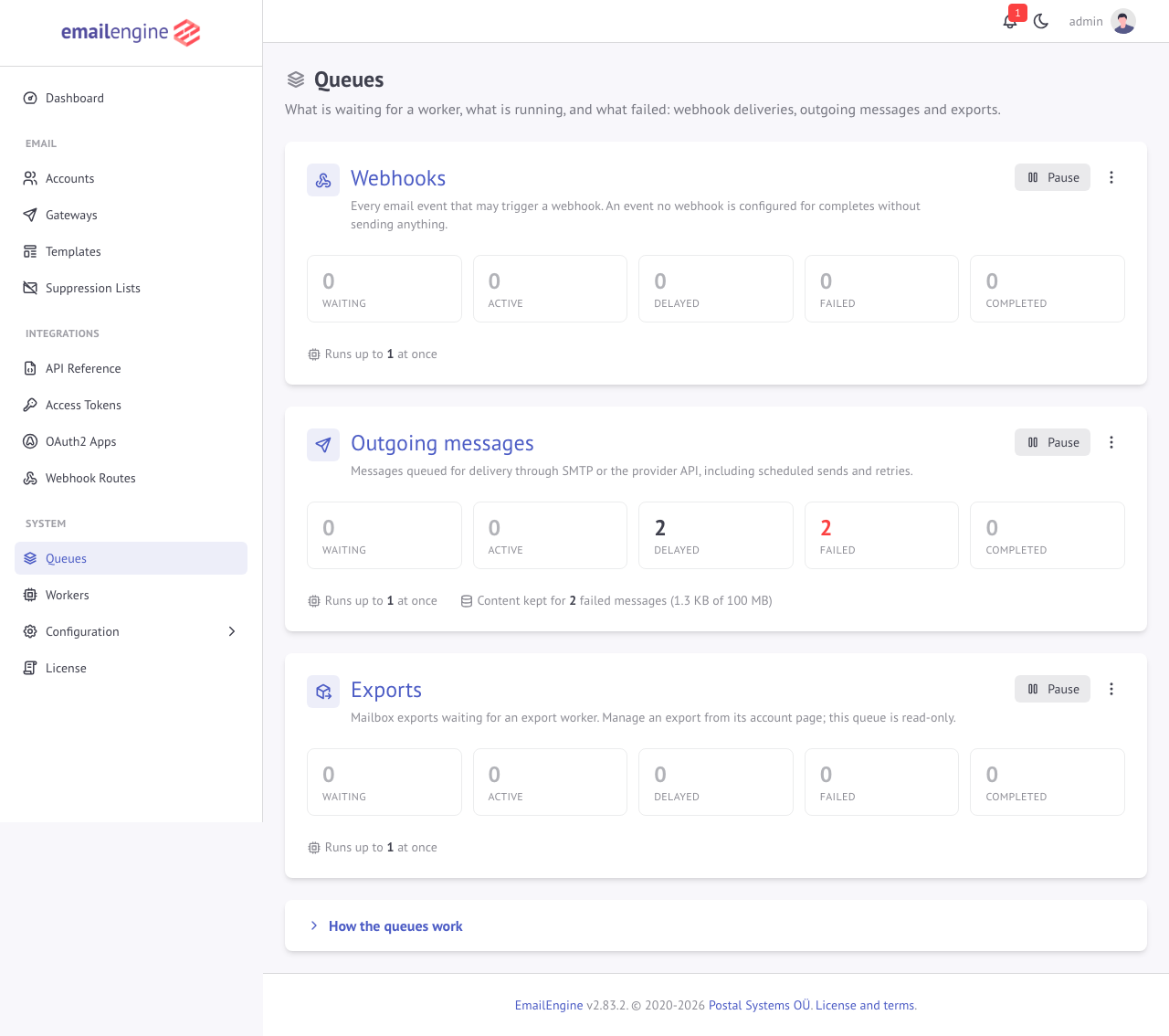 The overview: every queue with its counts by state
The overview shows every queue with the number of entries in each state, how many entries it can run at once (worker threads times the per-worker concurrency), whether it is paused, and for the submit queue how much failed-message content is kept for retries. The counts refresh every few seconds. Each count links to that state's tab on the queue's own page.
A queue's page lists its entries one state at a time, as what they are rather than as raw jobs: a webhook delivery is shown with its event, account and route, an outgoing message with its subject, sender, recipients and account, an export with its account. The search box looks through the newest entries of the selected state - the 500 most recent, which the page says when a busy queue holds more. An entry's page explains a failure in the worker's own terms, with the error text under it, and keeps the raw BullMQ record (data, options, progress, stack traces) at the bottom for support cases.
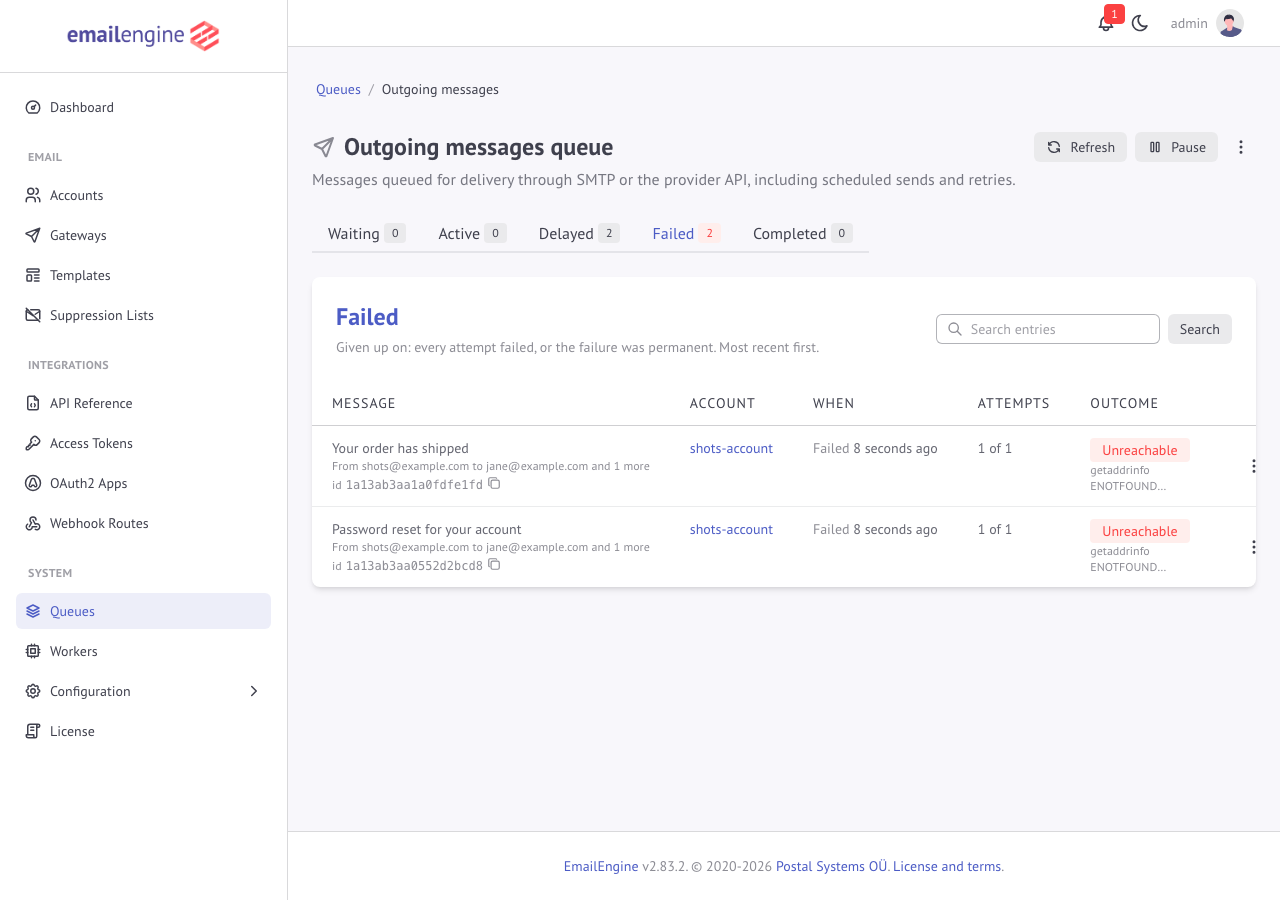 Failed outgoing messages, each with what went wrong and the server's reason
Actions, where they apply:
- Send now runs a delayed entry at the next opportunity: a scheduled message, or an attempt waiting out its backoff
- Retry puts a failed entry back with a fresh set of attempts. A failed message can only be retried while its content is still kept; see Retrying failed messages
- Remove takes an entry out of the queue, together with a message's content. An entry a worker is processing right now is left alone
- Pause and Resume on a queue, and removing every completed or failed entry of it
The exports queue is read-only here: an export is managed from its account page, where cancelling it also removes its file. The same actions are available over the API for outgoing messages: POST /v1/outbox/{queueId}/retry, POST /v1/outbox/{queueId}/promote and DELETE /v1/outbox/{queueId}, and pausing through PUT /v1/settings/queue/{queue}.
Queue Types
1. Submit Queue
Purpose: Handles all outbound email sending operations.
Job Creation: Created when:
- API
/v1/account/{account}/submitendpoint called - SMTP message received
- Scheduled email reaches send time
Job Data: Submit jobs are named queued (immediate) or delayed (scheduled with sendAt). The job data contains only metadata - the actual message content is stored separately in Redis and loaded by the submit worker at send time:
{
  "account": "example",
  "queueId": "1812477e7ed5330eda4",
  "gateway": null,
  "messageId": "<uuid@example.com>",
  "envelope": {
    "from": "sender@example.com",
    "to": ["recipient@example.com"]
  },
  "subject": "Email subject",
  "proxy": null,
  "localAddress": null,
  "created": 1760774400000
}
Success Outcome: messageSent webhook emitted, job moves to Completed
Failure Outcome: Job retries (moves to Delayed) or fails permanently (moves to Failed)
2. Notify Queue
Purpose: Handles webhook delivery to your application.
Job Creation: Created when:
- New email arrives (
messageNew) - Message sent/failed (
messageSent,messageFailed) - Account events (
accountAdded,authenticationError) - Any webhook-enabled event occurs
Job Data: Notify jobs are named after the event type (e.g., messageNew), and the job data is the webhook payload itself. The target URL is not stored in the job - it is resolved from the webhook routes, the account, and the global settings at delivery time, and the webhookEvents allowlist is also checked then, so an event that is not allowlisted still creates a job that completes without sending anything:
{
  "serviceUrl": "https://emailengine.example.com",
  "account": "example",
  "date": "2025-10-18T08:00:00.000Z",
  "path": "INBOX",
  "specialUse": "\\Inbox",
  "event": "messageNew",
  "data": {}
}
path and specialUse are present only for events that concern a mailbox.
Success Outcome: Your endpoint returns 2xx status, job moves to Completed
Failure Outcome: Job retries or fails, webhook not delivered
Job States
Every queue uses the same BullMQ states. What each one means for a submit job, including the retry schedule and the rules that make a failure permanent, is described once on the Outbox Queue page; the notify and export queues move through the same states.
| State | Jobs in it | Leaves it when |
|---|---|---|
| Waiting | Ready to run: new jobs with no future sendAt, delayed jobs whose time has come, and every job while the queue is paused | A worker picks it up and moves it to Active |
| Active | Being processed by a worker: the SMTP transaction, the webhook POST, or the export run | Success moves it to Completed, a retriable failure to Delayed, a permanent failure or the last allowed attempt to Failed |
| Delayed | Scheduled for a later time: a sendAt in the future, or a failed attempt waiting for its retry (5 seconds doubling per attempt, reduced by up to 20 percent of jitter) | Its time comes and it returns to Waiting |
| Completed | Finished successfully. Removed at once unless a history limit is set, see Enable Job Retention; retained entries are dropped after 24 hours | Retention expires |
| Failed | Given up on, after the last attempt or on a permanent error. Kept by default, at least the last 500 per queue for 7 days (EENGINE_QUEUE_KEEP_FAILED, EENGINE_QUEUE_KEEP_FAILED_AGE), because a failure is the only record that a delivery was abandoned. Before EmailEngine 2.75.0 the history limit applied to failed jobs too, so a limit of 0 discarded them | Retention expires, or the job is retried or removed from the queue browser |
A paused queue has no job state of its own. Since the move to BullMQ 6 in EmailEngine 2.79.0, pausing stops the workers from taking new jobs, an Active job runs to completion, and the rest stay in Waiting until the queue is resumed.
Job Lifecycle Diagram
Monitoring Queue Health
Queue Metrics
Key Metrics to Monitor:
-
Waiting Count: Jobs pending processing
- High count: Workers overloaded or slow
- Normal: 0-10 for low traffic, higher for busy systems
-
Active Count: Jobs currently processing
- Should match worker concurrency
- Higher than expected: Workers stuck
-
Delayed Count: Scheduled or retrying jobs
- Normal for scheduled emails
- High count: Many failures and retries
-
Failed Count: Permanently failed jobs
- Should be low (< 1% of completed)
- High count: Systemic issue (authentication, configuration)
-
Completed Count: Successfully processed jobs
- Indicates throughput
- Only visible if retention enabled (Failed jobs are retained regardless)
Health Indicators
Healthy Queue:
Waiting:   5
Active:    2
Delayed:   10 (scheduled)
Failed:    0
Completed: 1000
Problematic Queue:
Waiting:   500  ← Backlog building
Active:    10   ← Workers maxed out
Delayed:   200  ← Many retries
Failed:    50   ← High failure rate
Monitoring in the Queue Browser
Overview:
- Navigate to System > Queues
- View all queues at a glance, with the counts of each state
- A count that is not zero is a link to the entries behind it
Per-Queue View:
- Open a queue (Webhooks, Outgoing messages or Exports)
- Switch between the state tabs; the counts on them refresh on their own
- Search the state, or follow the link from an account page or a webhook route page, which opens the list filtered to that account or route
Job Inspection
Viewing Job Details
Steps:
- Go to System > Queues
- Select the queue
- Select a state tab (Waiting, Active, Delayed, Failed, Completed)
- Open an entry
What the page shows:
- What the entry is: the message's envelope and subject, or the webhook's event, account and route
- When it was queued, started and finished, the attempt count, and the next attempt time while it is delayed
- What went wrong, as the worker classifies it (a permanent rejection by the receiving server, an unreachable server, an endpoint that answered 500, a timeout), with the server's reason under it
- For a failed message, whether its content is still kept for a retry
- The raw queue record: data, options, progress, return value and the stack trace of every failed attempt
Failed Job Analysis
Example Failed Submit Job (the raw queue record):
{
  "id": "1812477e7ed5330eda4",
  "name": "queued",
  "data": {
    "account": "example",
    "queueId": "1812477e7ed5330eda4",
    "gateway": null,
    "messageId": "<uuid@example.com>",
    "envelope": {
      "from": "sender@example.com",
      "to": ["invalid@nonexistent.com"]
    },
    "subject": "Test",
    "proxy": null,
    "localAddress": null,
    "created": 1760774400000
  },
  "failedReason": "Invalid login: 535 5.7.8 Authentication failed",
  "attemptsMade": 1,
  "stacktrace": [
    "Error: Invalid login: 535 5.7.8 Authentication failed\n    at SMTPConnection._formatError"
  ]
}
Diagnosis: SMTP authentication failing, check account credentials. attemptsMade is 1 because a 535 reply is a permanent rejection, so the job was not retried.
Common Failure Patterns
Submit Queue
Authentication Failures:
Error: 535 5.7.8 Authentication failed
Solution: Check account password or OAuth token
Network Errors:
Error: ETIMEDOUT Connection timeout
Solution: Check SMTP server reachable, firewall rules
Recipient Rejected:
Error: 550 5.1.1 User unknown
Solution: Verify recipient address, no retry needed
Notify Queue
Connection Refused:
Error: ECONNREFUSED connect ECONNREFUSED 192.168.1.100:443
Solution: Check webhook URL, server running
Timeout:
Error: Webhook request timed out after 30s
Solution: Optimize webhook handler, respond faster. A single delivery attempt is given 30 seconds by default, including reading the response body (override with EENGINE_WEBHOOK_TIMEOUT).
Invalid Response:
Error: Internal Server Error
Solution: Any non-2xx response fails the attempt. The error message is the status text of the response. The numeric status code is recorded on the webhook error flag, which the admin interface shows under Configuration > Webhooks for the global webhook URL, on the account page for a per-account URL, and on the webhook route page for a custom route. Check webhook handler logs for errors.
Refused destination:
Error: Refusing to deliver to a blocked address (169.254.169.254). See EENGINE_WEBHOOK_EGRESS_POLICY if this destination is intended.
Solution: The job fails on the first attempt without retrying. See Blocked destinations and redirects.
Queue Management Operations
Enable Job Retention
Completed jobs are removed as soon as they finish. To keep them for debugging:
Steps:
- Navigate to Configuration > General
- Find Job History Limit under Queue Management
- Set to desired number (e.g., 100)
- Click Save Changes
The setting is queueKeep over the settings API. Completed entries are kept up to that number and for at most 24 hours, whichever comes first.
Recommendation: Keep 50-100 jobs for debugging without excessive memory use.
Failed jobs are not covered by this setting. They are retained by default, because a failed job is the only record that a delivery was given up on:
| Variable | Default | Description |
|---|---|---|
EENGINE_QUEUE_KEEP_FAILED | 500 | Failed entries retained per queue, at least; a higher completed job history limit raises it |
EENGINE_QUEUE_KEEP_FAILED_AGE | 604800 | How long failed entries are retained, in seconds (7 days) |
Raising the Job History Limit above 500 raises the failed-entry floor with it. Lower these if Redis memory is tight: a messageNew webhook payload can carry up to notifyTextSize of message text, and a receiver that is down turns every event into a retained entry.
Retry Failed Job
Steps:
- Go to System > Queues
- Select queue
- Go to Failed tab
- Find job to retry
- Click Retry button
Use Case: Retry after fixing underlying issue (e.g., corrected credentials, restored service).
Delete Job
Steps:
- Go to System > Queues
- Select queue and job state
- Find job
- Click Delete button
Use Case: Remove stuck jobs, clear old scheduled emails, clean up queue.
Pause Queue
Steps:
- Go to System > Queues
- Select queue
- Click Pause button
Effect:
- Workers stop taking new jobs
- Active jobs complete
- New and existing jobs wait in Waiting until the queue is resumed
Use Case: Maintenance, debugging, testing.
Resume Queue
Steps:
- Go to System > Queues
- Select paused queue
- Click Resume button
Effect:
- Workers start processing the Waiting jobs again
Empty Queue
Steps:
- Go to System > Queues
- Select queue
- Select job state (e.g., Failed, Completed)
- Click Empty button
Effect: Removes all jobs in that state.
Use Case: Clear old completed/failed jobs, reset queue.
Warning: Cannot be undone!
Webhooks and Queue Interactions
Webhook Emission
Webhooks are emitted at specific queue state transitions:
Submit Queue:
- Completed:
messageSentwebhook - Every failed attempt:
messageDeliveryErrorwebhook, whether or not a retry follows - Failed (retries exhausted, or a permanent rejection):
messageFailedwebhook
Notify Queue:
- No webhooks (webhooks don't trigger webhooks)
Webhook Delivery Flow
- Event occurs (email sent)
- Job added to Notify queue (Waiting)
- Worker picks job (Active)
- HTTP POST sent to webhook URL
- If 2xx response: job moves to Completed
- If error: job moves to Delayed or Failed
Webhook Retry Strategy
Retry Attempts: 10 (fixed - only email submission retries are configurable, via the deliveryAttempts setting)
Retry Delays: Exponential backoff with a 5-second base delay (5s, 10s, 20s, 40s, 80s, etc.) and 20% jitter
Exceptions: A destination EmailEngine refuses itself - a blocked address, or an endpoint that answers with a redirect - moves to Failed on the first attempt, since retrying cannot change the outcome. See Blocked destinations and redirects.
After All Retries Exhausted: Job moves to Failed, webhook not delivered.
Performance Tuning
Worker Concurrency
Control how many workers process jobs simultaneously for different queue types:
Environment Variables:
# Account workers (default: 4) - handles account synchronization (IMAP, Gmail API, Outlook/Graph)
EENGINE_WORKERS=4

# Webhook workers (default: 1) - handles webhook delivery
EENGINE_WORKERS_WEBHOOKS=1

# Submit workers (default: 1) - handles email sending
EENGINE_WORKERS_SUBMIT=1

# Jobs each webhook or submit worker processes at the same time (default: 1)
EENGINE_NOTIFY_QC=1
EENGINE_SUBMIT_QC=1
Trade-offs:
- More workers: Higher throughput, more resource usage
- Fewer workers: Lower throughput, lower resource usage
Redis Performance
BullMQ depends on Redis performance:
Optimize Redis:
- Use Redis 6.2 or newer with
maxmemory-policy noeviction, see Redis Configuration - Enable persistence (AOF or RDB)
- Monitor memory usage
- Use dedicated Redis instance for production
Redis Connection:
# Configure Redis URL
EENGINE_REDIS=redis://localhost:6379

# REDIS_URL is accepted as a fallback when EENGINE_REDIS is unset
REDIS_URL=redis://localhost:6379
Observing Queue Activity
EmailEngine's queues are internal. They are a BullMQ implementation detail rather than a public interface, so treat the Redis database as EmailEngine's private storage: adding your own jobs to these queues, or writing to their Redis keys, corrupts state that EmailEngine assumes it owns.
To follow what the queues are doing, use the paths that are supported:
| What you want | How to get it |
|---|---|
| Inspect individual jobs, including failures with full error details | System > Queues in the admin interface |
| React to delivery outcomes in your own code | Webhooks, in particular messageSent, messageDeliveryError, and messageFailed |
| Check where a specific queued message stands | GET /v1/outbox/{queueId}, which reports progress.status, attemptsMade, and nextAttempt |
| Cancel a message that has not been sent yet | DELETE /v1/outbox/{queueId} |
| Track queue depth over time | The Prometheus metrics endpoint |
Every one of these survives an upgrade. Direct queue access does not: job names, payload shapes, and retry options change between EmailEngine releases without notice.
See Also
- Monitoring - Metrics, health checks, and alerting
- Outbox and Queue - The sending queue from the application's side
- Performance Tuning - Worker counts and Redis sizing
- Webhook Overview - Delivery guarantees and retry behavior