Logging
EmailEngine writes structured JSON log lines to standard output through Pino. This page covers the levels, the output format, the per-account logs kept in Redis, and shipping the stream to an aggregator.
Overview
- One stream, on stdout - EmailEngine never opens a log file. Rotation and retention belong to whatever supervises the process
- Newline-delimited JSON - One object per line, so any NDJSON-aware tool can filter and reshape it
- Levels from
tracetofatal- Set withEENGINE_LOG_LEVEL; the default istrace - Per-account logs - A separate, capped record of one account's activity, stored in Redis and downloadable through the API
- Redaction - Authorization headers, cookies and
access_tokenquery values are replaced before a line is written
Log Output
JSON Log Format
Every line is a JSON object with Pino's standard fields plus whatever the component logging it attached:
{"level":30,"time":1697123456789,"pid":12345,"hostname":"server-01","tid":2,"component":"connection-client","account":"user123","cid":"ftjvvxgr","msg":"Connection established"}
{"level":50,"time":1697123458456,"pid":12345,"hostname":"server-01","tid":4,"msg":"Failed posting webhook","action":"webhook","event":"messageNew","account":"user123","err":{"type":"Error","message":"connect ECONNREFUSED 10.0.0.5:443","stack":"Error: connect ECONNREFUSED 10.0.0.5:443\n    at ..."}}
| Field | Meaning |
|---|---|
level | Numeric Pino level (see the table below) |
time | Unix timestamp in milliseconds |
pid, hostname | Process ID and host name |
tid | Worker thread ID. Absent on lines from the main thread |
msg | The message text. Filter on this; it is stable enough to grep for |
account | The account ID, on lines about a specific account |
err | The error, serialized with message and stack |
component, action, event, cid | Context added by the subsystem that logged the line |
Pino Log Levels
| Level | Value | Used for |
|---|---|---|
fatal | 60 | An uncaught exception or unhandled rejection. The process exits after logging it |
error | 50 | Failed operations: a webhook that exhausted its retries, a connection that could not be established |
warn | 40 | Conditions worth attention that did not fail an operation |
info | 30 | State changes: connections opened and closed, workers started |
debug | 20 | Details of individual operations |
trace | 10 | Everything, including per-command detail |
Configuration
Setting the Log Level
EENGINE_LOG_LEVEL sets the minimum level written:
# Production
EENGINE_LOG_LEVEL=info emailengine

# Investigating a problem
EENGINE_LOG_LEVEL=debug emailengine

# Errors only
EENGINE_LOG_LEVEL=error emailengine
The default is trace, which is the right setting for a first run and a poor one for production: it is verbose enough to fill a disk. Set info once the deployment works.
The same value can be given on the command line as --log.level=info or in the configuration file under [log]; the environment variable wins when more than one is set. Raw IMAP protocol logging is a separate switch, EENGINE_LOG_RAW (--log.raw=true), covered under Environment variables.
Redaction
Before a line is written, Pino replaces the values of req.headers.authorization, req.headers.cookie and req.query.access_token with [Redacted], along with the fields of an error that can carry submitted values: err.rawPacket, err._original, the context.value of each validation error detail and, since v2.79.9, err.input, the string the URL parser attaches to a rejected URL, which for a stored proxy or webhook URL carries its credentials inline. Account passwords and OAuth2 tokens are not logged in the first place. EENGINE_LOG_RAW records the IMAP conversation byte for byte, including message content, but withholds the client frames of the authentication exchange: those entries carry hidden: true and a placeholder in place of the data. It does lift the masking on the OAuth2 token exchange, where refresh_token, client_secret and code in the request and access_token, refresh_token and id_token in the response are otherwise shortened to a fingerprint. Keep it off outside a debugging session, and treat a log captured with it as a credential.
Pretty Printing
For reading the stream directly, pipe it through pino-pretty:
npm install -g pino-pretty

emailengine | pino-pretty
emailengine | pino-pretty --translateTime "yyyy-mm-dd HH:MM:ss"
[2024-10-13 14:23:45] INFO (12345 on server-01): Connection established
    account: "user123"
[2024-10-13 14:23:47] ERROR (12345 on server-01): Failed posting webhook
    account: "user123"
    err: {
      "type": "Error",
      "message": "connect ECONNREFUSED 10.0.0.5:443"
    }
Custom Formatting
Any tool that reads NDJSON on stdin can reshape the stream without EmailEngine knowing about it:
emailengine | jq -r '"[\(.time)] \(.level): \(.msg)"'
For anything beyond ad-hoc inspection, ship the raw JSON to your log platform and format it there. Reformatting before shipping throws away the structured fields that make the logs searchable.
Per-Account Logs
Separate from the stdout stream, EmailEngine can keep a per-account record of one account's activity. This is the log to reach for when one mailbox misbehaves and the process-wide log is too coarse to show why.
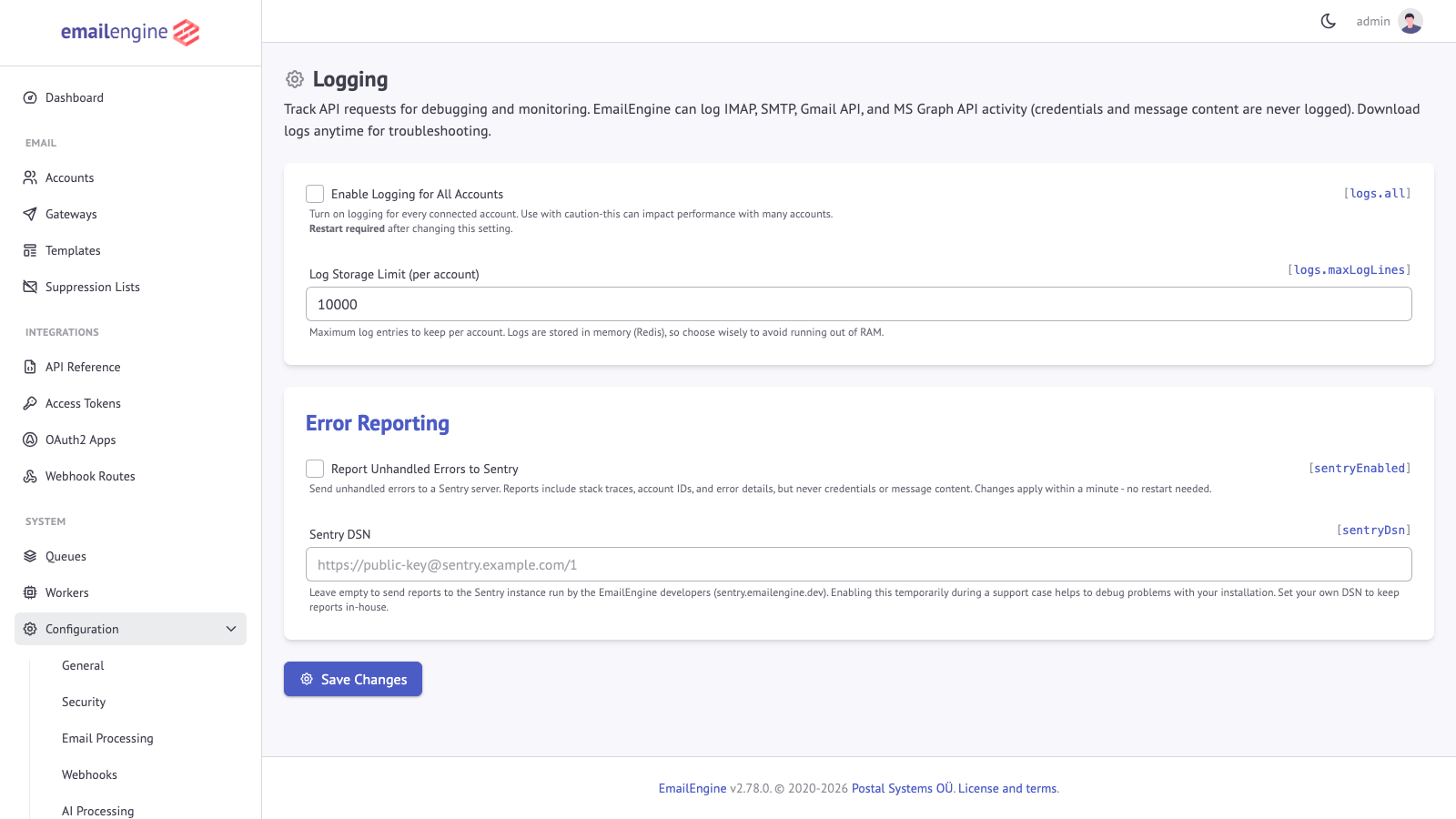 Configuration > Logging, with the account log settings and the Sentry error reporting controls
| Setting | UI label | Default | Purpose |
|---|---|---|---|
logs.all | Enable Logging for All Accounts | false | Collect logs for every account. Without it, each account is switched on individually. Changing it requires a restart |
logs.maxLogLines | Log Storage Limit (per account) | 10000 | Entries retained per account, oldest dropped first. One value for the whole server, 0 to 1000000 |
Switch it on for one account with the account's own logs flag, which is a boolean:
curl -X PUT "https://emailengine.example.com/v1/account/user123" \
  -H "Authorization: Bearer YOUR_ACCESS_TOKEN" \
  -H "Content-Type: application/json" \
  -d '{"logs": true}'
Retrieve the log with GET /v1/logs/{account}. The response is a text/plain download named logs.<account>.txt, one JSON object per line; an account ID that does not exist answers 404:
curl "https://emailengine.example.com/v1/logs/user123" \
  -H "Authorization: Bearer YOUR_ACCESS_TOKEN" \
  -o user123.log
{"level":"info","t":1697123456789,"cid":"ftjvvxgr","msg":"Connection established"}
{"level":"debug","t":1697123456912,"cid":"ftjvvxgr","src":"c","msg":"A3 SELECT INBOX"}
An account with nothing recorded returns the single line No logs found for user123.
What the log contains is every line the account's connection client wrote to the main log, whichever backend the account uses: for IMAP accounts that includes the IMAP conversation as ImapFlow logs it, for Gmail API and MS Graph accounts the API calls and their outcomes, and for any account that sends over SMTP the SMTP transactions of its submissions. The level is the level name rather than Pino's number, t is the timestamp and cid the connection ID; lines from the IMAP conversation also carry src (c for the client, s for the server) and lo, a per-connection sequence number.
The account's page in the admin UI offers the same download, and a control to clear the stored log. Since v2.79.7 both are offered only while the account has entries; before that, downloading an empty log produced the single-line notice above.
Every retained entry consumes RAM on the Redis instance, and logs.all multiplies that by your account count. Switch logging on for the one account you are investigating and turn it back off afterwards. The record is kept as a Redis list under the account's key, so deleting the account deletes its log.
The same page holds the Sentry error reporting settings (sentryDsn); see Environment variables for the SENTRY_DSN variable that overrides them.
Log Rotation
EmailEngine does not rotate anything itself. The supervisor that captures stdout does:
SystemD
The shipped unit file leaves stdout to journald, which handles retention through journald.conf (SystemMaxUse, MaxRetentionSec). Read the log with:
journalctl -u emailengine -f
journalctl -u emailengine -o cat | jq 'select(.level >= 50)'
If you redirect stdout to a file instead, rotate it with copytruncate, because EmailEngine has no signal to reopen a log file:
/etc/logrotate.d/emailengine:
/var/log/emailengine/*.log {
    daily
    rotate 7
    compress
    delaycompress
    missingok
    notifempty
    copytruncate
}
Docker
Limit the container log with the logging driver options:
services:
  emailengine:
    image: postalsys/emailengine:latest
    logging:
      driver: "json-file"
      options:
        max-size: "10m"
        max-file: "3"
PM2
pm2 install pm2-logrotate
pm2 set pm2-logrotate:max_size 100M
pm2 set pm2-logrotate:retain 7
pm2 set pm2-logrotate:compress true
Log Aggregation
Every platform below reads the same NDJSON stream. The examples assume stdout has been captured to /var/log/emailengine/*.log; adjust the input for journald or Docker as your platform documents.
ELK Stack (Elasticsearch, Logstash, Kibana)
filebeat.yml:
filebeat.inputs:
  - type: log
    enabled: true
    paths:
      - /var/log/emailengine/*.log
    json.keys_under_root: true
    json.add_error_key: true
    json.overwrite_keys: true
    fields:
      service: emailengine
      environment: production
    fields_under_root: true

output.elasticsearch:
  hosts: ["elasticsearch:9200"]
  index: "emailengine-%{+yyyy.MM.dd}"
Useful Kibana queries once the fields are indexed:
level:50 AND service:emailengine
msg:"Failed posting webhook"
msg:"Notification queue entry failed"
account:"user123" AND level:>=40
Grafana Loki
promtail-config.yml:
server:
  http_listen_port: 9080
  grpc_listen_port: 0

positions:
  filename: /var/lib/promtail/positions.yaml

clients:
  - url: http://loki:3100/loki/api/v1/push

scrape_configs:
  - job_name: emailengine
    static_configs:
      - targets:
          - localhost
        labels:
          job: emailengine
          __path__: /var/log/emailengine/*.log
    pipeline_stages:
      - json:
          expressions:
            level: level
            message: msg
            account: account
            timestamp: time
      - labels:
          level:
      - timestamp:
          source: timestamp
          format: UnixMs
      - output:
          source: message
Keep account out of the labels: a label per account is a stream per account, which is the cardinality Loki warns about. Filter on it with json at query time instead:
{job="emailengine"} | json | level="50"
{job="emailengine"} | json | account="user123"
rate({job="emailengine"} | json | level="50" [1m])
{job="emailengine"} |= "Failed posting webhook"
Datadog
Point the Agent at the container or the log file rather than writing a forwarder of your own. The Agent handles batching, retries, and back-pressure, none of which a hand-rolled HTTP POST per log line does, and a failed POST inside the logging path is a good way to lose the logs that explain an incident.
services:
  emailengine:
    image: postalsys/emailengine:latest
    labels:
      com.datadoghq.ad.logs: '[{"source": "emailengine", "service": "emailengine"}]'
Splunk
inputs.conf for the Universal Forwarder:
[monitor:///var/log/emailengine/*.log]
disabled = false
index = emailengine
sourcetype = _json
If you must use the HTTP Event Collector instead, put a log shipper such as Vector or Fluent Bit between EmailEngine and Splunk: both read NDJSON, buffer to disk, and retry, so a Splunk outage does not become an EmailEngine outage.
Debugging with Logs
Filtering the Stream
# One account
emailengine | jq -c 'select(.account == "user123")'

# Errors only
emailengine | jq -c 'select(.level >= 50)'

# Webhook delivery
emailengine | jq -c 'select(.action == "webhook")'
Common Questions
# Which errors are most frequent?
jq -r 'select(.level >= 50) | .err.message // .msg' emailengine.log | sort | uniq -c | sort -rn | head -20

# Which accounts are producing errors?
jq -r 'select(.level >= 50 and .account) | .account' emailengine.log | sort | uniq -c | sort -rn

# Errors per hour
jq -r 'select(.level >= 50) | .time' emailengine.log | while read ts; do date -d @$((ts / 1000)) +%Y-%m-%dT%H:00; done | sort | uniq -c

# Webhook deliveries that failed for good
grep '"Notification queue entry failed"' emailengine.log | jq -c '{time, account, event, err: .err.message}'
For a single misbehaving mailbox, the per-account log is usually faster than filtering the process log, and it works at any process log level.
Best Practices
- Run production at
info.traceanddebugcost CPU and disk on every operation. Raise the level for one investigation and lower it again - Ship the JSON, not a reformatted copy. The structured fields are what make
account,eventanderr.messagesearchable later - Let the supervisor rotate. journald, the Docker logging driver, or
pm2-logrotate, with a size cap - Alert on messages, not on level alone.
Notification queue entry failedandConnection retry failedare the lines that mean something broke for a user - Use per-account logs for one account, not
logs.all. They are held in Redis memory
See Also
- Monitoring - Metrics and health checks alongside the log stream
- Account troubleshooting - Reading a per-account log to diagnose a connection
- Environment variables - Log level, raw protocol logging and Sentry
- Compliance - What the logs retain, and for how long
- SystemD deployment - Where stdout goes under the shipped unit file