OAuth2 Setup Guide
This guide explains OAuth2 authentication concepts and how to set up OAuth2 applications with EmailEngine. For provider-specific instructions, see the dedicated guides for Gmail, Outlook, Mail.ru, or Google Service Accounts.
What is OAuth2?
OAuth2 is an authorization framework that allows applications to access user data without requiring passwords. Instead of storing passwords, your application receives temporary access tokens that can be refreshed automatically.
What OAuth2 changes
- EmailEngine stores tokens rather than the mailbox password, and the user can revoke them at the provider without changing that password
- The application requests only the scopes it needs
- Accounts with two-factor authentication work without app passwords
- Users authenticate on the provider's own consent screen, and can review the grant there at any time
OAuth2 Flow Overview
Understanding the OAuth2 flow helps troubleshoot issues:
EmailEngine handles the token exchange and refresh. Your application:
- Registers the OAuth2 application with the provider once
- Directs users to the EmailEngine authentication URL
EmailEngine does the rest: token exchange, storage, and refresh.
Supported Providers in EmailEngine
EmailEngine supports OAuth2 for:
Gmail / Google Workspace
Protocol Options:
- IMAP/SMTP with OAuth2 - Standard protocols with OAuth2 authentication
- Gmail API - The Gmail REST API instead of IMAP and SMTP
Account Types:
- Internal Apps - Google Workspace organization only
- Service Accounts - Google Workspace with domain-wide delegation
- Public Apps - Any Gmail user (requires Google's app verification)
Gmail IMAP OAuth2 Setup Gmail API Setup Google Service Accounts
Outlook / Microsoft 365
Protocol Options:
- IMAP/SMTP with OAuth2 - Standard protocols with OAuth2 authentication
- Microsoft Graph API - Native Microsoft 365 API
Account Types:
- Single Tenant - Your organization only
- Multi-Tenant - Any Microsoft 365 organization
- Personal Accounts - Outlook.com, Hotmail.com, Live.com
- Combined - Organizations + personal accounts
Application Access (Client Credentials):
- Application permissions - App authenticates as itself, no user login needed
- Uses
client_credentialsgrant type with MS Graph API only - Requires Azure AD admin consent and a specific tenant ID
- Best for automated systems accessing mailboxes without user interaction
Outlook OAuth2 Setup Outlook Application Access
Mail.ru
Protocol Options:
- IMAP/SMTP with OAuth2 - Standard protocols with OAuth2 authentication
Required Scopes:
userinfo- Basic user profilemail.imap- IMAP access
Setting Up OAuth2 in EmailEngine
Overview of Steps
- Create OAuth2 app with the provider (Google Cloud Console or Azure AD)
- Configure consent screen and permissions
- Get credentials (Client ID and Client Secret)
- Add to EmailEngine under Integrations > OAuth2 Apps
- Test by adding an account
OAuth2 Application Types
The Create OAuth2 app menu offers one entry per provider type. The provider value is what the OAuth2 applications API calls the same thing:
| Menu entry | provider | Flow |
|---|---|---|
| Gmail | gmail | User consent; IMAP/SMTP or the Gmail API, chosen under Base scope |
| Gmail Service Accounts | gmailService | Domain-wide delegation, no per-user consent |
| Outlook (delegated) | outlook | User consent; IMAP/SMTP or MS Graph API, chosen under Base scope |
| Outlook (application) | outlookService | Client credentials, MS Graph API only, no user login |
| Mail.ru | mailRu | User consent; IMAP/SMTP |
Whether a Gmail or Outlook app uses IMAP/SMTP or the provider API is not a separate application type: it is the Base scope choice on the app's form (baseScopes in the API: imap or api). A Gmail app can also have Cloud Pub/Sub as its base scope (pubsub); such an app carries the push-notification subscription for Gmail API accounts rather than mailbox access, see Gmail Pub/Sub.
Required Information
When configuring OAuth2 in EmailEngine, you'll need:
From Provider (Google/Microsoft):
- Client ID - Identifies your application
- Client secret - Authenticates your application
- Redirect URI - Where users return after consent
For EmailEngine:
- Application name - The name shown in the OAuth2 app list. The hosted authentication form shows the optional Display title instead
- Enable this app - Whether the app is offered on the hosted authentication form
- Base scope - Protocol to use (IMAP/SMTP or the provider API)
Configuration in EmailEngine
Navigate to Integrations > OAuth2 Apps in EmailEngine dashboard.
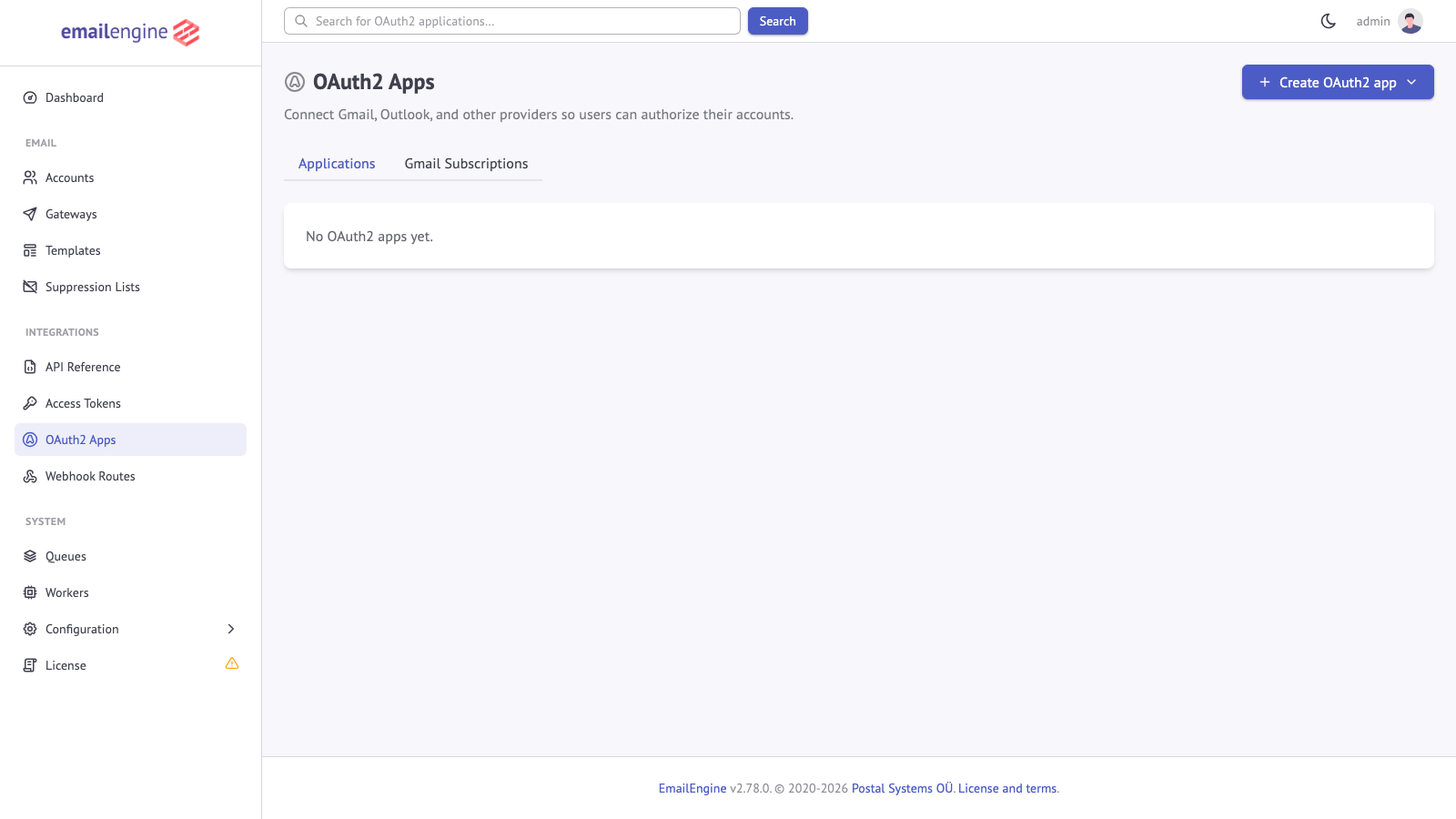
Add New Application:
- Click Create OAuth2 app and select the provider type (see the table above)
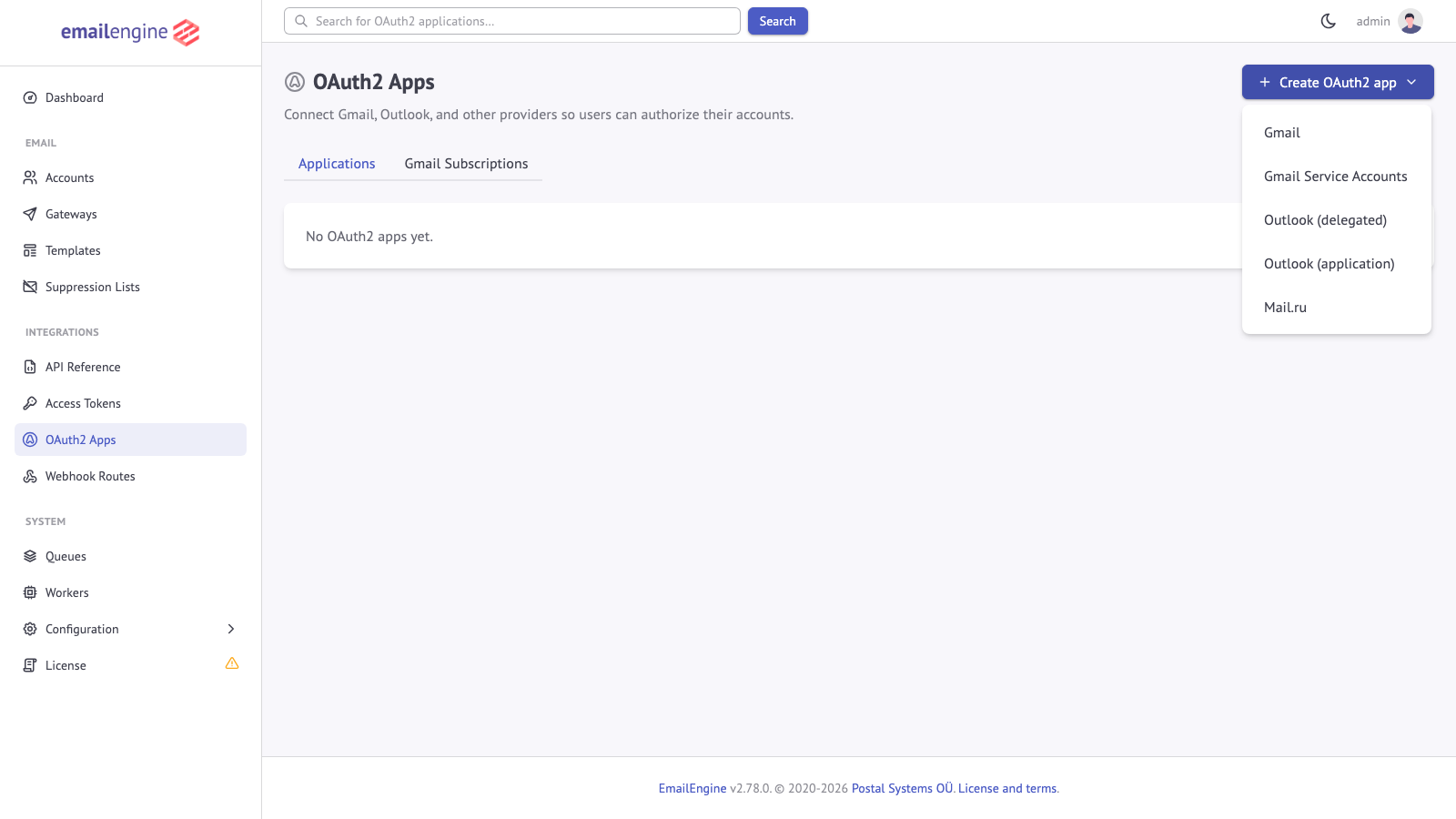
- Fill in the application details:
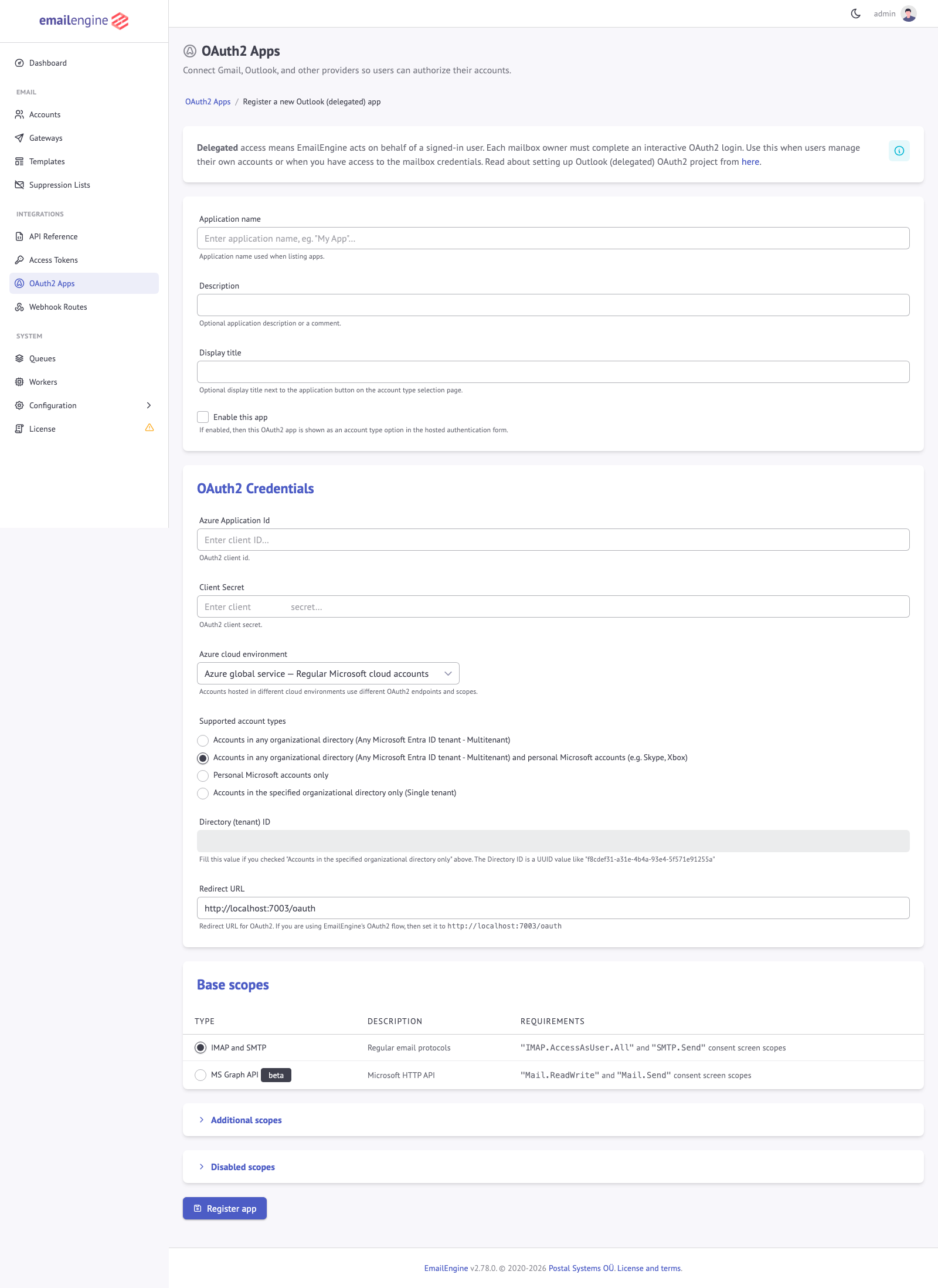
The form is split into cards, top to bottom: Application, Base scope, Credentials, and a collapsible Custom scopes section.
- Application name (Application card): For example "Production Outlook"
- Enable this app (Application card): Offers the app on the hosted authentication form. Checked by default for a new app
- Base scope: A tab strip, "What the app connects with": IMAP and SMTP, or the provider API (Gmail API or MS Graph API). Gmail Service Accounts also offer Cloud Pub/Sub. Mail.ru has no base scope card, and Outlook (application) always uses MS Graph API. Fixed once the app is created
- Client ID (Gmail, Mail.ru) or Application (client) ID (Outlook) (Credentials card): From the provider console
- Client secret (Credentials card): From the provider console. The field is masked, with buttons to show and copy the value
- Azure cloud environment (Outlook): the worldwide cloud unless the tenant lives in a US Government or China cloud. Stored as
cloud - Supported account types (Outlook delegated): a dropdown with Work, school and personal Microsoft accounts (
common), Work and school accounts from any organization (organizations), Personal Microsoft accounts only (consumers), and Work and school accounts from one organization, which reveals a Directory (tenant) ID field. Stored asauthorityin the API - Redirect URL: Your Service URL +
/oauth. The form pre-fills this from theserviceUrlsetting
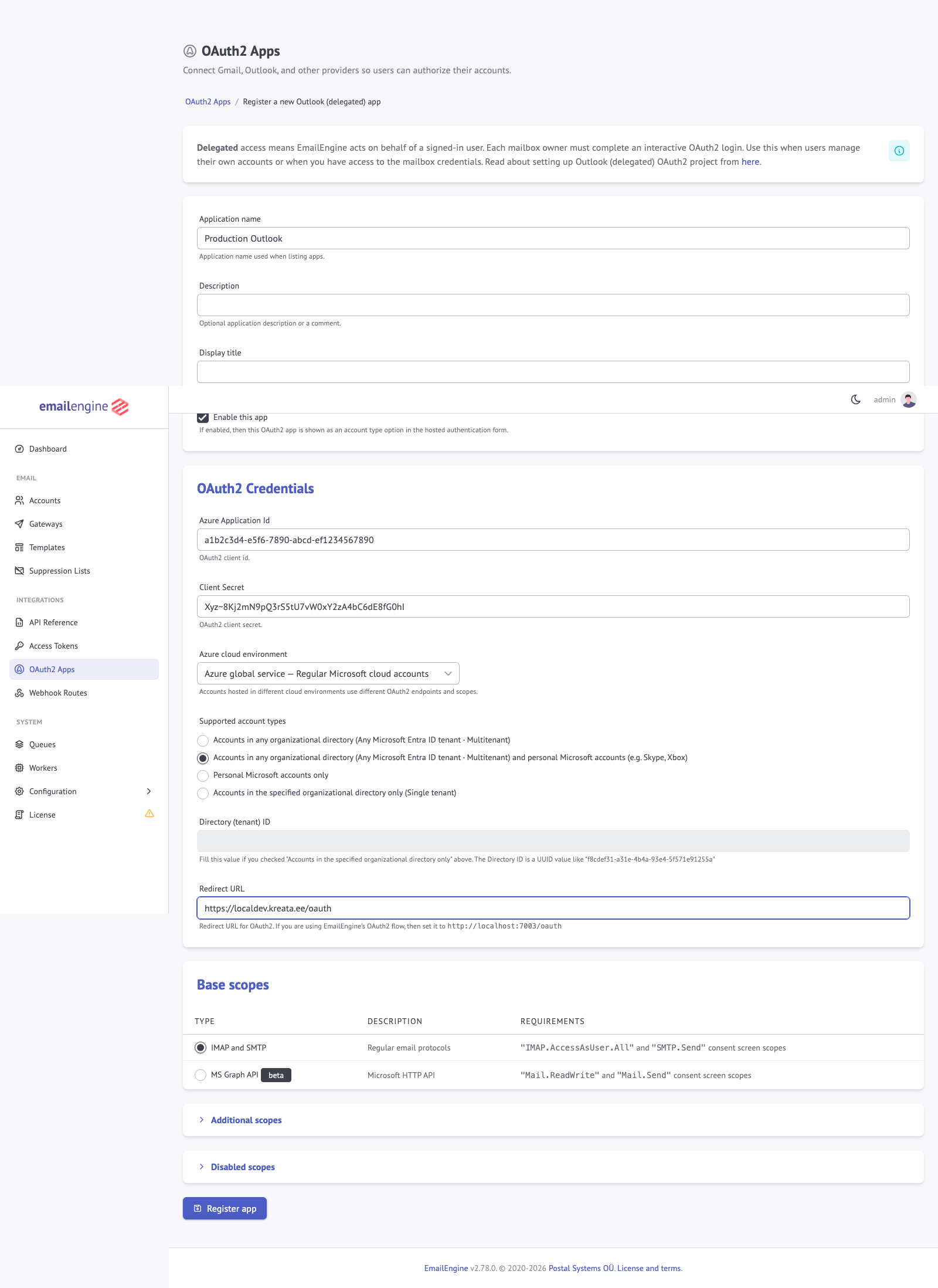
- Click Register app to save
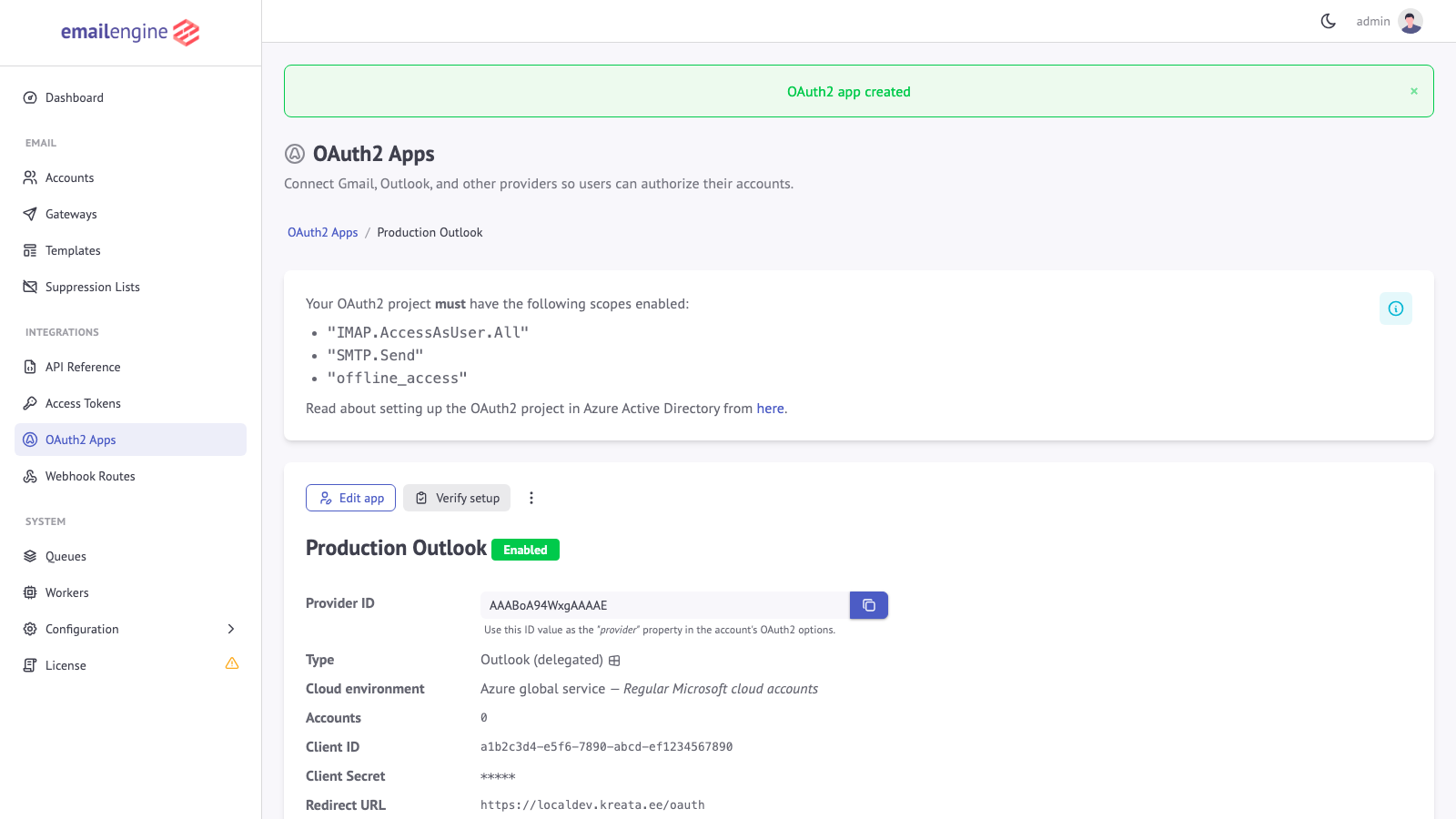
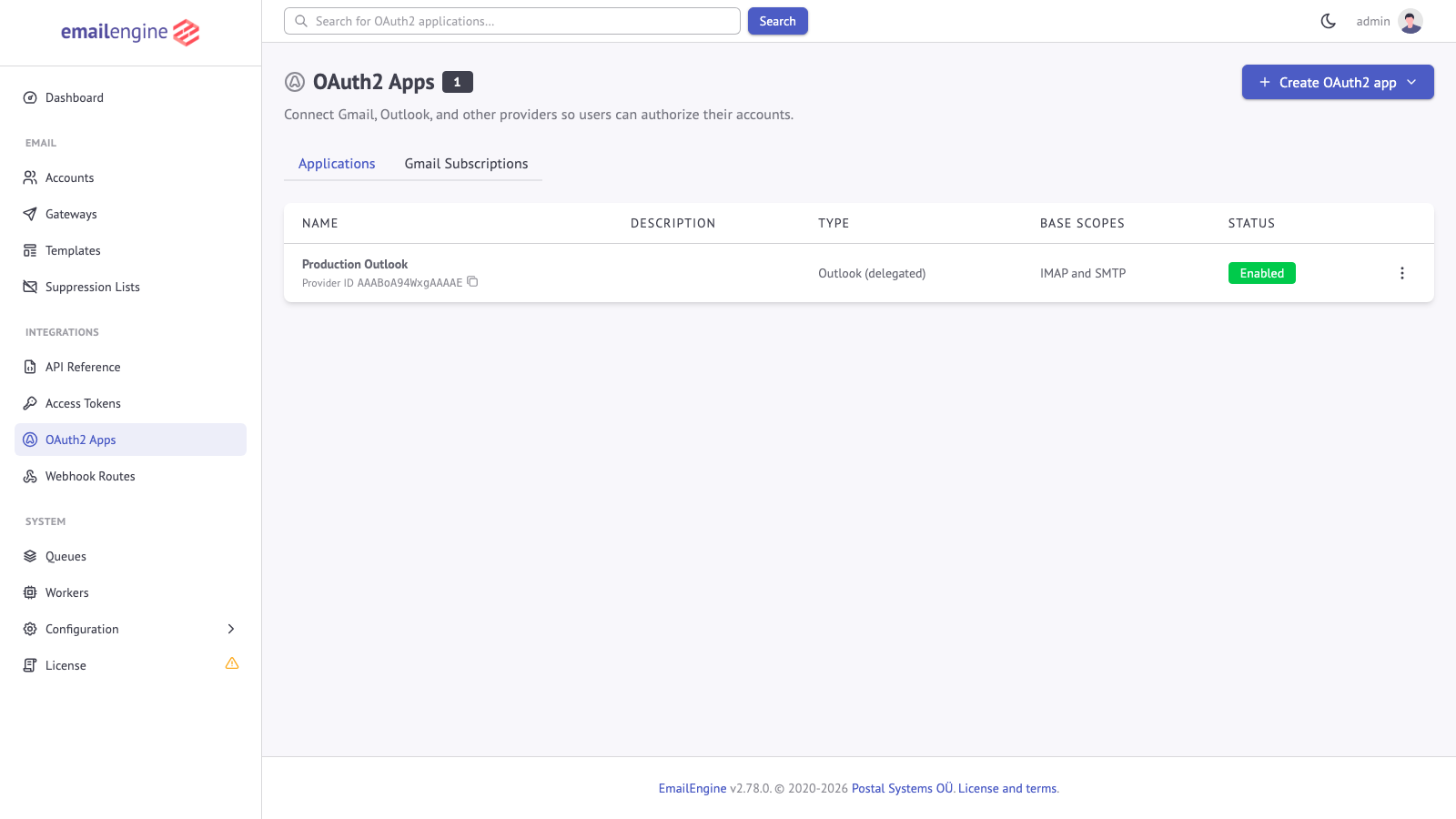
The application now appears in your OAuth2 configuration list:
Credentials File Upload
Google lets you download the client credentials as a JSON file; Microsoft credentials are copied from the portal by hand.
Google credentials file (starts with client_secret_):
{
  "web": {
    "client_id": "123456789.apps.googleusercontent.com",
    "client_secret": "abcdef123456",
    "redirect_uris": ["https://emailengine.example.com/oauth"]
  }
}
Microsoft credentials (entered manually):
- Application (client) ID
- Client secret value
The Load from the client JSON file... button on the Gmail app form fills in the client ID, the client secret and the Google Cloud project ID from this file. It reads the web key only, so the file has to come from a Web application client rather than a desktop one, and it warns when the redirect URL on the form is not among the file's redirect_uris.
Verifying the App Setup
After configuring an OAuth2 app, use the Verify setup button on the app's page in the EmailEngine dashboard (or the POST /v1/oauth2/{app}/verify API endpoint, available since v2.68.0) to test the configuration before connecting accounts.
The verifier runs the provider authentication chain step by step. The response carries ok, which is true when no step failed, and a steps array where each entry has an id, a label, a status of ok, fail or skip, a message, and for failures a hint on how to fix it:
- Service-account apps (
gmailService,outlookService) - checks the credentials, the token exchange, and domain-wide delegation. Pass a mailbox address asaccountto also perform a live IMAP login or a Gmail/MS Graph API probe against that mailbox; settestConnectiontofalseto skip that live step. - User-consent apps (
gmail,outlook,mailRu) - checks the stored configuration only. The end-user authorization step is reported as skipped, because a token exchange needs a user's consent.
The verifier is read-only: it does not modify any mailbox and does not send mail.
OAuth2 Scopes
Scopes define what your application can access.
Gmail Scopes
For IMAP/SMTP:
| Scope | Purpose |
|---|---|
https://mail.google.com/ | Full IMAP and SMTP access (required) |
EmailEngine adds openid, email and profile to every user-consent Gmail request, whichever base scope the app has. They identify the signed-in user and are not requested for service-account apps.
For Gmail API:
| Scope | Purpose |
|---|---|
gmail.modify | Full Gmail API access (read, write, delete, but not admin functions) |
Narrower Scopes (if required by Google):
| Scope | Access | Notes |
|---|---|---|
gmail.readonly | Read-only access | Listing labels works with this scope alone; creating and renaming them does not |
gmail.send | Send emails only | Cannot read messages, and an account with only this scope runs send-only |
gmail.labels | List and manage labels | Paired with gmail.readonly in the read-only presets so label management works |
EmailEngine treats an account as having read access when the granted scopes include any of gmail.modify, gmail.readonly, gmail.labels or https://mail.google.com/. Adding gmail.labels to an application meant for sending only therefore makes EmailEngine list messages, which Google then refuses.
See the Gmail API Scopes Reference for detailed setup instructions and EmailEngine feature availability for each scope combination.
Granular Consent (Google)
Google's consent screen lets a user untick individual permissions. After the callback EmailEngine compares the scopes Google reports as granted with the functional scopes the application requested (the OpenID scopes are not counted). When one is missing it revokes the partial grant, best effort, so that no unused token is left at Google, and shows an error page that names the missing permissions, with a button to start the authorization again. The account is not registered, so a grant that would fail at the first sync is never stored.
Outlook Scopes
For IMAP/SMTP:
| Scope | Purpose |
|---|---|
IMAP.AccessAsUser.All | Read and manage emails via IMAP |
SMTP.Send | Send emails via SMTP (enabled by default) |
offline_access | Allow token refresh (required) |
openid, profile | Read the signed-in user's identity |
If your application doesn't need sending capabilities, you can disable SMTP.Send via the Disabled scopes field in the Custom scopes section of EmailEngine's OAuth2 app form.
For MS Graph API:
| Scope | Purpose |
|---|---|
Mail.ReadWrite | Read and manage emails |
Mail.Send | Send emails |
offline_access | Allow token refresh (required) |
User.Read | Read the signed-in user's profile |
The offline_access scope allows EmailEngine to refresh access tokens in the background without user interaction.
- Gmail: Google has no such scope. EmailEngine requests
access_type=offlineandprompt=consenton every authorization, which is what makes Google issue a refresh token - Outlook: EmailEngine adds
offline_accessto every scope set it requests
Additional Scopes
You can add extra scopes if you want to use OAuth2 tokens for other APIs:
Example - Add Google Calendar access:
https://www.googleapis.com/auth/calendar
Enter them in the Additional scopes field of the collapsible Custom scopes section at the bottom of the app's form, one scope per line. The API field is extraScopes.
A Microsoft access token is issued for one resource, so an app cannot mix the two resource endpoints. With IMAP and SMTP as the base scope, every additional scope must come from https://outlook.office.com/; with MS Graph API as the base scope, every additional scope must come from https://graph.microsoft.com/. The form states this rule but does not validate the list; a mixed list is rejected by Microsoft when the user is sent to authorize. So a token that is meant to reach other Graph APIs (calendars, files) needs an app with the MS Graph API base scope.
Learn more about using tokens for other APIs
Disabled Scopes
If Google/Microsoft requires narrower scopes, you can disable the default wide scope:
Use the Disabled scopes field of the Custom scopes section, one scope per line (the API field is skipScopes):
https://mail.google.com/
This removes the wide scope from consent requests.
Account Types and Tenant Configuration
Gmail Account Types
Internal Apps:
- Only for Google Workspace organizations
- No security audit required
- Limited to organization's domain
External Apps (Testing):
- Limited to 100 test users added by hand
- Refresh tokens expire after 7 days
- Not suitable for production
External Apps (Production):
- Available to any Gmail user
- Requires Google's app verification, which for a restricted scope includes a security assessment
- Google may reject broad scopes like
https://mail.google.com/
Outlook Account Types
Configure via the Supported account types dropdown of an Outlook (delegated) app. Each option stores a value in the authority field:
- Work, school and personal Microsoft accounts -
common: organizations and personal accounts (most flexible) - Work and school accounts from any organization -
organizations: Microsoft 365 organizations only - Personal Microsoft accounts only -
consumers: personal accounts only (@outlook.com, @hotmail.com) - Work and school accounts from one organization - the directory ID entered in the Directory (tenant) ID field that this option reveals
Mapping to Azure:
| Azure Setting | EmailEngine Value |
|---|---|
| Any org + personal | common |
| Personal only | consumers |
| Any organization | organizations |
| Single organization | Use Directory ID |
Redirect URLs
The redirect URL is where users return after granting consent.
Format
{emailengine-url}/oauth
Examples:
https://emailengine.example.com/oauthfor a deployed instancehttp://localhost:3000/oauthfor an instance started locally for development; both Google and Microsoft accept plain HTTP forlocalhostonly
Requirements
- Must be HTTPS, except for
localhost - Must match exactly between provider and EmailEngine, including case, port and any trailing slash
- Must be reachable from the user's browser, since the provider redirects the user there
Advanced OAuth2 Features
Each of these has a page of its own; this list only says when to reach for it.
- Authentication server - your application keeps the tokens and hands EmailEngine a fresh credential each time it connects. Set the
authServersetting and register accounts withuseAuthServer: true. See Using an Authentication Server. - Pre-filled and required email address - pass
emailwhen generating a hosted authentication form to pre-fill it, andexpectedEmailto refuse any other identity. See Pre-filling Information. - Delegated access to shared mailboxes - pass
delegated: trueon the hosted form, or setoauth2.auth.delegatedUseron the account. See Shared Mailboxes (Microsoft 365). - Service accounts - a Google Workspace domain can grant a service account access to every mailbox, with no per-user consent. See Google Service Accounts.
See Also
- Gmail OAuth2 over IMAP - The Google Cloud side, step by step
- Outlook OAuth2 - The Azure side, step by step
- Gmail API scopes - Which scope combination supports which feature
- OAuth2 token management - Using the stored tokens against other provider APIs
- Hosted authentication - Sending users through the consent flow