Hosted Authentication
EmailEngine's hosted authentication feature provides a user-friendly web interface for connecting email accounts via OAuth2. Instead of manually handling OAuth2 flows in your application, you can redirect users to EmailEngine's authentication forms where they complete the setup process.
Overview
What is Hosted Authentication?
Hosted authentication is EmailEngine's built-in web interface for account setup. It provides:
Pre-built OAuth2 flows:
- Sign in with Google button
- Sign in with Microsoft button
- Automatic OAuth2 token management
- User-friendly consent screens
Automatic account registration:
- Creates account in EmailEngine
- Stores OAuth2 tokens securely
- Connects to IMAP/SMTP or API
- Returns user to your application
No OAuth2 code required:
- EmailEngine handles the OAuth2 exchange
- Your app only generates a form URL
- User completes authentication
- EmailEngine redirects back with results
When to Use Hosted Authentication
Good use cases:
- Quick integration - Get OAuth2 working in minutes
- Standard flows - Gmail and Outlook OAuth2
- User-facing setup - Let users connect their own accounts
- No OAuth2 expertise - Don't want to build OAuth2 flows
Not suitable for:
- Backend automation - Use direct API registration with tokens
- Custom OAuth2 flows - Use authentication server instead
- Headless systems - No user interaction available
- For custom OAuth2 management: Authentication Server
- For direct API registration: Managing Accounts
- For OAuth2 setup details: OAuth2 Setup Guide
How It Works
Authentication Flow
Step-by-Step Process
- Your application calls EmailEngine API to generate form URL
- EmailEngine returns unique authentication URL
- Your application redirects user to this URL
- User sees EmailEngine's authentication form
- User clicks provider button (Google/Microsoft)
- Provider shows consent screen
- User grants permissions
- EmailEngine receives OAuth2 tokens
- EmailEngine creates and connects account
- EmailEngine redirects user back to your application
Generating Authentication Forms
Basic Form Generation
Generate a form URL for a user:
curl -X POST https://emailengine.example.com/v1/authentication/form \
  -H "Authorization: Bearer YOUR_EMAILENGINE_TOKEN" \
  -H "Content-Type: application/json" \
  -d '{
    "account": "user123",
    "email": "john@gmail.com",
    "name": "John Doe",
    "redirectUrl": "https://myapp.com/settings"
  }'
Response:
{
  "url": "https://emailengine.example.com/accounts/new?data=eyJhY2NvdW50IjoidXNlcjEyMyIsImVtYWlsIjoiam9obkBnbWFpbC5jb20iLCJuYW1lIjoiSm9obiBEb2UiLCJyZWRpcmVjdFVybCI6Imh0dHBzOi8vbXlhcHAuY29tL3NldHRpbmdzIn0"
}
Direct the user to this URL to begin authentication. The URL is single-use and expires 24 hours after it was generated; a second visit, or a visit after expiry, gets an "Invalid or expired account setup URL" error page. Generate a new URL for every attempt.
Request Parameters
| Parameter | Required | Description |
|---|---|---|
account | No | Account ID. If not provided or null, a unique ID is generated automatically. If an existing account ID is provided, that account is re-authorized and its settings updated, see Re-authorizing an existing account |
email | No | Pre-fill email address on form |
expectedEmail | No | Restrict the form to a single address - setup is rejected if the user authenticates as someone else |
name | No | Pre-fill display name on form |
type | No | Pre-select the account type: "imap" or an OAuth2 application ID (skips the selection screen) |
skipServerSettings | No | Defaults to true since v2.81.0: the mail server settings step is skipped when the IMAP and SMTP settings can be both discovered and verified from the address and password the user enters. Send false to always show the step. IMAP path only, see Skipping the Server Settings Step |
delegated | No | Register the account as a shared mailbox. Microsoft 365 OAuth2 only |
notifyFrom | No | Only emit webhooks for messages received after this date. Defaults to the moment the account is created. IMAP only |
subconnections | No | Folders to watch on their own connection, for immediate notifications |
path | No | Restrict which folders the account syncs at all |
redirectUrl | Yes | Where to send user after completion |
notifyFrom, subconnections, and path are applied to the account the form creates, which saves an update call after the redirect.
Skipping Account Type Selection
Use the type parameter to bypass the account type selection screen and send users directly to the authentication flow:
curl -X POST https://emailengine.example.com/v1/authentication/form \
  -H "Authorization: Bearer YOUR_EMAILENGINE_TOKEN" \
  -H "Content-Type: application/json" \
  -d '{
    "account": "user123",
    "email": "john@gmail.com",
    "type": "AAABhaBPHsc",
    "redirectUrl": "https://myapp.com/settings"
  }'
Values for type:
| Value | Effect |
|---|---|
"imap" | Direct to manual IMAP/SMTP configuration form |
| OAuth2 App ID | Direct to that provider's OAuth2 authorization page |
The OAuth2 App ID (Provider ID) is visible in EmailEngine's Integrations > OAuth2 Apps settings page. This is EmailEngine's internal ID for the OAuth2 application, not the provider's client ID.
Using the type parameter provides a smoother experience - users go directly to Google or Microsoft authorization without seeing an intermediate selection screen.
Skipping the Server Settings Step
On the IMAP path the form asks for the email address and password. Up to v2.80.1 it then always showed a second page with the discovered IMAP and SMTP settings for the user to review. Since v2.81.0 a link minted through this endpoint skips that page whenever EmailEngine can both discover the settings and verify them with the password the user entered: the user sees a page that checks the connection and is redirected to redirectUrl once the account is created. skipServerSettings defaults to true, so a link that should always show the settings page has to say so:
curl -X POST https://emailengine.example.com/v1/authentication/form \
  -H "Authorization: Bearer YOUR_EMAILENGINE_TOKEN" \
  -H "Content-Type: application/json" \
  -d '{
    "account": "user123",
    "email": "john@example.com",
    "type": "imap",
    "skipServerSettings": false,
    "redirectUrl": "https://myapp.com/settings"
  }'
Links minted before v2.81.0, and the setup the admin interface starts from Add account, keep showing the settings page.
When the step is still shown:
- Autodiscovery did not return both an IMAP and an SMTP server for the address
- Autodiscovery returned settings that are incomplete for account creation
- The connection check failed, for example because the password was wrong or the provider requires an app password
In each of those cases the user is handed the ordinary server settings form, prefilled with whatever was discovered, so the setup continues rather than failing. The skip removes a step that would have been a formality; it never ends the setup on its own, and it never creates an account from settings that were not verified.
skipServerSettings has no effect on OAuth2 accounts, which never show a server settings page. Combine type: "imap" with the default to send the user straight into the IMAP flow.
The review page is also where a user can change a discovered value before the account is created - for a self-hosted server reachable under a different name, for instance. Send skipServerSettings: false when the addresses come from servers whose autodiscovery answers are not the settings you want used.
Implementation Example
- Node.js
- Python
- PHP
const axios = require('axios');

async function generateAuthUrl(userId, userEmail, userName) {
  const response = await axios.post(
    'https://emailengine.example.com/v1/authentication/form',
    {
      account: userId,
      email: userEmail,
      name: userName,
      redirectUrl: 'https://myapp.com/settings'
    },
    {
      headers: {
        'Authorization': 'Bearer YOUR_EMAILENGINE_TOKEN',
        'Content-Type': 'application/json'
      }
    }
  );

  return response.data.url;
}

// Usage in Express route
app.get('/connect-email', async (req, res) => {
  const authUrl = await generateAuthUrl(
    req.user.id,
    req.user.email,
    req.user.name
  );

  res.redirect(authUrl);
});
import requests

def generate_auth_url(user_id, user_email, user_name):
    response = requests.post(
        'https://emailengine.example.com/v1/authentication/form',
        json={
            'account': user_id,
            'email': user_email,
            'name': user_name,
            'redirectUrl': 'https://myapp.com/settings'
        },
        headers={
            'Authorization': 'Bearer YOUR_EMAILENGINE_TOKEN',
            'Content-Type': 'application/json'
        }
    )

    return response.json()['url']

# Usage in Flask route
@app.route('/connect-email')
def connect_email():
    auth_url = generate_auth_url(
        current_user.id,
        current_user.email,
        current_user.name
    )

    return redirect(auth_url)
<?php

function generateAuthUrl($userId, $userEmail, $userName) {
    $data = [
        'account' => $userId,
        'email' => $userEmail,
        'name' => $userName,
        'redirectUrl' => 'https://myapp.com/settings'
    ];

    $ch = curl_init('https://emailengine.example.com/v1/authentication/form');
    curl_setopt($ch, CURLOPT_RETURNTRANSFER, true);
    curl_setopt($ch, CURLOPT_POST, true);
    curl_setopt($ch, CURLOPT_POSTFIELDS, json_encode($data));
    curl_setopt($ch, CURLOPT_HTTPHEADER, [
        'Authorization: Bearer YOUR_EMAILENGINE_TOKEN',
        'Content-Type: application/json'
    ]);

    $response = curl_exec($ch);
    curl_close($ch);

    $result = json_decode($response, true);
    return $result['url'];
}

// Usage
$authUrl = generateAuthUrl($userId, $userEmail, $userName);
header("Location: $authUrl");
exit;
Handling Redirects
Success Redirect
After successful authentication, EmailEngine redirects to your redirectUrl with query parameters:
https://myapp.com/settings?account=user123&state=new
Query Parameters:
| Parameter | Description |
|---|---|
account | The account ID you provided |
state | Result of the operation: new (account was created) or existing (existing account was updated) |
If authentication fails (OAuth2 error, user cancellation, a rejected expectedEmail, etc.), EmailEngine displays an error page rather than redirecting to your redirectUrl. Your application only receives a redirect on successful authentication.
Where the user can fix the problem themselves, that page offers a way back into the flow, so most failures are resolved without returning to your application at all.
The redirect happens immediately after authentication completes, but the account may still be initializing (syncing mailboxes, etc.). EmailEngine sends an accountInitialized webhook once the account is fully processed and ready to accept API calls. If you need to make API calls immediately after redirect, either wait for this webhook or poll the account status endpoint until the state is connected.
Handling the Redirect
- Node.js
- Python
- PHP
app.get('/settings', async (req, res) => {
  const { account, state } = req.query;

  if (state === 'new') {
    // New account was created
    await db.users.update(
      { id: account },
      { emailConnected: true }
    );

    res.render('settings', {
      message: 'Email account connected successfully!'
    });
  } else if (state === 'existing') {
    // Existing account was updated
    res.render('settings', {
      message: 'Email account credentials updated successfully!'
    });
  }
});
@app.route('/settings')
def settings():
    account = request.args.get('account')
    state = request.args.get('state')

    if state == 'new':
        # New account was created
        db.users.update(
            {'id': account},
            {'email_connected': True}
        )
        flash('Email account connected successfully!', 'success')
    elif state == 'existing':
        # Existing account was updated
        flash('Email account credentials updated successfully!', 'success')

    return render_template('settings.html')
<?php
// settings.php

$account = $_GET['account'] ?? null;
$state = $_GET['state'] ?? null;

if ($state === 'new') {
    // New account was created
    $stmt = $pdo->prepare('UPDATE users SET email_connected = 1 WHERE id = ?');
    $stmt->execute([$account]);

    $message = 'Email account connected successfully!';
    $messageType = 'success';
} elseif ($state === 'existing') {
    // Existing account was updated
    $message = 'Email account credentials updated successfully!';
    $messageType = 'success';
}
Retry Flow
If authentication fails, users see an error page on EmailEngine. Where the user can fix the problem (a permission left unchecked on Google's consent screen, or signing in as the wrong account), that page carries a Try Again button that restarts the provider flow with a fresh single-use setup. For other failures, provide a "Connect Email" button on your settings page that generates a new authentication form URL, since the original URL cannot be reused.
Re-authorizing an existing account
Generating a form with the account ID of an existing account re-authorizes it: the new tokens or IMAP credentials replace the stored ones, everything else on the account is kept, and the redirect carries state=existing. Use this when a user's grant was revoked, when the account reports authenticationError, or when the OAuth2 application's scopes changed.
If the account was not operational at the time (an error state, or switched off by the safety net after repeated authentication failures), completing the form also requests a full reconnect, so syncing resumes without a separate reconnect call. Since v2.79.4 this includes an account that EmailEngine switched off itself: the one that reports unset with a non-null authFailureDisabledAt. See Accounts switched off after authentication failures.
The admin interface offers the same flow as the Re-authenticate button on an OAuth2 account's page. The button did nothing in v2.79.9, blocked by the Content Security Policy that release introduced; v2.80.0 fixed it.
Pre-filling Information
Email Address
Pre-fill the email address to streamline the process:
curl -X POST https://emailengine.example.com/v1/authentication/form \
  -H "Authorization: Bearer YOUR_TOKEN" \
  -H "Content-Type: application/json" \
  -d '{
    "account": "user123",
    "email": "john@gmail.com",
    "redirectUrl": "https://myapp.com/settings"
  }'
The authentication form will show this email address, and for Gmail/Outlook, it will be used as the login_hint parameter in the OAuth2 flow.
email is only a suggestion. The user can type a different address on the IMAP form, or pick a different account on the provider's consent screen, and the setup still completes. Use expectedEmail when the address has to be the one you specified.
Requiring a Specific Address
expectedEmail turns the address into a condition. If the user completes the form as someone else, the setup is rejected before any credentials are stored, so an existing account keeps working with the credentials it already had:
curl -X POST https://emailengine.example.com/v1/authentication/form \
  -H "Authorization: Bearer YOUR_TOKEN" \
  -H "Content-Type: application/json" \
  -d '{
    "account": "user123",
    "email": "john@gmail.com",
    "expectedEmail": "john@gmail.com",
    "redirectUrl": "https://myapp.com/settings"
  }'
This matters most for reconnection. Without it, whoever opens the link decides which mailbox the account ends up pointing at - handy when a user is genuinely moving to a new mailbox, unwanted when the account belongs to someone in particular.
What the address is checked against depends on how the user authenticates:
| Setup type | Compared against |
|---|---|
| Gmail, Outlook, Mail.ru | The address the provider reports for the account that signed in |
| IMAP/SMTP | The address entered on the form |
For OAuth2 the provider vouches for the identity, so the check establishes who owns the mailbox. For IMAP it does not: the credentials are entered separately from the address, so a match confirms the account is registered under the expected address rather than proving the mailbox belongs to it.
A rejected setup does not return the user to your application. EmailEngine shows them a page naming both the expected address and the one they used, with a button to start the setup again - for OAuth2 that reopens the provider's account picker, so they can switch accounts without going back to you first.
The comparison is exact, apart from letter case and surrounding spaces. Providers that treat several spellings as one mailbox are not accounted for: Google ignores dots, accepts googlemail.com for gmail.com and strips +tags, so john.doe@gmail.com is rejected against an account that Google reports as johndoe@gmail.com. Pass the address exactly as the provider reports it - the rejection page names both addresses, which is what makes a near-miss like this visible.
The value is stored on the account, so it also applies to later links that omit it, and to the Re-authenticate button in the EmailEngine dashboard. To move an account to a different address, issue a new form link carrying the new expectedEmail - a link that states an address replaces the stored one. To drop the restriction entirely, clear the field with the update account API:
curl -X PUT https://emailengine.example.com/v1/account/user123 \
  -H "Authorization: Bearer YOUR_TOKEN" \
  -H "Content-Type: application/json" \
  -d '{"expectedEmail": null}'
The address is recorded when a setup completes, not when the link is generated. A link that was issued with expectedEmail but never used leaves nothing behind, so a later link for the same account ID is unrestricted. Put expectedEmail on the link that creates the account if you want the restriction to hold from the start.
Shared and delegated Microsoft 365 mailboxes are a special case: the user signs in with their own account to reach a mailbox belonging to someone else, so expectedEmail has to name the person signing in, not the shared mailbox address.
Display Name
Pre-fill the account name:
curl -X POST https://emailengine.example.com/v1/authentication/form \
  -H "Authorization: Bearer YOUR_TOKEN" \
  -H "Content-Type: application/json" \
  -d '{
    "account": "user123",
    "email": "john@gmail.com",
    "name": "John Doe",
    "redirectUrl": "https://myapp.com/settings"
  }'
This name will be displayed in EmailEngine's account list.
Advanced Features
Delegated Access (Shared Mailboxes)
For Microsoft 365 shared mailboxes, include the delegated flag:
curl -X POST https://emailengine.example.com/v1/authentication/form \
  -H "Authorization: Bearer YOUR_TOKEN" \
  -H "Content-Type: application/json" \
  -d '{
    "account": "shared-support",
    "email": "support@company.com",
    "delegated": true,
    "redirectUrl": "https://myapp.com/settings"
  }'
User will authenticate with their personal account but access the shared mailbox.
Learn more about shared mailboxes >
User Experience
What Users See
1. Account Type Selection
When multiple authentication options are available, users first choose their provider:

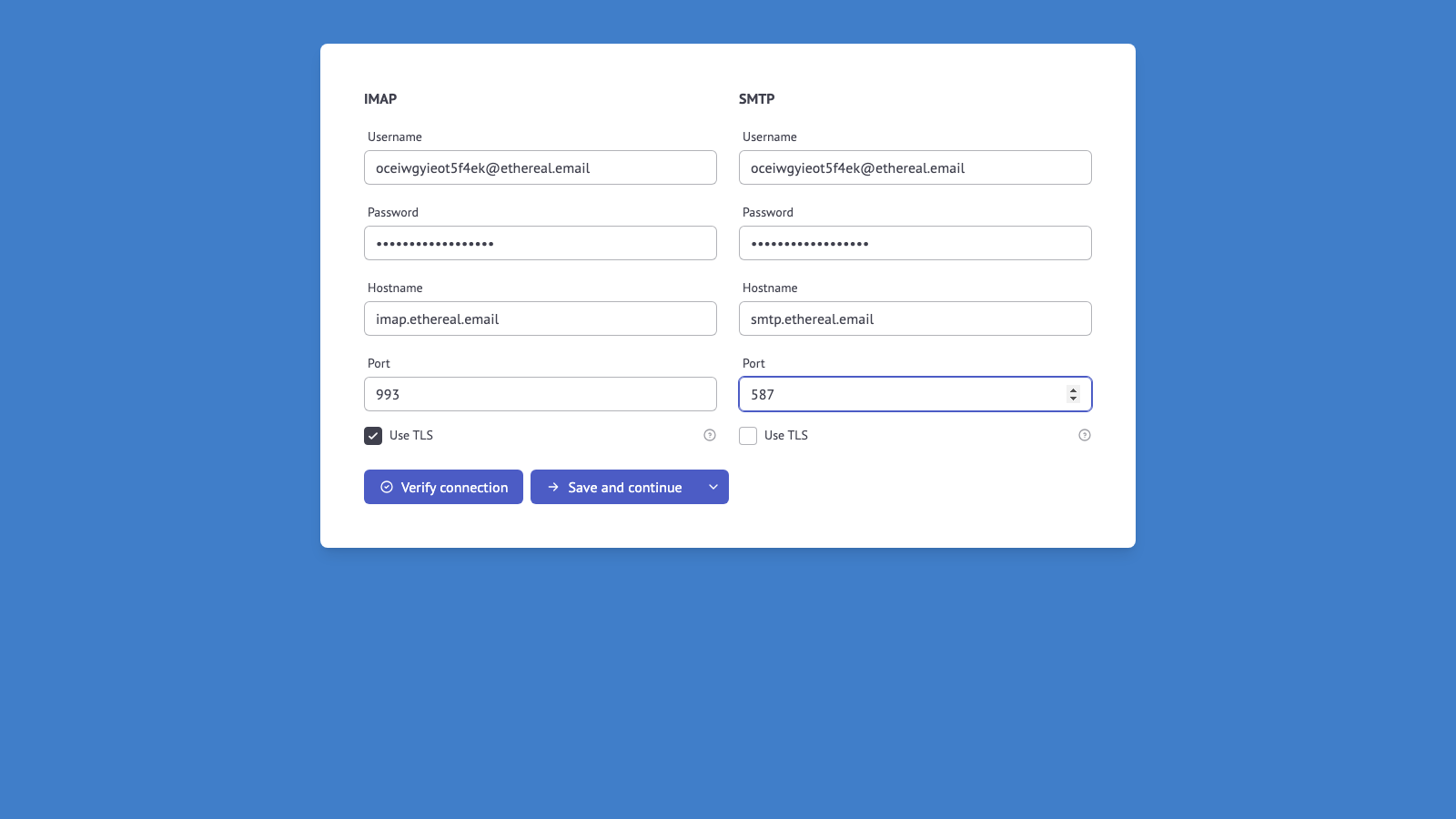
2. IMAP/SMTP Configuration (if selected)
For manual IMAP setup, users enter their server credentials:
3. OAuth2 Consent Screen (if selected)
For OAuth2 providers, users are redirected to Google or Microsoft to grant permissions.
4. Redirect Back
After successful authentication, users are automatically redirected to your application's redirectUrl.
Language and Theme
The hosted pages accept two query arguments that let you match the form to the user's language and to your own application's color scheme. Append them to the URL returned by POST /v1/authentication/form - the URL already carries a query string, so use &:
https://emailengine.example.com/accounts/new?data=eyJ...&locale=fr&theme=dark
Language (locale):
Displays the form in a specific language instead of relying on browser negotiation. Supported values: en, de, fr, nl, et, pl, ja, and since v2.81.0 also es, it, sv and tr. The choice is stored in a cookie, so it persists through the multi-step setup flow. Without the argument, EmailEngine negotiates the language from the browser's Accept-Language header, falling back to the server-wide default locale.
Learn more about translations and language selection >
Theme (theme):
Forces the light or dark color scheme so the page matches the application the user is coming from. Supported values: light and dark. The choice is remembered for the rest of the browser session, so it survives the setup steps that follow. Without the argument, the pages follow the theme the visitor chose in the EmailEngine admin interface in that browser, if any, and otherwise the system preference (prefers-color-scheme).
The theme argument requires EmailEngine v2.73.0 or later. The locale argument works on all recent versions.
Customization Options
Page Branding:
| Setting | Purpose | Example |
|---|---|---|
templateHeader | HTML block appended to top of page | App logo, instructions, welcome message |
templateHtmlHead | Custom <head> content | CSS style overrides, custom fonts |
These can be configured via:
- Configuration > Branding page in the EmailEngine dashboard
- Settings API (
POST /v1/settings)
Example - Add custom header with logo:
<div style="text-align: center; padding: 20px;">
  <img src="https://your-app.com/logo.png" alt="Your App" height="40">
  <p>Connect your email account to get started</p>
</div>
Example - Add custom CSS:
<style>
  :root {
    --ee-primary: #0057b8; /* buttons and links */
    --ee-page-background: #f4f4f4; /* backdrop behind the page card */
  }
  .ee-card {
    border-radius: 12px;
  }
</style>
Since EmailEngine v2.73.0 the hosted pages are framework-free: plain HTML styled by a single standalone stylesheet with stable, human-readable class names (ee-card, ee-btn, ee-input, and so on) and CSS custom properties for the design tokens (colors, radii, shadows). Redefine the tokens in templateHtmlHead for quick restyling - your CSS loads after EmailEngine's, so it always wins - or target the ee-* classes directly for deeper changes. The stylesheet source (static/css/public.css in the EmailEngine repository) documents every token and class. Versions up to v2.72.x used Bootstrap 4 classes (btn-primary, card) instead.
Since v2.79.9 the hosted pages carry a Content-Security-Policy that allows inline <style> and <script> blocks and external assets served over https://; a stylesheet, font or script referenced over plain http:// is blocked by the browser.
OAuth2 provider settings (configured in Google Cloud Console / Azure AD):
- App name displayed in consent screen
- App logo
- Privacy policy and terms of service links
See Also
- OAuth2 setup - Registering the provider applications the form uses
- Managing accounts - Registering accounts directly instead
- Authentication server - Keeping token management in your own application
- Translations - Languages the hosted pages are available in
- accountAdded webhook - Knowing when a form completed