Managing Accounts
This guide covers the complete lifecycle of account management in EmailEngine, including creating, updating, monitoring, and deleting accounts using both the API and web dashboard.
Account Lifecycle
Account States
Every account in EmailEngine has a state that indicates its current status:
| State | Description | Can Send/Receive | Actions |
|---|---|---|---|
init | The account was just registered and has not connected yet | No | Wait |
connecting | Connecting to the mail server or authorizing with the provider | Limited | Wait for connection |
syncing | Connected and performing the initial or a periodic mailbox sync | Yes | Operations allowed |
connected | Connected and watching for changes. This is the healthy steady state | Yes | All operations available |
disconnected | The connection dropped and EmailEngine is retrying with backoff | No | Wait for the retry |
authenticationError | The credentials were rejected. Requires re-authentication before syncing resumes | No | Update credentials or re-authorize |
connectError | The server could not be reached or the TLS handshake failed. Retried with backoff | No | Check network, server status |
paused | Syncing was paused through the API. No connection is maintained | No | Resume syncing |
unset | The account is not syncing: either no IMAP or OAuth2 configuration is set, or syncing was switched off, by the operator or automatically after repeated authentication failures | No | Finish the setup, or re-enable the account |
Two different things put an account in unset, and the account object tells them apart. imap.disabled is true in both cases; authFailureDisabledAt (since v2.79.4) is a timestamp when EmailEngine switched the account off itself and null when the operator did.
State Transitions
Adding Accounts
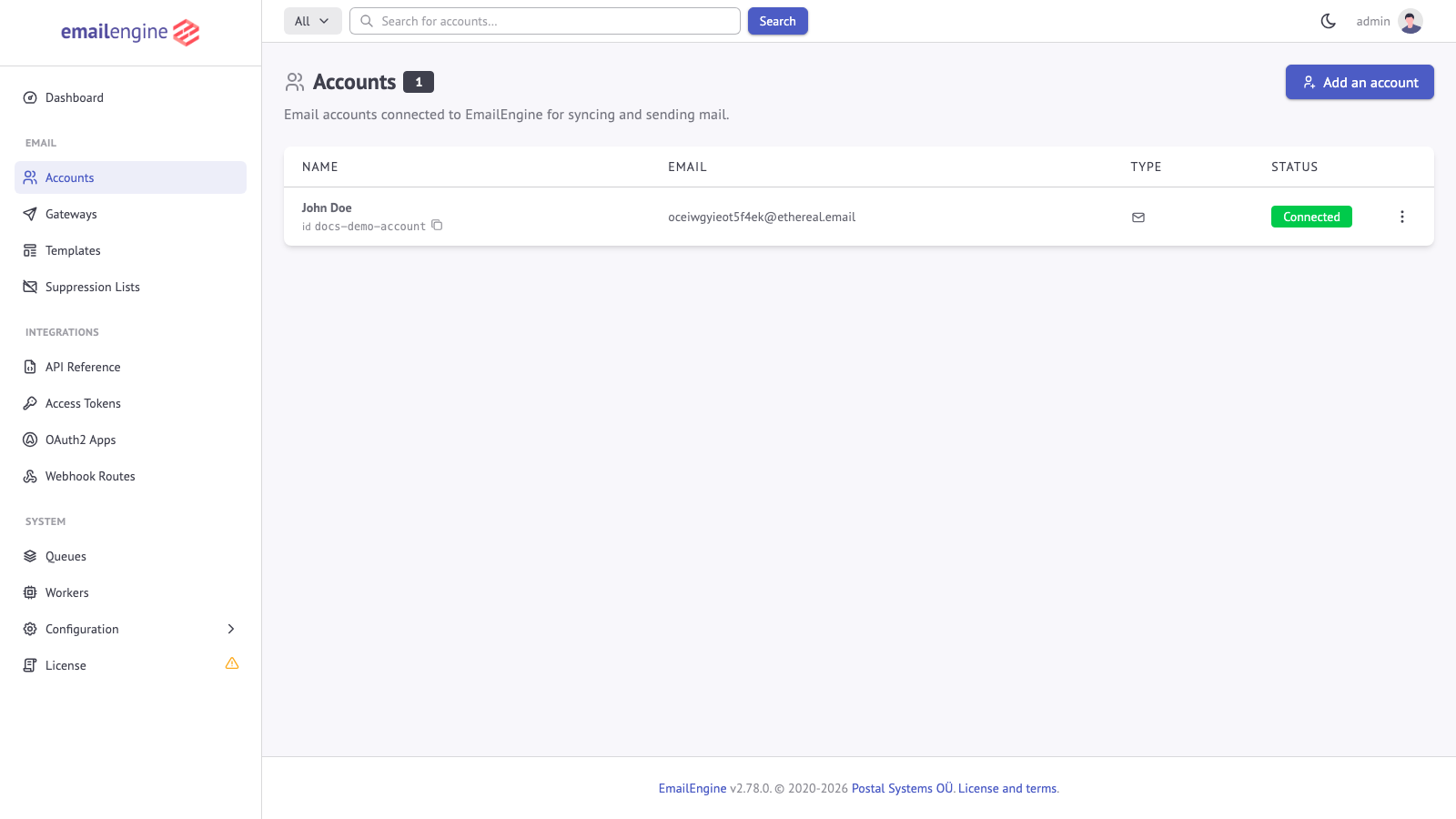 Accounts list showing connected email accounts
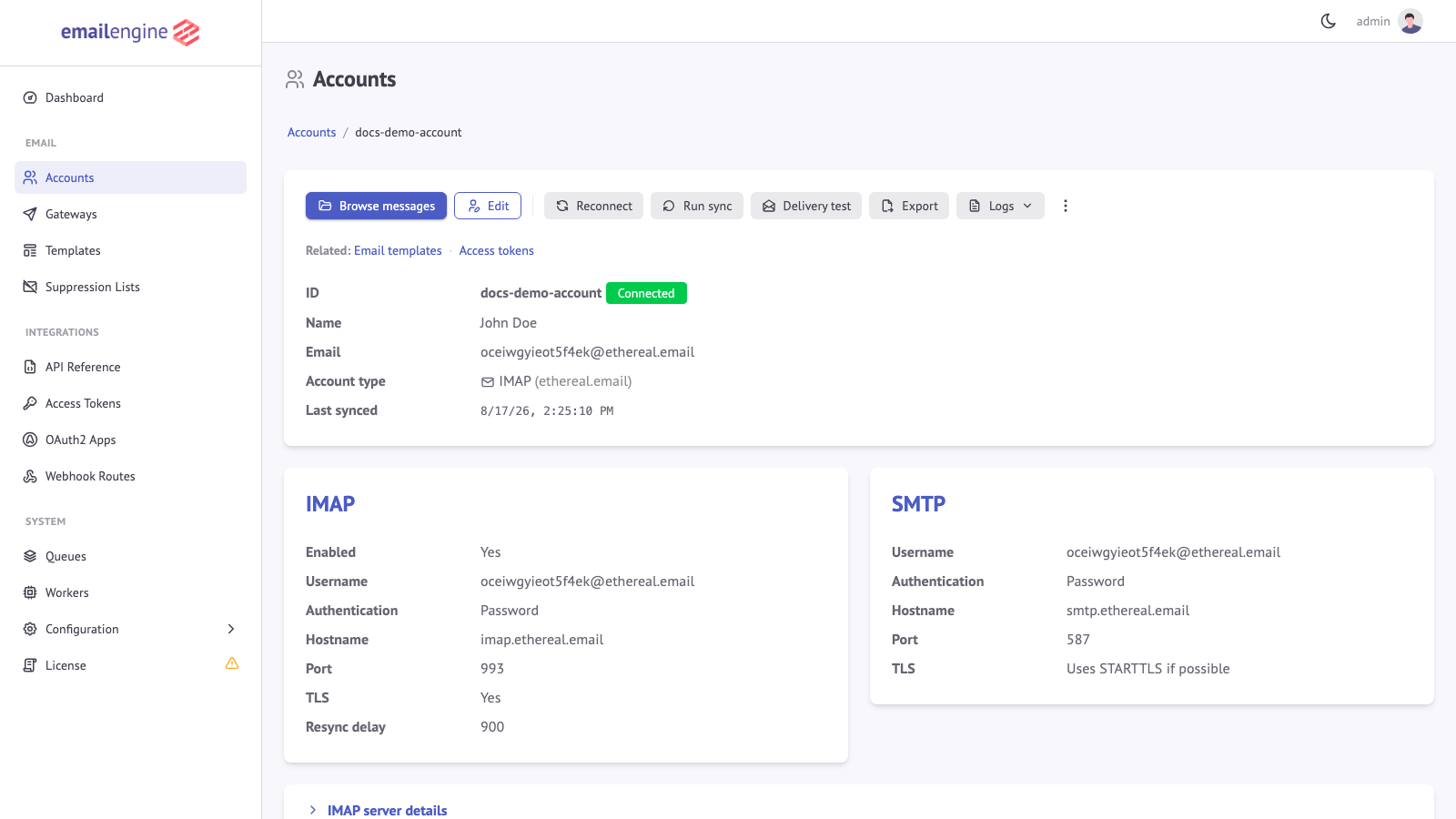 Detailed view of a connected account showing status, sync information, and configuration
Via API (Programmatic)
IMAP/SMTP with Password
Register a new account using the account registration API:
curl -X POST https://emailengine.example.com/v1/account \
  -H "Authorization: Bearer YOUR_TOKEN" \
  -H "Content-Type: application/json" \
  -d '{
    "account": "user123",
    "name": "John Doe",
    "email": "john@example.com",
    "imap": {
      "host": "imap.example.com",
      "port": 993,
      "secure": true,
      "auth": {
        "user": "john@example.com",
        "pass": "password123"
      }
    },
    "smtp": {
      "host": "smtp.example.com",
      "port": 587,
      "secure": false,
      "auth": {
        "user": "john@example.com",
        "pass": "password123"
      }
    }
  }'
OAuth2 (Gmail/Outlook)
curl -X POST https://emailengine.example.com/v1/account \
  -H "Authorization: Bearer YOUR_TOKEN" \
  -H "Content-Type: application/json" \
  -d '{
    "account": "user123",
    "name": "John Doe",
    "email": "john@gmail.com",
    "oauth2": {
      "provider": "AAABhaBPHscAAAAH",
      "accessToken": "ACCESS_TOKEN_FROM_GOOGLE",
      "refreshToken": "REFRESH_TOKEN_FROM_GOOGLE",
      "auth": {
        "user": "john@gmail.com"
      }
    }
  }'
provider is the ID of an OAuth2 application registered in EmailEngine, shown on Integrations > OAuth2 Apps, not the name of the provider and not the client ID from Google or Azure. auth.user is required: it is the mailbox the tokens belong to.
See Gmail OAuth2 guide → See Outlook OAuth2 guide →
OAuth2 Without Tokens (Authorization Redirect)
When your application does not hold the tokens yet, register the account with oauth2.authorize set to true and no accessToken or refreshToken. EmailEngine stores the request for 24 hours and answers with the provider's consent URL instead of an account record:
curl -X POST https://emailengine.example.com/v1/account \
  -H "Authorization: Bearer YOUR_TOKEN" \
  -H "Content-Type: application/json" \
  -d '{
    "account": "user123",
    "name": "John Doe",
    "email": "john@gmail.com",
    "oauth2": {
      "provider": "AAABhaBPHscAAAAH",
      "authorize": true,
      "redirectUrl": "https://myapp.com/settings",
      "auth": {
        "user": "john@gmail.com"
      }
    }
  }'
Response:
{
  "redirect": "https://accounts.google.com/o/oauth2/v2/auth?client_id=123456789.apps.googleusercontent.com&response_type=code&state=account%3Aadd%3AcVd7..."
}
Send the user to redirect. The account is created when they complete the consent screen, and the browser is then sent to oauth2.redirectUrl when one was given. For a Gmail application the email field is passed to Google as the login hint. authorize is refused with HTTP 400 for the application-only providers (gmailService and outlookService), which have no consent screen. The hosted authentication form wraps the same flow in a page of EmailEngine's own and is the usual choice; authorize is for applications that want the provider URL directly, for example to work around a UPN mismatch on a shared mailbox.
Service Accounts (Google Workspace)
curl -X POST https://emailengine.example.com/v1/account \
  -H "Authorization: Bearer YOUR_TOKEN" \
  -H "Content-Type: application/json" \
  -d '{
    "account": "user123",
    "name": "John Doe",
    "email": "john@company.com",
    "oauth2": {
      "provider": "AAABhaBPHscAAAAI",
      "auth": {
        "user": "john@company.com"
      }
    }
  }'
Authentication Server
curl -X POST https://emailengine.example.com/v1/account \
  -H "Authorization: Bearer YOUR_TOKEN" \
  -H "Content-Type: application/json" \
  -d '{
    "account": "user123",
    "name": "John Doe",
    "email": "john@outlook.com",
    "imap": {
      "useAuthServer": true,
      "host": "outlook.office365.com",
      "port": 993,
      "secure": true
    },
    "smtp": {
      "useAuthServer": true,
      "host": "smtp-mail.outlook.com",
      "port": 587,
      "secure": false
    }
  }'
See Authentication Server guide →
Via Hosted Authentication Form
Generate a form URL and redirect users to complete setup:
curl -X POST https://emailengine.example.com/v1/authentication/form \
  -H "Authorization: Bearer YOUR_TOKEN" \
  -H "Content-Type: application/json" \
  -d '{
    "account": "user123",
    "email": "john@gmail.com",
    "name": "John Doe",
    "redirectUrl": "https://myapp.com/settings"
  }'
Response:
{
  "url": "https://emailengine.example.com/accounts/new?data=eyJhY2NvdW50IjoidXNlcjEyMyJ9.k3Qb"
}
Direct user to this URL. After completing setup, they'll be redirected to your redirectUrl.
Learn more about hosted authentication →
Via Web Dashboard
- Navigate to Accounts in the EmailEngine dashboard
- Click Add account, enter a full name and, optionally, an account ID in the Add an account dialog, then click Continue
- On the hosted authentication form, choose Standard IMAP or one of the enabled OAuth2 apps (for example, a "Sign in with Microsoft" button)
- Complete setup
- Account appears in accounts list
Retrieving Account Information
Get Single Account
curl https://emailengine.example.com/v1/account/user123 \
  -H "Authorization: Bearer YOUR_TOKEN"
Response:
{
  "account": "user123",
  "name": "John Doe",
  "email": "john@gmail.com",
  "state": "connected",
  "syncTime": "2024-01-15T10:30:00.000Z",
  "type": "gmail",
  "authFailureDisabledAt": null,
  "oauth2": {
    "provider": "AAABhaBPHscAAAAH",
    "auth": { "user": "john@gmail.com" },
    "expires": "2024-01-15T11:30:00.000Z"
  },
  "imap": {
    "host": "imap.gmail.com",
    "port": 993,
    "secure": true
  },
  "smtp": {
    "host": "smtp.gmail.com",
    "port": 587,
    "secure": false
  },
  "path": "*",
  "subconnections": [],
  "counters": {
    "events": {
      "messageNew": 158,
      "messageSent": 42,
      "messageDeleted": 5
    }
  }
}
List All Accounts
curl https://emailengine.example.com/v1/accounts \
  -H "Authorization: Bearer YOUR_TOKEN"
Response:
{
  "accounts": [
    {
      "account": "user123",
      "name": "John Doe",
      "email": "john@gmail.com",
      "type": "gmail",
      "state": "connected"
    },
    {
      "account": "user456",
      "name": "Jane Smith",
      "email": "jane@outlook.com",
      "type": "outlook",
      "state": "unset",
      "authFailureDisabledAt": "2026-08-20T09:12:44.000Z"
    }
  ],
  "total": 2,
  "page": 0,
  "pages": 1,
  "query": false,
  "state": "*"
}
query echoes the query filter, or false when none was given, and state echoes the state filter, or *. List entries carry authFailureDisabledAt only for accounts that EmailEngine switched off after repeated authentication failures; it is omitted otherwise.
Filter Accounts
By state:
curl "https://emailengine.example.com/v1/accounts?state=connected" \
  -H "Authorization: Bearer YOUR_TOKEN"
By email pattern:
curl "https://emailengine.example.com/v1/accounts?query=@gmail.com" \
  -H "Authorization: Bearer YOUR_TOKEN"
Pagination:
curl "https://emailengine.example.com/v1/accounts?page=1&pageSize=20" \
  -H "Authorization: Bearer YOUR_TOKEN"
Updating Accounts
Update Basic Information
Use the update account API:
curl -X PUT https://emailengine.example.com/v1/account/user123 \
  -H "Authorization: Bearer YOUR_TOKEN" \
  -H "Content-Type: application/json" \
  -d '{
    "name": "John Doe (Updated)",
    "email": "john.doe@gmail.com"
  }'
expectedEmail is set the same way. It restricts which address may be used the next time the account is set up through a hosted authentication form; send null to remove the restriction.
Update IMAP/SMTP Settings
Update specific IMAP properties (recommended):
curl -X PUT https://emailengine.example.com/v1/account/user123 \
  -H "Authorization: Bearer YOUR_TOKEN" \
  -H "Content-Type: application/json" \
  -d '{
    "imap": {
      "partial": true,
      "port": 993,
      "secure": true
    }
  }'
Replace entire IMAP configuration:
curl -X PUT https://emailengine.example.com/v1/account/user123 \
  -H "Authorization: Bearer YOUR_TOKEN" \
  -H "Content-Type: application/json" \
  -d '{
    "imap": {
      "host": "imap.newserver.com",
      "port": 993,
      "secure": true,
      "auth": {
        "user": "john@newserver.com",
        "pass": "newpassword"
      }
    }
  }'
Use "partial": true inside the imap or smtp object to update only specific fields. Without it, you'll replace the entire configuration, which may lose existing settings like auth credentials or special folder paths.
The flag itself belongs on imap, smtp, or oauth2 and nowhere deeper. The merge it performs is recursive, though, so sending auth: { pass: "..." } under a partial update keeps the stored auth.user.
Update OAuth2 Tokens
curl -X PUT https://emailengine.example.com/v1/account/user123 \
  -H "Authorization: Bearer YOUR_TOKEN" \
  -H "Content-Type: application/json" \
  -d '{
    "oauth2": {
      "partial": true,
      "accessToken": "new.access.token",
      "refreshToken": "new.refresh.token"
    }
  }'
Enable Sub-Connections
Monitor additional folders in real-time:
curl -X PUT https://emailengine.example.com/v1/account/user123 \
  -H "Authorization: Bearer YOUR_TOKEN" \
  -H "Content-Type: application/json" \
  -d '{
    "subconnections": [
      "\\Sent",
      "Important",
      "Projects"
    ]
  }'
Benefits:
- Instant webhooks for messages in these folders
- Real-time notifications
- Better CRM integration
Limits:
- Uses additional IMAP connections
- Most servers limit to 10-15 concurrent connections
- Use sparingly
Learn more about sub-connections →
Configure Path Filtering
Sync and monitor only specific folders:
curl -X PUT https://emailengine.example.com/v1/account/user123 \
  -H "Authorization: Bearer YOUR_TOKEN" \
  -H "Content-Type: application/json" \
  -d '{
    "path": [
      "INBOX",
      "\\Sent",
      "\\Drafts",
      "Important"
    ]
  }'
What this does:
- EmailEngine will sync and monitor only the listed folders
- Unlisted folders will not trigger webhooks when messages change
- You can still access unlisted folders via API (list messages, search, etc.)
- Reduces resource usage by limiting what EmailEngine actively monitors
Learn more about path filtering →
Set Custom Sent Mail Path
If EmailEngine doesn't correctly identify your Sent folder:
curl -X PUT https://emailengine.example.com/v1/account/user123 \
  -H "Authorization: Bearer YOUR_TOKEN" \
  -H "Content-Type: application/json" \
  -d '{
    "imap": {
      "partial": true,
      "sentMailPath": "Sent Items"
    }
  }'
Common sent folder names:
Sent(most providers)Sent MessagesSent Items(Microsoft Exchange)[Gmail]/Sent Mail(Gmail)
Reconnecting Accounts
If an account enters an error state, trigger a reconnection:
curl -X PUT https://emailengine.example.com/v1/account/user123/reconnect \
  -H "Authorization: Bearer YOUR_TOKEN" \
  -H "Content-Type: application/json" \
  -d '{"reconnect": true}'
When to Use:
- Account in
authenticationErrorstate - Account in
connectErrorstate - After updating credentials
- After network issues resolved
What It Does:
- Closes the existing connections
- Assigns a fresh client and connects again
- The state moves to
connectingand then follows the result
Reconnect Response
Reconnect requested:
{
  "reconnect": true
}
Account switched off by EmailEngine:
{
  "reconnect": false
}
Since v2.79.4, an account that EmailEngine switched off after repeated authentication failures is not reconnected, because the connection setup checks the disable flag before dialing out and the request would report success while changing nothing. Supply working credentials, or use Resume syncing in the admin interface. The same response is returned when the body is missing or reconnect is false.
Account Not Found:
{
  "statusCode": 404,
  "error": "Not Found",
  "message": "Account record was not found for requested ID"
}
error carries the HTTP status phrase and message the explanation. See Error codes.
Disabling and Enabling Accounts
Disable Account
Temporarily stop syncing without deleting the account. The switch is imap.disabled, and partial: true keeps the rest of the IMAP configuration:
curl -X PUT https://emailengine.example.com/v1/account/user123 \
  -H "Authorization: Bearer YOUR_TOKEN" \
  -H "Content-Type: application/json" \
  -d '{
    "imap": {
      "partial": true,
      "disabled": true
    }
  }'
Effect:
- Closes all connections
- Stops webhook notifications
- Account data retained
- Can be re-enabled later
Use Cases:
- Temporarily pause account
- Maintenance periods
- User subscription expired
- Testing without deleting
partial when updating imap or smtpWithout it, the object you send replaces the stored one. A body of {"imap": {"disabled": true}} therefore discards the host, port, and credentials, and the account stops working.
The same flag applies to accounts that connect through the Gmail API or the Microsoft Graph API, even though they have no other IMAP settings. In the admin interface it is the "Disable IMAP" checkbox on the account edit page, which is shown for accounts that connect over IMAP.
Enable Account
Re-enable a disabled account:
curl -X PUT https://emailengine.example.com/v1/account/user123 \
  -H "Authorization: Bearer YOUR_TOKEN" \
  -H "Content-Type: application/json" \
  -d '{
    "imap": {
      "partial": true,
      "disabled": false
    }
  }'
The account keeps its credentials and folder state throughout, so resuming does not re-download the mailbox. Request a reconnect if it does not pick up on its own.
Accounts switched off after authentication failures
EmailEngine sets the same imap.disabled flag itself when an account keeps failing authentication. Once the first failure in the current run is older than EENGINE_MAX_IMAP_AUTH_FAILURE_TIME (three days by default), the account is switched off rather than retried forever, which spares the mail server a login loop and the provider's token endpoint a refresh loop for a revoked grant. When that happens:
imap.disabledis set totrue, the connection is closed, and the account reports the stateunsetauthFailureDisabledAtin the account object carries the time of the disable; it isnullfor an account the operator disabled, so it is what tells the two apartlastErrorrecords the disable as the account's last error, with the provider's rejection inlastError.response- An
authenticationErrorwebhook is sent for the disable, even though the underlying error has already been reported once PUT /v1/account/{account}/reconnectanswers{"reconnect": false}and does nothing, because the connection setup checks the flag before dialing out- In the admin interface the account page shows a "Syncing was switched off" alert with the time, and the accounts list badges it "Syncing switched off"
Any of the following turns syncing back on:
- Supply working credentials. Re-authorizing an OAuth2 account through the hosted authentication form or the account page's Re-authenticate button, or registering the account again with
POST /v1/account, lifts the flag and reconnects the account. (The Re-authenticate button did nothing in v2.79.9, blocked by the Content Security Policy that release introduced; v2.80.0 fixed it.)PUT /v1/account/{account}lifts it when the body carries new OAuth2 tokens, setsimap.disabledtofalse, replaces the wholeimapobject, or, in v2.79.5, changesimap.authin a partial update. In v2.79.4 itself a partial update that only changes the password keeps the flag, so add"disabled": falsenext to the new password there - Resume syncing on the account page in the admin interface retries with the stored credentials. This is the only admin path for a Gmail API or Microsoft Graph account, whose edit page has no IMAP settings and therefore no "Disable IMAP" checkbox
- Saving the edit form of an IMAP account with new credentials. In v2.79.5 the "Disable IMAP" checkbox is left unchecked for an account the safety net switched off, so the save writes
disabled: falsealong with the credentials. In v2.79.4 the box is pre-checked and has to be cleared by hand {"imap": {"partial": true, "disabled": false}}through the API, as above
If the credentials are still bad, the failures start counting again from the resume, and the account is switched off once more after the window passes.
Version notes:
- Before v2.79.3 the safety net only applied to password IMAP accounts; Gmail and Microsoft OAuth2 accounts with a revoked refresh token were retried indefinitely. v2.79.3 extended it to OAuth2 accounts, so an upgraded instance switches every account already past the threshold off on its next failed refresh
- v2.79.4 added
authFailureDisabledAt, the recovery through re-authorization andPUT /v1/account/{account}, the{"reconnect": false}answer, and the admin alert and Resume syncing button. In v2.79.3 re-authorization left the flag in place; clearingimap.disabledthrough the API, or the "Disable IMAP" checkbox on an IMAP account's edit page, was the only way back - An account switched off by v2.79.3 has no timestamp of its own. On the first start of a later version, EmailEngine backfills the marker for every OAuth2 account that carries
imap.disabledtogether with the stored disable reason, using the time of that start rather than the unknown time of the disable, so those accounts become recoverable by the paths above. This runs once per Redis database. The accounts list recognizes the same signature and badges those accounts "Syncing switched off" even before the backfill has run - v2.79.5 also stop parking delegated accounts: a shared mailbox has no credential of its own, so only the account it borrows the token from is switched off, and re-authorizing that account brings the shared mailboxes back with it. The same releases include OAuth2 accounts registered with
imap: falsein the safety net, which v2.79.3 and v2.79.4 had skipped
In v2.79.4 an IMAP account in this state is reported with the type sending and sendOnly: true everywhere, because the two are told apart only by authFailureDisabledAt. In v2.79.5 the accounts listing and the admin interface keep the account's own type and show the IMAP settings card with the stored error, since send-only is a configuration and a switch-off is a fault. GET /v1/account/{account} still answers sending with sendOnly: true for such an account, so read the type from the listing, or read authFailureDisabledAt, which is unambiguous on both. An OAuth2 account keeps its gmail or outlook type in every version.
Flushing Accounts
The flush API resets the internal email index for an account and re-syncs from scratch. This is useful for:
- Resetting corrupted index - Fix sync issues by rebuilding the index
- Processing existing emails - Trigger
messageNewwebhooks for existing emails (IMAP only) - Changing indexer type - Switch between full and fast indexing strategies
# Basic flush - reset index, only notify about new messages going forward
curl -X PUT https://emailengine.example.com/v1/account/user123/flush \
  -H "Authorization: Bearer YOUR_TOKEN" \
  -H "Content-Type: application/json" \
  -d '{
    "flush": true
  }'

# Flush with options - process existing emails and change indexer
curl -X PUT https://emailengine.example.com/v1/account/user123/flush \
  -H "Authorization: Bearer YOUR_TOKEN" \
  -H "Content-Type: application/json" \
  -d '{
    "flush": true,
    "notifyFrom": "2024-01-01T00:00:00.000Z",
    "imapIndexer": "full"
  }'
Parameters:
| Parameter | Type | Description |
|---|---|---|
flush | boolean | Must be true to confirm the flush operation |
notifyFrom | string | Only send webhooks for messages after this date (IMAP only). Defaults to current time, so only new messages trigger webhooks. Set to a past date like "1970-01-01T00:00:00.000Z" to process existing emails |
imapIndexer | string | Set indexing strategy: "full" or "fast" (IMAP only) |
Only one flush can run at a time across the whole instance. A second request while one is running fails with HTTP 429 and the error code LockFail.
For Gmail API and MS Graph accounts, notifyFrom has no effect. These backends only notify about new emails arriving after the account was connected, not existing emails.
Learn more about IMAP indexers →
Deleting Accounts
Permanently remove an account from EmailEngine using the delete account API:
curl -X DELETE https://emailengine.example.com/v1/account/user123 \
  -H "Authorization: Bearer YOUR_TOKEN"
Response:
{
  "account": "user123",
  "deleted": true
}
What Happens:
- All connections closed immediately
- Account data removed from EmailEngine
- Webhook subscriptions cancelled
- Stored credentials deleted
What Doesn't Happen:
- Email data on mail server remains unchanged
- Messages are not deleted
- Server-side folders remain
- OAuth2 tokens remain valid (until revoked by provider or you)
Revoking the OAuth2 grant on delete:
Pass revoke=true to also revoke the upstream OAuth2 grant at the provider before the account is removed:
curl -X DELETE "https://emailengine.example.com/v1/account/user123?revoke=true" \
  -H "Authorization: Bearer YOUR_TOKEN"
This is currently supported for individual Gmail OAuth grants. For Gmail service-account integrations, Outlook, and non-OAuth2 accounts the flag is a no-op. If revocation fails, the failure is logged and the account is still deleted.
Deleting an account cannot be undone. You'll need to re-add the account if needed later.
Verifying Accounts
Before adding an account, verify credentials work:
curl -X POST https://emailengine.example.com/v1/verifyAccount \
  -H "Authorization: Bearer YOUR_TOKEN" \
  -H "Content-Type: application/json" \
  -d '{
    "imap": {
      "host": "imap.example.com",
      "port": 993,
      "secure": true,
      "auth": {
        "user": "john@example.com",
        "pass": "password123"
      }
    },
    "smtp": {
      "host": "smtp.example.com",
      "port": 587,
      "secure": false,
      "auth": {
        "user": "john@example.com",
        "pass": "password123"
      }
    }
  }'
Response (Success):
{
  "imap": {
    "success": true
  },
  "smtp": {
    "success": true
  }
}
Response (Failure):
{
  "imap": {
    "success": false,
    "error": "Invalid credentials",
    "code": "AUTHENTICATIONFAILED"
  },
  "smtp": {
    "success": true
  }
}
Use this before adding accounts to catch configuration errors early.
Monitoring Account Health
Check Account Status
curl https://emailengine.example.com/v1/account/user123 \
  -H "Authorization: Bearer YOUR_TOKEN"
Key Fields to Monitor:
{
  "account": "user123",
  "state": "connected",
  "syncTime": "2024-01-15T10:30:00.000Z",
  "lastError": {
    "response": "Connection timeout",
    "serverResponseCode": "TIMEOUT"
  }
}
Monitor All Accounts
Check for accounts in error states:
# Get accounts with authentication errors
curl "https://emailengine.example.com/v1/accounts?state=authenticationError" \
  -H "Authorization: Bearer YOUR_TOKEN"

# Get accounts with connection errors
curl "https://emailengine.example.com/v1/accounts?state=connectError" \
  -H "Authorization: Bearer YOUR_TOKEN"
Set Up Monitoring Alerts
A periodic check only has to ask for the one state that does not resolve itself:
#!/bin/bash

stuck=$(curl -s "https://emailengine.example.com/v1/accounts?state=authenticationError&pageSize=1000" \
  -H "Authorization: Bearer YOUR_TOKEN")

count=$(echo "$stuck" | jq '.total')

if [ "$count" -gt 0 ]; then
  echo "$count account(s) need re-authentication:"
  echo "$stuck" | jq -r '.accounts[] | "- \(.account) (\(.email))"'
  # hand off to your alerting here
fi
authenticationError is the state worth paging on: it persists until someone updates the credentials or the user re-authorizes. connectError and disconnected are retried automatically, so alert on those only when an account stays there across several consecutive checks.
An account that has been failing for three days leaves authenticationError for unset when EmailEngine switches it off, so a check that only asks for authenticationError loses sight of exactly the accounts that have needed attention the longest. List ?state=unset as well and keep the entries that carry authFailureDisabledAt:
curl -s "https://emailengine.example.com/v1/accounts?state=unset&pageSize=1000" \
  -H "Authorization: Bearer YOUR_TOKEN" \
  | jq -r '.accounts[] | select(.authFailureDisabledAt) | "- \(.account) switched off at \(.authFailureDisabledAt)"'
For an event-driven alternative to polling, subscribe to the authenticationError webhook, or follow the account state stream.
Bulk Operations
Add Multiple Accounts
#!/bin/bash

# Read accounts from CSV
while IFS=, read -r account_id email password; do
  curl -X POST https://emailengine.example.com/v1/account \
    -H "Authorization: Bearer YOUR_TOKEN" \
    -H "Content-Type: application/json" \
    -d "{
      \"account\": \"$account_id\",
      \"email\": \"$email\",
      \"imap\": {
        \"host\": \"imap.example.com\",
        \"port\": 993,
        \"secure\": true,
        \"auth\": {
          \"user\": \"$email\",
          \"pass\": \"$password\"
        }
      }
    }"

  # Rate limit
  sleep 1
done < accounts.csv
Update Multiple Accounts
There is no bulk account-update endpoint, so apply the change per account. Pace the loop rather than firing every request at once, since each update that changes connection settings causes a reconnect:
#!/bin/bash

# Watch the Sent folder in real time on every account
for account in $(curl -s "https://emailengine.example.com/v1/accounts?pageSize=1000" \
  -H "Authorization: Bearer YOUR_TOKEN" | jq -r '.accounts[].account'); do

  curl -s -X PUT "https://emailengine.example.com/v1/account/$account" \
    -H "Authorization: Bearer YOUR_TOKEN" \
    -H "Content-Type: application/json" \
    -d '{"subconnections": ["\\Sent"]}' > /dev/null

  sleep 0.1
done
Each sub-connection is an additional IMAP connection per account, so read Sub-Connections before enabling one everywhere.
Delete Multiple Accounts
#!/bin/bash

# Delete all accounts matching pattern
accounts=$(curl -s "https://emailengine.example.com/v1/accounts?query=test" \
  -H "Authorization: Bearer YOUR_TOKEN" \
  | jq -r '.accounts[].account')

for account in $accounts; do
  echo "Deleting $account"
  curl -X DELETE "https://emailengine.example.com/v1/account/$account" \
    -H "Authorization: Bearer YOUR_TOKEN"
  sleep 0.5
done
Common Account Management Patterns
Automatic Reconnection
EmailEngine already retries connectError and disconnected accounts with backoff, so a reconnect loop over them mostly adds load. Reconnect explicitly after you change something, such as rotating a password or completing a re-authorization:
curl -X PUT "https://emailengine.example.com/v1/account/user123/reconnect" \
  -H "Authorization: Bearer YOUR_TOKEN" \
  -H "Content-Type: application/json" \
  -d '{ "reconnect": true }'
{"reconnect": true} must be present. The flag defaults to false, so a PUT with an empty body is accepted and does nothing.
An account in authenticationError will not recover from a reconnect on its own, because the credentials are still the rejected ones. Fix the credentials first, which triggers a reconnect by itself. An account that EmailEngine has already switched off refuses the reconnect outright and answers {"reconnect": false}.
Credential Rotation
Update only the password and let the reconnect follow from the change:
curl -X PUT "https://emailengine.example.com/v1/account/user123" \
  -H "Authorization: Bearer YOUR_TOKEN" \
  -H "Content-Type: application/json" \
  -d '{
    "imap": { "partial": true, "auth": { "pass": "new-password" } },
    "smtp": { "partial": true, "auth": { "pass": "new-password" } }
  }'
The merge is recursive, so the stored auth.user is kept and only the password changes. A changed imap object triggers a reconnect on its own, so no separate reconnect call is needed. If EmailEngine had already switched the account off, the partial update keeps imap.disabled in place; add "disabled": false to the imap object to resume syncing with the new password.
See Also
- Account types - Choosing between IMAP, OAuth2, and the native provider APIs
- Hosted authentication - Letting EmailEngine collect credentials from the user
- IMAP indexers - What a flush rebuilds, and which changes each indexer detects
- Troubleshooting accounts - Diagnosing a connection that will not come up
- Accounts API - The same operations as a reference