Connecting AI Agents
There are two ways for a client to authenticate against the MCP endpoint. Which one you use is decided by the client, not by you: some clients let you paste a token into a configuration file, others can only sign themselves in.
| Static access token | OAuth sign-in | |
|---|---|---|
| For | Desktop and self-hosted agents: Claude Code, Cursor, editor extensions, your own agent code | Web connectors that run on someone else's servers, for example a claude.ai connector |
| You provide | The endpoint URL and a token | The endpoint URL only |
| Credential created | By you, in the admin interface, the API or the CLI | By the client, after you approve it in the browser |
| Extra setup | None | mcpOAuthEnabled plus a Service URL |
| Revoke | Access Tokens page | Access Tokens page |
Both produce the same thing: an ordinary EmailEngine access token carrying one or both MCP scopes, mcp-manage for the instance and mcp for mail, with an explicit permissions record for the levels chosen. Whatever created it, you review and revoke it in the same place.
The endpoint has to be enabled - see Enable the endpoint. Remote clients also need HTTPS and a reachable address.
Desktop and self-hosted agents
1. Generate a token and a ready-made configuration
Open Configuration > MCP > Connect an agent. The generator mints the token and writes the client configuration around it in one step:
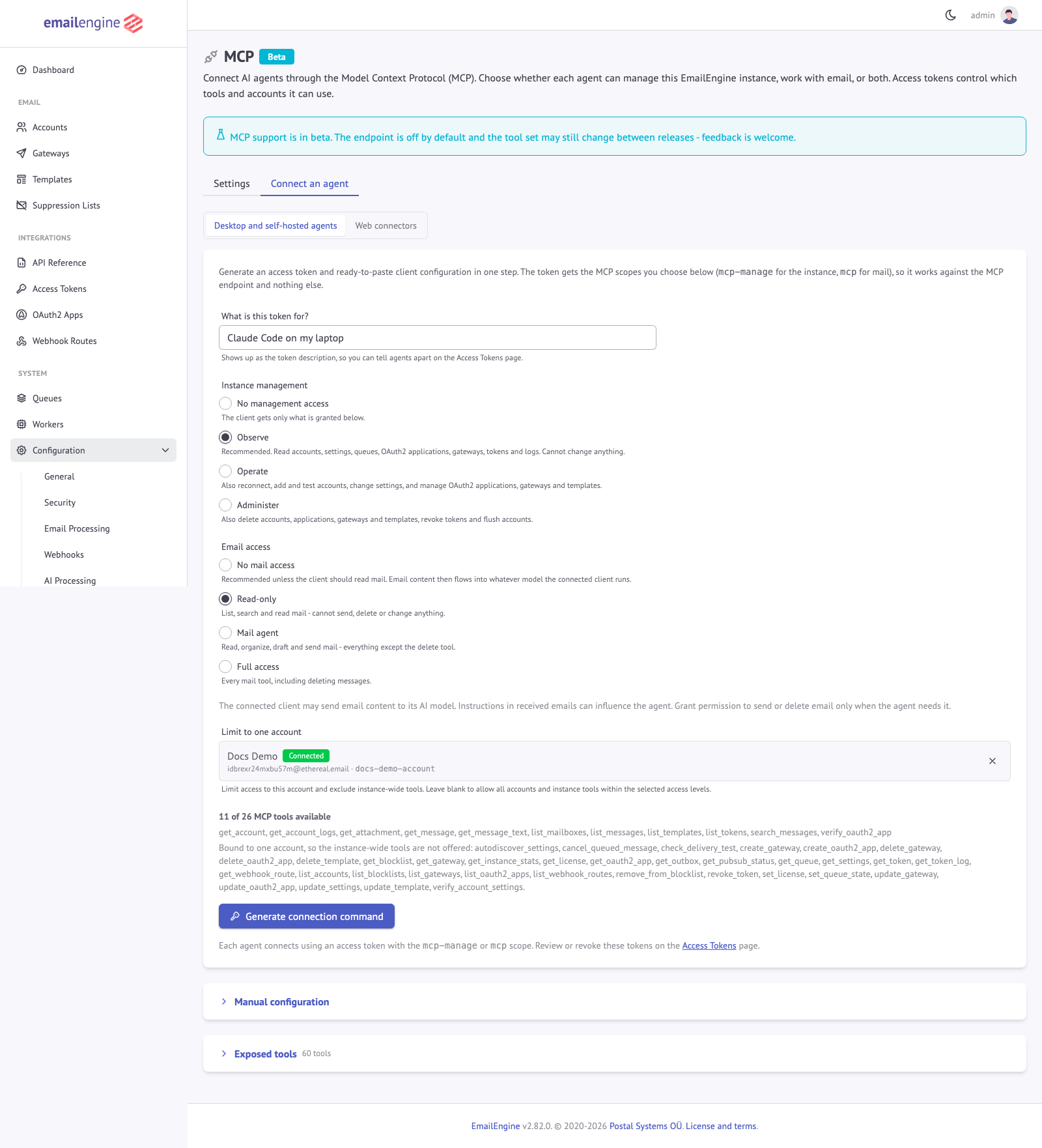 The generator: a description to tell agents apart later, the two access sections, and an optional account limit
Fill in four things:
- What is this token for? Becomes the token description on the Access Tokens page, prefixed with
MCP:(a blank field becomesMCP: MCP agent). Name the agent and the machine, for example "Claude Code on my laptop" - a token is easier to revoke when you can tell which one it is. - Instance management. Starts at Observe, which reads accounts, settings, queues, OAuth2 applications, gateways, tokens and logs and changes nothing. Operate and Administer widen it; No management access declines the section.
- Email access. Starts at No mail access. Pick Read-only, Mail agent or Full access when the agent should work with mailbox contents. See Access levels for exactly what each level grants.
- Limit to one account. Recommended for a mail agent. Search by name, address or account id and pick from the suggestions - the field is a picker, not a box to type an id into. A bound token reaches that account and nothing else, and the tools get simpler with it: every tool that takes no account, which is the instance-wide listings and most of the management tools, is not offered, and the remaining tools stop asking which account to act on.
The line under the radios counts the tools the resulting credential would actually receive, so you can see the effect of a choice before making it. Declining both sections is refused, since the token could call nothing.
Press Generate connection command:
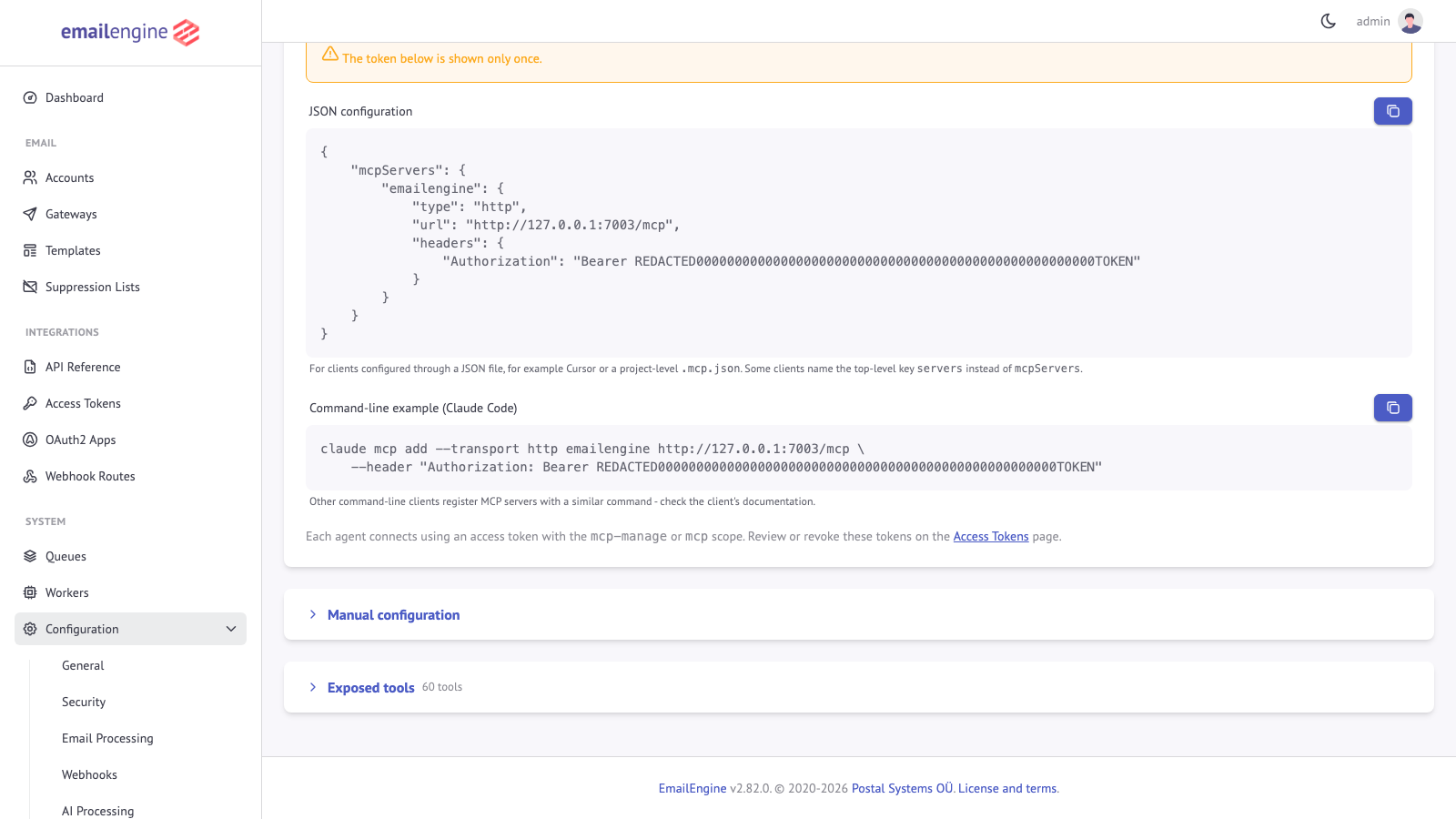 The generated JSON configuration and command line, carrying the new token. The token value is shown once
2. Paste it into the client
JSON configuration (Cursor, project-level .mcp.json files, most clients configured through a file):
{
  "mcpServers": {
    "emailengine": {
      "type": "http",
      "url": "https://emailengine.example.com/mcp",
      "headers": {
        "Authorization": "Bearer YOUR_ACCESS_TOKEN"
      }
    }
  }
}
Some clients name the top-level key servers instead of mcpServers, and some omit type. The three values that matter are the URL, the transport (HTTP, not stdio) and the Authorization header.
Claude Code:
claude mcp add --transport http emailengine https://emailengine.example.com/mcp \
  --header "Authorization: Bearer YOUR_ACCESS_TOKEN"
Any other command-line client registers an HTTP MCP server with a similar command; check the client's own documentation for the flag names.
Your own agent code. MCP client libraries exist for the major agent frameworks. Point the client at the same URL with the same header - EmailEngine is a plain Streamable HTTP MCP server, with no vendor-specific handshake. If you are writing the transport yourself, see the Protocol Reference.
3. Minting the token outside the admin interface
The generator is a convenience. Any access token with an MCP scope works, so a provisioning script can create one over the API. This is the read-only mail level, written the way the generator writes it:
curl -X POST "https://emailengine.example.com/v1/tokens" \
  -H "Authorization: Bearer $EE_ROOT_TOKEN" \
  -H "Content-Type: application/json" \
  -d '{
    "description": "MCP: inbox triage agent",
    "scopes": ["mcp"],
    "account": "user123",
    "permissions": {
      "grants": [
        { "action": "read", "group": "account" },
        { "action": "read", "group": "mailbox" },
        { "action": "read", "group": "message" },
        { "action": "read", "group": "outbox" },
        { "action": "read", "group": "template" }
      ]
    }
  }'
{
  "token": "8a2c...",
  "id": "6236d3db..."
}
The API refuses to mint an instance-wide token that carries no narrowing, so either bind it to an account or send a permissions record. A management credential is minted the same way with "scopes": ["mcp-manage"] and the grants of the level you want; Access Control has the vocabulary and the rule that a management grant has to name its sections.
Or from the CLI, which is the path for headless deployments:
emailengine tokens issue \
  -d "MCP: inbox triage agent" \
  -s "mcp:mail" \
  -a "user123" \
  --dbs.redis="redis://127.0.0.1:6379/8"
Each MCP scope on the command line takes an access level after a colon (mcp:read, mcp:mail, mcp:full, and mcp-manage:observe, mcp-manage:operate, mcp-manage:administer), and the token carries that level's grants as an explicit list, the same as the admin interface mints. Both MCP scopes can go in one token by repeating -s. The CLI takes no custom permissions record, so use the admin interface or the API for anything narrower than a level. Before v2.82.1 the CLI could not issue mcp-manage, and -s "mcp" without a level issued a token that reached every mail tool; that form is now refused.
4. Endpoint address
The generator fills in the address from the Service URL setting when one is configured, and otherwise from the address your browser used to reach the admin interface. That second case is a guess, and it is wrong as soon as the client runs anywhere else. Set the Service URL under Configuration > General so every generated configuration names the public address.
The endpoint is always the instance address plus /mcp:
https://emailengine.example.com/mcp
Web connectors (OAuth sign-in)
A connector running on someone else's infrastructure cannot be handed a token you pasted into a file. Instead it registers itself, sends you to an authorization page, and receives a token of its own once you approve. EmailEngine implements the OAuth 2.1 flow those clients expect, including dynamic client registration, so there is no client ID for you to create.
1. Turn on OAuth sign-in
Two prerequisites:
- A Service URL under Configuration > General. The flow publishes discovery documents that have to name one fixed public origin. Without it, OAuth stays inactive even with the checkbox ticked.
- Enable OAuth sign-in for MCP clients under Configuration > MCP.
2. Fill in the client's connector form
Open Configuration > MCP > Connect an agent > Web connectors. The panel shows exactly what to type in the client:
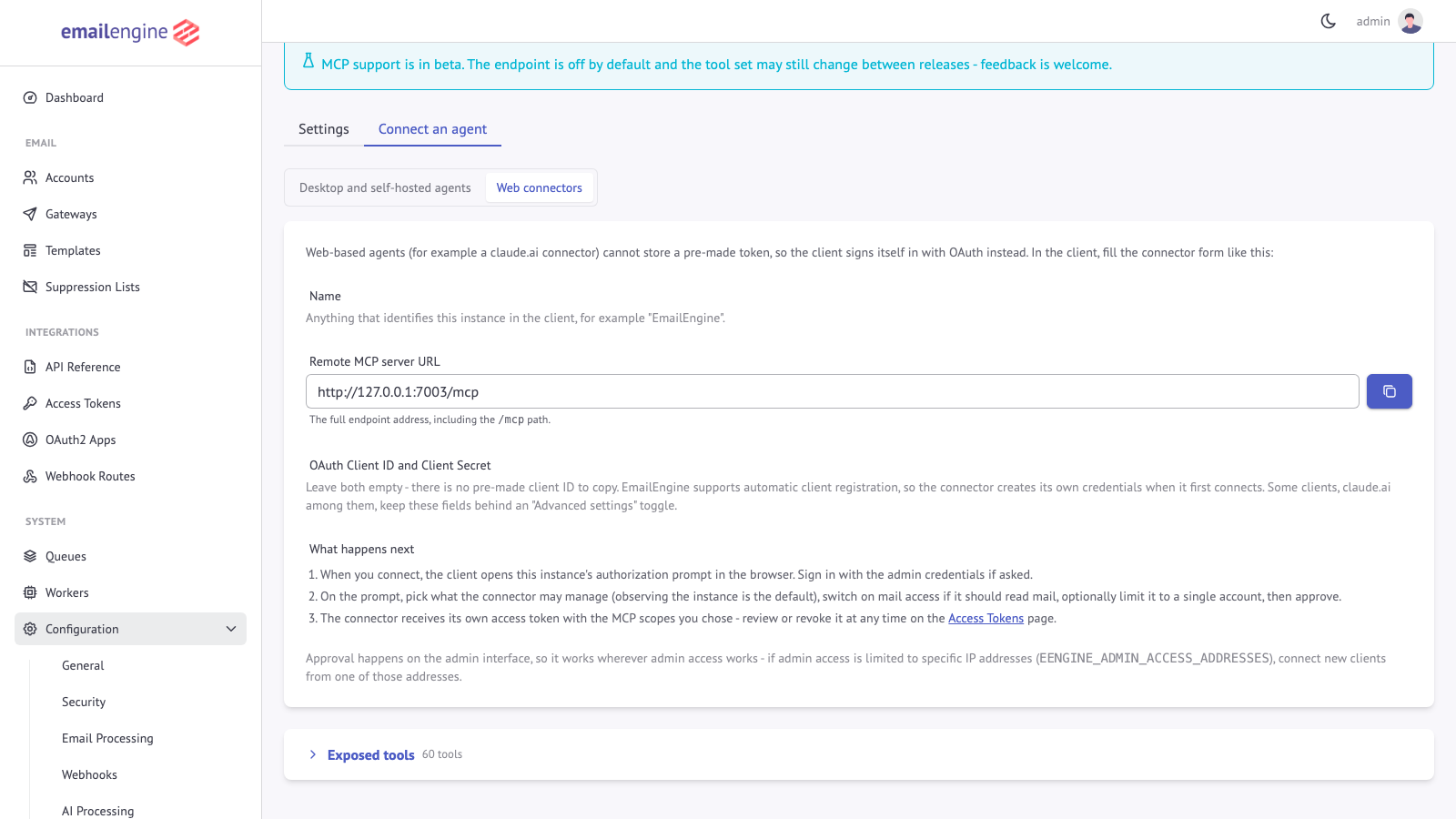 What a web connector needs: a name, the endpoint URL, and empty client credentials
- Name - anything that identifies this instance in the client, for example "EmailEngine".
- Remote MCP server URL - the full endpoint address, including
/mcp. - OAuth Client ID and Client Secret - leave both empty. EmailEngine registers the client automatically on first contact. Some clients, claude.ai among them, keep these fields behind an "Advanced settings" toggle.
3. Approve the client
When the client connects, it opens EmailEngine's authorization prompt in your browser. Sign in with the admin credentials if you are not already signed in:
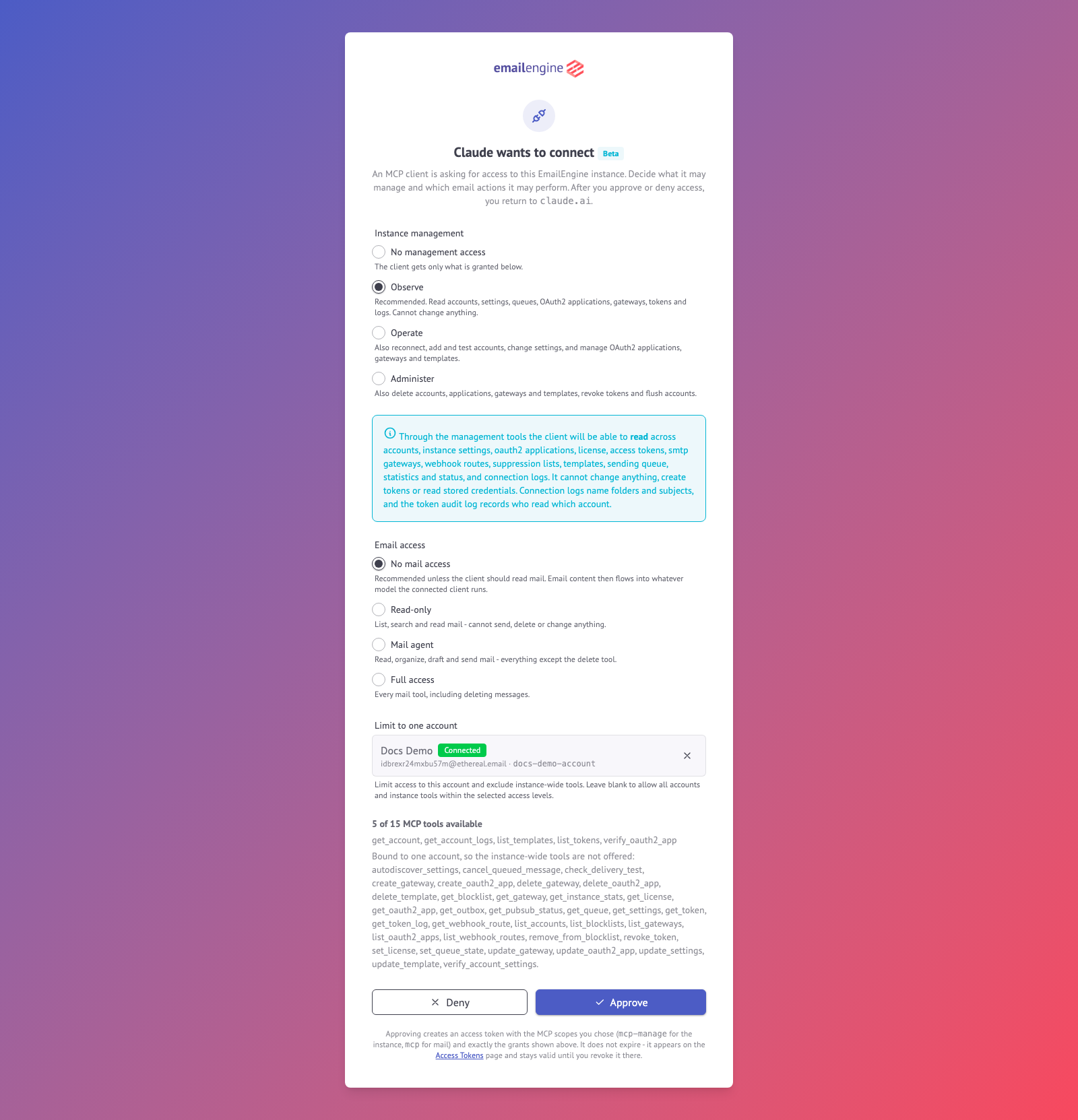 The consent prompt names the client, the address the browser returns to, and what approving grants
On the prompt you choose the same things the token generator offers - the instance management level, the email access level and an optional account limit, picked by searching for the account - and the sentence under each section spells out what the chosen level lets the client do. Approve sends the client back with an authorization code it exchanges for its token; Deny sends it back with error=access_denied and creates nothing.
Management starts at Observe and mail at No mail access. A client that asked for a scope in its authorization request moves the starting position: one asking for mcp starts with mail at Read-only and management declined, one asking for mcp-manage the other way round. That is a hint, never a grant; what the client gets is what you leave selected. Narrow defaults are right here: this flow issues credentials to the least controllable clients, running on machines you do not administer. The token is named MCP: <client name> on the Access Tokens page, with the account in parentheses when you limited it to one.
Approving mints a lasting credential, so it needs an authenticated admin session on that request. On an instance with no admin password the prompt hides Approve and says so, leaving Deny as the only working button. Set an admin password first.
4. Review what was issued
The connector's token is an ordinary access token. Find it, and everything else that reached the endpoint this way, under Integrations > Access Tokens, filtered to the two MCP scopes at /admin/tokens?scope=mcp-manage&scope=mcp:
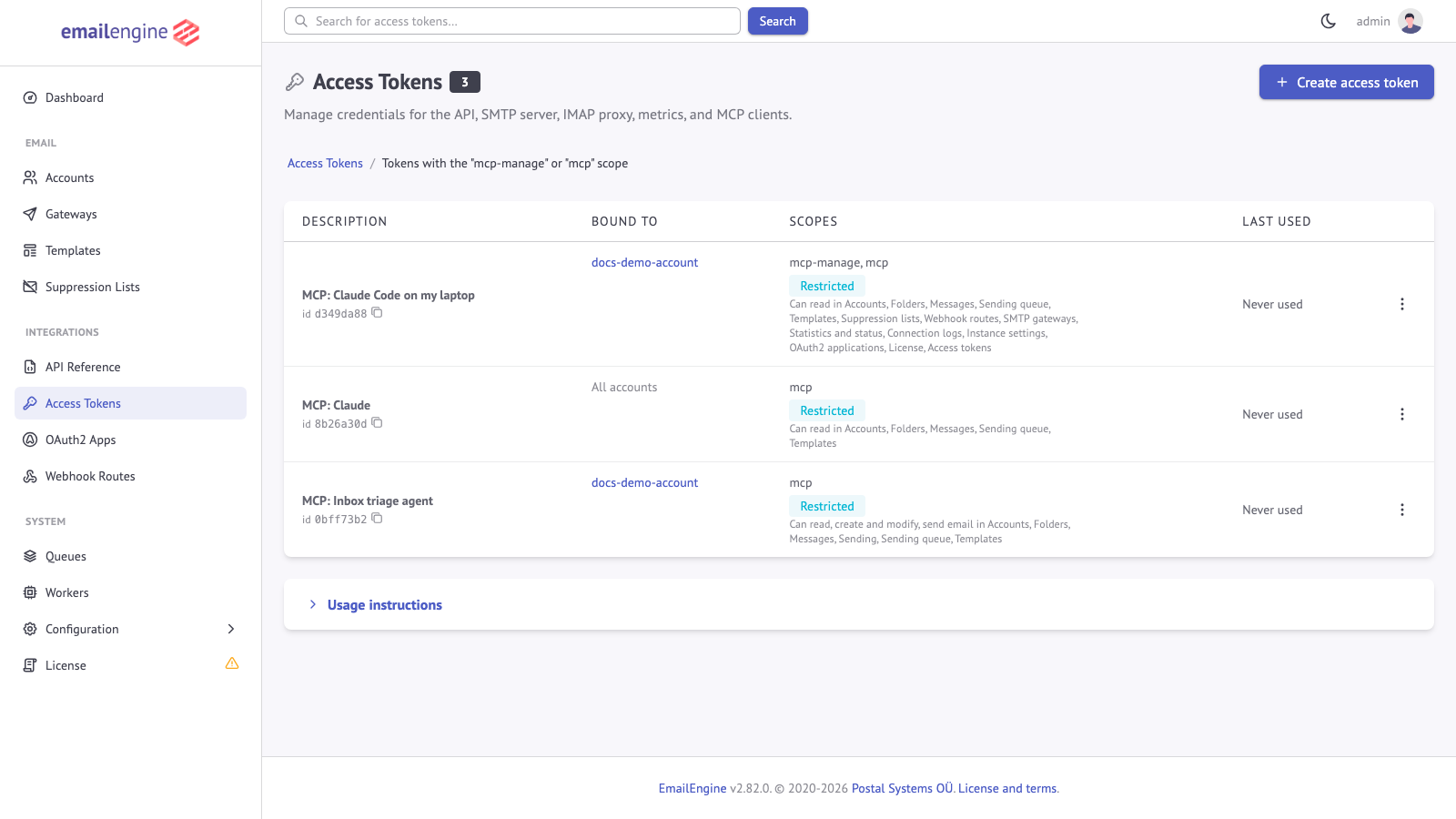 Tokens with an MCP scope, showing what each one is bound to and what it is allowed to do
Revoking a row cuts the client off immediately. There is nothing else to clean up: EmailEngine issues no refresh tokens for this flow, so revocation is the whole lifecycle.
Approval happens on the admin surface. If admin access is limited to specific addresses with EENGINE_ADMIN_ACCESS_ADDRESSES, connect new clients from one of those addresses - the connector's own servers never need to reach /admin, but your browser does.
Check the connection
Ask the agent something only the mailbox can answer, for example "which accounts are connected?" or "what is the newest message in my inbox?". A working client shows the tool calls it makes.
To check from outside the client, call the endpoint yourself with the same token:
curl -X POST "https://emailengine.example.com/mcp" \
  -H "Authorization: Bearer YOUR_ACCESS_TOKEN" \
  -H "Content-Type: application/json" \
  -H "MCP-Protocol-Version: 2025-06-18" \
  -d '{ "jsonrpc": "2.0", "id": 1, "method": "tools/list" }'
The tools in that response are the tools the agent has. If one is missing, the credential cannot call it - see What a credential sees.
Troubleshooting
| Symptom | Cause | Fix |
|---|---|---|
404 with "MCP support is not enabled on this instance" | The mcpEnabled setting is off, or EENGINE_MCP_ENABLED=false | Turn the endpoint on under Configuration > MCP. If the page warns that the deployment gate is off, restart without EENGINE_MCP_ENABLED=false |
401 Unauthorized | Missing, mistyped or revoked token | Check the Authorization header. Session tokens from the admin UI are refused here on purpose |
403 with "Unauthorized scope" | The token has no scope that opens this endpoint | Use a token with the mcp or mcp-manage scope, or an api/* token |
A tool call comes back with "Unauthorized permission" | The token's permission record does not allow that operation | Raise the level of that section, or mint a new token. requiredPermission in the error names the missing grant |
| The agent only sees a few tools, or none from one tool set | Per-credential filtering: a token holding one MCP scope is only offered that scope's tools, and an account-bound or narrowed token only what it can call | Expected. Widen the token if the agent genuinely needs more |
403 with "Origin not allowed" | A browser-based client sent an Origin header that is neither this instance nor a configured CORS origin | Add the origin to EENGINE_CORS_ORIGIN, or set the Service URL to the address clients use |
405 on GET /mcp | Expected. The endpoint is POST-only and stateless | Nothing to fix - conforming clients fall back to POST |
| The OAuth connector reports the server does not support OAuth | mcpOAuthEnabled is off, or no Service URL is set | Enable both. The discovery endpoints answer 404 until then |
429 during client registration | The per-IP registration budget ran out | Wait for the window named in Retry-After. A working client registers once |
| Tools work but the agent hangs on a long call | The client's own timeout, or a proxy buffering the response | See Behind a reverse proxy |
See Also
- Access Control - what each access level grants, and how to narrow further
- Tools Reference - the tools the connected agent receives
- Protocol Reference - the OAuth endpoints, for client developers
- Access Tokens - token management in general