Email Templates
A stored template holds a subject, a plain-text body, an HTML body, and preview text, each of them a Handlebars template. A submit call that names the template by ID gets that content, rendered with the values the call supplies, so the message text lives in EmailEngine rather than in every call that sends it.
Why Use Templates
- One place to edit: Change the wording once, and every subsequent send picks it up
- Smaller requests: A submit call carries a template ID and a
paramsobject instead of the full HTML - Personalization: The same Handlebars syntax and helpers as mail merge
- Ownership: A template belongs to one account, or to the instance when created with
account: null
Managing Templates
You can manage templates in two ways:
- Templates API: Programmatically create, update, and delete templates
- Admin Interface: Visual interface at Templates in the side menu
A template is either bound to one account or public. An account-bound template can only be used by that account; a submit call that names another account's template is refused with 404 (TemplateNotFound). A public template (account: null) can be used by every account. The account is encoded in the template ID, so an ID that EmailEngine did not issue is answered with 404 by every template endpoint (before v2.79.8 a malformed ID produced a 500).
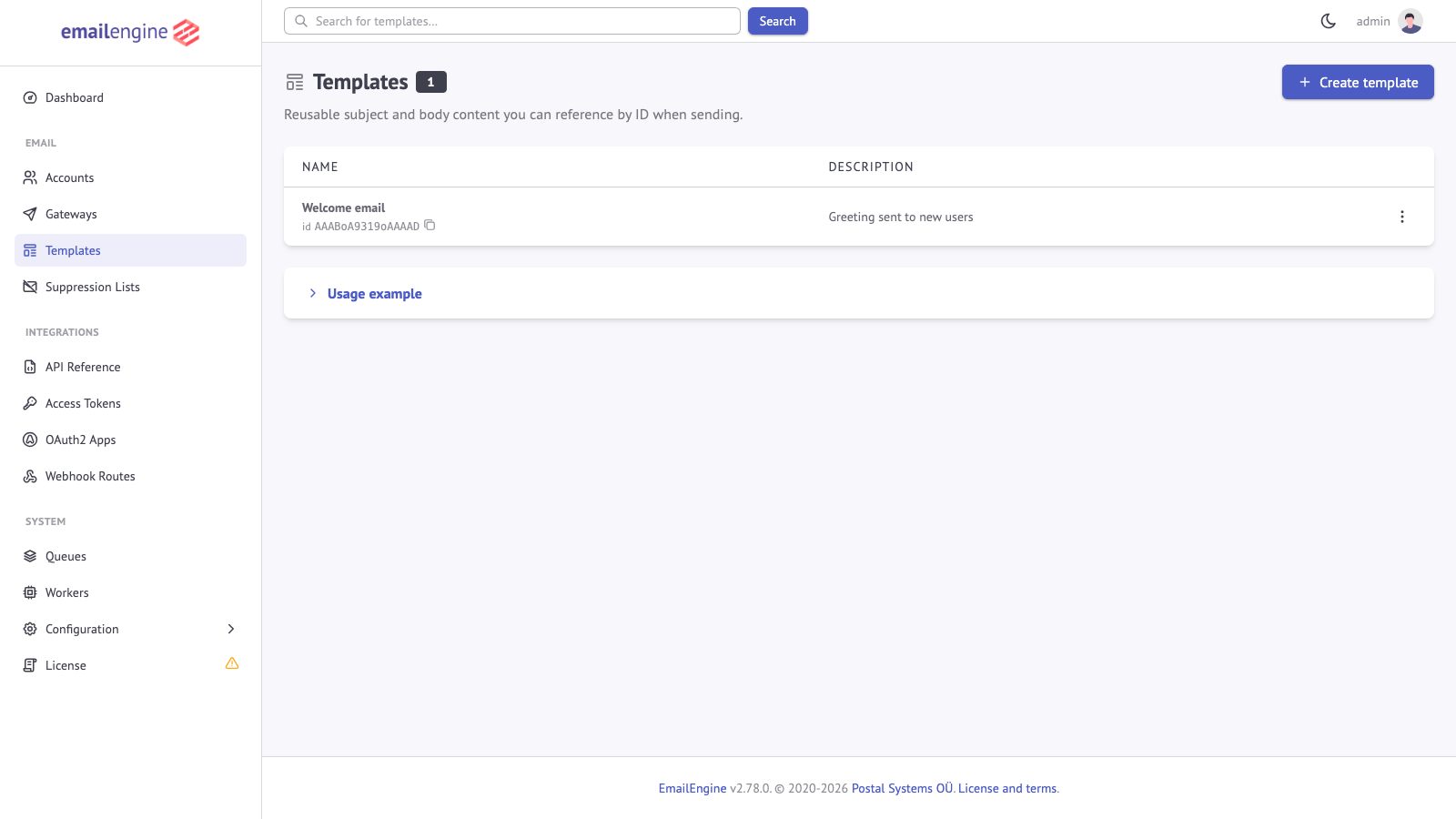 Email templates list in the admin interface
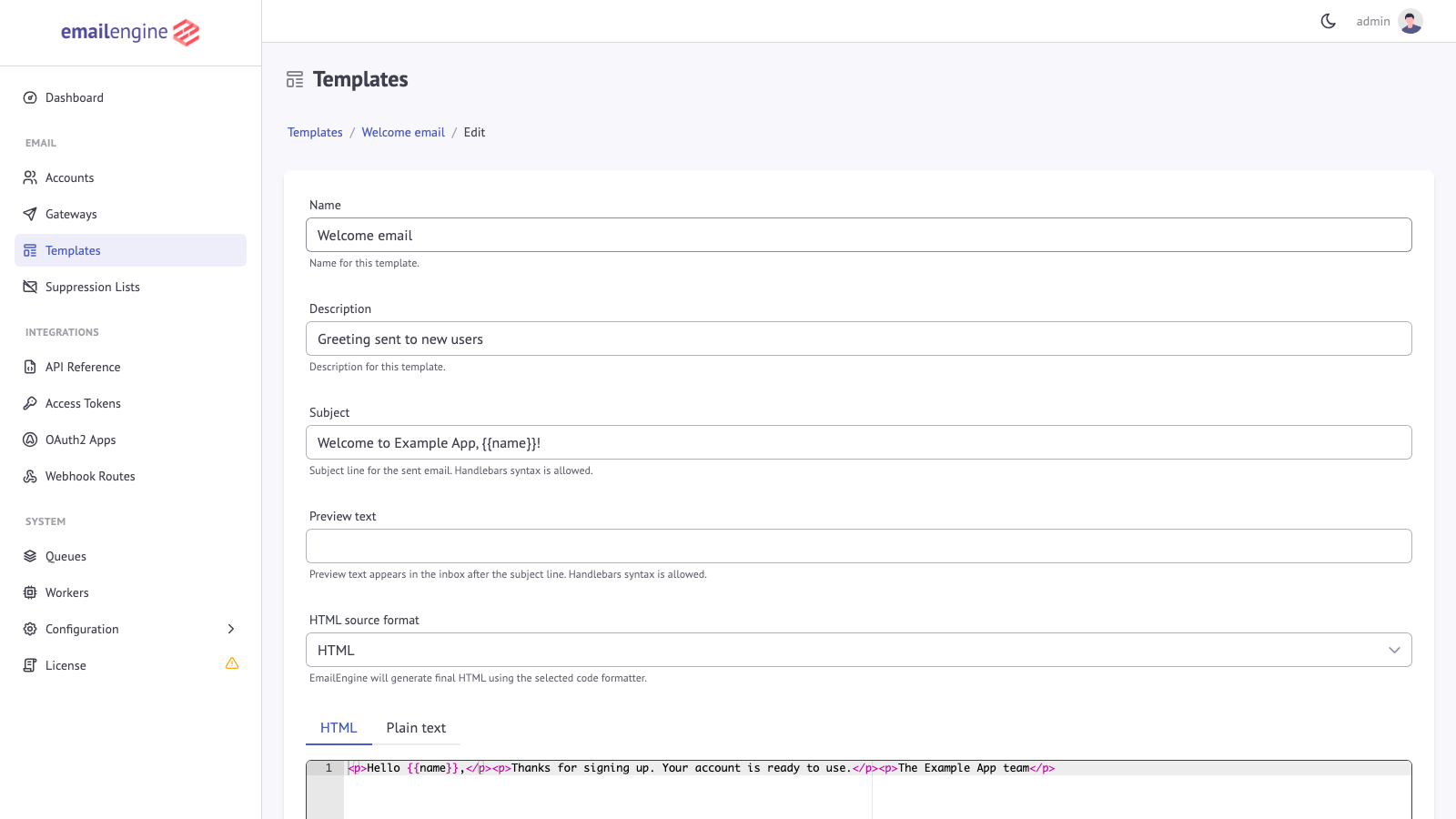 Template editor showing Handlebars syntax and fields
Creating Templates
Via API
Create a template using the create template API:
curl -XPOST "https://emailengine.example.com/v1/templates/template" \
  -H "Authorization: Bearer <token>" \
  -H "Content-Type: application/json" \
  -d '{
    "account": "example",
    "name": "Welcome Email",
    "description": "Welcome new users to the platform",
    "format": "html",
    "content": {
      "subject": "Welcome to {{params.companyName}}!",
      "text": "Hello {{params.firstName}},\n\nWelcome to {{params.companyName}}!",
      "html": "<h1>Hello {{params.firstName}}</h1><p>Welcome to <strong>{{params.companyName}}</strong>!</p>",
      "previewText": "Your account is ready"
    }
  }'
| Field | Description |
|---|---|
account | The owning account ID, or null for a public template. Required |
name | Display name. Required |
description | Free text, optional |
format | What the html field contains: html (default) or markdown, which is converted to HTML at render time |
content.subject | Subject line |
content.text | Plain-text body |
content.html | HTML body, or Markdown when format is markdown |
content.previewText | Text shown by mail clients after the subject line in the inbox list, injected into the HTML body as a hidden block |
Response:
{
  "created": true,
  "account": "example",
  "id": "AAABgUIbuG0AAAAE"
}
Save the id value to reference this template when sending.
Via Admin Interface
- Open Templates in the admin menu for a public template, or follow the Email templates link on an account's page for one bound to that account
- Click Create template
- Fill in the form:
- Name and Description
- HTML source format: HTML or Markdown
- Template content: Subject, Preview text, HTML, and Plain text, each with optional Handlebars
- Click Create template
The template page has a Send test email action that renders the template and sends it to an address you enter, so the output can be checked in a real mailbox.
Using Templates
Basic Usage
When sending emails using the Submission API, set the template property instead of subject, html, or text:
curl -XPOST "https://emailengine.example.com/v1/account/example/submit" \
  -H "Authorization: Bearer <token>" \
  -H "Content-Type: application/json" \
  -d '{
    "to": [
      {
        "name": "Recipient Name",
        "address": "recipient@example.com"
      }
    ],
    "template": "AAABgUIbuG0AAAAE",
    "render": {
      "params": {
        "firstName": "Alice",
        "companyName": "Acme Corp"
      }
    }
  }'
EmailEngine loads the template's subject, text, html, and previewText into the message, replacing the matching fields of the call, and renders them with render.params. The template's stored format decides how its HTML is interpreted; a render.format in the call is overridden by it. A template that carries html is always rendered. A template with only a subject or a plain-text body is rendered when the call includes render (an empty object is enough); without it the placeholders go out as literal text.
With Other Properties
You can include any other valid submission properties:
curl -XPOST "https://emailengine.example.com/v1/account/example/submit" \
  -H "Authorization: Bearer <token>" \
  -H "Content-Type: application/json" \
  -d '{
    "to": [{ "address": "recipient@example.com" }],
    "template": "AAABgUIbuG0AAAAE",
    "render": {
      "params": {
        "firstName": "Alice",
        "companyName": "Acme Corp"
      }
    },
    "replyTo": { "address": "support@example.com" },
    "attachments": [
      {
        "filename": "welcome.pdf",
        "content": "JVBERi0xLjQKJSBtaW5pbWFsIGV4YW1wbGUK"
      }
    ]
  }'
Template Syntax
Templates use Handlebars for dynamic content. EmailEngine registers additional helpers that follow the names and semantics of SendGrid's dynamic templates, so a template written for SendGrid renders the same way here. The same renderer handles the inline subject, text, html, and previewText of a submit call when it carries render, or, in a mail merge, for each entry that carries params.
Variables
Insert variables using double or triple braces:
- Double braces
{{...}}: HTML-escape the value in HTML content (html,previewText,markdown); plain-text fields (subject,text) are rendered without escaping, so double braces are always safe there - Triple braces
{{{...}}}: No escaping - only needed in HTML content when you want to inject raw HTML
Built-in Variables
EmailEngine provides built-in variables:
Available variables:
{{account.email}}- Sender's email address{{account.name}}- Sender's display name{{service.url}}- EmailEngine instance URL (theserviceUrlsetting, or the submission'sbaseUrl){{params.*}}- Any custom parameters you provide{{rcpt.unsubscribeUrl}}- The recipient's unsubscribe link, in a mail merge that names alistId(see virtual mailing lists)
A rendering error (for example an unclosed block) fails the submit call with 422 and Failed rendering html template, naming the field that did not compile.
Conditionals
Use if/else for conditional content:
Loops
Iterate over arrays with each:
With data:
{
  "params": {
    "items": [
      { "name": "Product A", "price": "29.99" },
      { "name": "Product B", "price": "39.99" }
    ],
    "total": "69.98"
  }
}
Basic Helpers
Common built-in Handlebars helpers:
SendGrid-Compatible Helpers
EmailEngine provides additional helpers that are compatible with SendGrid's dynamic templates. These helpers enable advanced templating capabilities for comparisons, date formatting, and default values.
Comparison Helpers
equals
Check if two values are equal. Uses loose equality (==) for automatic type coercion.
notEquals
Check if two values are not equal. Uses loose inequality (!=) for automatic type coercion.
greaterThan
Check if the first numeric value is greater than the second.
lessThan
Check if the first numeric value is less than the second.
Logical Helpers
and
Renders content only when all conditions are true. Accepts multiple arguments.
or
Renders content when at least one condition is true. Accepts multiple arguments.
Value Helpers
insert
Insert a value with an optional default if the value is missing or empty.
If params.firstName is empty or undefined, displays "Customer" instead. The second argument is a string; "default=Customer" and the bare "Customer" mean the same thing.
length
Get the length of an array. Useful in conditionals to check if an array has items.
Date Formatting
formatDate
Format dates using Moment.js format tokens. Accepts an optional UTC offset, as "+0200", "-05:00", or a number of minutes; without it the date is formatted in the server's time zone.
Syntax: {{formatDate timestamp format [timezoneOffset]}}
timestamp is anything Moment.js parses: an ISO 8601 string, a millisecond epoch, or a Date.
Common format tokens:
| Token | Output | Example |
|---|---|---|
YYYY | 4-digit year | 2025 |
YY | 2-digit year | 25 |
MMMM | Full month name | January |
MMM | Short month name | Jan |
MM | Month number (padded) | 01 |
DD | Day of month (padded) | 05 |
D | Day of month | 5 |
dddd | Full weekday name | Monday |
ddd | Short weekday name | Mon |
HH | Hour (24h, padded) | 14 |
hh | Hour (12h, padded) | 02 |
h | Hour (12h) | 2 |
mm | Minutes (padded) | 05 |
ss | Seconds (padded) | 09 |
A | AM/PM | PM |
a | am/pm | pm |
ZZ | Timezone offset | +0000 |
Examples:
Iteration Helpers
each with Special Variables
When iterating over arrays, you have access to special variables:
| Variable | Description |
|---|---|
{{@index}} | Zero-based index of the current item |
{{@first}} | True if this is the first item |
{{@last}} | True if this is the last item |
{{this}} | The current item value |
Root Context Access
Access top-level variables from within nested blocks using @root:
Helpers Quick Reference
| Helper | Purpose | Example |
|---|---|---|
{{#if}} | Conditional rendering | {{#if params.active}}...{{/if}} |
{{#unless}} | Inverse conditional | {{#unless params.disabled}}...{{/unless}} |
{{#each}} | Iterate over arrays | {{#each params.items}}...{{/each}} |
{{#with}} | Change context | {{#with params.user}}...{{/with}} |
{{#equals}} | Equality check | {{#equals a b}}...{{/equals}} |
{{#notEquals}} | Inequality check | {{#notEquals a b}}...{{/notEquals}} |
{{#greaterThan}} | Numeric greater than | {{#greaterThan a b}}...{{/greaterThan}} |
{{#lessThan}} | Numeric less than | {{#lessThan a b}}...{{/lessThan}} |
{{#and}} | All conditions true | {{#and a b c}}...{{/and}} |
{{#or}} | Any condition true | {{#or a b c}}...{{/or}} |
{{insert}} | Value with default | {{insert var "default=fallback"}} |
{{length}} | Array length | {{length params.items}} |
{{formatDate}} | Format dates | {{formatDate date "MMM D, YYYY"}} |
Template Examples
Welcome Email
Order Confirmation
Password Reset
Template Management
The Templates API has six operations:
| Operation | Endpoint |
|---|---|
| Create a template | POST /v1/templates/template |
| List templates | GET /v1/templates |
| Get a template with its content | GET /v1/templates/template/{template} |
| Update a template | PUT /v1/templates/template/{template} |
| Delete a template | DELETE /v1/templates/template/{template} |
| Delete every template of an account | DELETE /v1/templates/account/{account}?force=true |
List All Templates
List templates with the list templates API. account selects one account's templates; leave it out to list the public ones. The listing is paged with page and pageSize (default 20, up to 1000), and does not include the content:
curl "https://emailengine.example.com/v1/templates?account=example" \
  -H "Authorization: Bearer <token>"
Response:
{
  "account": "example",
  "total": 2,
  "page": 0,
  "pages": 1,
  "templates": [
    {
      "id": "AAABgUIbuG0AAAAE",
      "name": "Welcome Email",
      "description": "Welcome new users",
      "format": "html",
      "created": "2025-05-14T10:00:00.000Z",
      "updated": "2025-05-14T12:00:00.000Z"
    },
    {
      "id": "AAABgUIbuG0AAAAF",
      "name": "Order Confirmation",
      "description": "Confirm orders",
      "format": "html",
      "created": "2025-05-14T11:00:00.000Z",
      "updated": "2025-05-14T11:00:00.000Z"
    }
  ]
}
Get Template Details
Use the get template API:
curl "https://emailengine.example.com/v1/templates/template/AAABgUIbuG0AAAAE" \
  -H "Authorization: Bearer <token>"
Response:
{
  "account": "example",
  "id": "AAABgUIbuG0AAAAE",
  "name": "Welcome Email",
  "description": "Welcome new users to the platform",
  "format": "html",
  "created": "2025-05-14T10:00:00.000Z",
  "updated": "2025-05-14T12:00:00.000Z",
  "content": {
    "subject": "Welcome to {{params.companyName}}!",
    "text": "Hello {{params.firstName}},\n\nWelcome to {{params.companyName}}!",
    "html": "<h1>Hello {{params.firstName}}</h1><p>Welcome to <strong>{{params.companyName}}</strong>!</p>",
    "previewText": "Your account is ready"
  }
}
Update Template
Use the update template API:
curl -XPUT "https://emailengine.example.com/v1/templates/template/AAABgUIbuG0AAAAE" \
  -H "Authorization: Bearer <token>" \
  -H "Content-Type: application/json" \
  -d '{
    "content": {
      "subject": "Welcome to {{params.companyName}}, {{params.firstName}}!",
      "text": "Hello {{params.firstName}},\n\nWelcome to {{params.companyName}}!",
      "html": "<h1>Updated content</h1>",
      "previewText": "Your account is ready"
    }
  }'
Top-level fields (name, description, format) are merged - include only the ones you want to change. Before v2.79.8 an update that left format out reset it to html. The content object is different: when provided, it replaces the stored content entirely, so resubmit all content fields (subject, text, html, previewText) - any field you omit is removed from the template. The response is {"updated": true, "account": "example", "id": "AAABgUIbuG0AAAAE"}.
Delete Template
Use the delete template API:
curl -XDELETE "https://emailengine.example.com/v1/templates/template/AAABgUIbuG0AAAAE" \
  -H "Authorization: Bearer <token>"
Response:
{
  "deleted": true,
  "account": "example",
  "id": "AAABgUIbuG0AAAAE"
}
To remove every template of one account at once, use the flush templates API. It refuses to run without force=true:
curl -XDELETE "https://emailengine.example.com/v1/templates/account/example?force=true" \
  -H "Authorization: Bearer <token>"
Response:
{
  "flushed": true,
  "account": "example"
}
Using Templates with Mail Merge
Templates work great with mail merge for bulk personalized sending:
curl -XPOST "https://emailengine.example.com/v1/account/example/submit" \
  -H "Authorization: Bearer <token>" \
  -H "Content-Type: application/json" \
  -d '{
    "template": "AAABgUIbuG0AAAAE",
    "mailMerge": [
      {
        "to": { "name": "Alice", "address": "alice@example.com" },
        "params": {
          "firstName": "Alice",
          "companyName": "Acme Corp",
          "isPremium": true
        }
      },
      {
        "to": { "name": "Bob", "address": "bob@example.com" },
        "params": {
          "firstName": "Bob",
          "companyName": "Acme Corp",
          "isPremium": false
        }
      }
    ]
  }'
Each recipient gets a personalized email based on their params. Give every entry a params object, even an empty one; an entry without it is sent unrendered.
See Also
- Mail merge - Sending one template to a list with per-recipient values
- Basic sending - The submit fields a template fills in
- Templates API - The endpoint reference
- Virtual mailing lists - The unsubscribe link a template can place
- Pre-processing - Rewriting a message after it is rendered