SMTP Server
EmailEngine includes an SMTP submission server. A client connects to it with the standard SMTP protocol, authenticates as one of the registered accounts, and hands over a message; EmailEngine queues that message and delivers it through the account's own SMTP server (or an SMTP gateway), exactly as if it had arrived through the submit API. The server announces itself as EmailEngine MSA.
This is the way in for tools that speak SMTP and nothing else: desktop mail clients, legacy applications, and libraries that take an SMTP host and port.
How It Works
- EmailEngine listens on the configured port (default 2525, on
127.0.0.1unless changed) - The client authenticates with an account ID and either the global SMTP password or an access token
- The client submits the message
- EmailEngine strips its own
X-EE-*control headers, derives the SMTP envelope, and adds the message to the outbox queue - The submit worker delivers it through the account's SMTP server, with the same retries and webhooks as an API submission
The SMTP reply to a successful DATA command names the queue entry, for example 250 Message queued for delivery as 1869c5692565f756b33 (2026-08-26T09:12:23.000Z). The queue ID is the one GET /v1/outbox/{queueId} takes.
Enabling the SMTP Server
Via Web Interface
Open Configuration > SMTP Server in the admin interface, tick Enable SMTP Server, and save. Saving from this page restarts the SMTP worker when the enabled flag, port, listen address, or TLS setting changed, so the new values apply without restarting EmailEngine.
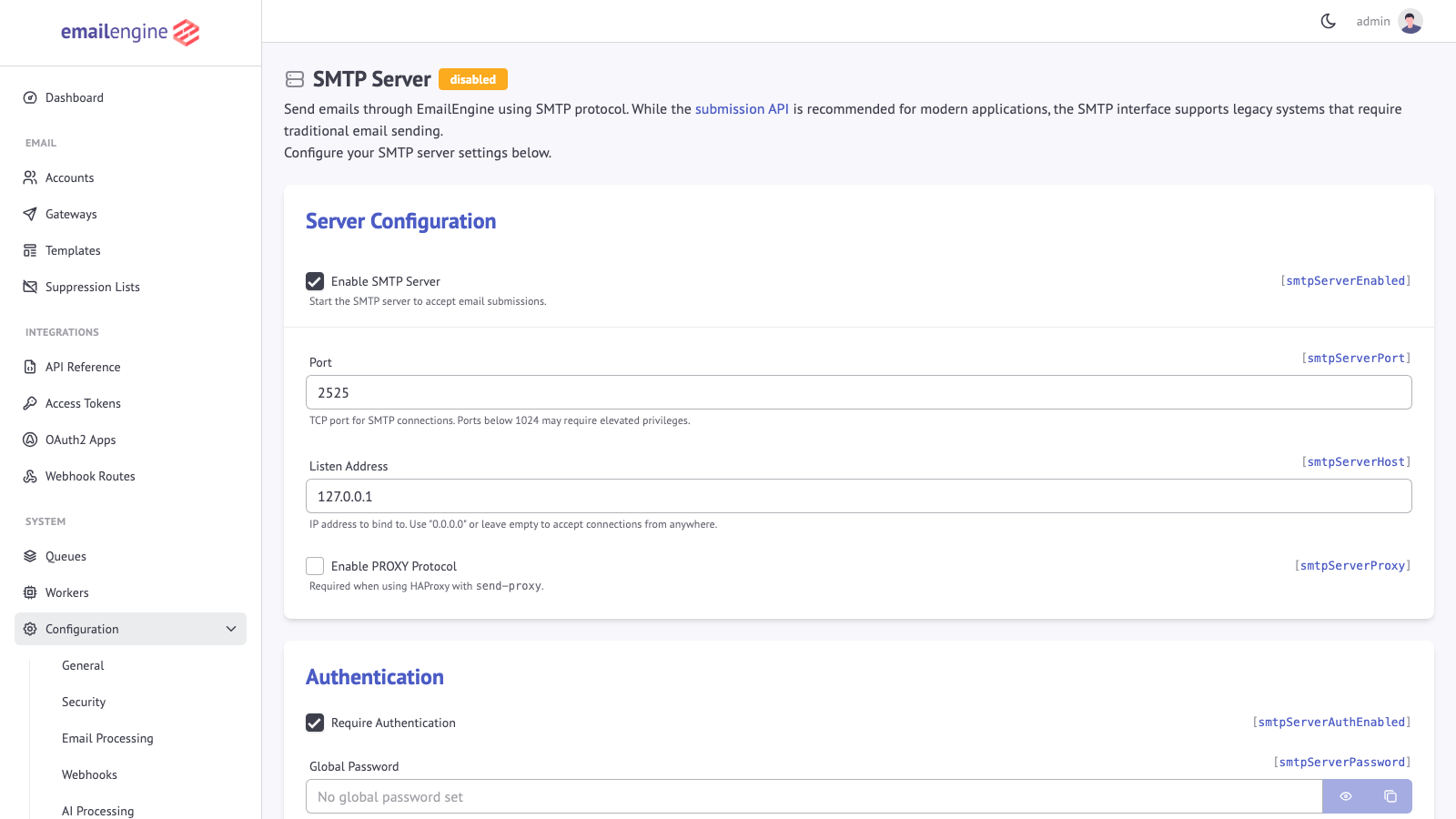 Enable the SMTP server and set the listen address, port and authentication options
Via Settings API
The same keys are settable through the Settings API:
curl -XPOST "https://emailengine.example.com/v1/settings" \
  -H "Authorization: Bearer <token>" \
  -H "Content-Type: application/json" \
  -d '{
    "smtpServerEnabled": true,
    "smtpServerPort": 2525,
    "smtpServerHost": "0.0.0.0",
    "smtpServerAuthEnabled": true,
    "smtpServerPassword": "optional-global-password"
  }'
The Settings API stores the values but does not restart the SMTP worker. After changing smtpServerEnabled, smtpServerPort, smtpServerHost, or smtpServerTLSEnabled through the API, restart EmailEngine (or save the admin page once). The authentication settings and the PROXY protocol flag are read on every new connection, so those take effect immediately either way.
Configuration Options
| Setting | Description | Default |
|---|---|---|
smtpServerEnabled | Start the SMTP server | false |
smtpServerPort | TCP port to listen on | 2525 |
smtpServerHost | IP address to bind to. 0.0.0.0 or empty accepts connections on every interface | 127.0.0.1 |
smtpServerAuthEnabled | Require AUTH before accepting a message | true |
smtpServerPassword | Global password accepted for any account ID. Leave unset to accept access tokens only | not set |
smtpServerTLSEnabled | Serve implicit TLS instead of plaintext | false |
smtpServerProxy | Expect the PROXY protocol header, for HAProxy send-proxy and similar | false |
On the first start, EENGINE_SMTP_ENABLED, EENGINE_SMTP_PORT, EENGINE_SMTP_HOST, EENGINE_SMTP_SECRET, and EENGINE_SMTP_PROXY seed these settings when they have no stored value yet. They are documented under environment variables; once a value is stored, the setting wins.
Authentication
Username and Password
The SMTP username is always the account ID, the identifier given when the account was registered, not the mailbox address. An email address works as the username only when the account ID happens to be that string.
The password is one of:
- The global password set in
smtpServerPassword, which unlocks any account ID - An access token that carries the
smtpscope. A token bound to an account is accepted for that account only; a token with restricted permissions must include the SMTP surface
A token without the smtp scope is refused with Access denied, invalid scope.
| SMTP setting | Value |
|---|---|
| Host | Your EmailEngine host |
| Port | 2525 by default, set by smtpServerPort |
| Encryption | None, unless you enable TLS |
| Username | The account ID |
| Password | The global SMTP password, or an access token with the smtp scope |
PLAIN and LOGIN are the supported AUTH mechanisms. Without TLS the server still allows them over the plaintext connection, so put a TLS-terminating proxy in front of it or enable TLS when the port is reachable from outside the host.
Without Authentication
When smtpServerAuthEnabled is off, the server does not offer AUTH, and the message itself has to say which account sends it: set an X-EE-Account header to the account ID. A message without that header is refused with 451 Sender account ID not provided, can not send mail. The header is removed before delivery.
Configuration Examples
Desktop Email Clients
- Thunderbird
- Apple Mail
- Go to Account Settings > Outgoing Server (SMTP)
- Click Add
- Configure:
- Server Name: emailengine.example.com
- Port: 2525
- Connection security: None (or SSL/TLS if TLS is enabled on the server)
- Authentication method: Normal password
- Username: Account ID (the identifier assigned when registering the account)
- Password: Access token with the
smtpscope, or the global SMTP password
- Go to Mail > Settings > Accounts
- Select your account
- Go to Server Settings
- Configure Outgoing Mail Server:
- Host Name: emailengine.example.com
- Port: 2525
- User Name: Account ID (the identifier assigned when registering the account)
- Password: Access token with the
smtpscope, or the global SMTP password
Programming Languages
Point any SMTP client at the server. The credentials are the same in every case: the account ID as the user name and an access token with the smtp scope as the password.
- Node.js
- Python
- PHP
- Ruby
Using Nodemailer:
const nodemailer = require('nodemailer');

const transporter = nodemailer.createTransport({
  host: 'emailengine.example.com',
  port: 2525,
  secure: false,
  auth: {
    user: 'example-account',
    pass: process.env.EMAILENGINE_TOKEN
  }
});

async function sendEmail() {
  const info = await transporter.sendMail({
    from: '"Sender Name" <sender@example.com>',
    to: 'recipient@example.com',
    subject: 'Test Email',
    text: 'Plain text content',
    html: '<p>HTML content</p>',
    attachments: [
      {
        filename: 'document.pdf',
        path: './files/document.pdf'
      }
    ]
  });

  console.log('Message ID:', info.messageId);
}

sendEmail().catch(console.error);
Using the standard library smtplib:
import smtplib
from email.mime.text import MIMEText
from email.mime.multipart import MIMEMultipart
from email.mime.base import MIMEBase
from email import encoders
import os

def send_email():
    # Create message
    msg = MIMEMultipart()
    msg['From'] = 'sender@example.com'
    msg['To'] = 'recipient@example.com'
    msg['Subject'] = 'Test Email'

    # Add body
    body = 'This is the email body'
    msg.attach(MIMEText(body, 'plain'))

    # Add attachment
    filename = 'document.pdf'
    with open(filename, 'rb') as attachment:
        part = MIMEBase('application', 'octet-stream')
        part.set_payload(attachment.read())

    encoders.encode_base64(part)
    part.add_header(
        'Content-Disposition',
        f'attachment; filename= {filename}'
    )
    msg.attach(part)

    # Send email
    server = smtplib.SMTP('emailengine.example.com', 2525)
    server.login('example-account', os.environ['EMAILENGINE_TOKEN'])
    server.send_message(msg)
    server.quit()

send_email()
Using PHPMailer:
<?php
use PHPMailer\PHPMailer\PHPMailer;
use PHPMailer\PHPMailer\Exception;

require 'vendor/autoload.php';

$mail = new PHPMailer(true);

try {
    // Server settings
    $mail->isSMTP();
    $mail->Host       = 'emailengine.example.com';
    $mail->SMTPAuth   = true;
    $mail->Username   = 'example-account';
    $mail->Password   = getenv('EMAILENGINE_TOKEN');
    $mail->SMTPSecure = false;  // No encryption by default; use PHPMailer::ENCRYPTION_SMTPS if TLS is enabled
    $mail->Port       = 2525;

    // Recipients
    $mail->setFrom('sender@example.com', 'Sender Name');
    $mail->addAddress('recipient@example.com', 'Recipient Name');

    // Content
    $mail->isHTML(true);
    $mail->Subject = 'Test Email';
    $mail->Body    = '<p>HTML content</p>';
    $mail->AltBody = 'Plain text content';

    // Attachments
    $mail->addAttachment('/path/to/document.pdf');

    $mail->send();
    echo 'Message has been sent';
} catch (Exception $e) {
    echo "Message could not be sent. Error: {$mail->ErrorInfo}";
}
?>
Using the Mail gem:
require 'mail'

Mail.defaults do
  delivery_method :smtp, {
    address: 'emailengine.example.com',
    port: 2525,
    user_name: 'example-account',
    password: ENV['EMAILENGINE_TOKEN'],
    authentication: 'plain',
    enable_starttls_auto: false
  }
end

mail = Mail.new do
  from     'sender@example.com'
  to       'recipient@example.com'
  subject  'Test Email'
  body     'Plain text content'

  add_file '/path/to/document.pdf'
end

mail.deliver!
TLS Support
Enabling TLS
Set smtpServerTLSEnabled on the admin page or through the Settings API:
curl -XPOST "https://emailengine.example.com/v1/settings" \
  -H "Authorization: Bearer <token>" \
  -H "Content-Type: application/json" \
  -d '{
    "smtpServerTLSEnabled": true
  }'
TLS is implicit: the client opens a TLS connection from the first byte, the way port 465 works. STARTTLS is not offered in either mode.
Certificate
With TLS enabled, the certificate the listener presents is decided on the TLS Certificates page (/admin/config/tls): a certificate uploaded there, one ordered from Let's Encrypt, or a self-signed one so the listener always starts. Certificates are held per hostname and selected by SNI, so if your clients connect to a name other than the serviceUrl hostname - smtp.example.com, typically - add it under Additional hostnames and it gets a certificate of its own. TLS Certificates covers the whole flow.
To supply your own certificate instead, set the PEM content (not a file path) in the environment before starting EmailEngine:
EENGINE_SMTP_TLS_KEY="$(cat /path/to/private.key)"
EENGINE_SMTP_TLS_CERT="$(cat /path/to/certificate.crt)"
Since v2.80.0 material supplied this way takes precedence over any certificate EmailEngine manages, for every hostname it covers. Before that, it was read first and then overwritten by the provisioned certificate for the serviceUrl hostname.
Every variable with the EENGINE_SMTP_TLS_ prefix maps onto the Node.js TLS option of the same name:
| Variable | TLS option |
|---|---|
EENGINE_SMTP_TLS_KEY | key, the private key in PEM |
EENGINE_SMTP_TLS_CERT | cert, the certificate chain in PEM |
EENGINE_SMTP_TLS_CA | ca |
EENGINE_SMTP_TLS_DHPARAM | dhparam |
EENGINE_SMTP_TLS_PASSPHRASE | passphrase for an encrypted key |
EENGINE_SMTP_TLS_CIPHERS | ciphers |
EENGINE_SMTP_TLS_ECDH_CURVE | ecdhCurve |
EENGINE_SMTP_TLS_MIN_VERSION | minVersion, for example TLSv1.2 |
EENGINE_SMTP_TLS_MAX_VERSION | maxVersion |
EENGINE_SMTP_TLS_REJECT_UNAUTHORIZED | rejectUnauthorized, a boolean |
EENGINE_SMTP_TLS_REQUEST_CERT | requestCert, a boolean |
Features and Limitations
What Works
- Standard SMTP submission, with
PLAINandLOGINauthentication - Implicit TLS when the server is configured for it
- Multiple recipients across To, Cc, and Bcc
- Attachments, custom headers, HTML and plain text
- The same outbox queue, retries, and webhooks as an API submission
Messages larger than 25 MB are refused with 552 Message exceeds fixed maximum message size. EENGINE_MAX_SMTP_MESSAGE_SIZE changes the limit.
EmailEngine Options as Headers
Some submit-API options have header equivalents, because SMTP has no other way to pass them. EmailEngine reads each one and removes it from the message before delivery, so none of them reaches the recipient:
| Header | Equivalent | Value |
|---|---|---|
X-EE-Account | The account path parameter | The account ID. Read only when authentication is disabled; with authentication on, the account is the one that logged in |
X-EE-Idempotency-Key | The Idempotency-Key request header | Any string of up to 1024 characters. A repeated key returns the earlier queue entry instead of queueing a second copy |
X-EE-Send-At | sendAt | An ISO 8601 timestamp or a millisecond epoch. For a time in the future, the Date header is rewritten to match |
X-EE-Delivery-Attempts | deliveryAttempts | A number |
X-EE-Gateway | gateway | A gateway ID |
X-EE-Tracking-Enabled | trackOpens and trackClicks together | true, yes, or 1 to enable; anything else disables |
X-EE-Idempotency-Key was added in v2.52.0.
What Is Not Available
Everything the API expresses as a structured payload rather than a header:
- Mail merge, which needs a recipient list with per-recipient parameters
- Templates referenced by ID
- Reply and forward mode, which needs a reference to a stored message
For those, use the REST API.
Monitoring and Webhooks
Messages sent via the SMTP interface are treated the same as messages sent via the REST API:
- Queued in the outbox queue, with
sourceset tosmtpin the outbox entry - Automatic retry logic
- Webhook notifications (
messageSent,messageDeliveryError,messageFailed) - Visible in Bull Board under System > Queues
Query queue status (the outbox is a single global queue, not scoped per account):
curl "https://emailengine.example.com/v1/outbox" \
  -H "Authorization: Bearer <token>"
When to Use the SMTP Server vs REST API
Use the SMTP Server When:
- Integrating with legacy systems
- Using desktop email clients
- Tools only support SMTP
- Minimal code changes desired
- Standard SMTP features sufficient
Use REST API When:
- Building new applications
- Need advanced features (mail merge, templates, replies and forwards)
- Need programmatic control
- Want detailed delivery tracking
See Also
- Basic sending - The REST equivalent, with every option this page cannot express
- Transactional email - Using the SMTP server as a relay for an existing application
- Outbox queue - Where an accepted message goes next
- Access tokens - Minting the token used as the SMTP password
- TLS Certificates - Which certificate this listener presents, and how to get one