Setting Up Gmail API
This guide shows you how to configure EmailEngine to use Gmail REST API as the email backend instead of IMAP/SMTP. With this setup, EmailEngine uses direct Gmail API calls for all operations and receives change notifications via Google Cloud Pub/Sub.
The IMAP/SMTP guide shows how to configure EmailEngine to access Gmail over OAuth2 using IMAP and SMTP. That setup uses the OAuth2 tokens only to authenticate IMAP/SMTP sessions.
This guide covers using Gmail REST API directly as the email backend. EmailEngine does not open IMAP or SMTP sessions and instead performs all operations via Gmail REST API calls.
Why Use Gmail API Instead of IMAP?
Use Gmail API when:
- You want better Gmail category handling
- Google's verification process requires limited OAuth2 scopes
- You want to avoid IMAP connection limits
Use IMAP/SMTP when:
- You need the full
https://mail.google.com/scope and can justify it to Google - Your organization restricts Cloud Pub/Sub permissions
- You need raw SMTP features (e.g., custom envelope-from)
- You want to avoid additional GCP setup complexity
- You're migrating existing IMAP-based integrations
IMAP/SMTP requires the full https://mail.google.com/ scope. Gmail API can use more granular scopes such as gmail.modify (default), gmail.readonly, gmail.send, and gmail.labels.
Google requires public apps to request only the minimum scopes needed. EmailEngine supports all Gmail scope combinations - see the Gmail API Scopes Reference for detailed configuration options, setup instructions, and Google verification requirements.
Overview of Setup Steps
Setting up Gmail API requires more steps than IMAP because you need:
- A regular OAuth2 app for user authentication
- A service account for managing Cloud Pub/Sub
- Cloud Pub/Sub API enabled for webhook notifications
Step 1: Create a Google Cloud Project
Go to Google Cloud Console and open the project menu in the top navbar.

Click the "New project" button to start.
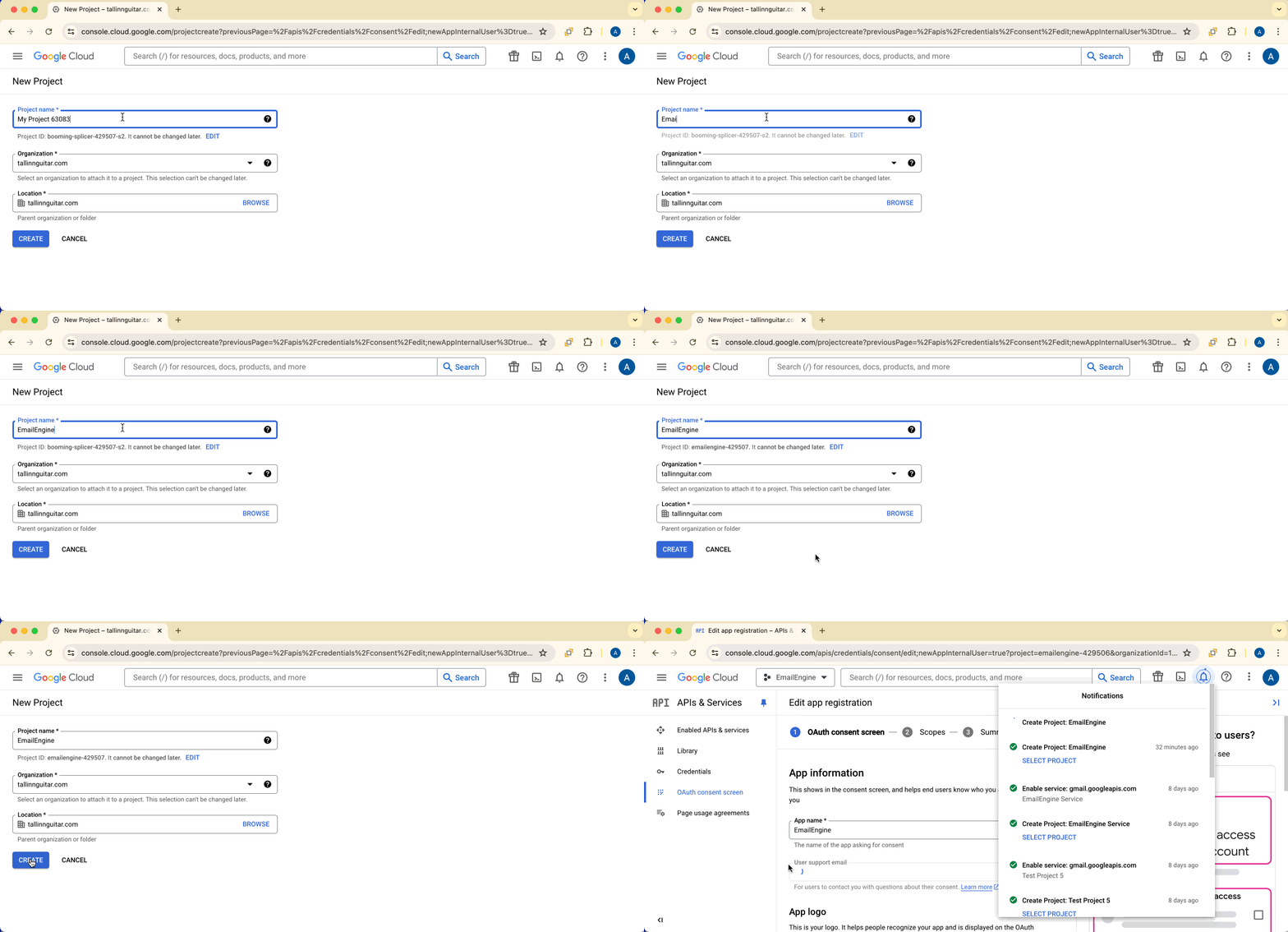
Name your project (e.g., "EmailEngine Gmail API").

Wait for the project to be created, then select it from the project menu.
Step 2: Enable Required APIs
Click the hamburger menu (top-left) > APIs & Services > Enabled APIs & Services.
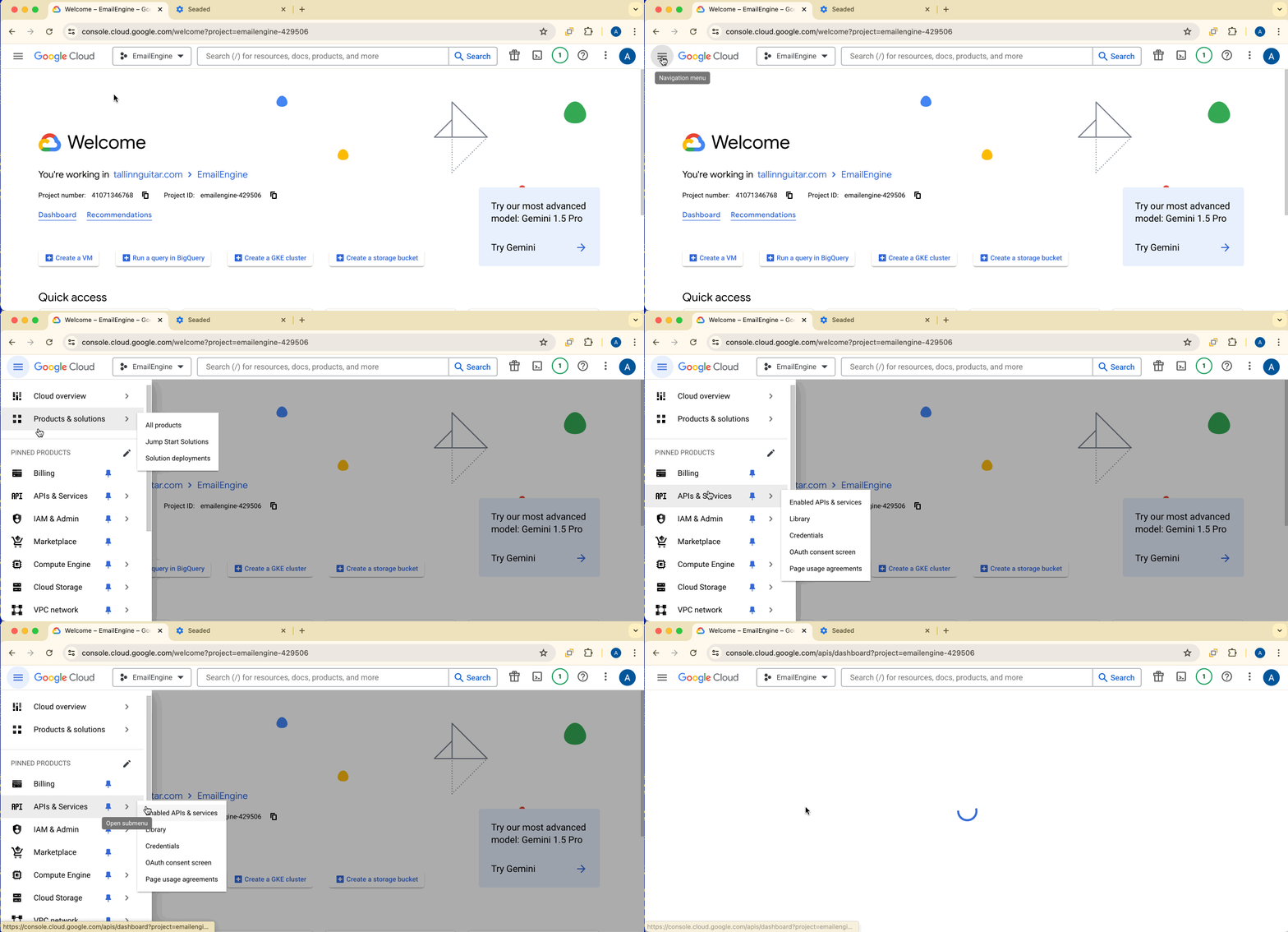
Enable Gmail API
Find and enable Gmail API for your project.
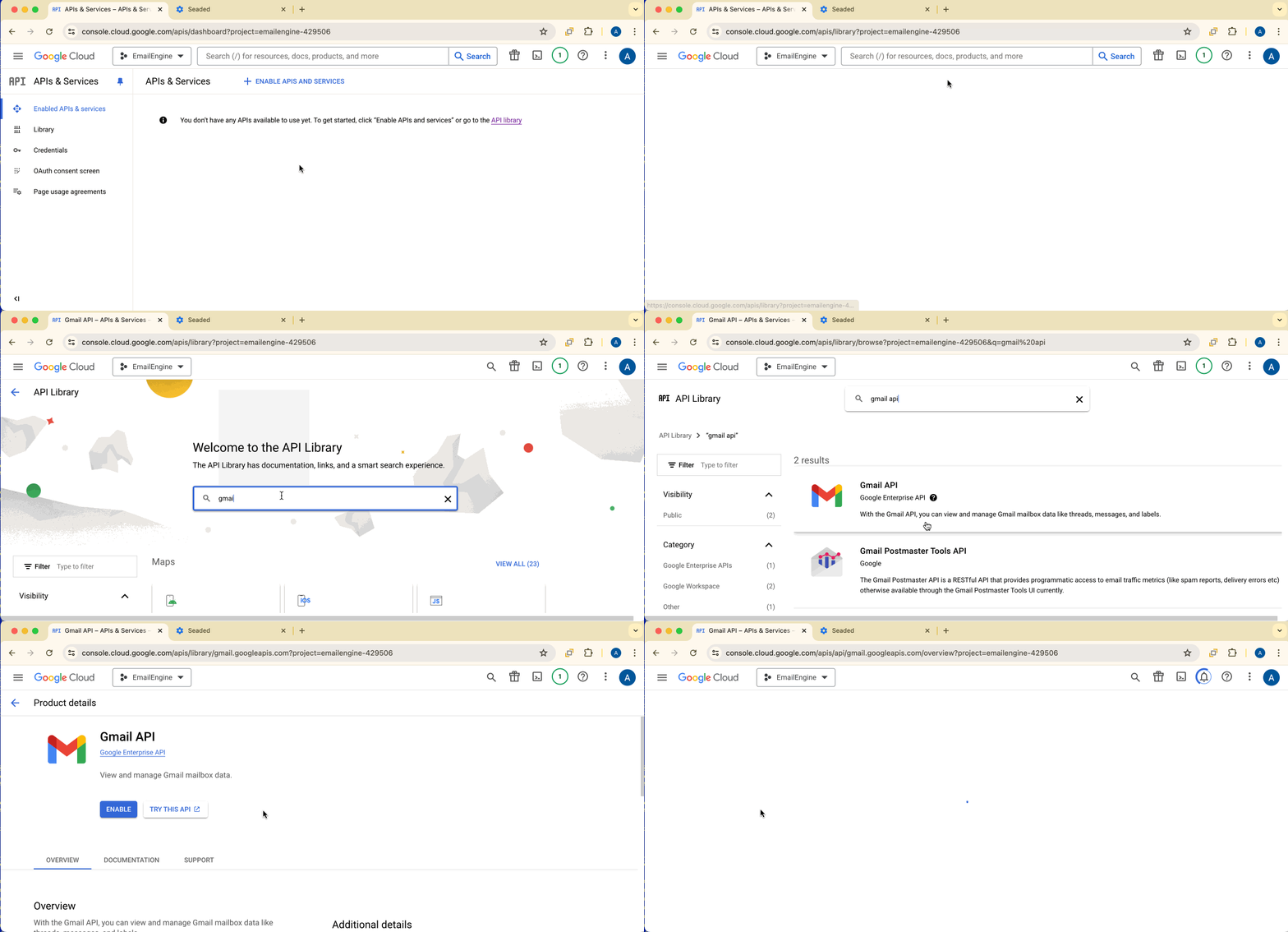
This allows EmailEngine to perform Gmail REST API requests.
Enable Cloud Pub/Sub API
Also find and enable Cloud Pub/Sub API.

Gmail pushes change notifications (new messages, flag changes, etc.) to Google's Pub/Sub system, not directly to EmailEngine. EmailEngine sets up a Pub/Sub topic and subscription to receive these notifications and convert them into webhooks for your application.
Without Pub/Sub, EmailEngine would not know when changes occur on the email account and couldn't send real-time webhook notifications.
Step 3: Configure OAuth Consent Screen
The consent screen is shown to users when they authorize EmailEngine.
Click hamburger menu > APIs & Services > OAuth consent screen.
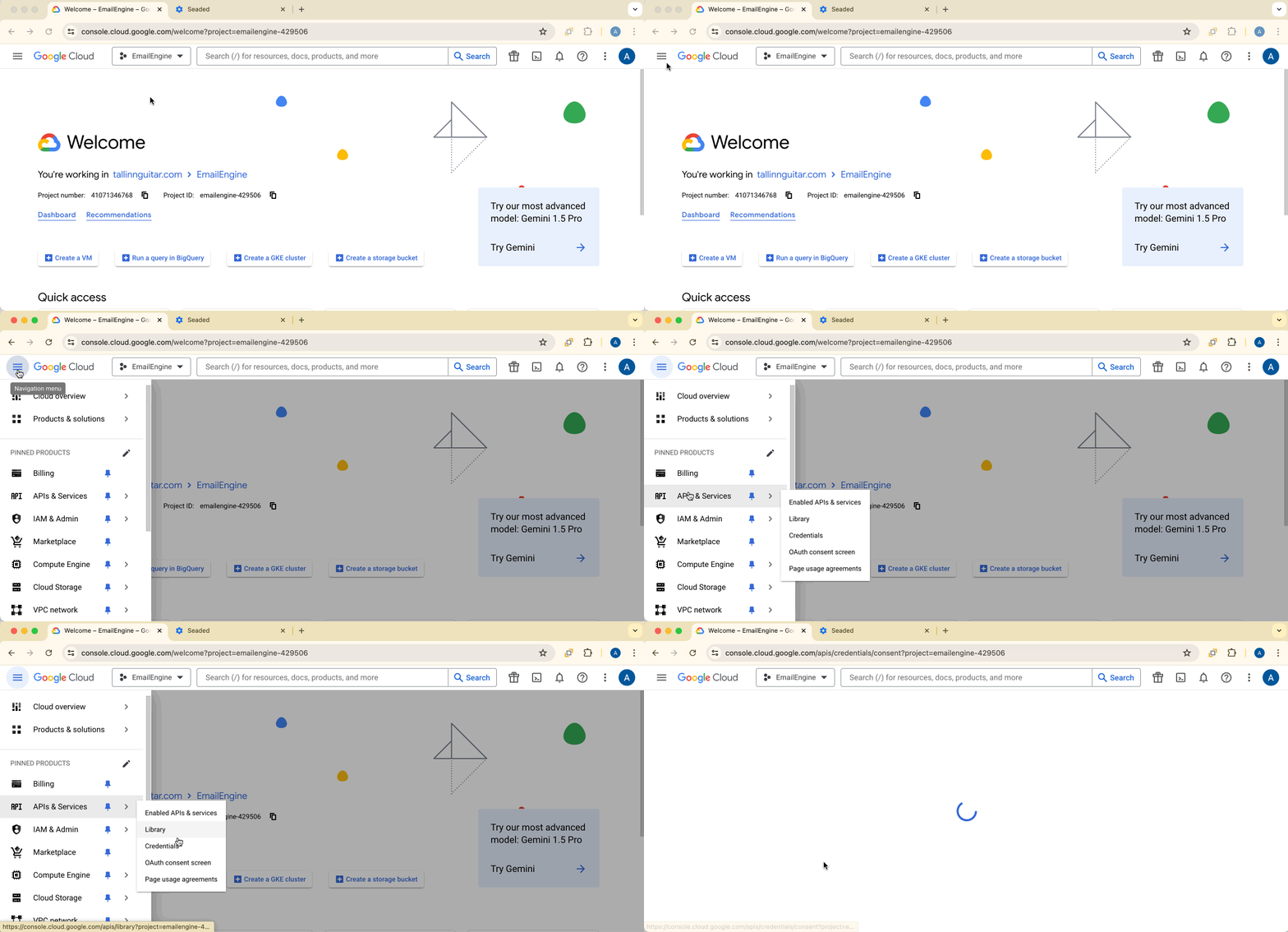
Choose User Type
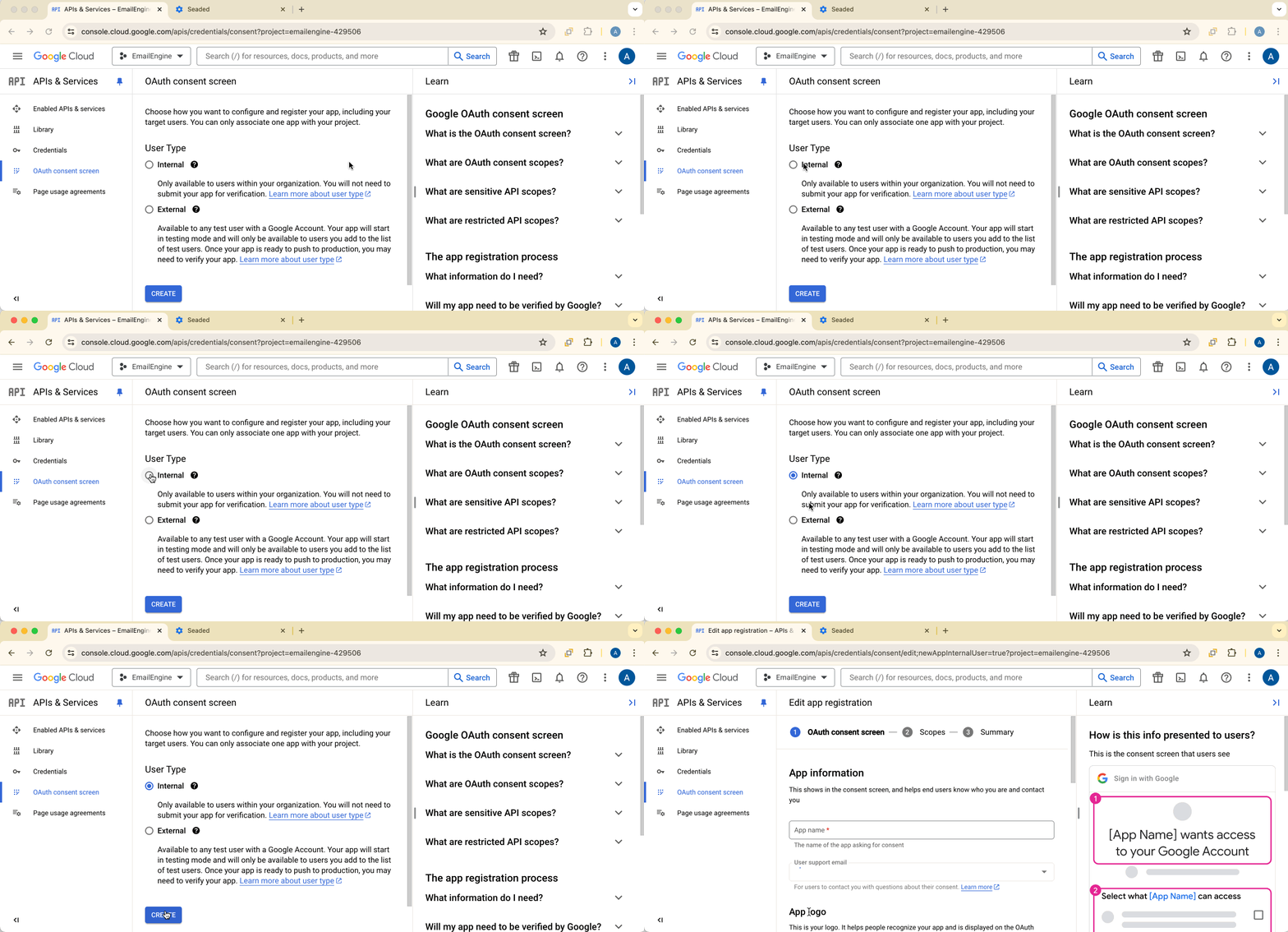
Internal:
- Only accounts from your Google Workspace organization
- No verification process required
- Best for testing and enterprise apps
External:
- Any Gmail user can authenticate
- Requires verification for production
- Best for public applications
For this tutorial, we'll use Internal. For production, select External and complete Google's verification process.
Fill in App Information
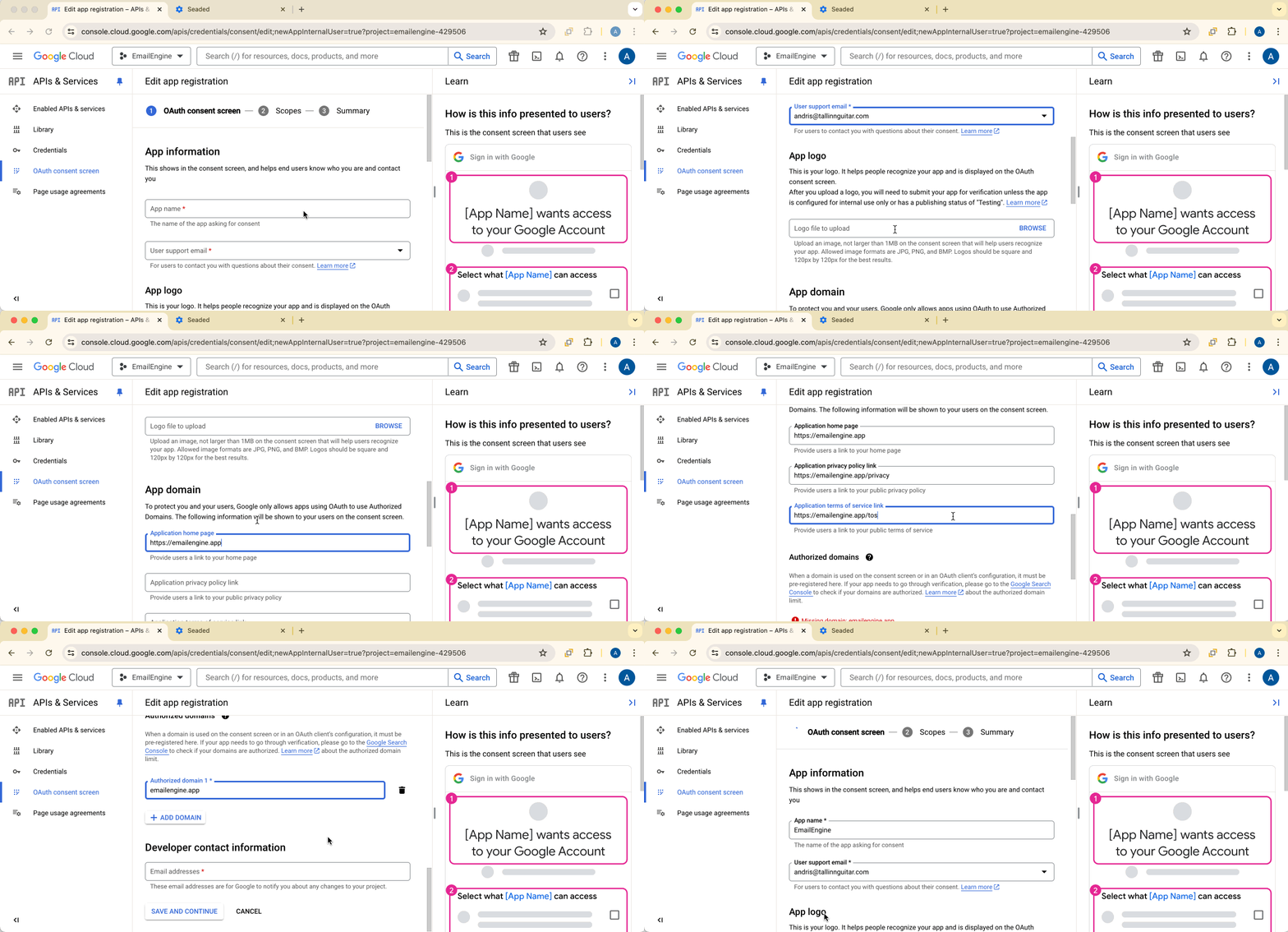
Provide:
- App name: "EmailEngine" (or your application name)
- User support email: Your email address
- Developer contact information: Your email address
- Application home page: Your EmailEngine instance URL
Click Save and continue.
Configure Scopes
Click Add or remove scopes and find gmail.modify in the list.
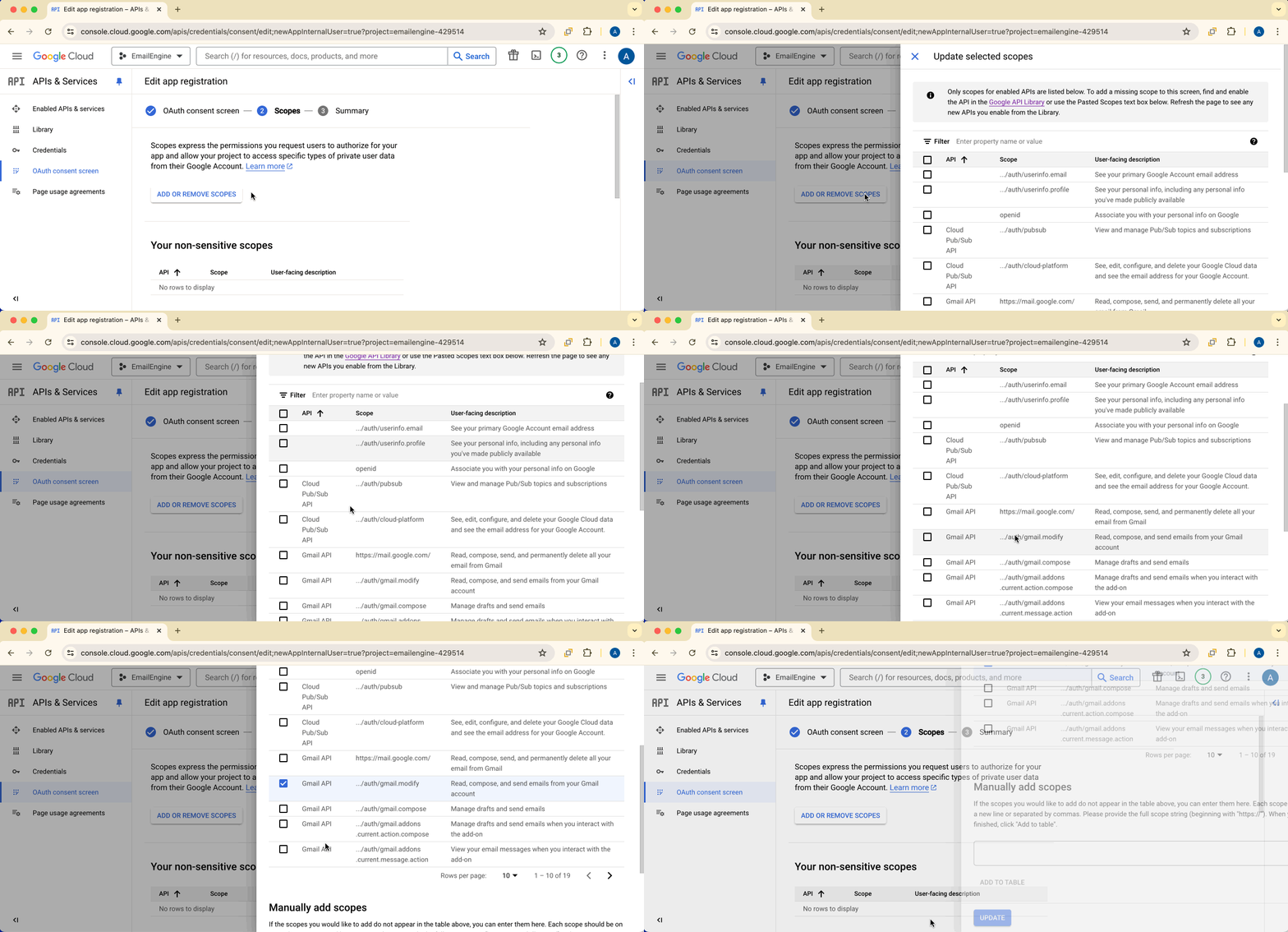
Check gmail.modify and click Update.
The gmail.modify scope is required for Gmail API access. This is different from the https://mail.google.com/ scope used for IMAP/SMTP.
If Google's verification process determines you need different scopes (e.g., gmail.readonly, gmail.send, gmail.labels), see the Custom Scopes section below.

Scroll down and click Save and continue to finish consent screen setup.
Step 4: Create OAuth Credentials for User Authentication
Navigate to APIs & Services > Credentials.
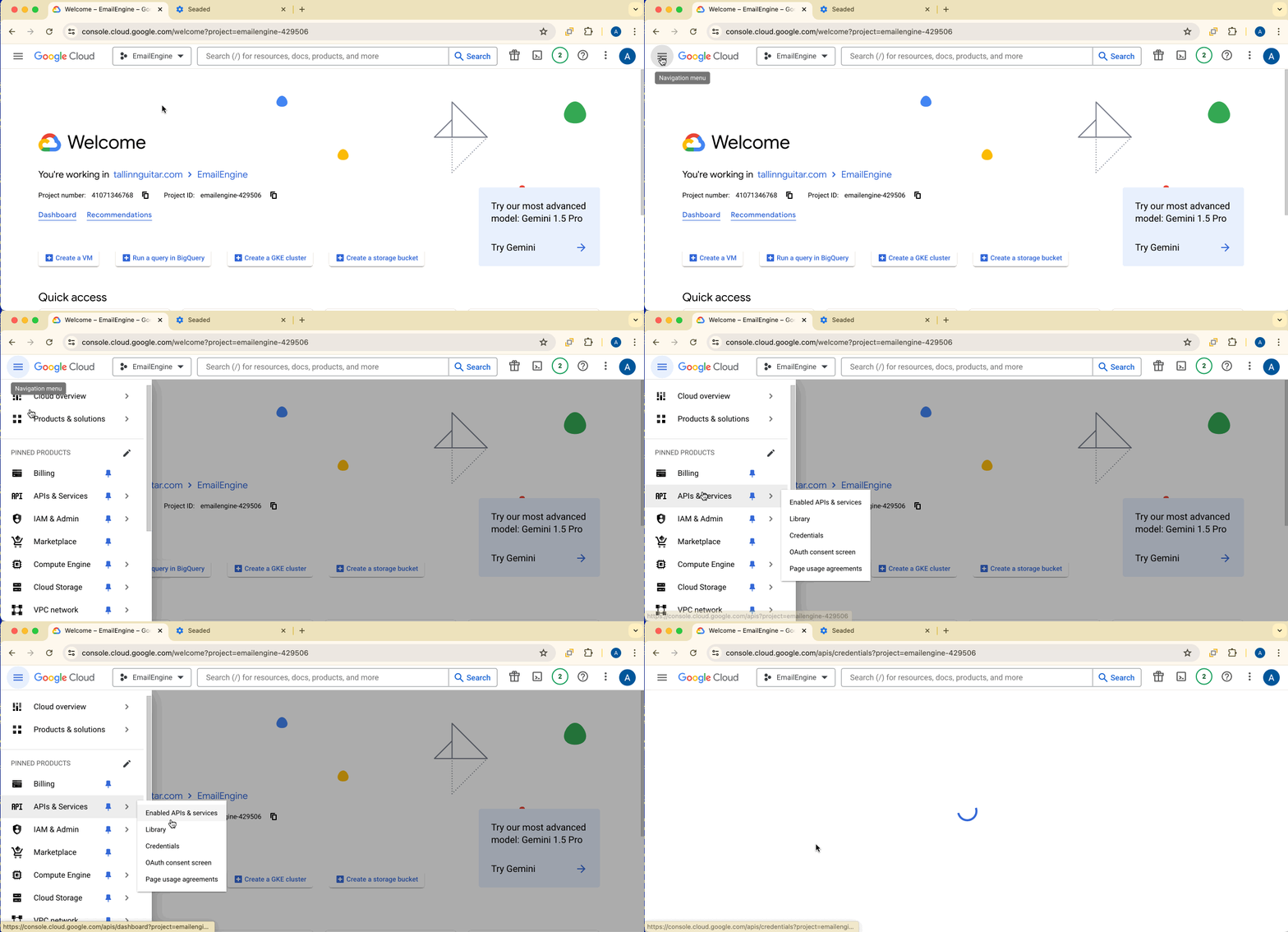
Click Create credentials > OAuth client ID.

Configure OAuth Client
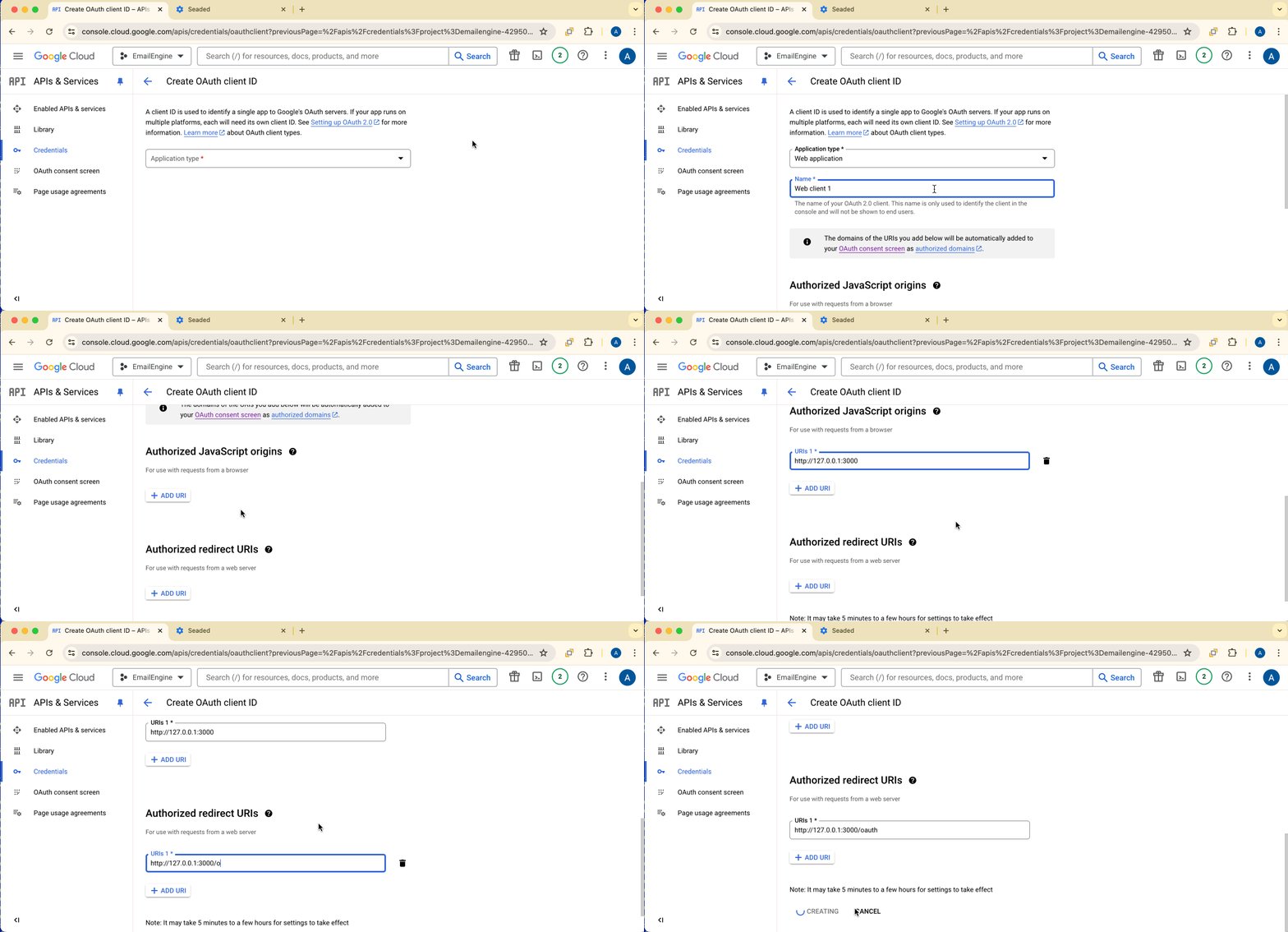
Application type: Web application
Authorized JavaScript origins: Add your EmailEngine URL:
http://127.0.0.1:3000(for local testing)https://emailengine.example.com(for production)
Authorized redirect URIs:
Add your EmailEngine URL with /oauth:
http://127.0.0.1:3000/oauthhttps://emailengine.example.com/oauth
Click Create.
Download User Credentials
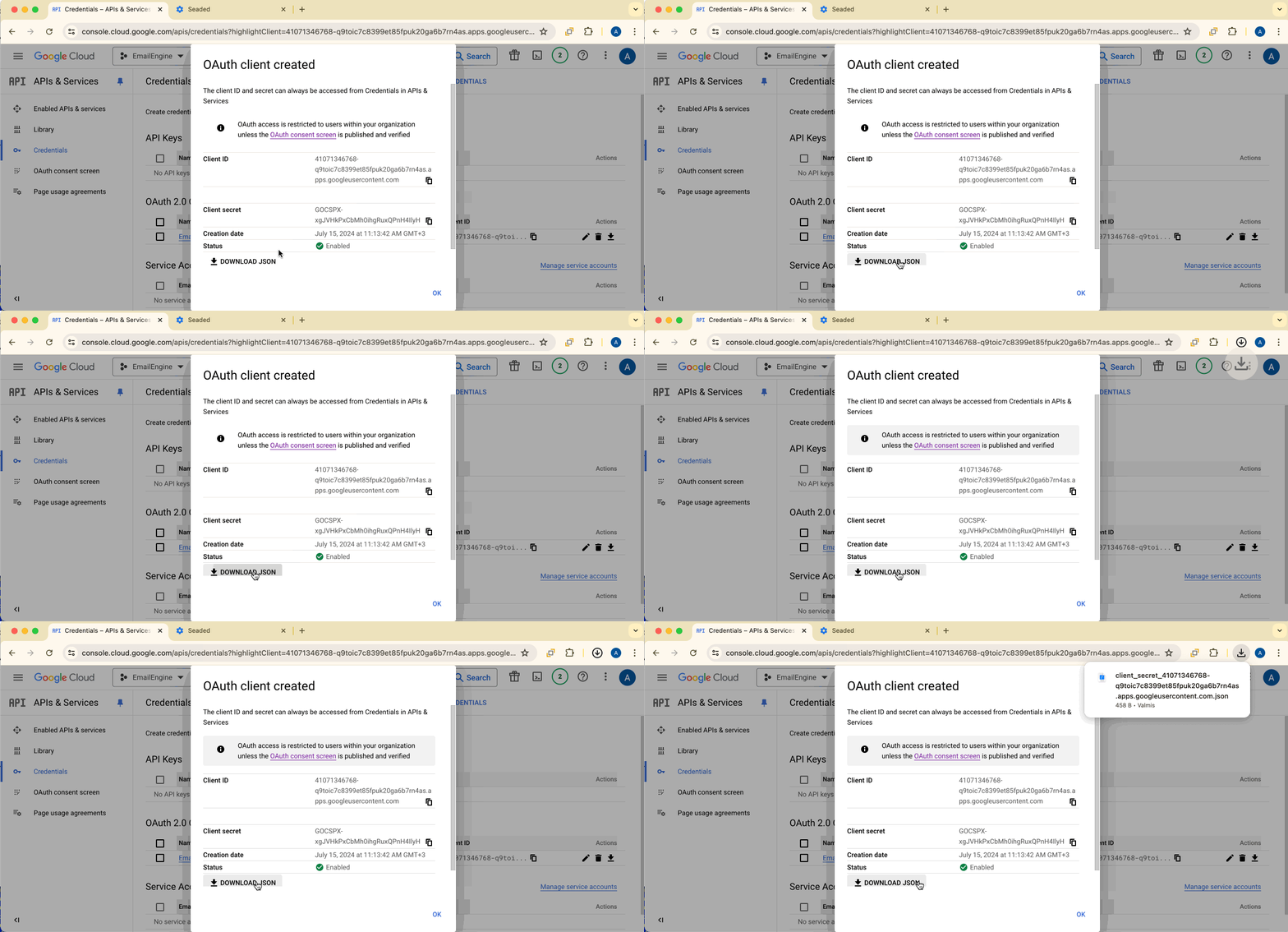
Click the Download button. Save this file - you'll need it to configure EmailEngine.
- User OAuth credentials: Filename starts with
client_secret_ - Service account credentials: Uses service account name prefix
Keep these separate - you need both.
Step 5: Create Service Account for Pub/Sub Management
EmailEngine needs a service account with permissions to manage Pub/Sub topics and subscriptions.
On the Credentials page, navigate to the Service Account management page.

Click Create Service Account.
Configure Service Account
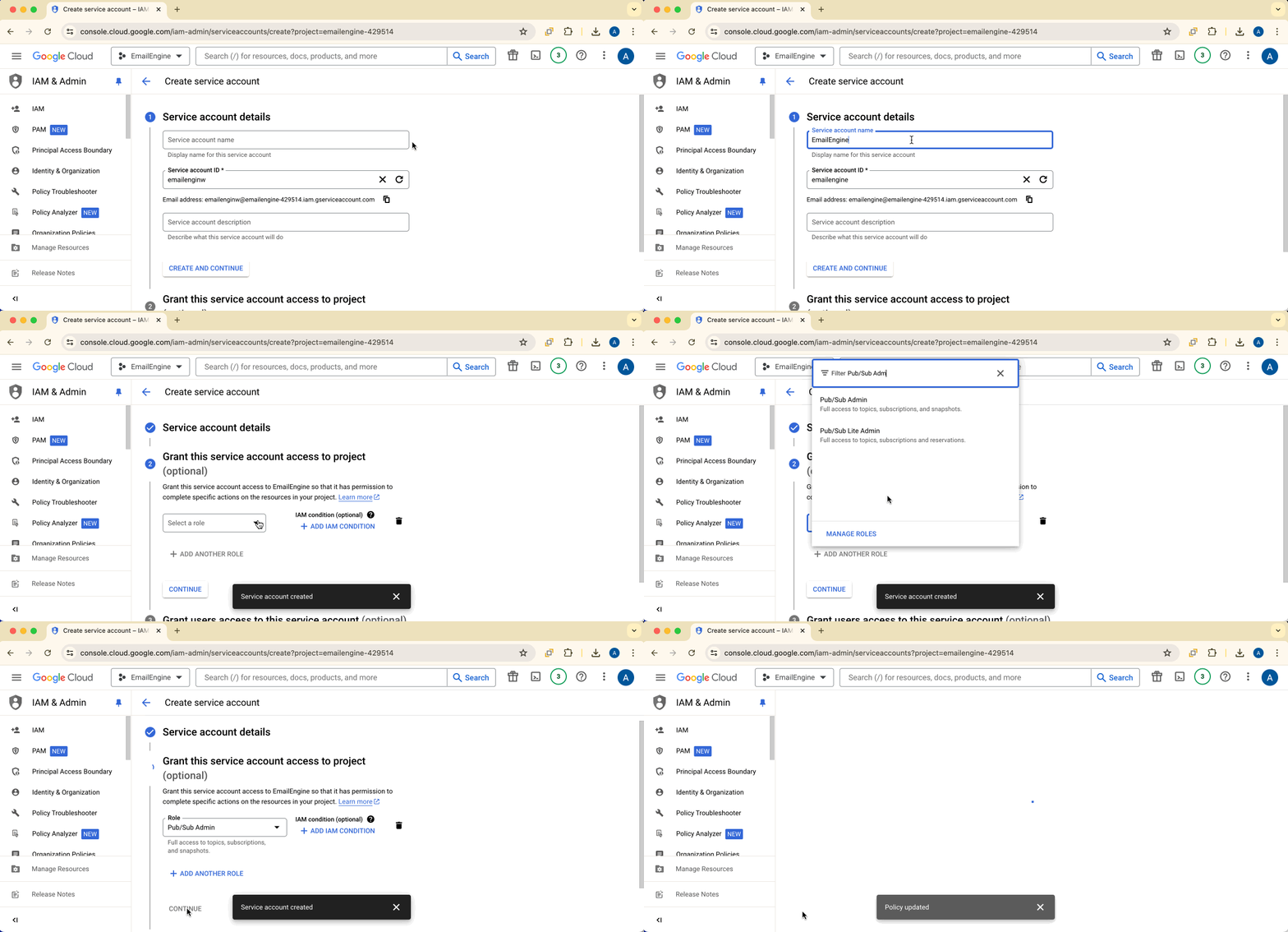
Service account name: Choose any name (e.g., "EmailEngine Pub/Sub Manager")
Role: Select Pub/Sub Admin (or a compatible role that allows managing Pub/Sub queues, topics, and IAM policies)
The service account must have permissions to:
- Create and delete Pub/Sub topics
- Create and delete Pub/Sub subscriptions
- Manage IAM policies for Pub/Sub resources
The "Pub/Sub Admin" role provides all necessary permissions.
Click Create to finish.
Generate Service Account Keys
Once created, select the service account and navigate to Manage Keys.
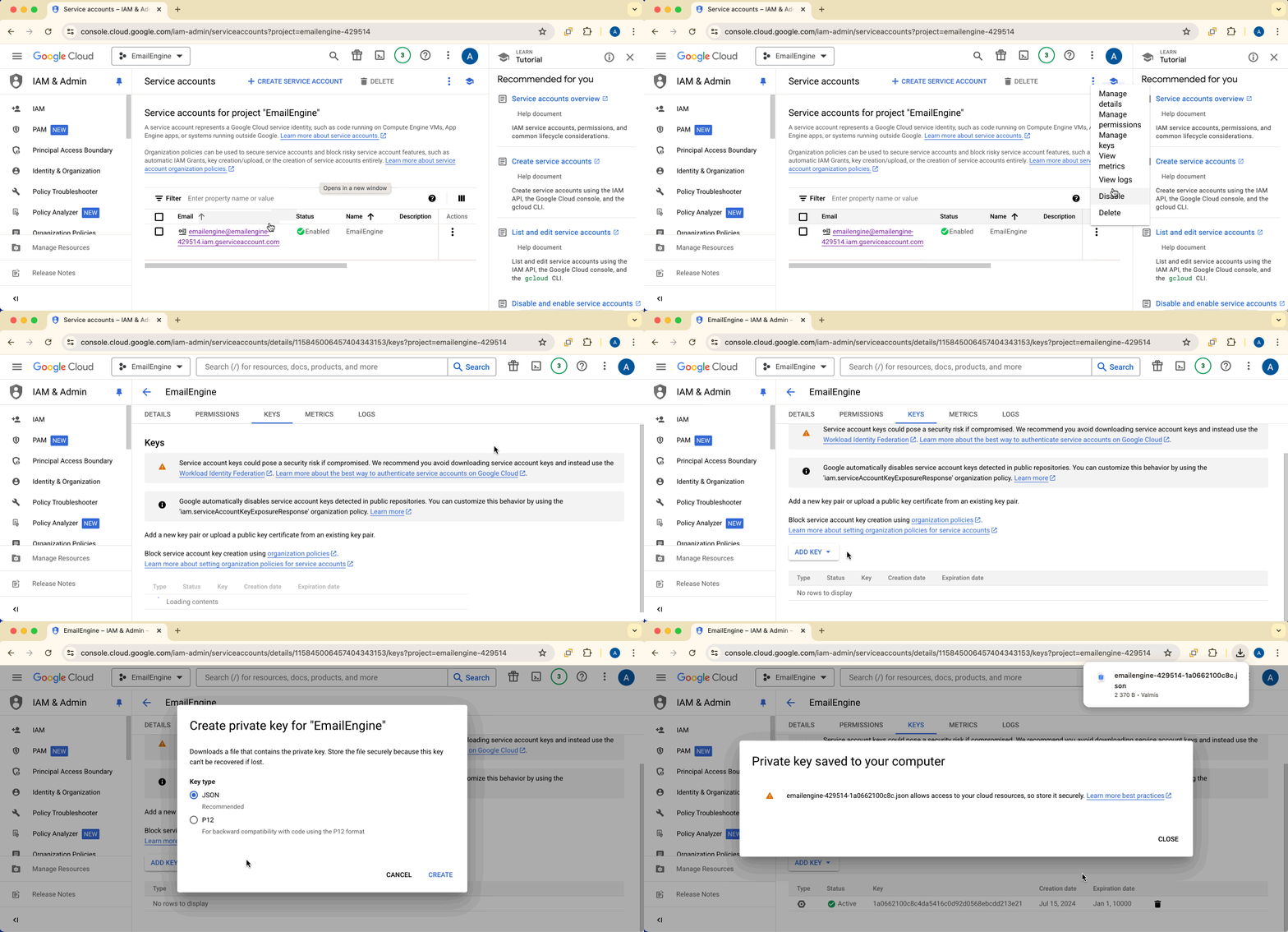
Click Add key > Create new key > JSON format.
The key file will automatically download. Store it securely - you cannot download it again.
Step 6: Configure EmailEngine - Service Account
Now configure EmailEngine to use the service account for managing webhooks.
Add Gmail Service Account Application
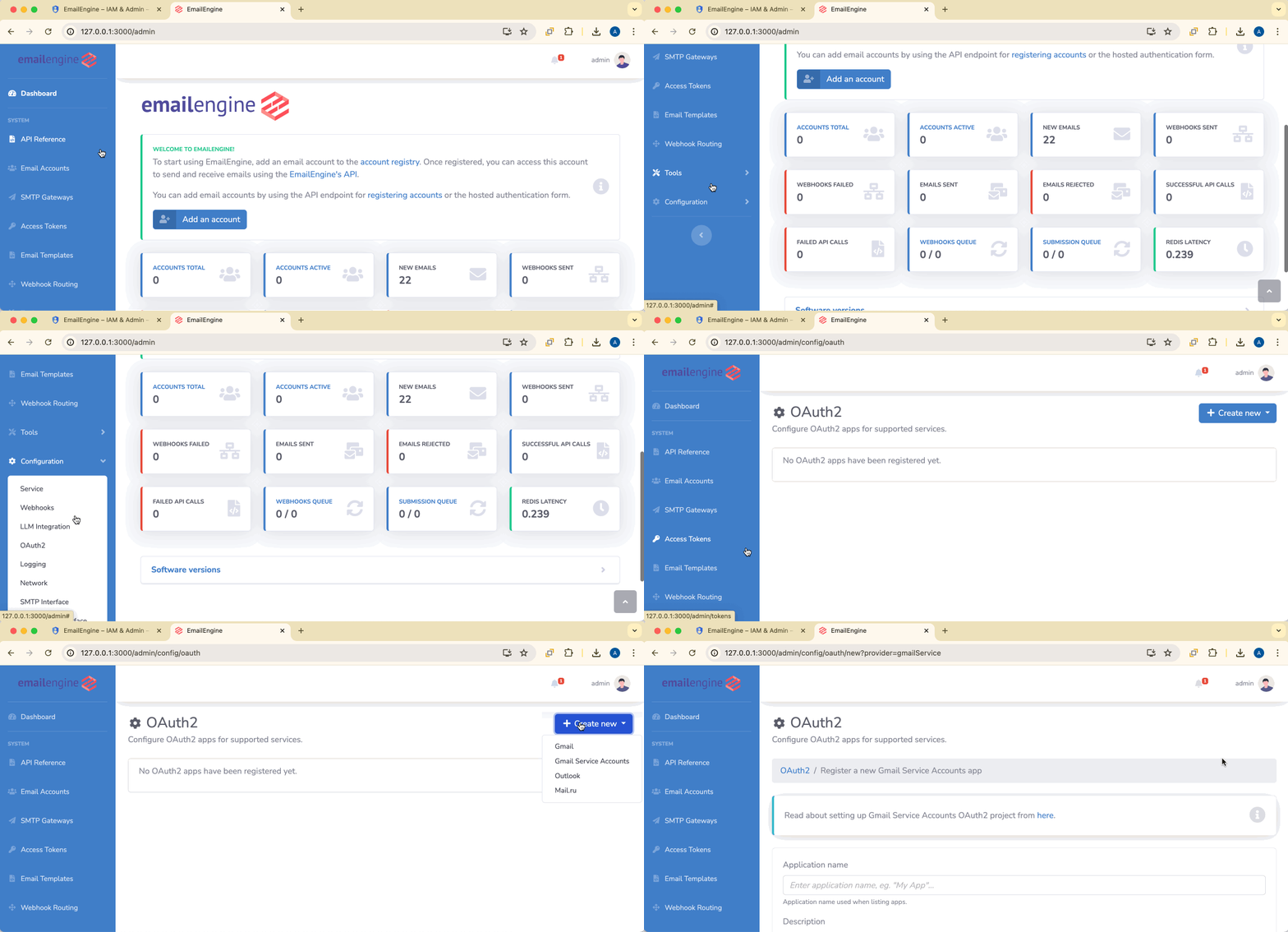
- Open EmailEngine dashboard
- Navigate to Integrations > OAuth2 Apps
- Click the Create OAuth2 app dropdown
- Select Gmail Service Accounts
Configure Service Account Settings
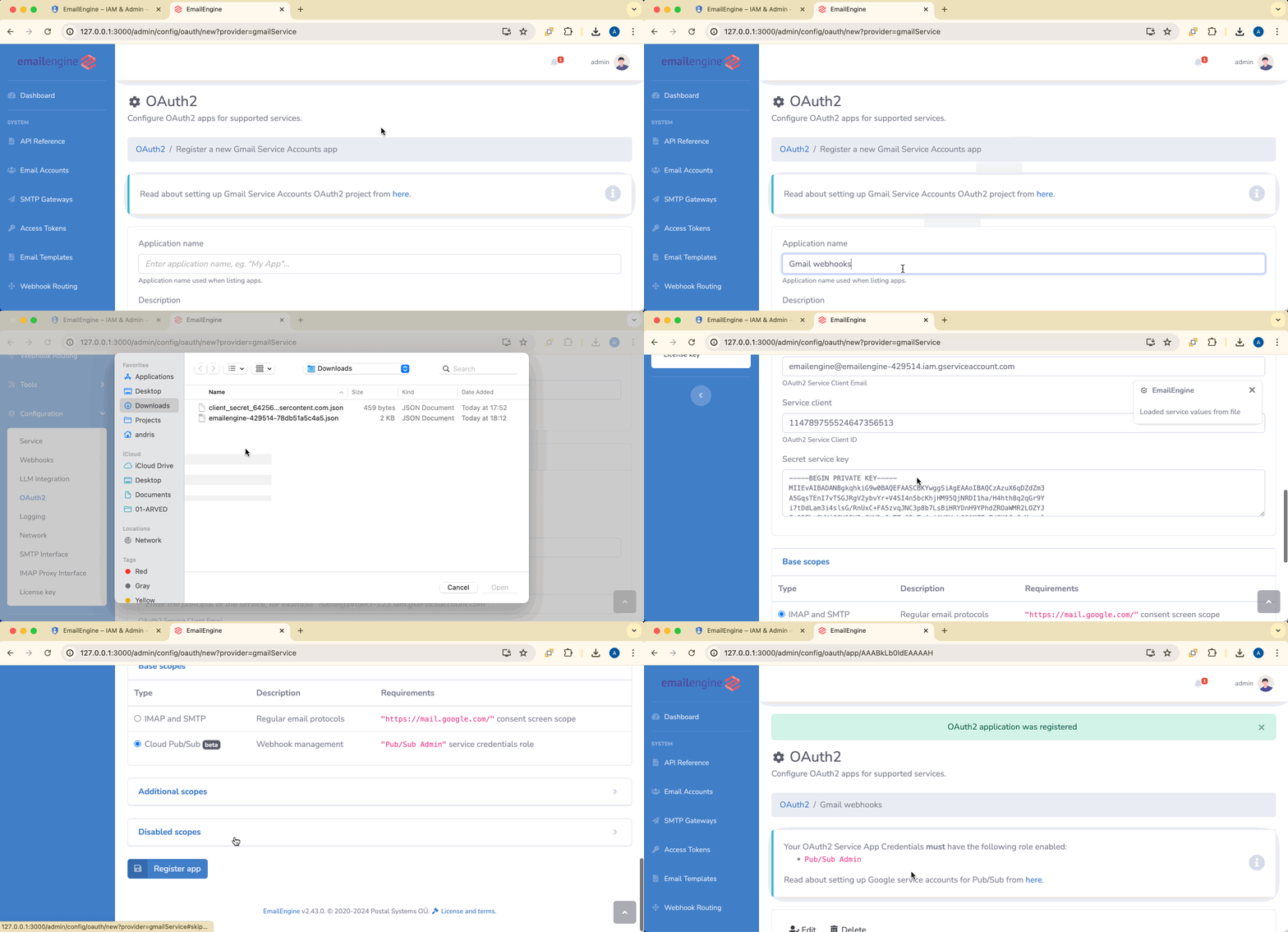
Application name: Give it a descriptive name (e.g., "Gmail Pub/Sub Manager")
Base scope: Select the Cloud Pub/Sub tab
Credentials: Keep the Service account key authentication method, click Load from the key file... and select the service account JSON file (not the user OAuth credentials)
Make sure you're uploading the service account credentials file, not the user OAuth credentials file. You can tell them apart:
- Service account: Filename uses service account name prefix
- User OAuth: Filename starts with
client_secret_
Click Register app to save. Registering the app creates the Pub/Sub topic and subscription in your project; a setup failure is recorded on the app and shown under Gmail Subscriptions.
Step 7: Configure EmailEngine - User OAuth
Now configure the user OAuth application that will authenticate Gmail accounts.
Add Gmail OAuth2 Application
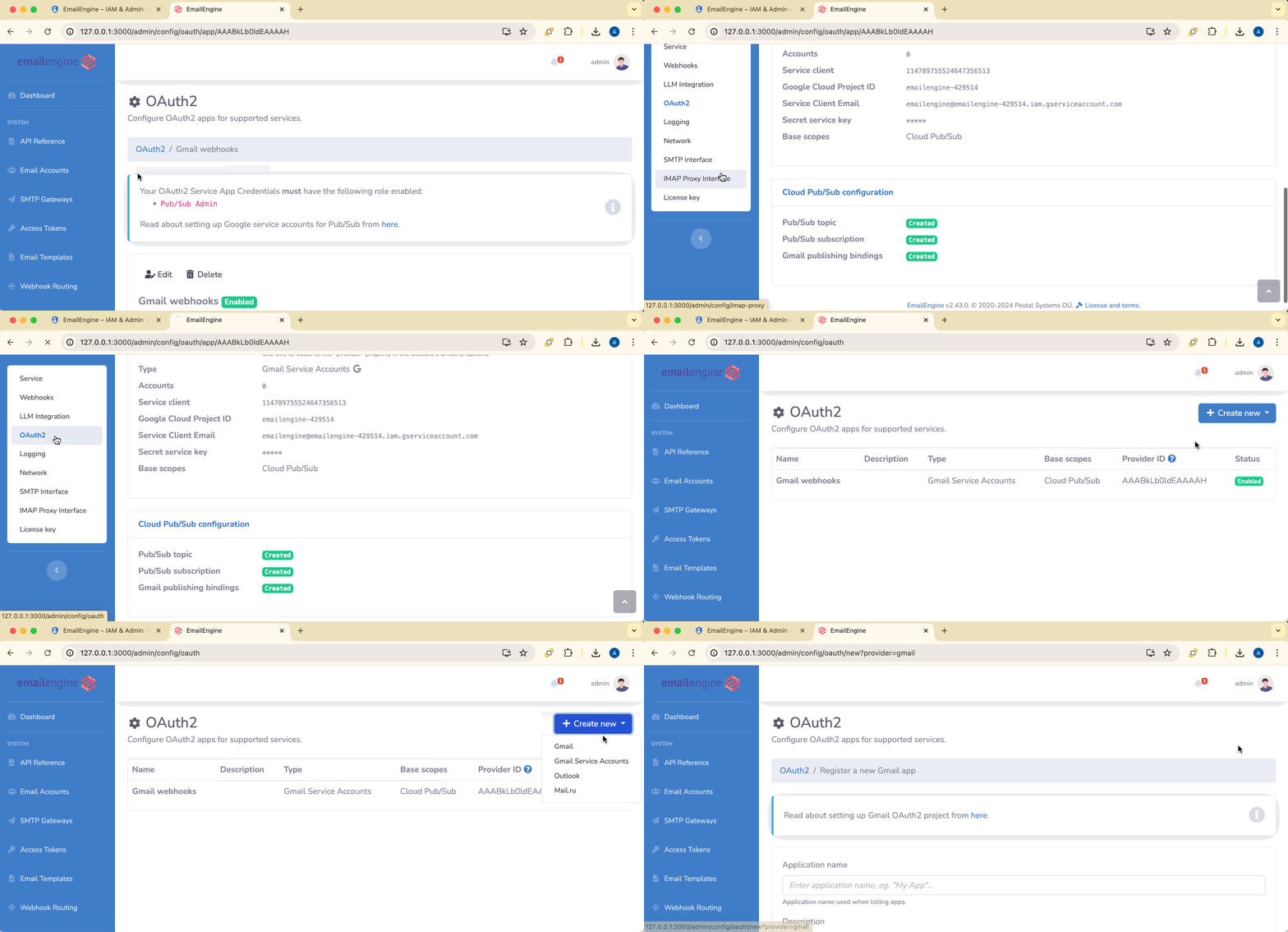
- Navigate to Integrations > OAuth2 Apps
- Click the Create OAuth2 app dropdown
- Select Gmail
Configure OAuth2 Settings
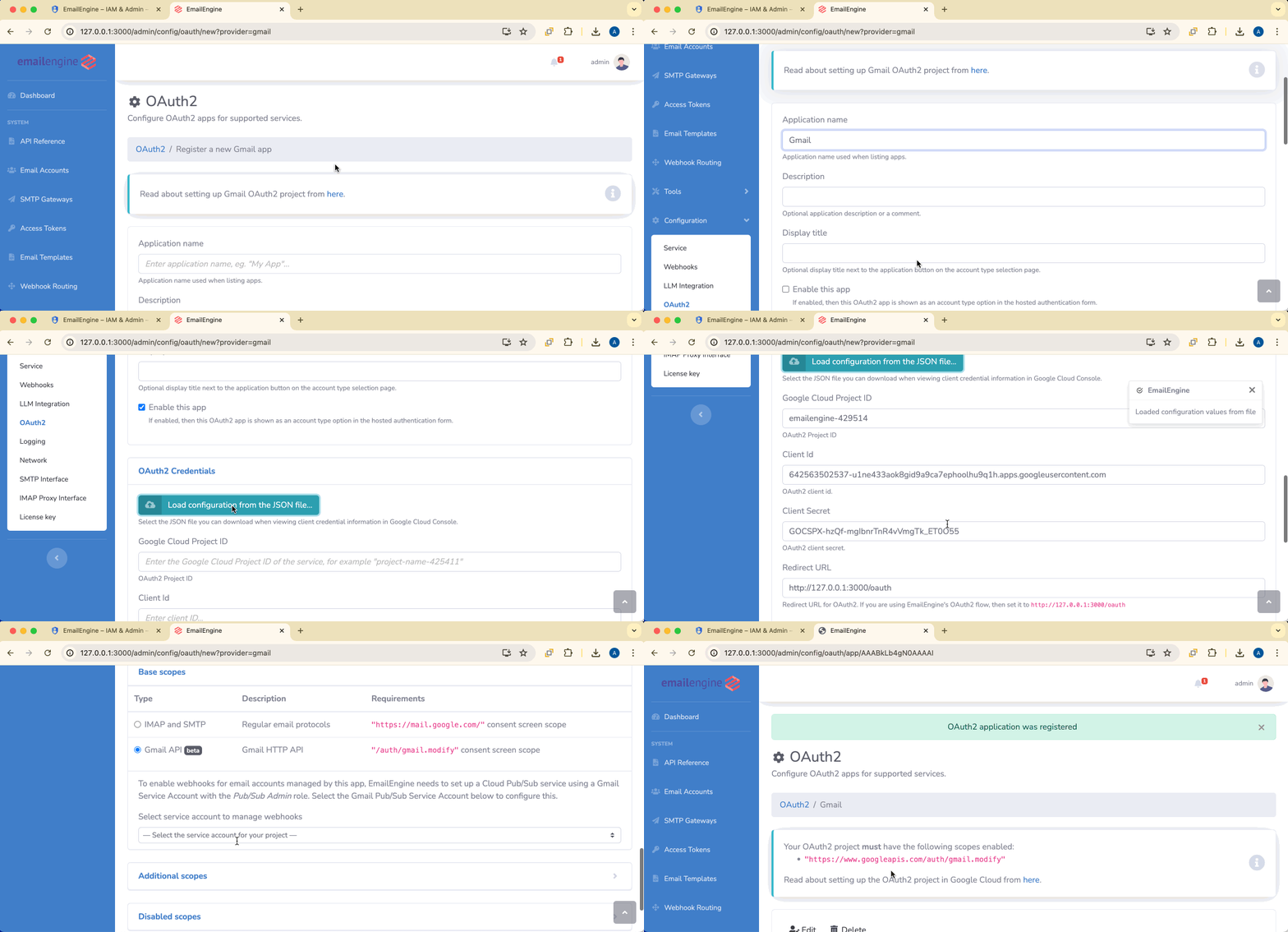
Application name: Give it a descriptive name (e.g., "Gmail API OAuth2")
Enable this app: Leave this box checked (it is checked by default for a new app)
Base scope: Select the Gmail API tab
Pub/Sub app for real-time notifications: In the Gmail API panel, select the service account app you created in Step 6. Once the Google Cloud project ID is known (loading the client JSON file below fills it in), only Pub/Sub apps from that project can be selected
Credentials: Click Load from the client JSON file... and select the user OAuth credentials file (the one whose name starts with client_secret_)
Redirect URL: Verify this matches exactly what you entered in Google Cloud Console
The form also offers the Accept only Google Workspace accounts and Display title fields, described under Configure OAuth2 Settings on the IMAP/SMTP page.
This selector is marked as optional in the UI. It tells EmailEngine which credentials to use for managing Pub/Sub resources. Without it, EmailEngine registers no Gmail watch and instead polls each account for changes about every 10 minutes, so webhooks still fire, with up to that much delay. Send-only accounts never need it.
Configuring Limited Scopes
If Google requires you to use limited scopes during verification, you can configure EmailEngine to request only the scopes you need. The Scope preset buttons in the Gmail API panel of the Base scope card (Full access, Read-only, Read-only + send, Send-only) fill in the Additional scopes and Disabled scopes lists in the Custom scopes section at the bottom of the form.
See the Gmail API Scopes Reference for all supported scope combinations, what each enables in EmailEngine, and detailed setup instructions for both the Web UI and API.
Click Register app to save.
Step 8: Test the Setup
Add a Gmail account to test the complete flow.
Via Hosted Authentication Form
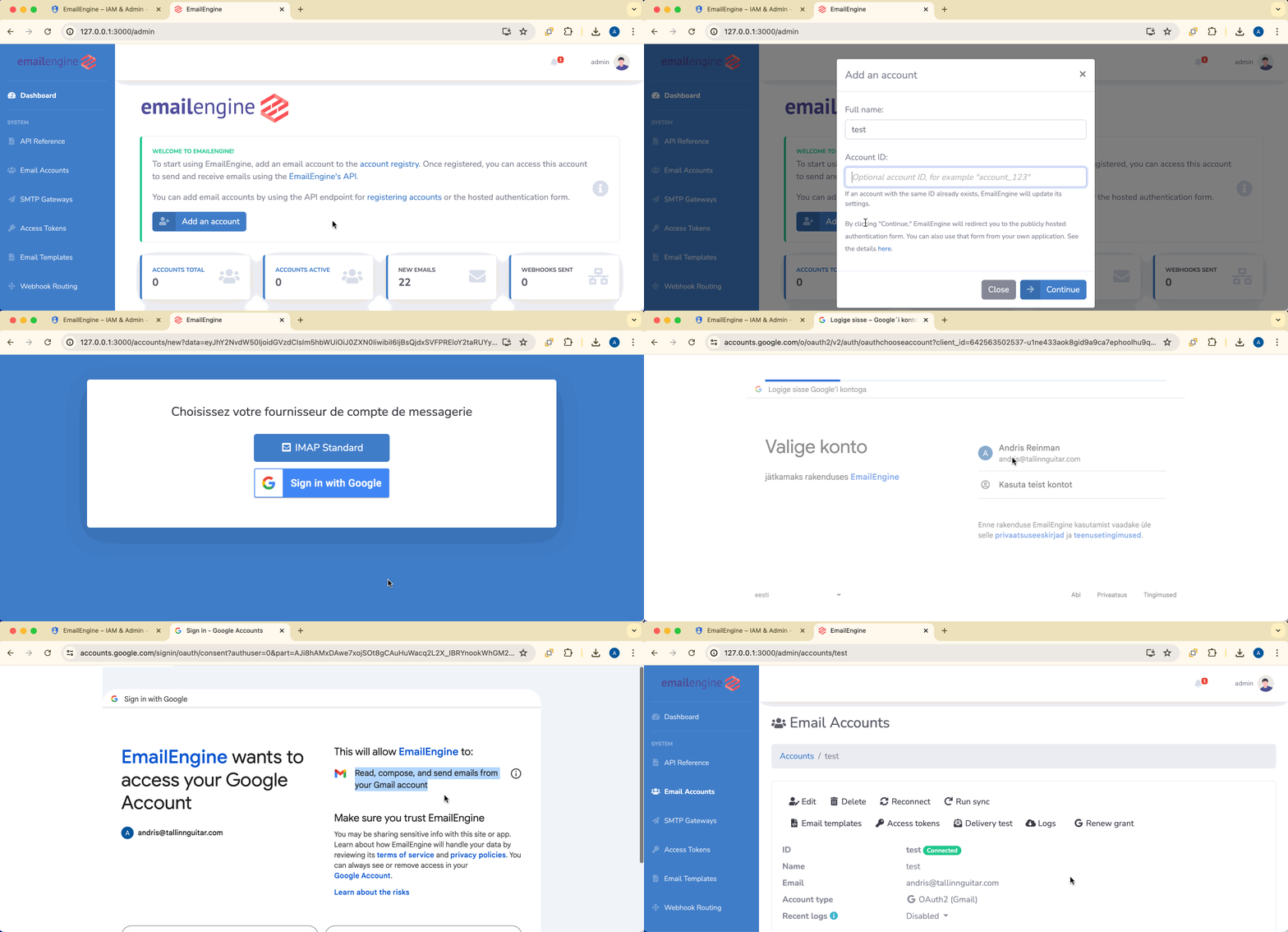
- In EmailEngine, click Add account
- Click Sign in with Google
- Complete the OAuth2 consent flow
- EmailEngine will:
- Store OAuth2 tokens
- Register a Gmail watch that points to the Pub/Sub topic created when the service account app was registered
- Start receiving webhook notifications
Via API
Generate an authentication form URL:
curl -X POST https://emailengine.example.com/v1/authentication/form \
  -H "Authorization: Bearer YOUR_ACCESS_TOKEN" \
  -H "Content-Type: application/json" \
  -d '{
    "account": "user123",
    "email": "user@gmail.com",
    "redirectUrl": "https://myapp.com/settings"
  }'
Direct the user to the returned URL.
Verify Setup
Check the account status in EmailEngine:
- Account should enter "connected" state
- In Google Cloud Console > Pub/Sub, you should see:
- The topic and subscription that EmailEngine created when you registered the service account app
Using Custom Scopes
If you have a public OAuth2 application and Google requires narrower scopes than gmail.modify, you can configure custom scopes using the Additional scopes and Disabled scopes fields in the Custom scopes section of the OAuth2 application form.
See the Gmail API Scopes Reference for all supported scope combinations with setup instructions for both the Web UI and API, EmailEngine feature availability for each configuration, and Google verification requirements.
You must add gmail.modify to Disabled scopes when using custom scopes. Otherwise, EmailEngine will request both gmail.modify AND your additional scopes, which defeats the purpose of using limited scopes.
Production Considerations
Publishing the App
An app that any Gmail user can authorize has to pass Google's app verification. The default gmail.modify scope is restricted, so the verification includes a security assessment; gmail.send alone is only sensitive and needs brand verification. An internal app (Google Workspace only) and an app in testing mode need no verification, with the limits described under Gmail account types. The tiers and the scope combinations that fit each are on the Gmail API Scopes Reference.
Managing Pub/Sub Resources
EmailEngine automatically:
- Creates one Pub/Sub topic and subscription pair per Pub/Sub service account app, shared by all accounts that use it (created when the app is registered)
- Registers a Gmail watch (
users.watch) for each account, pointing at the shared topic - Renews each Gmail watch once it is more than a day old, checking hourly (watches expire after about 7 days). A failed renewal is retried on the next hourly check, and the watch state is reported as
gmailWatchin the account response (both since v2.80.0); see Watch state - Recreates the Pub/Sub subscription automatically if Google deletes it due to inactivity (default TTL 31 days, configurable via
gmailSubscriptionTtl) - Deletes the topic and subscription it created when the service account app is deleted - not when individual accounts are removed. A topic or subscription that already existed under the configured name is adopted rather than created, and is left in place
You can:
- Monitor Pub/Sub usage in Google Cloud Console
- Set up billing alerts for Pub/Sub costs
- View subscription status in EmailEngine under Integrations > OAuth2 Apps > Gmail Subscriptions, or with
GET /v1/pubsub/status
See Gmail Pub/Sub Integration for the resource names, the TTL setting, and troubleshooting.
Consent, Tokens and Recovery
What happens when a user unticks a permission on Google's consent screen is under Granular consent. Token refresh, the conditions under which Google invalidates a refresh token, what a failed refresh does to the account and how a switched-off account comes back are on OAuth2 Token Management.
See Also
- Gmail over IMAP - The other Gmail backend, and how the two differ
- Gmail API scopes - Which features each scope combination supports
- Gmail Pub/Sub - The push subscription this setup depends on
- Google service accounts - Workspace access without per-user consent
- Account troubleshooting - When consent or sync fails